April 1, 2026Dan Rodney/7 min read

Prototypes Triggers: After Delay (Time Interactions)

Master Advanced Figma Prototyping with Interactive Animations

Core Interaction Types You'll Master

Drag Interactions

Learn to create intuitive swipe-to-reveal functionality that responds to user gestures with smart animations and threshold-based snapping behavior.

Time Interactions

Implement automatic behaviors using after delay triggers to create seamless user experiences without additional user input required.

Keystroke Controls

Add keyboard shortcuts and gamepad controls to provide power users with efficient interaction methods and undo functionality.

Topics Covered in This Figma Tutorial:

Master three essential interaction types: drag interactions for intuitive gesture-based controls, time-based interactions for automated transitions, and keystroke shortcuts for power-user functionality.

Exercise Preview

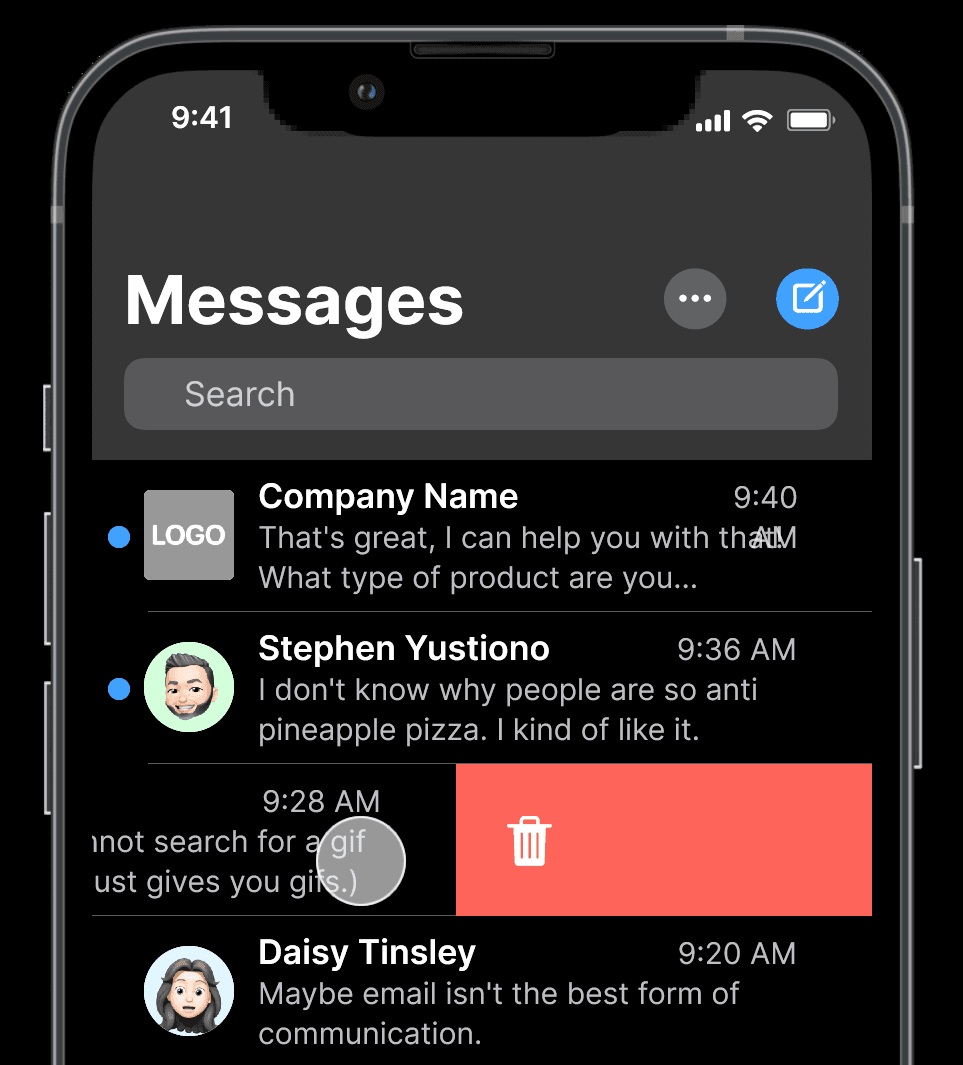
preview messages

Exercise Overview

In this hands-on exercise, you'll build a sophisticated "swipe-to-delete" feature for a Messages app interface—the same interaction pattern millions of users rely on daily across iOS applications. This tutorial combines three fundamental prototyping techniques: drag interactions for the swipe gesture, timed transitions for automatic cleanup animations, and keyboard shortcuts for undo functionality. By the end, you'll have created a production-ready prototype that demonstrates professional-level interaction design to both stakeholders and development teams.

Component Limitations

This drag-to-delete functionality cannot be built entirely into a component, so we'll prototype it on a single message to demonstrate the interaction pattern for clients and developers.

Opening the File

  1. In Figma, navigate to your file browser if you're not already there:

    • In the Desktop app: Click the home tab Home tab (Mac users can also choose File > Open File Browser).
    • In the Web app: At the top left, click the Main menu button main menu and choose Back to files.
  2. To import your local exercise file, click import file Import file (located near the top right of your interface).
  3. Navigate to Desktop > Class Files > Figma Class and double-click Messages App.fig to select it.

    Once Figma completes the file upload, click Done and double-click the imported file to open your working document.

Getting Started

The visual design and layout work is already complete, allowing us to focus entirely on prototyping the interaction behavior. We'll implement the swipe-to-delete functionality specifically for the Erin Steed message row. While this approach targets a single message rather than building a reusable component system, it's the most effective way to demonstrate complex interaction patterns to clients and development teams during the design validation phase.

  1. Select the red trash can graphic by clicking directly on it.
  2. Hold Shift and click on the Erin Steed message row positioned behind the trash icon.
  3. Press Cmd–G (Mac) or CTRL–G (Windows) to group these elements together.
  4. The red delete indicator must begin in a hidden state to create the reveal effect during the swipe interaction.

    Double-click the red trash can graphic to select it individually within the group.

  5. With the trash icon selected, navigate to the Design panel and set the X position to 390 (matching the frame width). This positions the delete indicator completely outside the visible frame area.
  6. Click an empty area of the canvas to deselect all objects.
  7. Click on the frame name Messages at the top-left of the frame to select the entire frame.
  8. Create a duplicate by pressing Cmd–D (Mac) or CTRL–D (Windows).
  9. Rename the duplicated frame by double-clicking Messages and changing it to Delete.
  10. Drag the Delete frame slightly downward by grabbing its name label. This separation will make it easier to distinguish between interaction states during the prototyping process.

  11. Within the Delete frame, select the Erin Steed message row.
  12. In the Design panel, set the X position to -390 (note the negative value). This shifts the message row left, fully revealing the red delete indicator underneath.

    You now have two frames representing the before and after states of your swipe interaction: the initial Messages frame shows the default state, while the Delete frame shows the fully-swiped state with the delete option visible.

Frame Setup Process

1

Group Elements

Select the red trash can and Erin Steed message row, then group them together for coordinated movement during the drag interaction.

2

Hide Delete Bar

Position the red trash can graphic at X: 390 (frame width) to hide it completely outside the visible frame area initially.

3

Create End State

Duplicate the Messages frame to create a Delete frame, then move the message row to X: -390 to reveal the full red delete bar.

Adding a Drag Interaction

Now we'll connect these frames with Figma's drag interaction system to create the swipe gesture functionality.

  1. Switch to prototyping mode by clicking Prototype in the right panel header.
  2. In the original Messages frame, select the Erin Steed message row.
  3. Locate the blue connection node that appears to the right of the selected element and drag it to connect with the Delete frame.
  4. Configure the interaction in the Interaction details panel:

    • Change the trigger from On tap to On drag.
    • Under the Animation section, ensure Smart animate is selected to create smooth transitions between the frame states.
  5. Test your interaction by clicking Present present at the top-right, or use the keyboard shortcut Cmd–Option–Return (Mac) or CTRL–ALT–Enter (Windows).
  6. In the preview, drag from right to left across the Erin Steed message. Notice how Figma's drag interaction includes built-in spring-back behavior: short drags return to the original state, while longer drags commit to showing the full delete interface.
  7. Close the presentation to return to your design canvas.

Drag Interaction Setup

0/4

Adding a Time Interaction (After Delay)

Professional swipe-to-delete implementations automatically clean up after user actions. We'll use Figma's time-based interactions to create this automated behavior, eliminating the need for additional user input to complete the deletion sequence.

  1. Select the Delete frame by clicking its name label.
  2. Duplicate this frame using Cmd–D (Mac) or CTRL–D (Windows).
  3. Rename the new frame from Delete to Done by double-clicking the frame name.
  4. Within the Done frame, select the red delete row element.
  5. Configure the deletion animation in the Design panel:

    • Set the H (height) value to 0 to collapse the element vertically
    • Under the Layer section, reduce the Opacity from 100% to 0% for a fade-out effect
  6. To maintain proper list spacing, select the grouped messages below the deleted item and drag them upward while holding Shift to fill the newly created gap.
  7. Return to Prototype mode in the right panel.
  8. Select the Delete frame by clicking its name.
  9. Create a connection by hovering over any frame edge until a blue node appears, then drag it to the Done frame.
  10. Configure the automatic transition in the Interaction details panel:

    • Change the trigger from On tap to After delay.
    • Adjust the delay from 800ms to 1ms (Figma's minimum delay setting) for near-instantaneous execution.
    • Under Animation, change from Instant to Smart animate to create smooth deletion transitions.
  11. Click in an empty canvas area to deselect all elements.
  12. Launch the presentation using the Present button present.
  13. Test the complete interaction: drag right-to-left on the Erin Steed message and release. You should see the red delete option appear, followed immediately by the smooth deletion animation.
  14. Close the presentation to continue building the prototype.

Automatic Behavior with Time Interactions

Time interactions enable automatic actions without user input. Use After delay triggers to create self-executing animations that enhance user experience.

Creating the Auto-Delete Animation

1

Create Final State

Duplicate Delete frame to Done frame, set delete row height to 0 and opacity to 0% for complete removal.

2

Adjust Layout

Move remaining messages up to fill the gap left by the deleted message, maintaining proper spacing.

3

Configure Timing

Set After delay trigger to 1ms (minimum allowed) for near-instantaneous execution with Smart animate.

Adding a Keystroke

Power users expect undo functionality, especially for destructive actions like message deletion. We'll implement this using Figma's keyboard interaction system, creating a complete interaction loop that matches user expectations from production applications.

  1. Select the Done frame by clicking its name label.
  2. Create a connection by hovering over any frame edge until the blue node appears, then drag it to connect with the original Messages frame.
  3. Configure the undo interaction in the Interaction details panel:

    • Change the trigger from On tap to Key/gamepad.
    • Click Click to select and press the standard undo shortcut: Cmd–Z (Mac) or CTRL–Z (Windows).
    • Under Animation, ensure Smart animate is selected for smooth restoration transitions.
  4. Click in an empty canvas area to deselect all elements.
  5. Open the presentation using the Present button present.
  6. Execute the complete interaction sequence: drag right-to-left on the Erin Steed message to trigger deletion.
  7. Once the message disappears, press Cmd–Z (Mac) or CTRL–Z (Windows) to restore it. The message should smoothly animate back into place, completing your interaction loop.
  8. Close the presentation. Your swipe-to-delete prototype is now complete with professional-grade interaction patterns.

Keystroke Interaction Benefits

Power User Efficiency

Keyboard shortcuts provide experienced users with faster interaction methods, improving overall workflow efficiency and user satisfaction.

Undo Functionality

Implementing standard undo commands like Cmd-Z gives users confidence to perform actions knowing they can easily reverse mistakes.

Professional UI Resources

This Messages app interface is built using Apple's official Design Templates, which they provide free to accelerate iOS app development workflows. Access the complete library at developer.apple.com/design/resources, where you'll also find UI kits for watchOS, macOS, and tvOS applications.

Since Apple distributes these resources as Sketch files rather than native Figma documents, you'll need to import and convert them. While Figma's conversion process handles most elements accurately, complex symbol structures may require manual cleanup.

For production work with Apple's UI kits, download and install the San Francisco (SF) font family from developer.apple.com/fonts. This system font ensures your designs match iOS applications precisely. We've substituted an alternative font in this exercise to avoid font-missing errors, but authentic Apple interface design requires the official typeface.

Key Takeaways

1Drag interactions require setting up initial and end state frames with proper element positioning outside visible areas
2Smart animate provides smooth transitions between prototype states when elements have matching properties
3After delay triggers enable automatic behaviors with timing as short as 1ms for near-instantaneous execution
4Complex interactions like drag-to-delete cannot be fully componentized and require frame-based prototyping
5Keystroke interactions using Key/gamepad triggers provide power users with efficient keyboard shortcuts
6Proper grouping and positioning of elements is crucial for creating realistic swipe-to-reveal animations
7Apple's official design resources require Sketch-to-Figma conversion and proper font installation
8Threshold-based drag interactions provide natural snapping behavior based on gesture distance

RELATED ARTICLES