April 1, 2026Dan Rodney/6 min read

Auto Layout: Introduction

Master Figma Auto Layout for Professional Design

Key Auto Layout Benefits

Dynamic Spacing

Automatically maintain consistent spacing between elements as you add, remove, or rearrange components. Perfect for responsive design workflows.

Smart Rearrangement

Drag and drop elements within Auto Layout containers while preserving spacing and alignment. Figma intelligently handles the positioning.

Constraint Control

Define how layouts grow and shrink with alignment constraints. Control whether elements expand left-to-right or right-to-left.

Topics Covered in This Figma Tutorial:

Master the fundamentals of efficient layout management: Using Tidy up for Even Spacing, Auto Layout implementation, Alignment Constraints, dynamic Spacing controls, intuitive Rearranging, and seamlessly Adding Items with Auto Layout functionality.

Exercise Preview

preview auto layout

Exercise Focus

This hands-on tutorial uses a Hawaii travel website design to demonstrate real-world Auto Layout applications including navbar spacing, element reordering, and dynamic content management.

Exercise Overview

In this comprehensive exercise, you'll master one of Figma's most powerful features: Auto Layout. This intelligent system transforms how you arrange, reorder, resize, and adjust spacing around design elements, creating flexible layouts that adapt dynamically to content changes. By the end of this tutorial, you'll understand why Auto Layout has become indispensable for modern UI design workflows, enabling you to build responsive components that maintain consistent spacing and alignment across different screen sizes and content variations.

Opening the File

  1. First, we need to access your Figma file browser. If you're not currently viewing the homescreen, navigate there using one of these methods:

    • In the Desktop app: Click the home tab Home tab (Mac users can alternatively choose File > Open File Browser).
    • In the Web app: At the top left, click the Main menu button main menu and select Back to files.
  2. To import your local exercise file, click import file Import file (this appears as an icon near the top right of your interface).
  3. Navigate to Desktop > Class Files > Figma Class and double-click on Hawaii.fig to select it.

    After the file uploads successfully, click Done and double-click on the file thumbnail to open it in the editor.

File Access Methods

1

Desktop Navigation

Click the Home tab or use File > Open File Browser to access the file browser interface

2

Web App Access

Click the Main menu button at top left and select 'Back to files' to return to file browser

3

Import Local File

Navigate to Desktop > Class Files > Figma Class and double-click Hawaii.fig to upload and open

Zooming into Your Selection (Preference)

Before we dive into Auto Layout, let's optimize your workspace for this exercise. The Hawaii file contains a very tall page design, making precise selection work challenging without proper zoom controls. We'll enable a useful preference that automatically zooms to your selected elements, significantly improving your workflow efficiency.

  1. Click the Main menu button main menu and navigate to Preferences. If Keyboard zooms into selection doesn't show a checkmark, click it to enable this time-saving feature.
Essential Workflow Setting

Enable 'Keyboard zooms into selection' in Preferences for efficient navigation on tall pages. This setting is disabled by default but significantly improves design workflow efficiency.

Using Tidy up for Even Spacing

Now we'll explore Figma's Tidy up feature, which serves as the foundation for Auto Layout. This intelligent tool automatically distributes spacing between selected elements, creating the uniform alignment necessary for Auto Layout to function optimally.

  1. Select any object at the top of the page (the specific element doesn't matter for this step).
  2. Reset your zoom to 100% by pressing Shift–0.
  3. If necessary, scroll until you can clearly see the navigation text at the top of the page.
  4. Focus on the navbar elements by clicking on Maui in the navigation bar.
  5. While holding Shift, click on the remaining navigation items: Oahu, Kauai, and Big Island. This creates a multi-selection.
  6. Zoom to your selection by pressing Shift–2.
  7. Notice that Auto Layout doesn't yet appear in the Design panel. This is because the spacing between elements isn't uniform yet. Let's fix this.

    Hover over the selected text elements and click the Tidy Up button tidy up button that appears at the bottom right of your selection. Note: This button only appears when zoomed in sufficiently. Alternatively, you can access this feature by clicking More options more options for align and distribute at the top right of the Design panel and choosing Tidy up.

  8. With the text still selected, experiment with Figma's dynamic reordering: hover over Oahu and drag the pink dot that appears to reposition Oahu to the right of Kauai.
  9. This demonstrates Auto Layout's flexibility, but let's undo this change by pressing Cmd–Z (Mac) or Ctrl–Z (Windows).
  10. Now try adjusting spacing dynamically: hover over the space between any text elements and drag the pink line left or right. Notice how all spacing adjusts proportionally (zoom in if the pink lines aren't visible).
  11. This showcases another powerful feature, but let's undo this as well by pressing Cmd–Z (Mac) or Ctrl–Z (Windows).

Tidy Up Workflow

1

Multi-Select Elements

Select navbar items (Maui, Oahu, Kauai, Big Island) using Shift+click for multiple selection

2

Apply Tidy Up

Hover over selection and click the Tidy Up button, or use Design panel More options menu

3

Interactive Adjustment

Drag pink dots to reorder elements or drag pink lines between items to adjust all spacing simultaneously

Zoom Level Requirement

The Tidy Up button only appears when sufficiently zoomed in. If you don't see it, increase your zoom level or use the Design panel alternative.

Using Auto Layout

With your elements now evenly spaced, Figma recognizes the potential for Auto Layout and displays the option in the Design panel. This is where the real power of modern layout systems becomes apparent.

  1. In the Design panel, locate the Auto layout section and click the Plus (+) button to enable this feature.
  2. Under the Auto layout section, hover over the Spacing between items spacing between items icon and drag left or right to dynamically adjust spacing. Notice how all elements maintain their alignment while spacing changes uniformly.
  3. Undo this adjustment by pressing Cmd–Z (Mac) or Ctrl–Z (Windows).
Auto Layout Activation

Auto Layout options only appear in the Design panel after objects are evenly spaced using Tidy Up. This ensures proper initial spacing before applying dynamic layout rules.

Alternative Method for Adding Auto Layout

The Auto Layout section in the Design panel only appears when selected items have even spacing. However, you don't need to use Tidy up first—you can apply Auto Layout to any selection by Ctrl–clicking (Mac) or Right-clicking (Windows) on selected objects and choosing Add auto layout, or simply press Shift–A. This method works regardless of initial spacing and is often faster for experienced users.

Alignment Constraints

Understanding constraints is crucial for creating layouts that behave predictably. Currently, your navbar expands from left to right when spacing changes, but for most navigation designs, right-anchored expansion provides better visual stability.

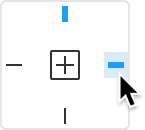
  1. In the Design panel, locate the Constraints section and click the right constraint anchor as shown below:

    contraints click on right

  2. Now test the constraint behavior: in the Design panel under Auto layout, hover over the Spacing between items spacing between items icon and drag left and right to adjust spacing.

    Observe how the layout now expands from right to left, maintaining the right edge position—this behavior is essential for responsive design systems.

  3. For precise control, set a specific spacing value: change the Spacing between items spacing between items to exactly 30 pixels.

Constraint Behavior

Left Constraint (Default)

Elements grow from left to right as spacing increases. Content expands rightward while maintaining left anchor point.

Right Constraint

Elements grow from right to left as spacing increases. Content expands leftward while maintaining right anchor point for better navbar alignment.

Navbar Best Practice

Set navbar constraints to right anchor for professional layouts. This ensures navigation items grow leftward, maintaining proper alignment as content changes.

Rearranging & Adding Items with Auto Layout

This final section demonstrates Auto Layout's most impressive capabilities: intelligent reordering and seamless content addition. These features make Auto Layout indispensable for component-based design systems and rapid prototyping workflows.

  1. Double-click on Kauai to select the individual text element within the Auto Layout container.
  2. Drag Kauai to the left, positioning it between Maui and Oahu.

    Notice how Figma intelligently maintains consistent spacing while allowing flexible reordering—this is Auto Layout's core strength.

  3. With Kauai still selected, press the Right Arrow key to move it back to its previous position using keyboard navigation.
  4. Press the Left Arrow key to move Kauai forward again, demonstrating precise keyboard-based reordering.

  5. Click on Big Island to select it (if the entire Auto Layout group becomes selected, double-click to target just the Big Island text element).
  6. Press Cmd–D (Mac) or Ctrl–D (Windows) to duplicate the element, which Auto Layout automatically incorporates with proper spacing.

  7. Let's create another copy using a different method: select Oahu.
  8. While holding Option (Mac) or Alt (Windows), drag to create a copy and position it between the two Big Island text elements.
  9. Transform the rightmost elements into proper navigation items: double-click to edit the text, changing them to Quick Facts and Travel Info respectively.
  10. Your completed navigation should now read: Maui, Kauai, Oahu, Big Island, Quick Facts, Travel Info—a fully functional Auto Layout component ready for responsive behavior.

Dynamic Element Management

1

Drag Reordering

Double-click to select individual text blocks and drag to reposition between other elements with maintained spacing

2

Keyboard Navigation

Use Left and Right arrow keys to move selected elements while preserving Auto Layout spacing rules

3

Duplication Methods

Use Cmd+D (Mac) or Ctrl+D (Windows) for standard duplication, or Option/Alt+drag for positioned copying

4

Content Editing

Double-click text elements to edit content directly while maintaining Auto Layout structure and spacing

Smart Spacing Preservation

Figma automatically maintains consistent spacing when rearranging Auto Layout elements. Manual spacing adjustments are unnecessary after repositioning content.

Key Takeaways

1Auto Layout requires evenly spaced elements before activation, achievable through Tidy Up or direct right-click methods
2Alignment constraints control growth direction - use right constraints for navbars to maintain proper alignment
3Interactive spacing adjustment allows real-time modification by dragging pink lines between elements
4Element reordering within Auto Layout preserves spacing automatically through drag-and-drop or keyboard navigation
5Multiple duplication methods exist including Cmd+D for standard copying and Option+drag for positioned duplication
6Zoom level affects tool visibility - Tidy Up button requires sufficient zoom to appear over selected elements
7Design panel Auto Layout options only appear after proper spacing is established between selected objects
8Keyboard shortcuts enhance workflow efficiency with Shift+2 for zoom to selection and Shift+A for Auto Layout activation

RELATED ARTICLES