April 1, 2026Bob Umlas/5 min read

Using Shortcut Keys in Excel

Master Excel Efficiency with Essential Keyboard Shortcuts

Getting Started with Shortcuts

All key combinations are NOT case-sensitive, making them accessible for all typing styles. This guide focuses on the most practical shortcuts to boost your Excel productivity.

Essential File Operations

Open Workbook

CTRL+O instantly opens the file dialog. One of the most frequently used shortcuts for accessing existing workbooks.

Save Workbook

CTRL+S saves your current work immediately. Essential for preventing data loss during long work sessions.

Close Workbook

CTRL+W closes the current workbook without closing Excel entirely. Useful when working with multiple files.

Master Copy, Paste, and Undo

1

Copy with CTRL+C

Select your data and use CTRL+C to copy it to the clipboard for reuse elsewhere in your workbook.

2

Paste with CTRL+V

Navigate to your destination cell and press CTRL+V to paste the copied content.

3

Cut with CTRL+X

Use CTRL+X to move data by cutting it from one location before pasting to another.

4

Undo with CTRL+Z

Quickly reverse recent actions using CTRL+Z to undo the last thing(s) done.

Column Operations: Delete vs Insert

FeatureDelete ColumnInsert Column
Full Column SelectedCTRL+-CTRL++
Alternative MethodALT+H, D, CALT+H, I, C
Single Cell SelectedShows delete dialogShows insert dialog
Recommended: Select entire columns first for direct action, or use single cell selection when you need to choose specific options from the dialog.
Smart Tab Navigation

When multiple cells are selected, Tab moves through the selection in order (left to right, then next row), while Shift+Tab reverses the direction. This is perfect for data entry workflows.

Worksheet Navigation Shortcuts

Go to Last Cell

CTRL+End takes you to the last used cell on the worksheet, even if it appears empty but has formatting.

Return to A1

CTRL+Home selects cell A1, unless panes are frozen or split, then it goes to the top-left of the active pane.

Switch Sheet Tabs

CTRL+Page Down moves right between sheet tabs, while CTRL+Page Up moves left through your workbook tabs.

Navigate Data Groups with CTRL+Arrow

1

Horizontal Movement

CTRL+Right Arrow jumps to the edge of each data group horizontally, eventually reaching the worksheet edge at column XFD.

2

Vertical Movement

CTRL+Down Arrow moves to the bottom of data groups vertically, ending at the last row (1048576) when no more data exists.

3

Efficient Data Scanning

This method allows rapid navigation through large datasets without scrolling, jumping directly between data boundaries.

Selection Power with Shift Key

Holding Shift while navigating keeps the original cell active and extends the selection. This works with clicks, F5 (Go To), and CTRL+Arrow combinations to create precise range selections.

Essential Formatting and Data Entry Shortcuts

0/5

View and Display Controls

Formula Toggle

CTRL+` switches between showing formulas and their calculated values, essential for debugging and reviewing worksheet logic.

Object Visibility

CTRL+6 toggles the display of objects like charts and images, useful for focusing on data without visual distractions.

Fill Operations: Down vs Right

FeatureFill DownFill Right
Shortcut KeyCTRL+DCTRL+R
DirectionVertical copyingHorizontal copying
Best Use CaseColumn formulasRow formulas
Recommended: Select the range including the source cell before using fill shortcuts for best results.

Quick Number Formatting

1

Percentage Format

CTRL+% (or CTRL+Shift+5) instantly applies percentage formatting to selected cells.

2

Date Format

CTRL+# (or CTRL+Shift+3) applies d-mmm-yy date format for consistent date display.

3

Number Format

CTRL+! (or CTRL+Shift+1) formats numbers with 2 decimal places for financial data.

Advanced Productivity Features

Spell Check

CTRL+F7 runs spell check on your worksheet to catch typing errors and maintain professional standards.

Paste Special

After copying, use CTRL+ALT+V to access paste special options for values only, formatting, or formulas.

Hyperlink Creation

CTRL+K opens the hyperlink dialog to create links to websites, other files, or locations within your workbook.

Selection and Navigation Mastery

0/3

This comprehensive guide presents essential keyboard shortcuts that will dramatically improve your Excel productivity. While not exhaustive, these shortcuts represent the most impactful time-savers for professionals working with spreadsheets daily.

All key combinations are case-insensitive, so you don't need to worry about caps lock when executing these commands.

File Management Fundamentals

Master these basic file operations first. Close any workbook instantly with CTRL+W, open existing files with CTRL+O, and save your work with CTRL+S. These shortcuts alone will save you dozens of mouse clicks per session.

Essential Editing Commands

The holy trinity of data manipulation: Copy (CTRL+C), Paste (CTRL+V), and Cut (CTRL+X) are fundamental to efficient workflow. When mistakes happen—and they will—CTRL+Z undoes your last action(s), often saving hours of rework.

Column and Row Management

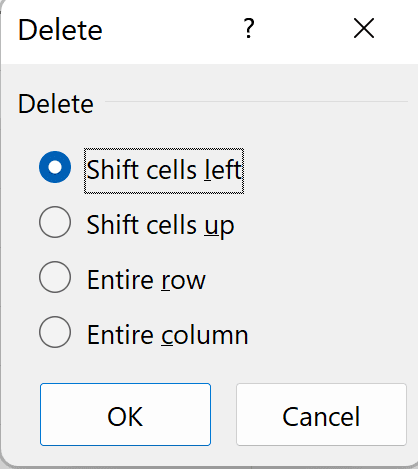
Structural changes to your spreadsheet become effortless with the right shortcuts. To delete a column, select the entire column and press CTRL+-, or use the ribbon sequence ALT+H, D, C. When you press CTRL+- with only a single cell selected, Excel presents you with deletion options:

Dialog

Select the appropriate deletion type based on your needs—this granular control prevents accidental data loss.

For inserting columns, the process mirrors deletion. Press CTRL++ when an entire column is selected, or use ALT+H, I, C. With a single cell selected, CTRL++ opens the insertion dialog:

This Dialog

Choose your insertion type carefully—this determines how existing data shifts to accommodate the new space.

Efficient Cell Navigation

Smart navigation separates Excel novices from power users. The Tab key moves you one cell right, while the right arrow accomplishes the same task. However, Tab's real power emerges when working with selections. Within a multi-cell selection, Tab cycles through cells systematically. For instance, selecting A1:C2 and pressing Tab repeatedly moves through: A1→B1→C1→A2→B2→C2. Use Shift+Tab to reverse this sequence—invaluable for data entry workflows.

Worksheet Boundaries and Quick Jumps


Understanding your data's scope is crucial for large spreadsheets. CTRL+End jumps to the last used cell in your worksheet—even if that cell appears empty, Excel remembers its usage:

Cell

Return to your starting point with CTRL+Home, which selects cell A1. However, be aware that frozen or split panes alter this behavior—the shortcut targets the top-left cell of the active pane instead:

Cell D7

Multi-Sheet Workbook Navigation

For workbooks with multiple sheets, navigate efficiently using CTRL+Page Down to move right through sheet tabs, and CTRL+Page Up to move left. This eliminates the need to mouse-click through dozens of worksheets in complex financial models or reports.

Data Region Navigation

The CTRL+Arrow key combination provides intelligent movement through your data. Starting from A1 in the example below, CTRL+Right Arrow jumps to C1 (the edge of the first data group), then E1, G1, and finally XFD1 (the worksheet's rightmost column). Similarly, CTRL+Down Arrow from A1 moves to A5, A9, A13, and ultimately A1048576:

8576

Advanced Selection Techniques

The Shift key transforms navigation into selection. Hold Shift while moving to any cell, and Excel maintains your original cell as the active anchor point. From the figure above, holding Shift and clicking C3 creates the selection A1:C3 with A1 remaining active. This principle applies to all navigation methods: Shift+F5 (Go To), Shift+CTRL+Arrow keys, or any movement command. For example, Shift+CTRL+Down Arrow from A1 selects A1:A5, preserving A1 as the active cell for further operations.

Formatting and Cell Properties

Access comprehensive formatting options instantly with CTRL+1, which opens the Format Cells dialog—your gateway to all cell appearance and behavior settings:

Formatting

Data Entry and Documentation Shortcuts


Enhance your worksheets with contextual information using Shift+F2 to add cell notes (now called "Comments" in modern Excel versions). Transform data ranges into structured tables with CTRL+T or CTRL+L—the latter honoring Excel's legacy when these were called "Lists."

Time-Saving Data Entry

Insert current timestamps effortlessly: CTRL+Shift+: for time and CTRL+Shift+; for date. These shortcuts prove invaluable for logging, tracking, and audit trails in professional spreadsheets.

Formula and Object Management

Toggle between formula view and results with CTRL+` (backtick)—essential for debugging complex calculations or documenting your logic. Use CTRL+6 to show or hide objects like charts, images, and form controls, reducing visual clutter during intensive data work.

Data Population Shortcuts

Fill operations accelerate repetitive data entry. CTRL+D fills down from the top cell of your selection, while CTRL+R fills right from the leftmost cell. These commands respect relative references in formulas, making them perfect for extending calculations across datasets.

Instant Number Formatting

Apply common formats without accessing menus: CTRL+Shift+% converts to percentage, CTRL+Shift+# applies date formatting (d-mmm-yy), and CTRL+Shift+! formats as numbers with two decimal places. These shortcuts maintain consistency across professional financial models.

Advanced Operations

Professional workflows demand precision. Check spelling with CTRL+F7—crucial for client-facing documents. After copying data, access Paste Special options with CTRL+ALT+V for granular control over what gets pasted. Create hyperlinks instantly with CTRL+K, essential for interactive dashboards and reports.

Text Formatting Within Cells

When editing cell content, ALT+Enter creates line breaks within the same cell—perfect for multi-line headers, addresses, or detailed descriptions without expanding to additional cells.

Selection Mastery

Select entire columns with CTRL+Spacebar or complete rows with Shift+Spacebar. These selections become the foundation for bulk formatting, deletion, or data manipulation operations across large datasets.


Key Takeaways

1Master the basic file operations (CTRL+O, CTRL+S, CTRL+W) and editing commands (CTRL+C, CTRL+V, CTRL+X, CTRL+Z) as your foundation for Excel efficiency
2Use CTRL+Arrow keys to navigate quickly through data groups, and add Shift to extend selections while keeping the original cell active
3Column and row operations become instant with CTRL+- for deletion and CTRL++ for insertion when entire columns or rows are selected
4Navigate worksheets efficiently using CTRL+End for last used cell, CTRL+Home for cell A1, and CTRL+Page Up/Down for sheet tabs
5Speed up data entry with time (CTRL+:) and date (CTRL+;) shortcuts, plus create tables instantly with CTRL+T or CTRL+L
6Toggle between formula and value views using CTRL+` for worksheet debugging and review purposes
7Apply quick number formatting with CTRL+% for percentages, CTRL+# for dates, and CTRL+! for numbers with decimal places
8Enhance productivity with advanced features like spell check (CTRL+F7), paste special (CTRL+ALT+V), and hyperlink creation (CTRL+K)

RELATED ARTICLES