Cell Referencing
Common Excel Functions
SUMIFS / COUNTIFS
Conditional sums and counts — multiple criteria.
INDEX/MATCH
More flexible than VLOOKUP — works any column direction.
IFERROR
Wrap formulas to suppress error displays.
TEXT
Format numbers as strings — TEXT(B1, "$#,##0.00") for currency.
Noble Desktop's Excel Bootcamp covers formulas, pivot tables, data analysis, and VBA.
Improve your understanding of Excel's cell referencing system, including the use and implications of absolute and mixed cell references and how they impact your spreadsheet operations.
Suppose cell A1 contains this formula:
=A2
Do you know what that means? Many Excel users think it means to pick up the data from Cell A2. Are you one of those users? What if cell C3 contained the same =A2 formula? Does it mean the same thing? Again, many users would think so.
In fact, these users are partly right, but not 100% right. What =A2 really means, from cell A1, is pick up the value from the cell which is one row below this one. What =A2 means from cell C3, is pick up the value from the cell which is 1 row up and 2 columns to the left.
When you really understand this, you’ll be well on the road to mastering cell references.
How about a little test…
Suppose you have this spreadsheet:
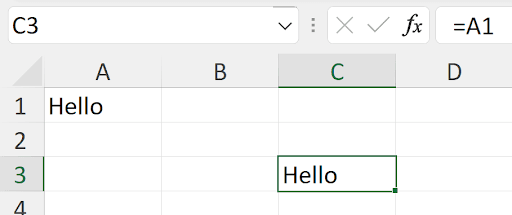
And you copy cell C3 and paste it into cell D3. Without actually trying it out, what will you see in cell D3? And what if you copy cell C3 and paste it to cell A2? Again, without trying, what will you see?
In neither case will you see “Hello”. Pasting into cell D3 will give you 0! Pasting into cell A2 will give you #REF!, Look (both pastes are shown here):
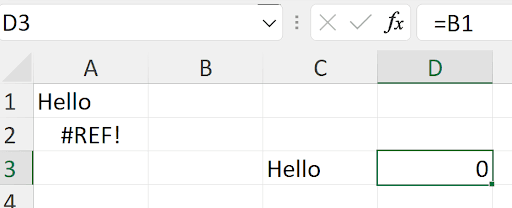
When you copied cell C3 and pasted to D3, what you copied was “2 rows up and 2 columns to the left”. When you paste that to D3, you pasted the same thing. From D3,2 rows up and 2 columns to the left is cell B1, as shown. When you try to paste the same thing to cell A2, there’s no such thing as 2 rows up from cell A2, and there’s also no such thing as 2 columns to the left of cell A2, so Excel gives the #REF! error. This means the reference you’re looking for doesn’t make sense.
Excel gives another way of referring to cells, called absolute reference. To do that, you put a “$” in the formula. From Cell C3, a reference to cell A1 as =$A$1 means cell A1.No left/up/right/down. It means A1!
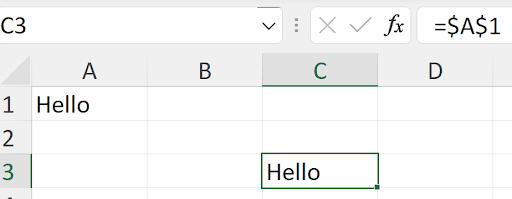
Now, copying cell C3 and pasting anywhere will give “Hello”, since the pasted formula will contain =$A$1.
Excel also has mixed references. For example, =$A1 or =A$1. If the “$” is before the column reference, then that column will always be used. For example:
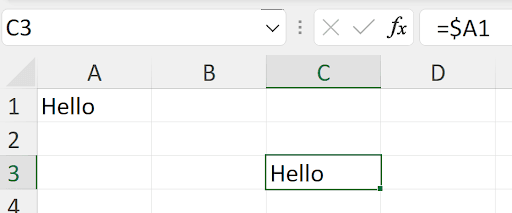
Copying cell C3 to cell D4 yields this:
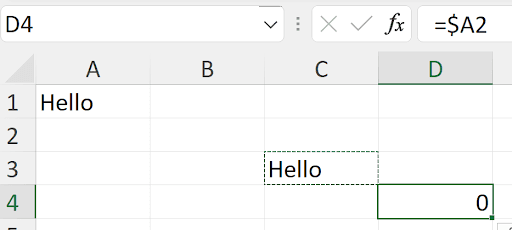
Pasting to 1 row down and 1 column to the right did make the row reference change, but the column reference was unchanged. The 1 became a 2, and the A stayed A.
Or:
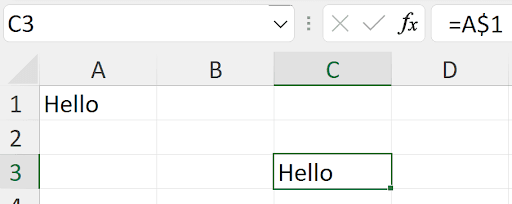
Here, the mixed reference says to always refer to row 1, but the column reference is 2 to the left. Copying cell C3 to E1:
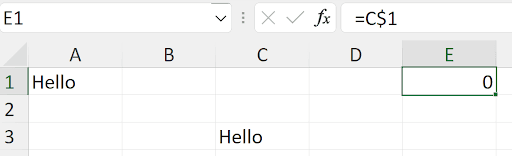
The reference to row 1 stayed, and the column reference still is 2 columns to the left.
This is true for filling right or down – wherever there is a “$” in the reference it will stay the same.
Let’s look at a simple multiplication table:
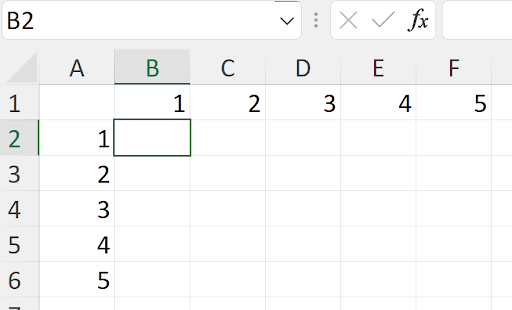
What formula should go into cell B2 so that when you fill it to the F2 and then fill B2:F2 down to row 6 will give the right table?
Trying =B1*A2 and filling right and down gives this mess:
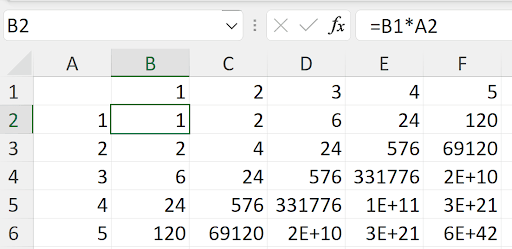
Why? Each cell is multiplying the cell above by the cell to the left! That’s not what you want in a multiplication table – you want row 1 multiplied by Column A! That’s this:
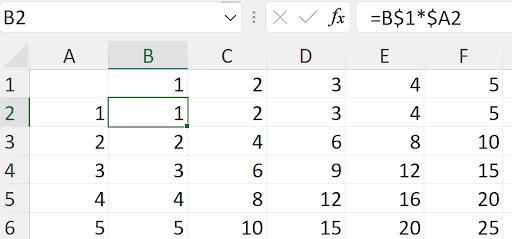
Each cell locks the right row and the right column. Look when cell D4 is active:
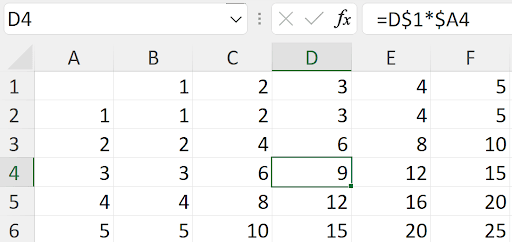
When this is all clear to you, you’ve mastered it!