April 1, 2026Bob Umlas/5 min read

How to Set a Picture as a Background in Excel: Using the Page Layout Tab to Add Graphics to Your Sheets

Master Excel backgrounds and print formatting professionally

Key Page Layout Features

Background Images

Add visual graphics to your Excel sheets for enhanced presentation. Perfect for screen viewing and data visualization.

Print Titles

Ensure consistent headers across multi-page printouts. Essential for professional document formatting.

Page Setup Control

Comprehensive printing and layout management through integrated dialog boxes and formatting options.

Display vs Print Behavior

Background images in Excel appear only on screen for visual enhancement but do not print with your document. This separation allows for attractive screen presentations while maintaining clean printed output.

Adding Background Images

1

Access Background Command

Click the Background icon in the Page Layout tab to open the image selection dialog

2

Choose Image Source

Select from computer files, Bing image search, cloud storage, or Facebook for your background graphic

3

Insert and Review

Select your image and click Insert to apply the background to your worksheet

4

Manage Background

Use the Delete Background command that replaces the Background button to remove when needed

Background Image Visibility

Choose light background images carefully as they can make data difficult to read. Dark or busy patterns may obscure important information like the $145.00 value mentioned in the example.

Page Break Types

FeatureNatural BreaksManual Breaks
Visual IndicatorDotted lineSolid line
Creation MethodAutomatic by ExcelUser-set via Breaks command
Control LevelSystem determinedUser controlled
Recommended: Use manual breaks for precise control over page divisions in complex documents

Print Titles Feature

Pros
Ensures column headings appear on every printed page
Works with entire rows or columns for consistency
Maintains professional document structure across pages
Prevents confusion on multi-page spreadsheets
Cons
Limited to entire rows or columns only
May include unwanted empty rows if not carefully selected
Requires proper setup for optimal results

Print Title Configuration Options

Row Repetition

Set rows like row 1 to repeat at the top of each page. Multiple rows can be selected using range notation.

Column Repetition

Configure columns like column A to repeat at the left of every printed page for consistent labeling.

Print Order

Choose between Down then Over or Over then Down to control how multi-page content flows across pages.

Page Setup Dialog Access

The Page Setup dialog can be accessed through the dialog launcher arrow under Print Titles, providing centralized access to all four tabs: Page, Margins, Header/Footer, and Sheet settings in one powerful interface.

Page Setup Dialog Tabs

Page Tab

Control orientation, zoom factor, fit-to-page options, paper size, print quality, and page numbering for comprehensive layout management.

Sheet Tab

Access print titles, print order settings, and sheet-specific printing options for optimal document formatting.

Margins Tab

Set precise margin measurements and alignment options for professional document presentation and spacing control.

Header/Footer Tab

Configure page headers and footers with custom text, page numbers, and formatting for complete document branding.

Page Tab Configuration Options

0/5

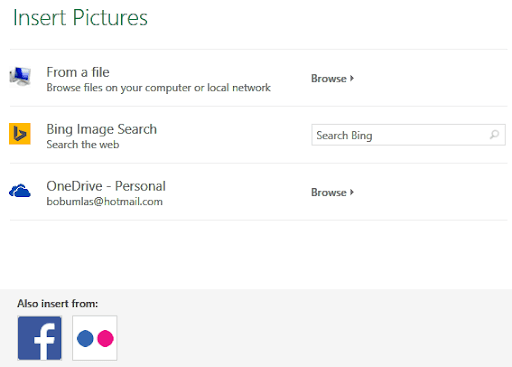
Continuing our comprehensive exploration of Excel's Page Layout tab, we now turn our attention from the "Breaks" icon to the "Background" feature—a powerful yet often underutilized tool for enhancing spreadsheet presentation. The Background function allows you to insert a graphic behind your worksheet data, creating visual interest and branding opportunities for reports and presentations. It's important to note that this background serves purely as a screen-based visual element and will not appear in printed documents, making it ideal for digital presentations and on-screen reviews. When you click the Background icon, Excel opens a comprehensive selection dialog:1

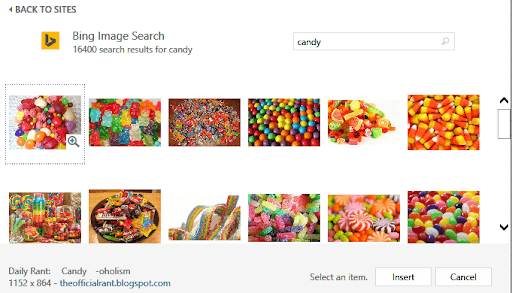
This dialog showcases Excel's modern integration capabilities, offering multiple sourcing options for your background images. You can select from existing files stored locally on your computer, conduct live Bing image searches directly within Excel, or pull images from cloud storage services and social media platforms like Facebook. This integration reflects Microsoft's commitment to seamless workflow connectivity in today's digital workspace. For demonstration purposes, a Bing Image search for "candy" produces these varied results:

2

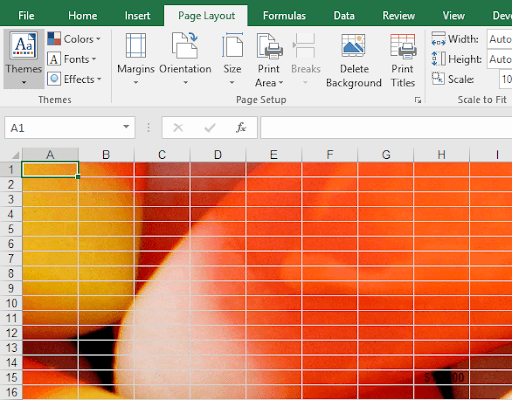
After selecting the candy corn image in the upper right and clicking Insert, the background seamlessly integrates into the worksheet environment:

3

Notice how Excel's ribbon interface dynamically updates—the "Background" command transforms into "Delete Background," providing immediate access to removal options. This demonstrates Excel's contextual interface design, which adapts based on current selections and states. However, exercise caution when implementing backgrounds: choose light, subtle images to maintain data readability. The $145.00 value in cell H15, for instance, becomes significantly harder to discern against busy or dark backgrounds, potentially compromising the spreadsheet's primary function as a data communication tool.

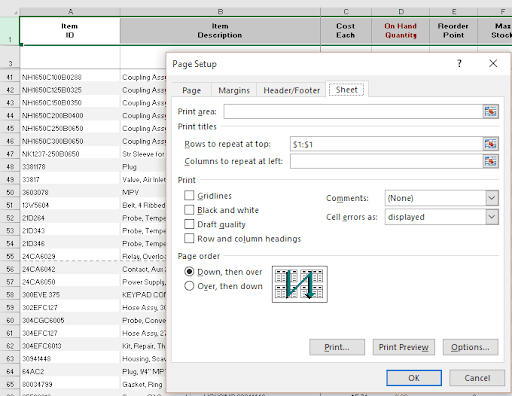
Moving beyond visual enhancements, we encounter the Print Titles command—a critical feature for maintaining document coherence across multi-page printouts. This functionality addresses one of the most common challenges in spreadsheet printing: ensuring that column headers and row labels remain visible on every printed page. Clicking Print Titles opens the comprehensive Page Setup dialog:


4

This screenshot illustrates a practical implementation where row 1 is configured to repeat at the top of each printed page. The dotted line appearing after row 55 indicates Excel's automatic page break calculation—these "natural" page breaks differ from manually inserted breaks (which appear as solid lines) by adapting dynamically to content and formatting changes. Without properly configured print titles, pages beyond the first would lack essential column headings, forcing readers to reference back to the initial page to understand data context—a significant usability issue in professional reports.

The Print Titles feature operates with specific constraints that users must understand: only complete rows and columns can be designated as repeating elements. For instance, specifying $1:$2 as "Rows to repeat at the top" would include both the header row and the empty row 2 in the repetition pattern. Similarly, selecting $A:$A as "Columns to repeat at left" ensures that the leftmost column appears on every page, particularly valuable for wide datasets that span multiple printed pages. The dialog also provides control over print order—choosing between "Down, then over" versus "Over, then down" can significantly impact document navigation and comprehension, especially for large datasets.

It's worth noting that this Print Titles dialog represents the same comprehensive Page Setup interface accessible through Custom Margins (discussed in our previous article), with the Sheet tab active instead of the Margins tab. This design consistency reflects Excel's unified approach to print management, centralizing related functions within a single, powerful interface.

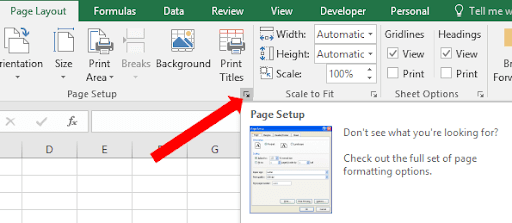
For users seeking maximum efficiency, Excel provides a convenient shortcut to this functionality through the dialog launcher—the small arrow icon located beneath the Print Titles command:


6

This dialog launcher opens the complete Page Setup interface, providing access to all four comprehensive tabs that encompass every printing and layout command we've explored throughout this series. This centralized approach makes it the most powerful and efficient tool for document formatting, consolidating scattered ribbon commands into a single, organized workspace. We've already examined the Margins and Sheet tabs in detail; the remaining two tabs offer additional sophisticated control over document output:

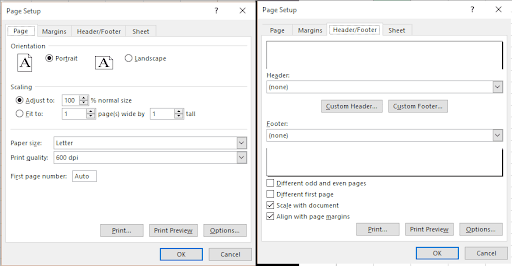
  1. The Page tab provides fundamental document orientation and sizing controls. Here you can switch between portrait and landscape orientations, adjust the zoom factor to control how much content appears on each page, and utilize intelligent fitting options. For example, if Print Preview reveals that your report spans two pages with only three rows extending onto the second page, the "Fit to" option can force the entire document onto a single page, improving presentation and reducing paper waste. Additional controls include paper size selection (supporting various international standards), print quality settings for balancing speed versus clarity, and first page numbering options. The flexibility extends to asymmetric page fitting—setting content to span one page wide while allowing unlimited page length, or vice versa, provides precise control over document flow and readability.
  2. The Header/Footer tab enables professional document branding and navigation through customizable headers and footers. This feature supports dynamic content insertion, including automatic page numbering, current date and time stamps, file names, and custom text or company branding. These elements appear on every printed page, ensuring consistent professional presentation and helping readers track document context and navigation—particularly valuable for lengthy reports and financial statements.
Screenshot of the Microsoft Excel Page Setup dialog box, with the 'Page' tab on the left displaying orientation, scaling, and paper size options, and the 'Header/Footer' tab on the right showing header and footer customization fields.

In the concluding part of our three-part series, we'll dive deep into the Header/Footer functionality and explore the remaining print-related features that complete Excel's comprehensive document output toolkit. These final elements will round out your mastery of professional spreadsheet presentation and ensure your reports meet the highest standards of business communication.

Key Takeaways

1Background images in Excel enhance screen viewing but do not appear in printed documents, allowing for attractive presentations without affecting hard copy output
2The Background command changes to Delete Background once an image is applied, providing easy management of worksheet graphics
3Light background images are essential for maintaining data readability, as dark or busy patterns can obscure important information
4Print Titles ensure column headings appear on every printed page, but are limited to entire rows or columns rather than specific cell ranges
5Natural page breaks appear as dotted lines and are automatically determined by Excel, while manual breaks show as solid lines and offer user control
6The Page Setup dialog provides centralized access to all printing and layout options through four comprehensive tabs: Page, Margins, Header/Footer, and Sheet
7Fit-to-page options help optimize printouts by forcing content onto specific page counts, preventing awkward page breaks with minimal remaining content
8Print order settings allow control over how multi-page content flows, with options for Down then Over or Over then Down page progression

RELATED ARTICLES