Event Planning with Excel
What This Tutorial Covers
Budget Tracking
Categorized expense tracking against budget.
Task Lists
Checklist tabs for each phase of the event.
Attendee Management
Tracking RSVPs, dietary needs, and seating.
Noble Desktop's Excel Bootcamp teaches advanced Excel — formulas, pivot tables, Power Query, and more.
In this article, we are going to look at how Event Planning can be done efficiently through the use of Microsoft Excel.
Getting Started
The first thing you want to do is make a list of all those aforementioned moving parts, and all the dates associated with them. A good approach is to start with the date of the event itself, and work backwards, keeping the deadlines for and availability of your resources in mind at each step along the way. You can do this on a main Event Timeline worksheet, as shown here:
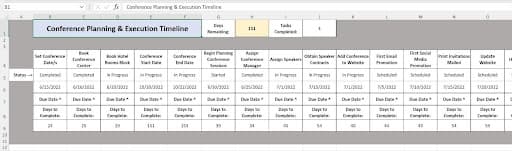
Building the timeline is pretty simple, if you know what each of your milestones are. Don’t panic if you think you may have forgotten one or more of them, however. It’s easy to add milestones as they crop up or you remember them along the way. No event is without surprises, and no planning process is 100% on target!
I recommend a horizontal layout for your timeline (in a row), because we tend to think of time that way – running along a single line, from left to right. If you’d rather your timeline runs vertically (in a column), that’s fine, too; the entry and editing process is the same. As the image of my timeline shows, each task I have to complete, each deadline for me or one of the resources I’m tapping for the event, and each step along the way to the day of the event is in its own cell, and below each of those cells, the due date appears. In between those dates, the days left to complete that task or meet that deadline appear. How did I calculate those days? Read on!
Time Tracking
To make that timeline really useful, you want to keep track of how much time you have before you hit any of the deadlines. You’ll find that using Excel’s very handy Days function, which calculates the number of days between starting and ending dates, is the best bet, and you can find out how that function – along with other date- and time-related functions – works at the video link below:
Https://youtu.be/MeIaZui-5nc
The nice thing about using a function to calculate the days left before a deadline is that rather than putting in fixed values that you’d need to manually edit if any deadlines changed or milestones were added, the function continuously recalculates, giving you an always-accurate new timeframe to work with.
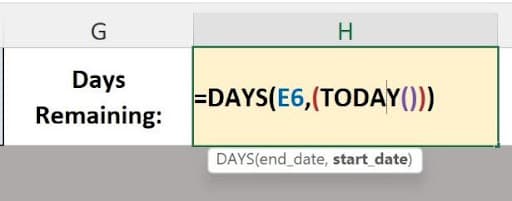
You can also nest date and time functions, as shown here – I’ve used the DAYS function with a TODAY function nested inside it to tell me how many days from today that a milestone should be completed.
The Moving Parts
Next, you’ll want to build the various worksheets that store all the elements of your event, from the people you’ve invited (and those who’ve RSVP’d or registered) to the vendors who are supplying what you need to make the event a success. Planning is key here, because even the most detailed plan will have changes along the way – but if you’re as scrupulous as possible when you get started, the fewer changes you’ll have to make later.
Adding Worksheets
In addition to the timeline sheet, you’ll want a separate worksheet for each of the following parts of your event:
- Guests (or Registrants, if it’s a paid event like a conference or expo)
- Resources (vendors/suppliers, including services)
- Hotel and/or Convention Center
- Sponsors
- Speakers (for conferences, workshops, etc.…)
I’ve suggested some alternative names for a few of these, but you may rethink some of the worksheet names over time, just to make them more relevant to your event. Luckily, it’s easy to rename your sheets, and any functions, formulas, or links in this or any related workbook that refer to the old names? Instantly updated.
For everything you want to know about adding, moving, renaming, or moving worksheets – as well as copying them, if you want to make duplicate sheets for recurring events – check out this video:
Https://youtu.be/HB2Lr-sVW48
With my sheets now in place (see image), I’m ready to start adding data.

Assembling Your Event
I’m assuming you don’t need my help to physically enter the data about your event’s components – the people you’ve invited and their RSVP status, or for a business event, the registrants, and their payments – but you may need a little help making sure you’ve got all the requisite pieces of information in place. Below you’ll find some fields (in Excel-speak, column headings) for you to consider, by worksheet.
As there can be no blank row between the headings and the first record (nor between records) – to facilitate sorting and filtering later on – I’d recommend starting in row 4 for the headings. You’ll want the worksheet title in row 1, a little breathing room, and then your headings in row 4. Your first record will go in row 5. I also like to keep Column A blank. Again, it’s about visual space and “breathing room” to edit, view, and print the worksheets.
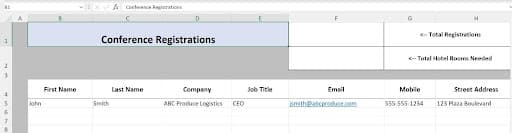
Note that any suggestions for calculations or links within those columns will be explained later – for now, just get these headings (and any additional ones you need for your specific event) into the worksheets I’ve listed below. Note that if you have guests for a wedding or party, you don’t need a Registrants sheet, and likewise, if your event is one that people pay to attend, you don’t need a Guests worksheet. If some of your registrations will be comped (paid for as compensation to speakers or sponsors), you can make a column to indicate payment status, and one of those statuses can be “comped” or “free, ” however you want to refer to that.
Here’s the list of tables and fields:
Guests
- First Name
- Last Name
- Middle Initial
- Title
- Mobile
- Street Address
- City
- State
- Zip
- Date Invitation Mailed
- RSVP/Registration Status
- Number of Guests
- Need Lodging? (enter number of hotel rooms needed)
- Special Dietary Needs (if you’re feeding your guests at this event)
- Notes
- Running Total of Guests Invited (just a count of records on this sheet)
- Running Total of Guests (you can make this increment based on RSVP status)
- Running Total of Hotel Rooms Needed (this will decrement the remaining lodging on your Hotel worksheet)
- Hotel Dates (nights booked for this guest)
Registrants
- First Name
- Last Name
- Middle Initial
- Title
- Company Name
- Job Title
- Mobile
- Mailing Address
- City
- State
- Zip
- website Link
- Registered (Y/N)
- Amount Paid
- Hotel Dates (nights booked for this registrant)
- Total Registrants (this can be a count of “Y” values in Registered column)
- Total Hotel Rooms Needed (this will decrement the Reserved Rooms Remaining column on your Hotel worksheet)
Resources
- Resource Type (make this a Data Validation column, with a fixed list of resource types – caterer, music, A/V Services, Amenities (tables, chairs, tents), transportation)
- Total Fee
- Company Name
- Contact First Name
- Contact Last Name
- Contract Link
- website
- Phone
- Address
- City
- State
- Zip
- Notes
Hotel/Convention Center
- Hotel Name
- Address
- City
- State
- Zip
- website
- Contact First Name
- Contact Last Name
- Contact Phone Number
- Contact Email
- Rooms Reserved
- Room Rate
- Contract (link to the PDF or other document)
- Rooms Remaining (deduct the Running Hotel Rooms Needed total from the Reserved number)
Sponsors
- Company Name
- Contact First Name
- Contact Last Name
- Contact Mobile
- Contact Email
- website
- Sponsor Contribution (this is where you’ll list the nature of the sponsorship – a financial contribution, promotional products, or both)
- Contract Link (link to contract Word document or PDF on your hard drive or network)
- Notes
Speakers
- First Name
- Last Name
- Middle Initial
- Title
- Company Name
- Job Title
- Mobile
- Mailing Address
- City
- State
- Zip
- Fee (for paid speakers)
- Contract (link to the Word doc or PDF of their contract, stored on your hard drive or network)
- Speaker Bureau/Agent Name (for speakers with representation)
- Speaker Bureau Contact Phone
- Speaker Bureau Email
- Notes
- Presentation Link (link to the speaker’s PowerPoint deck and/or video links, stored on your hard drive or network)
Tracking Totals
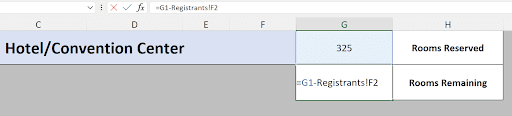
Whenever you’re keeping any count or running sums, you’ll probably want to keep those numbers on the same worksheet as the data being counted or summed. Because these worksheets contain lists, however, which you’ll want to sort and filter, the row containing those totals should be separate from the data. You can place this row one or two blank rows away from the last record in the worksheet, or place them at the top of the sheet, above the main title/heading row. As shown here, my Hotel running totals are in a row across the top of the sheet so there’s no chance of Excel confusing them for a row of data, and so I can see these key numbers the minute I open the worksheet – without having to scroll to see them.
What Really COUNTS
When I say “totals, ” you’re probably thinking of the SUM function, right? Well, not so fast. To keep a total of guests, registrants, hotel rooms needed, etc.… you’ll actually want to use COUNT, or a variation on the COUNT function (depending on the values in the column you’re counting), rather than SUM. Why? Because you want to know how many people registered or RSVP’d, and that’s a count of Y values in the RSVP column or Registered column. You can count any column’s entries, by the way, so if your data doesn’t have a Y/N (yes/no) column to count Y entries, you can simply count non-blank cells in any column that’s populated for every record in the list such as Last Name. This is done with the COUNTA function.
As shown here, first I’m counting – using the COUNTIF function, which counts how many cells in a range meet specified criteria – the number of Ys in the Registered column. This result, entitled “Total Registrations, ” can then be deducted, continuously, as it changes over time, from the number of hotel rooms reserved for people attending the event. That result appears in a cell with an adjacent label, “Rooms Remaining.”

Want to learn more about COUNT functions? There are several, including the aforementioned COUNTA, and I cover them in this video:
Https://youtu.be/svOV89s9oG8
Of course, there is a role for the SUM function here, have no doubt. Columns such as Amount Paid (for registrations) or Fee (Speakers) can simply be tallied using the SUM function, and if you have no idea the total number of rows you’ll ultimately be summing, make the SUM range refer to the whole column, as shown in the following quick video:
Https://www.youtube.com/watch?v=6NIHHBsbx0k
The sum can be stored anywhere on the sheet – or even on another sheet, if you want to create one for your various totals, counts, and so forth. Where you begin (and thus store) the function doesn’t matter – just select the cell or cells needed to complete it, and the result can “live” anywhere.
Seek and Ye Shall Find
So, you have thousands of people registered for your upcoming conference, or 250 guests coming to a big wedding. Whatever the event, if you’ve got more than 15 or 20 records, you’ll need to search for the data you seek such as a person’s phone number, the name of that caterer you’ve hired, or the name of the cousin with a shellfish allergy, which you know you put in the Notes field.
To search your worksheet quickly, use the Find command, found through the Find & Select button in the Editing group on the Home tab. Type what you know into the Find field in the dialog box, whether it’s part of a name, word “catering, ” or “allergy.”
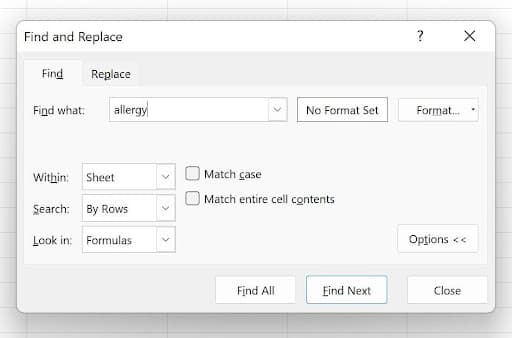
If you know part of a name, title, or phrase, use the asterisk to indicate the part you don’t know. If I remember, for example, that someone named Beth is registered for the event, typing beth into the Find box will find her, whether she’s registered as Beth or Elizabeth. The asterisks on both ends of “Beth” allow you to find that string of text wherever it appears in the worksheet.
Making Connections
Excel will automatically turn email addresses and website URLs into hyperlinks, assuming they follow the correct structure – name@domain.com (or.net,.edu, etc.…) for an email address, and websitename.com (or.net,.edu, etc.…) for a website. Links can be made manually, too:
- You can manually turn any cell’s content (other than a formula or function) into a link – pointing to a website or a document or any other file on your network or local hard drive.
- Shapes and images can also become links to websites or files, and in the case of shapes, the effect is much like adding a command button to your worksheet, as you can add text to the shape such as “Open Contract” to open a Word document or PDF that contains the legalese you need for one of your speakers or vendors.
To create a link from a cell, click in the cell, and then go to the Insert tab. The lone button in the Links group is Links, and clicking that opens a dialog box, shown here.
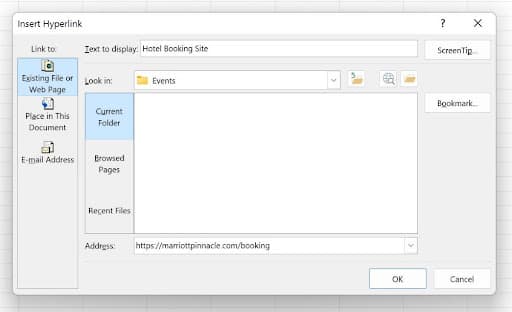
The box shows two fields – Text to Display and Address – and they both need to be filled to create the link. If your cell already had content in it, that appears automatically in the Text to Display field, but you can also edit that.
Using the left-hand panel in the dialog box, you can choose to link to a web address, a cell in the worksheet you’re in, to create a new workbook file, or to spawn an email. Each choice results in a different set of dialog options, designed to help you make that particular type of link happen.
For our purposes here, we’ll go with a web address, and choose the address where hotel bookings are made for our event. I can type or paste that address into the Address field, and then to prevent a long URL appearing in the cell, I’ll type “Hotel Booking Site” in the Text to Display field, and click OK. The link is created, and shown here, the words I typed in the Text to Display field are what appear in the cell.
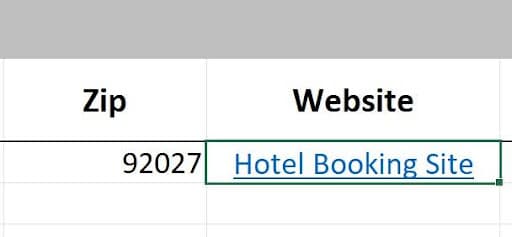
When I click them, I’m taken to the hotel’s booking page.
To create a link from a shape or image, just right-click it, and then choose Link from the pop-up menu. The same Insert Hyperlink dialog box opens, with the same options as you have for creating a link directly inside a cell – except for the Text to Display field, which will simply display “<<Selection in Document>>” because the link refers to the item you right-clicked.
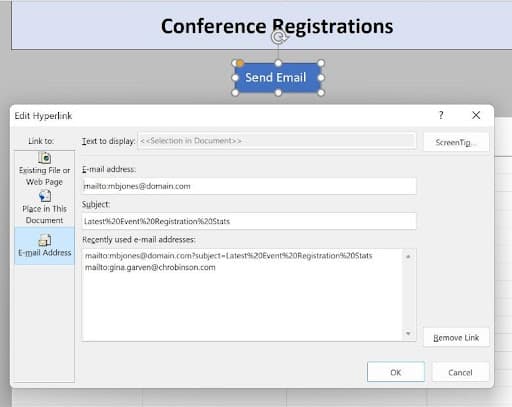
TIP: If your linked object is a shape, you can type into the shape before or after turning it into a link. For example, you could type “Start Zoom Call” if the shape will be used to start a weekly zoom meeting with one of your event resources or someone else on the planning team.