April 1, 2026Bob Umlas/6 min read

Demystifying VLOOKUP, XLOOKUP

Master Excel's Most Powerful Data Lookup Functions

Article Focus Note

This article covers Excel Tables fundamentals rather than VLOOKUP/XLOOKUP functions. Understanding table structure is essential for advanced lookup operations.

Understanding Excel Tables begins with recognizing that they're far more than formatted data ranges. While the underlying structure remains a simple list of data with no missing rows or columns, converting your data to an Excel table unlocks powerful functionality that transforms how you work with information. When you designate data as a table, Excel automatically includes new entries added to adjacent rows or columns, propagates formulas down entire columns, and introduces structured referencing syntax that makes formulas more readable and maintainable.

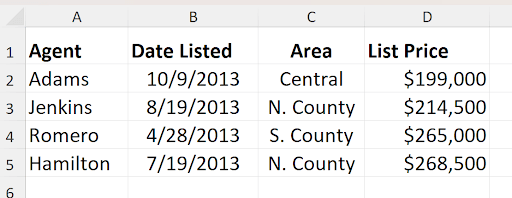
Let's examine the transformation process with a practical example:

Before conversion to a table:

Screenshot of an Excel table with column headers: Agent, Date Listed, Area, and List Price. Below the headers are four rows of sample data: Adams (10/9/2013, Central, $199,000), Jenkins (8/19/2013, N. County, $214,500), Romero (4/28/2013, S. County, $265,000), and Hamilton (7/19/2013, N. County, $268,500).

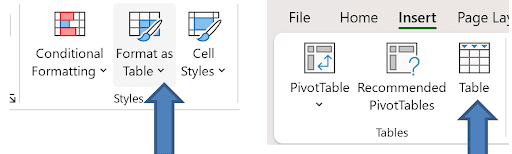
Excel provides multiple pathways to create tables, each accessible through different ribbon locations:

Two side-by-side screenshots of the Excel ribbon. On the left, an arrow points to the 'Format as Table' button in the Styles group (between 'Conditional Formatting' and 'Cell Styles'). On the right, an arrow points to the 'Table' button in the Tables group (next to 'Pivot Table' and 'Recommended PivotTables').

The left option, located on the Home tab, is labeled "Format as Table"—a somewhat misleading name since it creates functional table objects, not merely formatted ranges. This option first presents a color palette for immediate styling. The right option, found on the Insert tab, creates the same table functionality with a more straightforward approach. Both methods produce identical results, though many professionals prefer the Insert tab option for its clarity of purpose. For keyboard efficiency, you can also use Ctrl+T (or the legacy Ctrl+L shortcut from when tables were called "Lists").

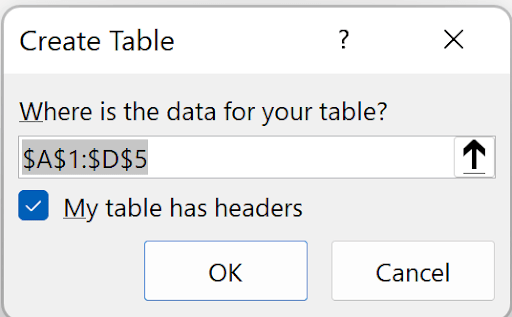
Regardless of your chosen method, Excel presents the Create Table dialog:

Screenshot of the Excel 'Create Table' dialog box showing a selected range of $A$1:$D$5. A checkbox labeled 'My table has headers' is selected, and there are two buttons: OK and Cancel.

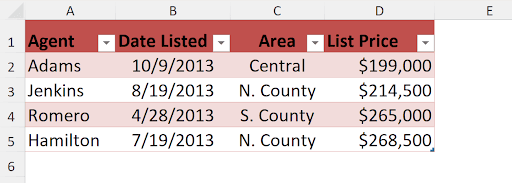
After confirming the table creation, notice the immediate visual and functional transformation:

Screenshot of an Excel table with red headers and light red shading for the data rows. The columns are labeled 'Agent, ' 'Date Listed, ' 'Area, ' and 'List Price.' The four rows of sample data are Adams (10/9/2013, Central, $199,000), Jenkins (8/19/2013, N. County, $214,500), Romero (4/28/2013, S. County, $265,000), and Hamilton (7/19/2013, N. County, $268,500).

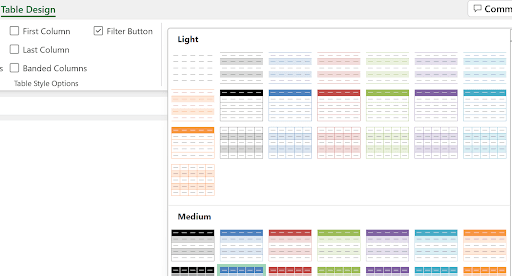
The table's visual styling is completely customizable through the Table Design tab, which appears contextually when you select any cell within the table. This dedicated ribbon tab provides extensive formatting options beyond the initial color choice:

Screenshot of Excel's Table Design tab showing a list of table style options organized under 'Light' and 'Medium' categories, each displaying colored thumbnails with different formatting. On the left side, there are checkboxes for 'First Column, ' 'Last Column, ' 'Banded Columns, ' and a 'Filter Button' option.

Dynamic Table Expansion

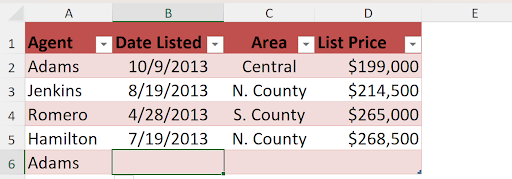
One of Excel Tables' most powerful features is their automatic expansion capability. When you enter data in cells adjacent to the table boundary, Excel intelligently incorporates the new information. For example, entering data in cell A6 (the row immediately below the table) triggers automatic inclusion:

Screenshot of an Excel table with a red header row labeled 'Agent, ' 'Date Listed, ' 'Area, ' and 'List Price, ' and light red shading for data rows. The four existing rows show Adams (10/9/2013, Central, $199,000), Jenkins (8/19/2013, N. County, $214,500), Romero (4/28/2013, S. County, $265,000), and Hamilton (7/19/2013, N. County, $268,500). A new row at row 6 begins with 'Adams' in the Agent column, while cell B6 (Date Listed) is highlighted.

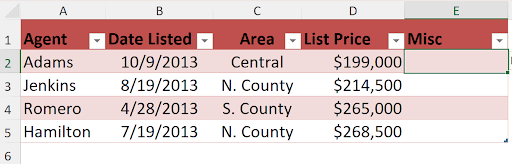
Similarly, adding a column header in E1 automatically extends the table horizontally:

Screenshot of an Excel table with a red header row labeled 'Agent, ' 'Date Listed, ' 'Area, ' 'List Price, ' and a new 'Misc' column. Four rows of data are shown: Adams (10/9/2013, Central, $199,000), Jenkins (8/19/2013, N. County, $214,500), Romero (4/28/2013, S. County, $265,000), and Hamilton (7/19/2013, N. County, $268,500). The 'Misc' column is currently blank.

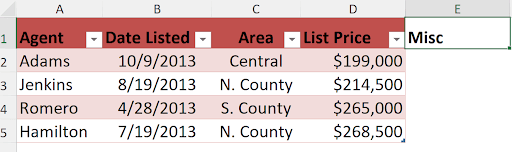
Professional tip: If you accidentally trigger table expansion, you can press Ctrl+Z to undo the expansion while preserving your data entry—effectively keeping the data but excluding it from the table structure:

Screenshot of an Excel table with a red header row labeled 'Agent, ' 'Date Listed, ' 'Area, ' 'List Price, ' and a new 'Misc' column in column E. The table shows four rows of data—Adams (10/9/2013, Central, $199,000), Jenkins (8/19/2013, N. County, $214,500), Romero (4/28/2013, S. County, $265,000), and Hamilton (7/19/2013, N. County, $268,500). The 'Misc' column is currently empty.

Advanced Selection Techniques

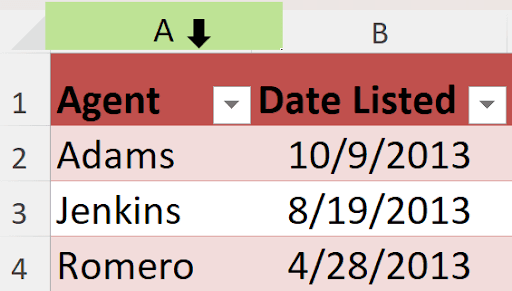
Excel Tables introduce sophisticated selection methods that enhance data manipulation efficiency. When hovering over column headers, you'll notice the cursor transforms to provide different selection options:

Partial screenshot of an Excel worksheet showing columns A and B. The 'Agent' header in column A and the 'Date Listed' header in column B both have red shading. Beneath these headers, rows display data for Adams (10/9/2013), Jenkins (8/19/2013), and Romero (4/28/2013). The top of column A is highlighted in green with a black downward arrow icon.

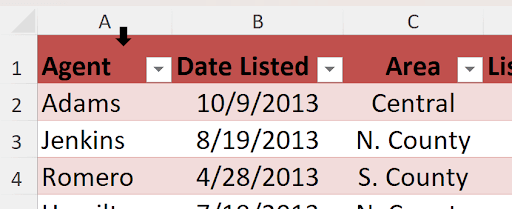
This standard cursor position selects the entire worksheet column when clicked. However, moving slightly lower reveals a different cursor:

Partial screenshot of an Excel table with columns labeled 'Agent, ' 'Date Listed, ' and 'Area, ' each with a red header row and drop-down arrows. Rows beneath show data like Adams (10/9/2013, Central), Jenkins (8/19/2013, N. County), and Romero (4/28/2013, S. County). The top of column A shows a black downward arrow, indicating a selection or filter.

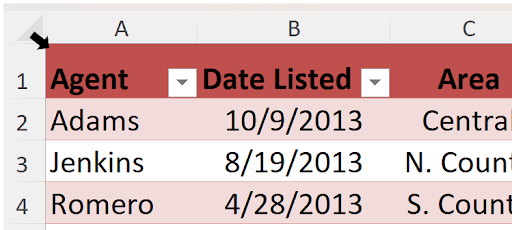
Clicking here selects only the table data in that column (A2:A5 in this example), excluding the header. For selecting the entire table data range, position your cursor at the upper-left corner of the table:

Partial screenshot of an Excel table with columns labeled 'Agent, ' 'Date Listed, ' and 'Area' in a red header row. Rows beneath show names and dates like Adams (10/9/2013), Jenkins (8/19/2013), and Romero (4/28/2013). A black arrow appears in the top-left corner above column A, indicating a selection or filter.

This rotating cursor allows you to select all table data (excluding headers) with a single click—invaluable for bulk operations.

Table Naming and Structured References

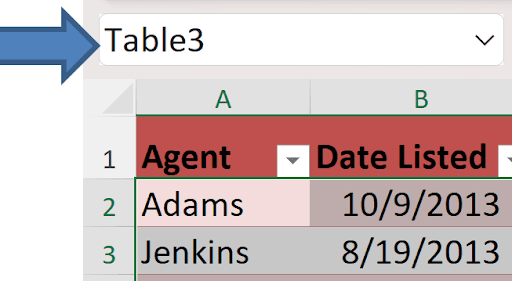
Every Excel Table receives an automatic name (Table1, Table2, etc.), visible in the Name Box when the table is selected:

Screenshot of an Excel worksheet with a table named 'Table3' shown in the Name Box. The table includes headers 'Agent' and 'Date Listed' and displays sample data such as Adams (10/9/2013) and Jenkins (8/19/2013). The table rows are highlighted in red, and a large arrow points to the table name.

Professional best practice dictates replacing these generic names with meaningful identifiers that reflect your data's purpose. This becomes crucial when implementing structured referencing—Excel's powerful formula syntax specifically designed for tables.

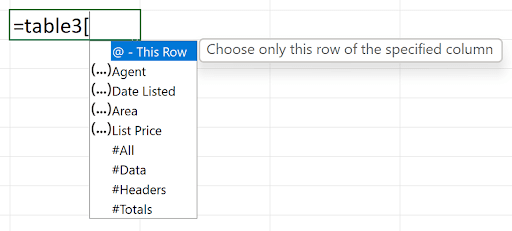
When creating formulas that reference table data, type the table name followed by an opening square bracket to access structured referencing options:

Screenshot of an Excel cell where a formula starts with '=table3'. A dropdown list appears beneath, showing options such as '@—This Row' (with tooltip 'Choose only this row of the specified column'), '(Agent)', '(Date Listed)', '(Area)', '(List Price)', '#All', '#Data', '#Headers', and '#Totals'.

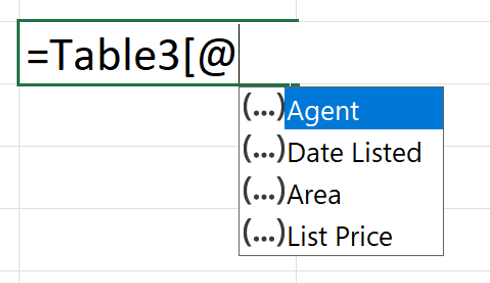
This structured referencing system revolutionizes formula clarity and maintenance. The @ symbol specifically references the current row, enabling dynamic formulas that automatically adjust as you copy them:

Screenshot of an Excel cell containing a partial formula '=Table3[@' with a dropdown list offering column references labeled '(…)Agent, ' '(…)Date Listed, ' '(…)Area, ' and '(…)List Price.'

For example, entering =Table3[@Area] in any row will return the Area column value for that specific row. Column names containing spaces or special characters require additional square brackets: =Table3[@[Date Listed]]. The structured reference specifiers include #All (entire table), #Data (data without headers), #Headers (header row only), and #Totals (total row, if present—returns #REF! if no total row exists).

Table Design and Customization Options

The Table Design ribbon tab becomes available whenever you select a cell within any table, providing comprehensive customization and management tools:

Screenshot of the Excel ribbon with the 'Table Design' tab selected. On the left is the Table Name field (e.g., 'Table3'). In the center are tools like 'Summarize with Pivot Table, ' 'Remove Duplicates, ' and 'Convert to Range.' On the right, the Table Style Options group displays checkboxes for 'Header Row, ' 'Total Row, ' 'Banded Rows, ' 'Banded Columns, ' 'First Column, ' 'Last Column, ' and 'Filter Button.' The other Excel tabs (File, Home, Insert, etc.) appear above the ribbon.

Properties Section

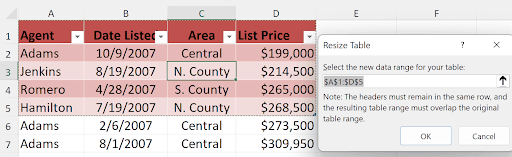
The Properties group enables table renaming and manual resizing. The Resize Table function proves particularly useful when you have existing data that should be incorporated into your table structure:

Screenshot of an Excel table with red headers labeled 'Agent, ' 'Date Listed, ' 'Area, ' and 'List Price, ' showing rows of data (e.g., Adams, Jenkins, Romero, Hamilton). The 'Resize Table' dialog box is open, displaying the range '$A$1:$D$5' and a note about keeping headers in the same row. The dialog includes OK and Cancel buttons.

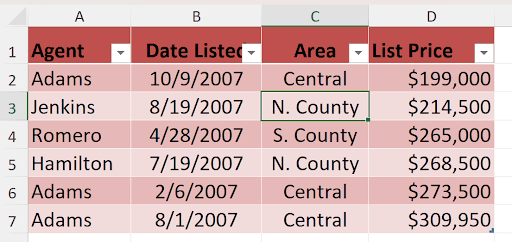
Simply modify the range reference (in this case, from A1:D5 to A1:D7) to include additional rows or columns:

Screenshot of an Excel table with red/pink shading. The columns are labeled 'Agent, ' 'Date Listed, ' 'Area, ' and 'List Price.' The rows show data such as Adams (10/9/2007, Central, $199,000), Jenkins (8/19/2007, N. County, $214,500), Romero (4/28/2007, S. County, $265,000), and Hamilton (7/19/2007, N. County, $268,500). The selected cell in column C reads 'N. County.'

Creating an Excel Table

1

Select Data Range

Ensure your data has no missing rows or columns in the structure

2

Choose Creation Method

Use Home tab Format as Table, Insert tab Table, or keyboard shortcut CTRL+T or CTRL+L

3

Apply Styling

Select from the color palette on the Table Design tab to match your workbook theme

Key Table Properties

Auto-Expansion

Adding data to bottom rows or adjacent columns automatically includes it in the table structure. The table grows dynamically with your data.

Formula Auto-Fill

Formulas entered in table columns automatically fill down to all rows. This ensures consistency across your entire dataset.

Structured References

Tables use special syntax like Table3[@Area] instead of cell references. This makes formulas more readable and maintainable.

Tools Section

    • **Summarize with Pivot Table** launches the PivotTable wizard with your table as the data source—streamlining advanced analysis workflows.
    • **Remove Duplicates** provides sophisticated deduplication capabilities with column-specific criteria selection.
    • **Convert to Range** removes table functionality while preserving formatting—useful when you need to break table relationships for specific operations.
    • **Insert Slicer** creates visual filtering controls for tables and PivotTables, enabling interactive dashboard-style data exploration.

Table Selection Methods

FeatureStandard SelectionTable-Specific Selection
Column SelectionSelects entire column ASelects only table cells in column A (A2:A5)
Cursor PositionTop of column headerSlightly below column header
Result ScopeIncludes all worksheet rowsExcludes header row, focuses on data
Recommended: Use table-specific selection for targeted data operations without affecting the entire worksheet column.
Structured Reference Syntax

Use @ symbol for current row references: =Table3[@Area]. For fields with spaces or special characters, use double brackets: =Table3[@[Date Listed]].

Export Table Data

    • Enables direct export to external formats including SharePoint lists and other data sources—particularly valuable in collaborative enterprise environments.

Structured Reference Components

#All

References the entire table including headers and data rows. Useful for comprehensive table operations and analysis.

#Data

References only the data rows without headers. Perfect for calculations that should exclude column titles.

#Headers

References only the header row. Helpful for dynamic header-based formulas and table structure analysis.

#Totals

References the totals row if present. Returns #REF! error if no totals row exists in the table.

Table Style Options

The seven checkboxes in this section control various visual and functional aspects of your table. By default, Header Row and Banded Rows are enabled, creating the classic table appearance most users expect.

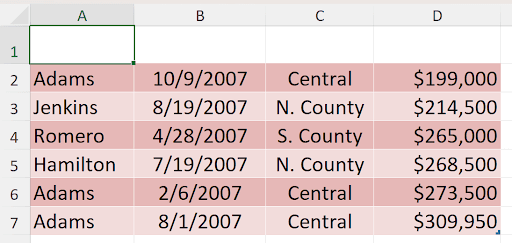
**Header Row**: While rarely disabled, removing this option creates an unusual appearance that may confuse users:

Screenshot of an Excel worksheet with columns A through D filled with data. The rows show entries like Adams (10/9/2007, Central, $199,000), Jenkins (8/19/2007, N. County, $214,500), Romero (4/28/2007, S. County, $265,000), Hamilton (7/19/2007, N. County, $268,500), and additional Adams entries with different dates and prices. The cells are shaded pink, and row 1 is currently empty.

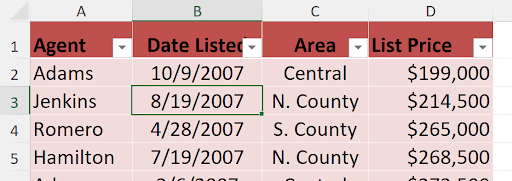
**Banded Rows** alternates row shading to improve readability. Without this enhancement, large tables become significantly harder to scan:

Screenshot of an Excel table with red column headers labeled 'Agent, ' 'Date Listed, ' 'Area, ' and 'List Price.' Rows include Adams (10/9/2007, Central, $199,000), Jenkins (8/19/2007, N. County, $214,500), Romero (4/28/2007, S. County, $265,000), and Hamilton (7/19/2007, N. County, $268,500). The cells are shaded pink, and the Date Listed cell for Jenkins (8/19/2007) is highlighted.

**Total Row** automatically adds a summary row using the SUBTOTAL(109, …) formula, which ignores filtered-out rows—a crucial advantage over standard SUM functions in filtered data scenarios.

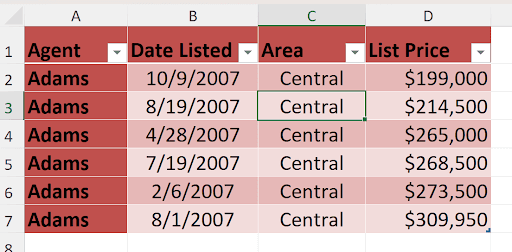
**First Column** and **Last Column** options apply special formatting to emphasize these positions, useful when the first column contains categories or the last contains totals:

Screenshot of an Excel table with red column headers labeled 'Agent, ' 'Date Listed, ' 'Area, ' and 'List Price.' Every row lists 'Adams' in the Agent column, with varied listing dates in 'Date Listed.' The 'Area' column is consistently 'Central, ' and cell C3 (Central) is highlighted. The 'List Price' column ranges from $199,000 to $309,950. All data rows are shaded pink.

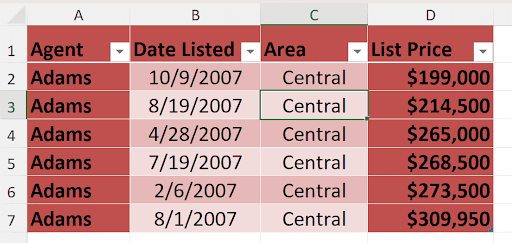
**Banded Columns** alternates column shading, particularly effective for wide tables with numerous columns:

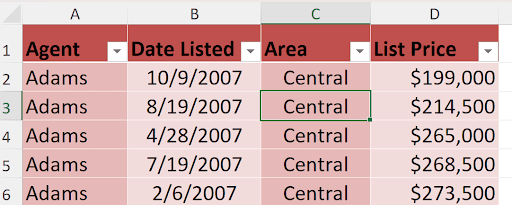
Screenshot of an Excel table with red column headers for 'Agent, ' 'Date Listed, ' 'Area, ' and 'List Price.' Each of the five rows lists 'Adams' as the Agent, with varying dates in the 'Date Listed' column. The 'Area' column is 'Central' for every row, and 'Central' is currently selected in cell C3. The 'List Price' values range from $199,000 to $273,500.

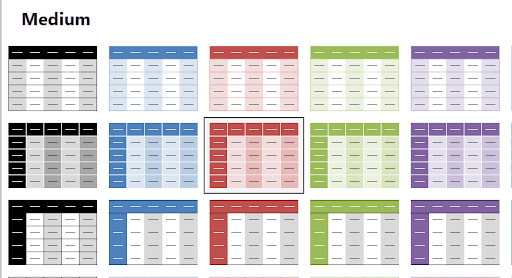
These style options dynamically update the Table Styles gallery, showing previews that reflect your current selections:

Screenshot of Excel's 'Medium' table style gallery, displaying multiple colored style previews arranged in a grid (e.g., black, blue, red, green, and purple headers or banded rows). Each preview shows how the header row and data rows would appear in that specific style.

**Filter Button** toggles the dropdown arrows in header cells, controlling access to Excel's powerful filtering capabilities—essential for data analysis workflows.

Table Style Configuration

0/5

Default Style Options

Header Row
100
Banded Rows
100
Total Row
0
First Column
0
Last Column
0

Table Styles Gallery

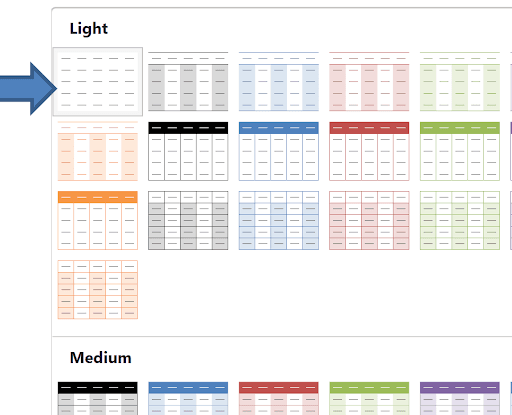
For scenarios requiring minimal visual formatting while maintaining table functionality, select the top-left "None" option in the Table Styles gallery:

Left Icon

This produces a clean, unformatted appearance while preserving all table functionality:

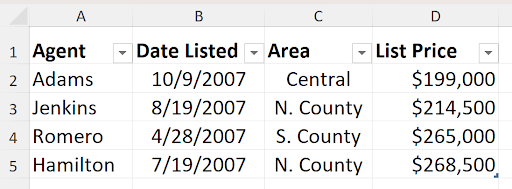
Screenshot of an Excel table with columns labeled 'Agent, Date Listed, Area, List Price' showing data entries for various agents with dates and property information. The table appears without colored formatting or borders, displaying a clean, minimal appearance while maintaining the dropdown filter arrows in the headers.

Understanding and leveraging Excel Tables transforms data management from manual processes to automated, intelligent workflows. Whether you're analyzing sales data, managing project timelines, or creating financial models, tables provide the foundation for more sophisticated Excel applications while maintaining the flexibility and familiarity that makes Excel indispensable for business users.

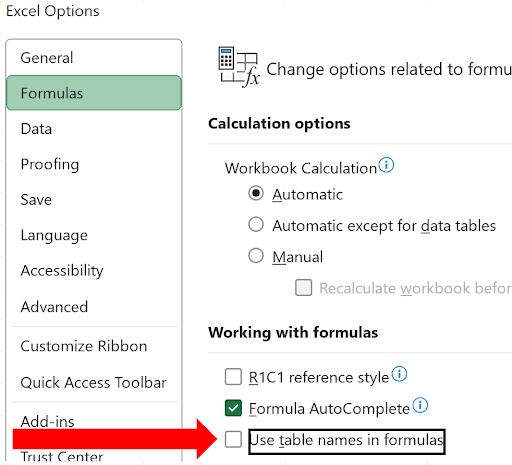
Disable Structured References

If you prefer traditional cell references, go to File > Options and uncheck 'Use table names in formulas' to disable structured referencing syntax.

Table Integration Benefits

Pivot Table Synchronization

Pivot tables based on Excel tables automatically update when you refresh, reflecting any table size changes. This eliminates manual range adjustments.

Dynamic Chart Updates

Charts connected to tables automatically expand or contract as table data changes. Your visualizations stay current without manual intervention.

Converting Table Back to Range

1

Access Table Tools

Click anywhere in the table to activate the Table Design tab in the ribbon

2

Convert to Range

Use the Convert to Range tool to remove table functionality while preserving formatting

3

Remove All Formatting

Select the top-left icon in Table Styles gallery for a clean, unformatted appearance

Key Takeaways

1Excel tables automatically expand when data is added to adjacent rows or columns, eliminating manual range adjustments
2Structured referencing syntax uses table and column names instead of cell references, making formulas more readable and maintainable
3Three methods create tables: Home tab Format as Table, Insert tab Table, or keyboard shortcuts CTRL+T or CTRL+L
4Table selection offers two modes: standard column selection affects entire worksheet columns, while table-specific selection targets only table data
5Seven style options control table appearance: Header Row, Banded Rows, Total Row, First Column, Last Column, Banded Columns, and Filter Buttons
6Total rows automatically use SUBTOTAL(109, ...) functions which ignore filtered data, providing accurate calculations
7Pivot tables and charts based on Excel tables automatically adjust their data ranges when tables grow or shrink
8Structured referencing can be disabled in Excel Options if traditional cell reference notation is preferred for formula writing

RELATED ARTICLES