Working with AE Shape Layers
InDesign Layout Essentials
Master Pages
Recurring layout elements like page numbers, headers, footers.
Paragraph Styles
Reusable type formatting that scales across long documents.
Frames & Threading
Text flows between frames — the heart of multi-column layout.
Object Styles
Reusable formatting for image frames, callout boxes, sidebars.
Noble Desktop's Graphic Design Certificate covers InDesign alongside Photoshop and Illustrator.
Explore our detailed Cinema 4D tutorial that covers various topics including exporting shape layers to C4D, creating shape layers from Illustrator files, creating a fracture animation in C4D, and randomizing animation in C4D.
Exercise Preview
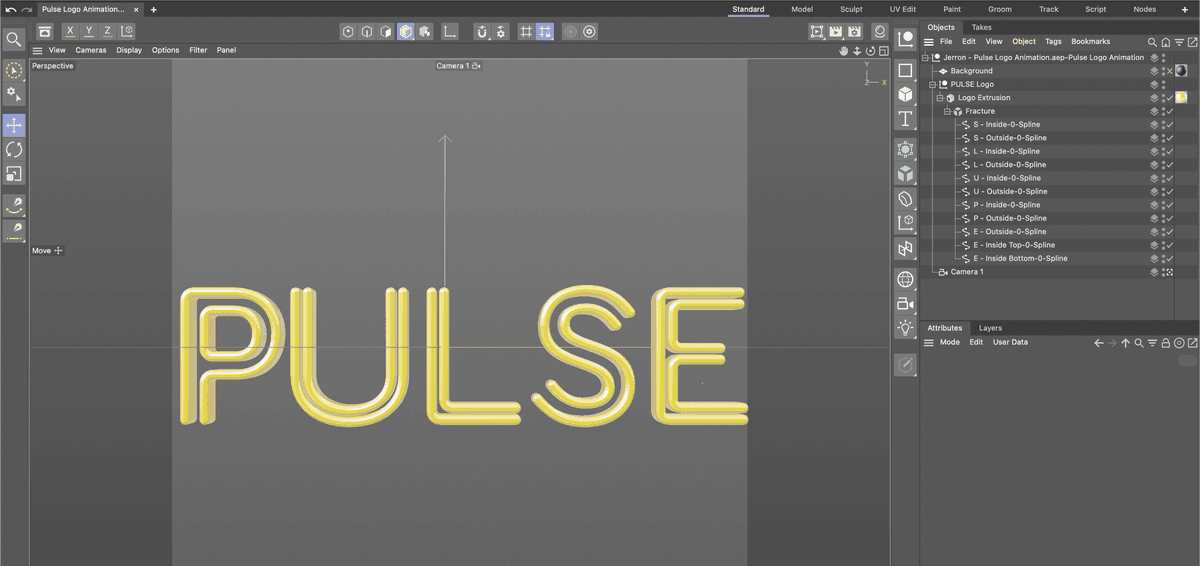
Organizing the C4D Project
Sometimes the After Effects file you export to Cinema 4D is organized exactly the way you want it and you can just do a little texturing or lighting and be done with it. But more often, you will have to spend some time cleaning it up to make it more efficient to work with.
In Cinema 4D move the playhead to 02;00 (2seconds) so that you can see the finished position of the camera.
NOTE: The blue background in the AE project is created by a series of AE effects and they just aren’t supported in C4D. So while the background object is converted into a plane in C4D, it just appears as a solid gray color here.
In the Object Manager (it’s the panel named Objects) click the plus sign
 next to the first item.
This reveals the camera and all of the objects created when you export the file from AE.
Click off the check mark to the right of the background plane. This turns off its visibility.
NOTE: If you save the file now and jump back to AE you will see the blue background layer is visible again.
Click the plus sign
next to the E—Inside Bottom null object to reveal its content.Double–click on the E—Inside Bottom null object and rename it PULSE Logo.
- Press Return (Mac) or Enter (Windows) on your keyboard or click on anything else in the Object Manager to finalize the name change.
Click the plus sign
next to the E—Inside Bottom-0 extrude object to reveal its content as well.We’re going to combine all of the other splines into this single extrusion.
Double–click on the E—Inside Bottom-0 extrusion object and rename it Logo Extrusion.
Locate the Object tab in the Attribute Manager and click on the Hierarchical switch. This will allow the extrude object to extrude more than one spline.
Click the plus sign
next to the E—Inside Top null object to reveal its content.If necessary, click the plus sign
next to the E—Inside Top-0 extrude object to reveal its content.Drag the Spline object (E—Inside Top-0-Spline) into the Logo Extrusion.
Click on the E—Inside Top null object and press Delete (Mac) or Backspace (Windows) on your keyboard to delete it.
This manual move and delete process could take forever so lets see if we can speed it up.
Click on the next null object S—Inside to select it.
Hold down the Shift key on your keyboard and click on the last null object P—Outside to select all of the object in between.
CTRL–click (Mac) or Right–click (Windows) on one of the highlighted object and choose Delete Without Children.
This deletes all of the null objects but leaves their content, the extrude objects and the splines intact.
If the S—Inside spline is visible, click on the minus sign
 next to the null to hide it.
Click on the first extrude object left S—Inside to select it.
Hold down the Shift key on your keyboard and click on the last extrude object P—Outside to select all of the extrude objects in between.
CTRL–click (Mac) or Right–click (Windows) on one of the highlighted object and choose Delete Without Children.
Select the remaining splines and drag them into Logo Extrusion.
Press Cmd–S (Mac) or CTRL–S (Windows) or choose File > Save Project.
Editing Textures
When you export shape layers from After Effects their color was used as the basis for a texture that is then applied to the C4D models. Since we consolidated all the separate extrusions into one. That single texture is now applied to the entire object.
Long press on the Render View button and choose Interactive Render Region.
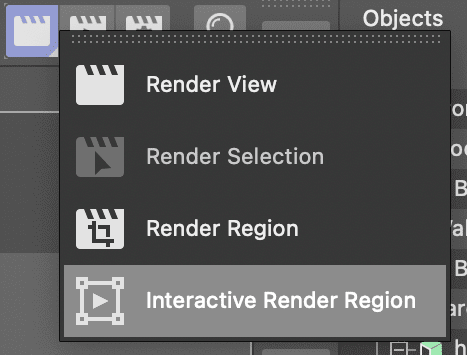
Adjust the render region window so it covers at least one of the letters in the Pulse logo.
NOTE: When using the interactive Render Region you will want to adjust the quality slider (the arrow on the right) to as high as your computer hardware will allow.
Click on the Material Manager
 button or press Shift–f2.
Notice that there are a lot of gray materials there. Each extrusion object was assigned its own material when it was converted from AE to C4D.
In the Object Manager hover over the Material ID
 tag across from the Logo Extrusion object. Its name should pop up as E—Inside Bottom-0-Material0.
NOTE: If you used a different extrusion object as the base when you consolidated the splines you will have a different material tag at this point.
In the Material Manager select all the other extrusion materials (they are the ones where the names start with letters) and delete them.
NOTE: You can do this manually by selected all of the other materials or you can CTRL–click (Mac) or Right–click (Windows) on one of the materials and choose Delete Unused Materials.
Double–click on the E—Inside Bottom-0-Material0 material’s name and rename it Pulse Logo Material.
Double–click the Material icon
 to open the Material Editor. We’re going to create a golden material for the text.
Click on the Color Map to make sure it’s active. We’re going to add a Lumas shader to the base color since it lets us mimic metal material better.
Click the arrow to the right of Texture and choose Effects > Lumas.
Click on the word Lumas that is now listed to the right of the arrow. This opens the Lumas shader’s properties so you can edit them.
Click on the Shader tab if necessary.
Click on the Color swatch and change the color so that R = 255, G = 240, B = 0
- Click on the Material Editor to close the Color Chooser.
Click on the Specular 1 tab and:
- Click on the Color swatch and change the color so that R = 255, G = 168, B = 0
- Click on the Material Editor to close the Color Chooser.
Click on the Specular 2 tab and:
- Click on the Color swatch and change the color so that R = 255, G = 199, B = 0
- Click on the Material Editor to close the Color Chooser.
Click on the Specular 3 tab and:
- Click on the Color swatch and change the color so that R = 198, G = 145, B = 0
- Click on the Material Editor to close the Color Chooser.
Click on the Anisotropy tab and:
- Click on the Active switch.
- Change Y Roughness to 125
- Click on the Material Editor to close the Color Chooser.
Click on the switch next to Luminance to activate it reveal its properties.
- Click on the Color swatch and change the color so that R = 209, G = 153, B = 0
- Click on the Material Editor to close the Color Chooser.
- Change Brightness to 40
Click on Reflectance to reveal its properties click Remove to get rid of the default reflection map.
Click Add and choose Beckman from the list of shaders.
In the Beckman shader click the arrow next to Layer Fresnel to reveal its properties and:
- Choose Dielectric from the Fresnel menu.
- Change Strength to 85
- Change IOR to 1.5
Click on the switch next to Glow to activate it reveal its properties.
- Change Outer Strength to 200
- Change Random to 20
Close the Material Editor and then close the Material Manager.
Click off the Interactive Render Region.
Press Cmd–R (Mac) or CTRL–R (Windows) to render the camera view.
Press Cmd–S (Mac) or CTRL–S (Windows) or choose File > Save Project to save your C4D project.
Return to After Effects
In Effect Controls change the Renderer in the Cineware effect to Current.
Preview the finished animation by pressing Spacebar on your keyboard.
Press Cmd–S (Mac) or CTRL–S (Windows) or choose File > Save to save your AE project.
Creating and Randomizing a Fracture Object
While Cinema 4D Lite lacks many of the MoGraph effects that the full version has, it does possess both the Fracture object and the Random effector. Together they can be used to create some interesting animations.
If You Did Not Do the Previous Exercises
If a project is open in After Effects, go to File > Save, then File > Close Project.
Go to File > Open Project and navigate to Desktop > Class Files > C4D in AE Class > AE Shapes to C4D > Finished Projects.
Double–click on Pulse Logo Animation—Fracture.aep.
Go to File > Save As > Save As. Name the file Your Name—Pulse Logo Animation.aep and save it to Desktop > Class Files > C4D in AE Class > AE Shapes to C4D (replacing the file if it’s already there).
Return to Cinema 4D.
Click on the Fracture
 object button to the right of the Perspective viewport.
NOTE: You can also choose MoGraph > Fracture.
Drag the new Fracture object into Logo Extrusion
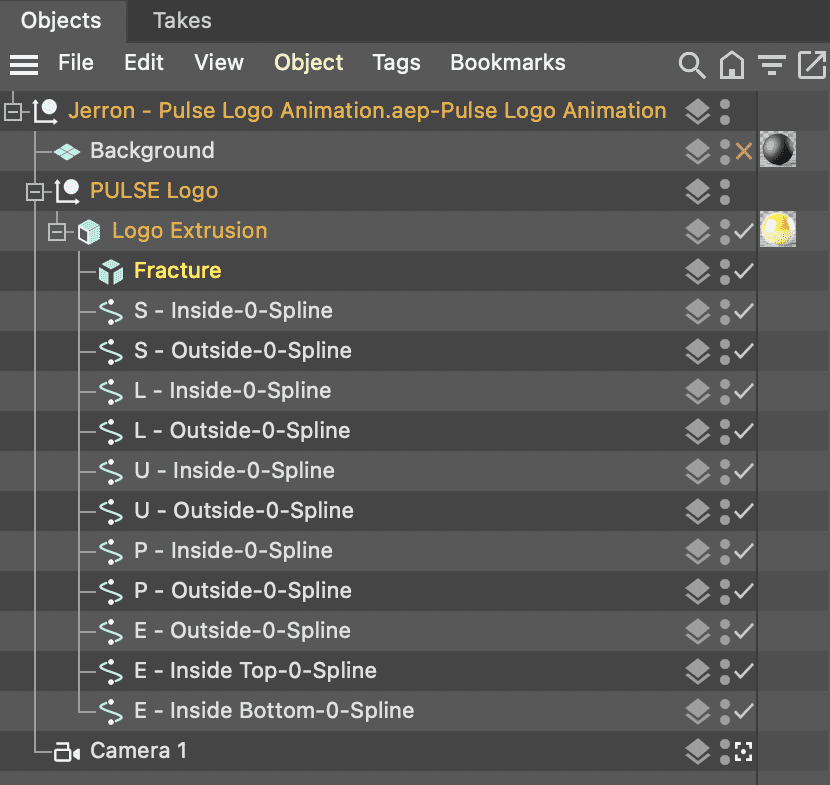
Select all of the splines inside of the Logo Extrusion object and drag them into the Fracture object.
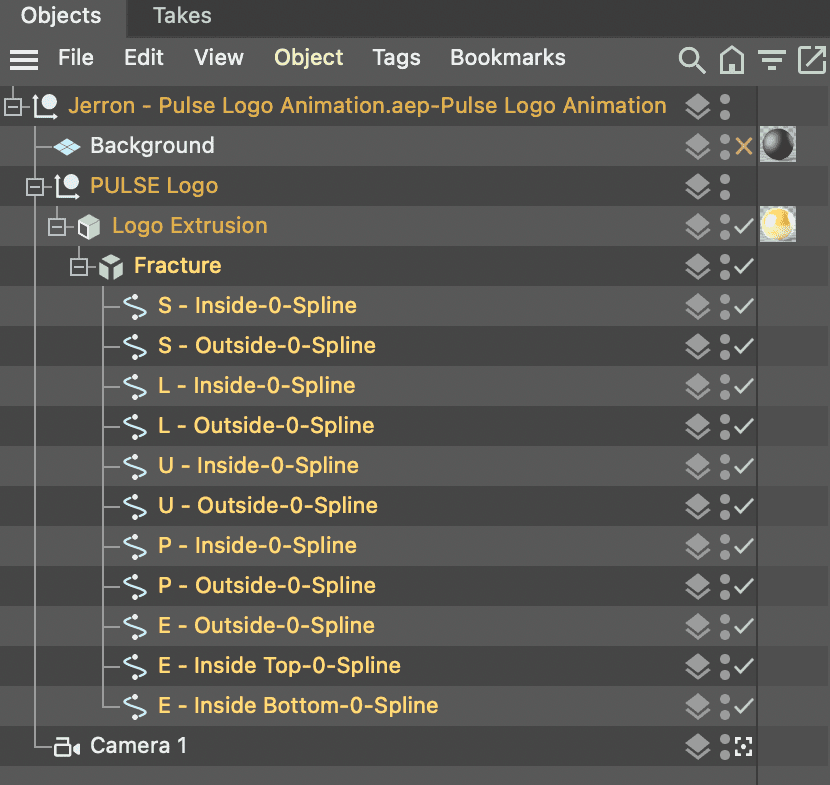
Click on the Fracture object to select it.
Choose MoGraph > Effector > Random. This add the Random effector to the Fracture object and immediately changes the position of the Pulse splines.
In the Attribute Manager click on the Effector tab is necessary.
Scrub the Strength slider to zero and watch as the logo pieces returns to their original positions. This is how we will animate the logo assembly.
- Return the Strength slider to 100
Click on the Parameters tab.
Change the Position values to the following:
- P.X = 300
- P.Y = 300
- P.Z = 500
Click on the switch for Rotation and make the following changes.
- R.H = 720
- R.P = 720
- R.B = 720
Click back onto the Effector tab.
Click in the current time field type 000010 and press Return (Mac) or Enter (Windows) to move the Playhead to 00:00:10 (10 frames).
Confirm that Strength is set to 100.
Click the keyframe button to the left of the Strength attribute to create a new keyframe.
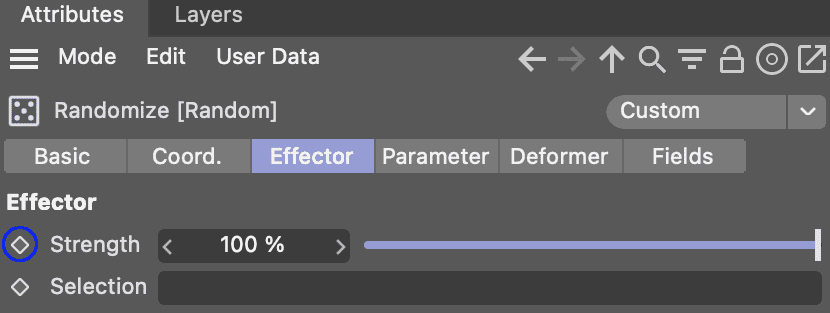
Click in the current time field type 0002 and press Return (Mac) or Enter (Windows) to move the Playhead to 00:02:00 (2 seconds).
Change the Strength slider to 0.
- Click the keyframe button to the left of the Strength attribute again to create another keyframe.
Click on the second keyframe to select it.
CTRL–click (Mac) or Right–click (Windows) on the second keyframe and choose Spline Types > Ease In
Drag the playhead back and forth on the timeline to preview the animation.
Press Cmd–S (Mac) or CTRL–S (Windows) or choose File > Save Project to save your C4D project.
Return to After Effects
Preview the finished animation by pressing Spacebar on your keyboard.
Press Cmd–S (Mac) or CTRL–S (Windows) or choose File > Save to save your AE project.
Adjusting the Axis and Scaling
The text is a little too large and is almost running off the composition edge in After Effects. We can fix this by adjusting the extrusion objects size in C4D.
Return to Cinema 4D.
In the Perspective view, confirm that the Safe Frames preview is enabled, Cameras > Safe Frames.
Click the Toggle Active View
 button at the top right of the Perspective view.
In the Object Manager, click on the Logo Extrusion object to select it.
Notice that the axis for all transformations is located to the far right of the logo. We’ll need to fix this before we can scale the extrusion.
Click the Enable Axis
 button located at the top of the application.
Press E on the keyboard or click on the Move
 tool to activate it.
In the Top or Front viewports, place your cursor over the Red move arrow.
Drag the axis to the horizontal center of the logo.
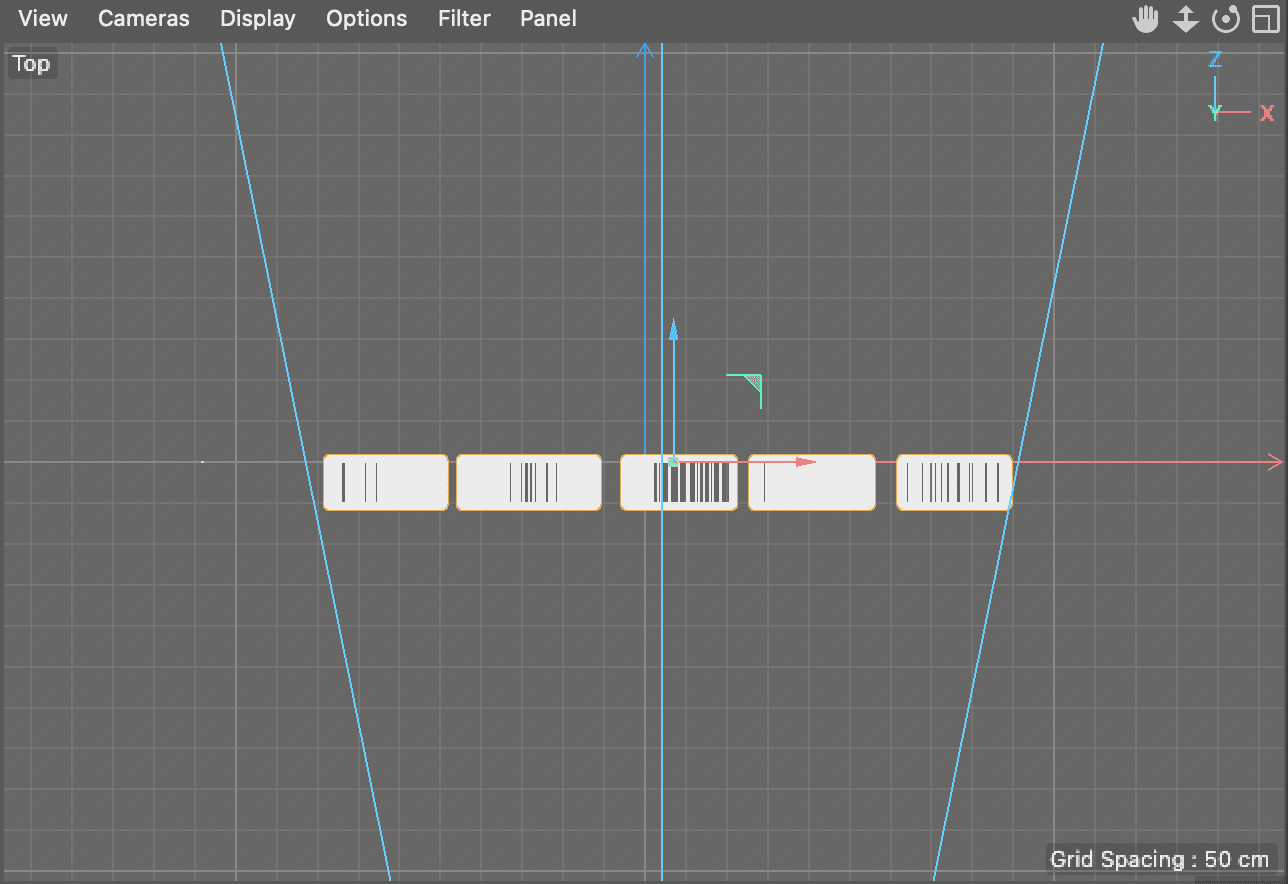
In the Front viewport, place your cursor over the green move arrow.
Drag the axis to the vertical center of the logo.
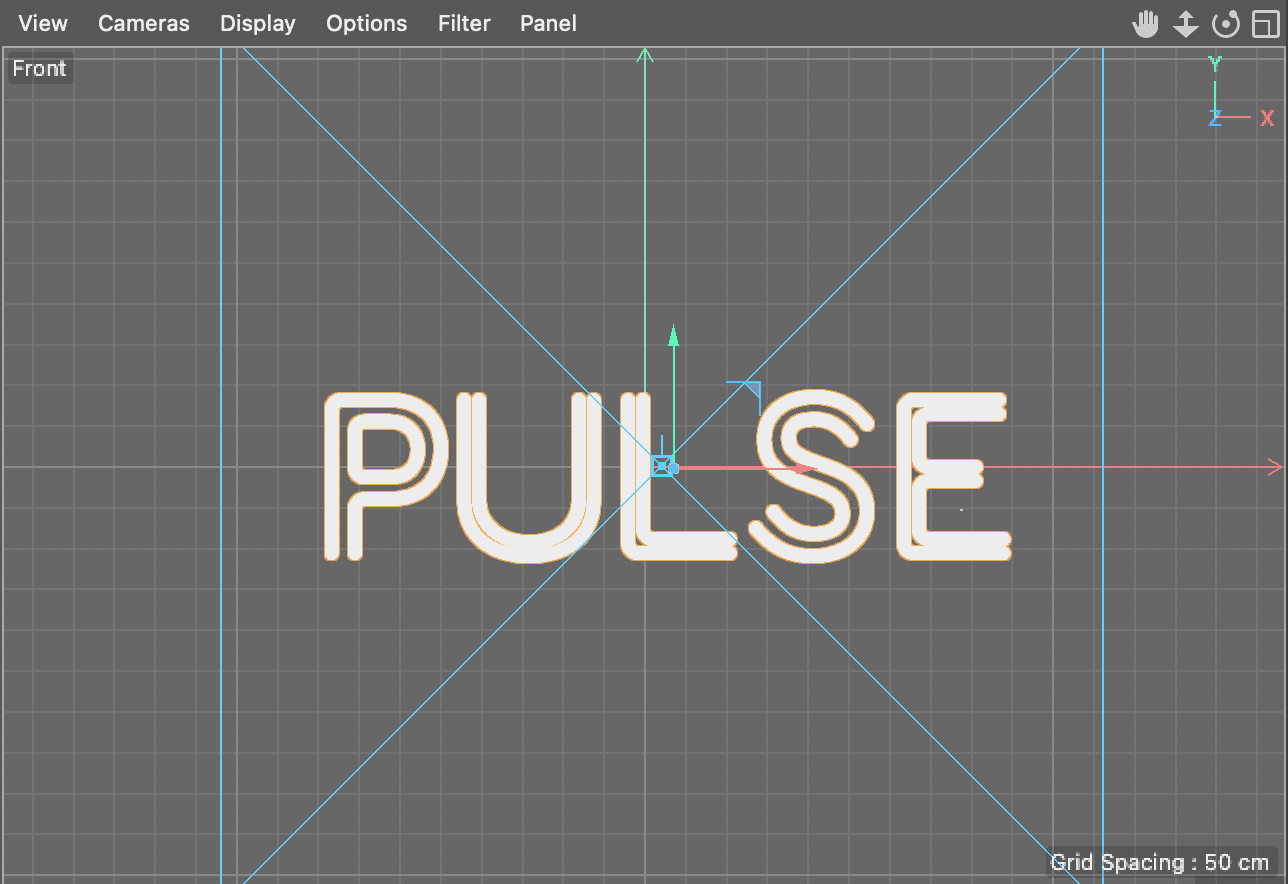
Click off the Enable Axis button.
Press T on the keyboard or click on the Scale
 tool to select it.
In the Object Manager, click on the Logo Extrusion object to make sure it’s still selected.
In any viewport click away from the logo and drag towards its center to scale it down.
Watch the Perspective view to see the results through the camera’s viewpoint.
Press Cmd–S (Mac) or CTRL–S (Windows) or choose File > Save Project to save your C4D project.
Return to After Effects
Preview the finished animation by pressing Spacebar on your keyboard.
Press Cmd–S (Mac) or CTRL–S (Windows) or choose File > Save to save your AE project.
You can now close this project we are done with this part of the lesson.