Importing Vector Files
What This Tutorial Covers
Illustrator Import
Bring AI files in as splines.
Spline to Geometry
Extrude or sweep vectors into 3D objects.
Logo Modeling
Common workflow for logo extrusion.
Noble Desktop's Video Editing & Motion Graphics Certificate teaches Cinema 4D alongside After Effects, Premiere Pro, and motion design fundamentals.
Delve into the intricacies of Cinema 4D, learning to work with imported 2D vector files, animate cameras, and apply procedural textures, with our comprehensive tutorial.
Exercise Preview
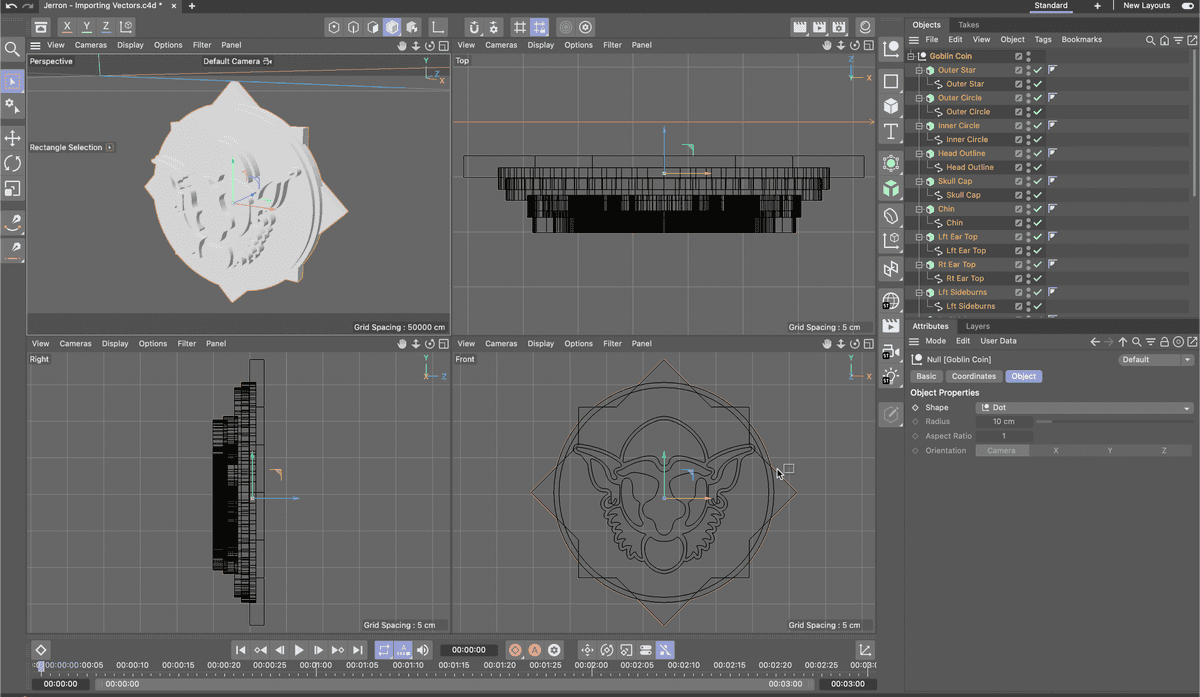
Importing Illustrator Files
The process of importing vector files is the same process you use when importing external 3D files. One thing to note if you are working with Adobe Illustrator files is that only Illustrator Version 8 and older files are supported for import.
In C4D switch to the default 4 views layout.
With a C4D document open, choose File > Merge Project.
Navigate to the vector file you want to import and double–click on it.
In the dialog:
- Set Scale to 100 Centimeter.
- Disable both checkboxes.
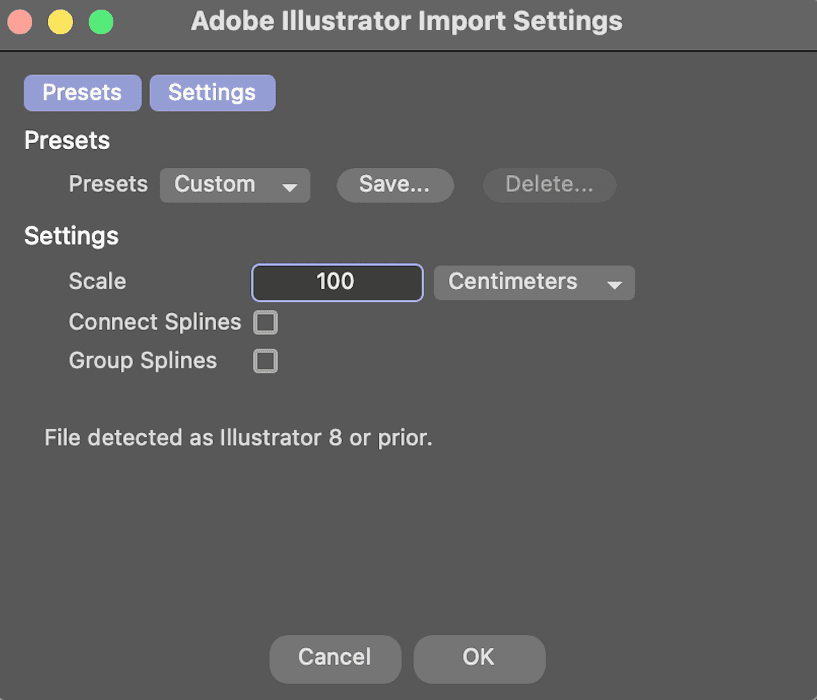
- Click OK
Once imported, hover your cursor over each viewport and press H on the keyboard to zoom to your geometry.
Press Cmd–S (Mac) or CTRL–S (Windows) or choose File > Save Project to save your C4D project
Applying an Extrude Generator to a Spline
Imported vector files are converted into C4D splines. The problem are splines are two dimensional shapes and have to be converted to 3D geometry to be visible.
In the Object Manager, select all of the Splines you want to receive extrude generators
Hold down the Option (Mac) or ALT (Windows) key on your keyboard and choose Extrude from the Create menu.
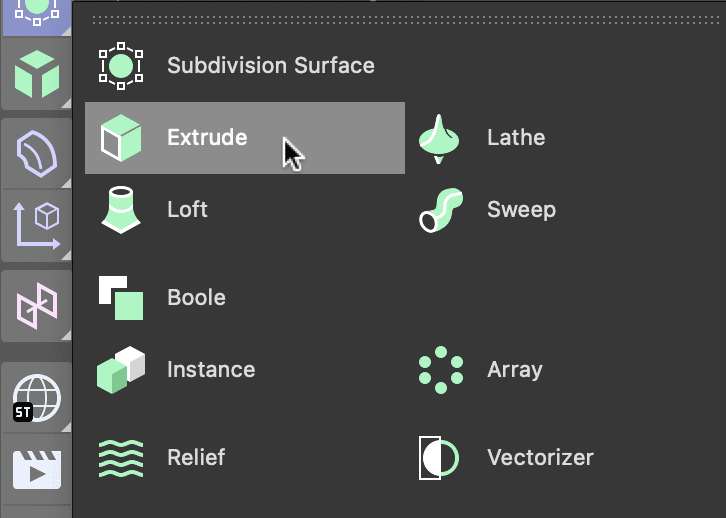
With the multiple extrude generators selected adjust their attributes, most importantly the Offset attribute which controls how thick the extrusions are.
Just as you renamed your splines you should take the time to rename the individual extrude generators so you can identify the parts of your model.
If your graphic is constructed of overlapping parts you will need to separate it to see the details.
If your splines were constructed by mirroring and clipping them you will probably have to adjust the Direction attribute to Z.
Creating a Golden Texture
In 3D software, textures are applied to objects using materials, which control the appearance and properties of the object. Textures are images or patterns that are applied to the surface of 3D objects to give them more detail and realism. Textures can be used to simulate a wide variety of materials and surfaces such as wood, metal, skin, cloth, and more. By applying textures to objects in a 3D scene, you can add depth, interest, and realism to the scene.
Long press on the Render View button and choose Interactive Render Region.
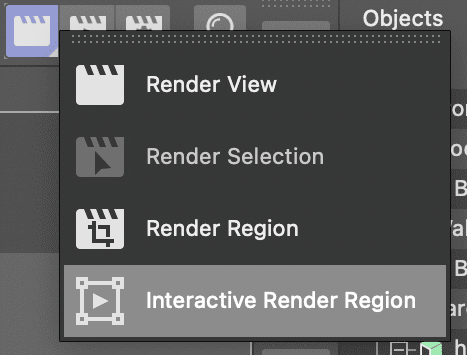
Adjust the render region window so it covers at least part of the artwork you are going to texture.
NOTE: When using the interactive Render Region you will want to adjust the quality slider (the arrow on the right) to as high as your computer hardware will allow.
Click on the Material Manager
 button or press Shift–f2.
Notice that there are a lot of gray materials there. Each extrusion object was assigned its own material when it was converted from AE to C4D.
Click the New Default Material
 button.
Double–click the new Material icon
 to open the Material Editor. We’re going to create a material that looks like gold.
Click on the Color Map to make sure it’s active. We’re going to add a Lumas shader to the base color since it lets us mimic metallic materials better than other shaders.
Click the arrow to the right of Texture and choose Effects > Lumas.
Click on the word Lumas that is now listed to the right of the arrow. This opens the Lumas shader’s properties so you can edit them.
Click on the Shader tab if necessary.
Click on the Color swatch and change the color so that R = 255, G = 240, B = 0
- Click on the Material Editor to close the Color Chooser.
Click on the Specular 1 tab and:
- Click on the Color swatch and change the color so that R = 255, G = 168, B = 0
- Click on the Material Editor to close the Color Chooser.
Click on the Specular 2 tab and:
- Click on the Color swatch and change the color so that R = 255, G = 199, B = 0
- Click on the Material Editor to close the Color Chooser.
Click on the Specular 3 tab and:
- Click on the Color swatch and change the color so that R = 198, G = 145, B = 0
- Click on the Material Editor to close the Color Chooser.
Click on the Anisotropy tab and:
- Click on the Active switch.
- Change Y Roughness to 125
- Click on the Material Editor to close the Color Chooser.
Click on the switch next to Luminance to activate it reveal its properties.
- Click on the Color swatch and change the color so that R = 209, G = 153, B = 0
- Click on the Material Editor to close the Color Chooser.
- Change Brightness to 40
Click on Reflectance to reveal its properties click Remove to get rid of the default reflection map.
Click Add and choose Beckman from the list of shaders.
In the Beckman shader click the arrow next to Layer Fresnel to reveal its properties and:
- Choose Dielectric from the Fresnel menu.
- Change Strength to 85
- Change IOR to 1.5
Click on the switch next to Glow to activate it reveal its properties.
- Change Outer Strength to 200
- Change Random to 20
Close the Material Editor and then close the Material Manager.
Click off the Interactive Render Region.
Press Cmd–R (Mac) or CTRL–R (Windows) to render the camera view.
Press Cmd–S (Mac) or CTRL–S (Windows) or choose File > Save Project to save your C4D project.