Animating Cameras in Cinema 4D
Cinema 4D Essentials
Object Manager
Hierarchy of all scene objects — parent/child relationships.
Materials
Surface properties — color, reflection, bump, displacement.
MoGraph
Cloners, effectors, fields — C4D's signature procedural toolset.
Render Engines
Standard, Physical, Redshift, Octane, Arnold.
Noble Desktop's Video Editing & Motion Graphics Certificate teaches Cinema 4D alongside After Effects and Premiere Pro.
Gain an in-depth understanding of how to animate a camera in Cinema 4D in this step-by-step tutorial, covering topics such as creating cameras, camera properties, and making a camera follow a path.
Exercise Preview
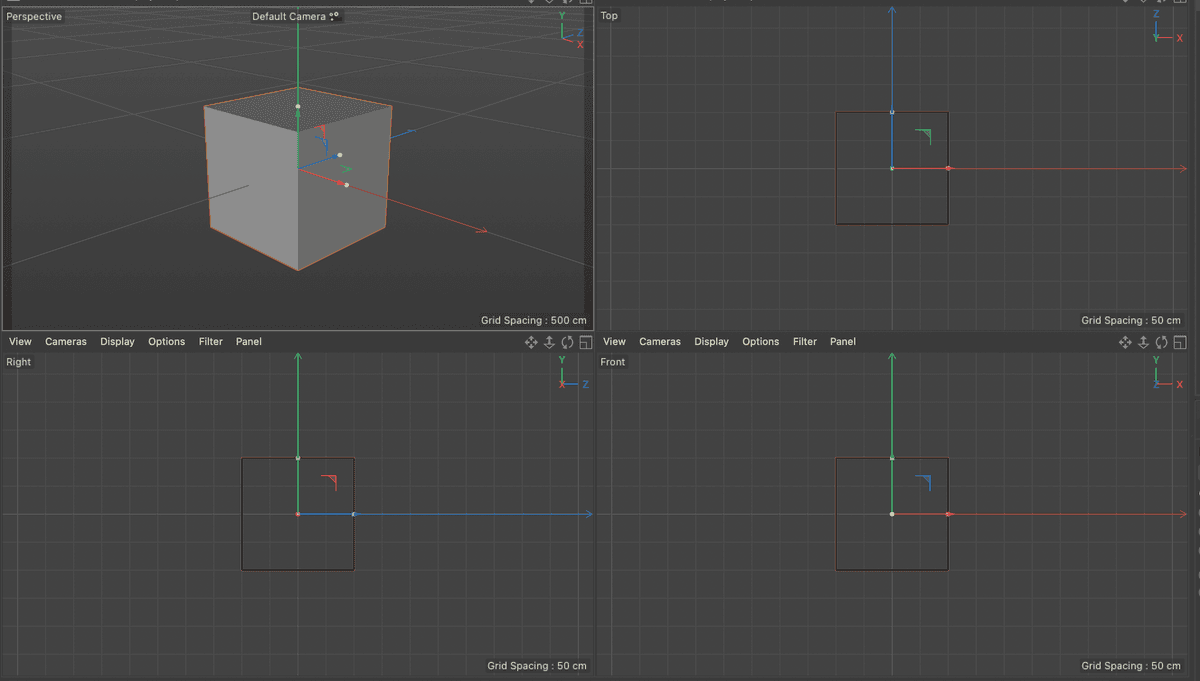
Creating a Camera in C4D Lite
Cameras in Cinema 4D Lite are similar to cameras in After Effects and other 3D programs.
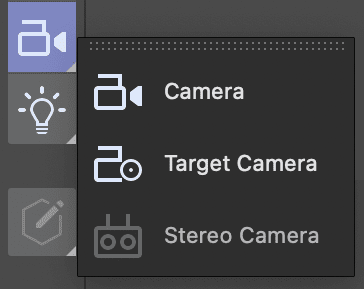
In the Create menu, long press on the Camera and choose Target Camera from the list.
In the Perspective view choose Cameras > Use Camera > Camera to switch to the scene camera you just created.
In the Object Manager make sure the Camera object is selected.
In the Attribute Manager, click on the Object tab.
Change the Focal Length menu to Normal Lens (50 mm).
In the Object Manager, click on the Camera. Target.1 object to select it.
In the Front view, move the target so it is approximately in the vertical middle of the glass.
Click on the Camera.
In the Front or Right views, move the camera vertically and horizontally until the entire glass is visible in the Perspective view.
NOTE: You’ll probably need to reposition the camera target as well.
Press Cmd–S (Mac) or CTRL–S (Windows) or choose File > Save Project.
Making a Camera Follow a Path
Camera properties can be animated just like the properties of any other object. But, if you want a camera to orbit around a specific object it is better to make the camera follow a spline than try to animate its position.
NOTE: Although in this lesson it is a camera that follows a path, this same technique can be applied to any object in C4D.
In the Create menu, click on the rectangle shape and choose Circle from the menu.
In the Object Manager double–click on the Circle and rename it Camera Path.
- Press Return (Mac) or Enter (Windows) or click on any empty area to finalize the name change.
In the Attribute Manager click on the Object tab.
Change the Radius to until you can see in the Top view that the circle is just slightly larger than the Floor plane.
We used a radius of 2590
In the Object Manager, CTRL–click (Mac) or Right–click (Windows) on the Camera and choose Animation Tags > Align to Spline.
With the tag selected click on the eyedropper next to the Spline Path menu to activate it.
With the eyedropper, click on the Camera Path spline in the Object Manager.
Watch as the Perspective view abruptly changes.
Click back on the Camera Path spline in the Object Manager.
Change the Radius until you can see the Glass again. We used 3350
Make sure the Playhead is at the beginning of the Timeline.
Change the Project End timecode (it is the field to the right of the timeline) to 00,000 (10 Seconds) and press Return (Mac) or Enter (Windows).
Again click on the Align to Spline tag in the Object Manager.
In the Attribute Manager change the Position to 1
Click the keyframe
 button to the right of position.
Move the playhead to 000500 (5 seconds).
Change the Position to -25.
You will have to either scrub the value or type it into the field. The slider won’t let you set a value below 0 or above 100.
Again click the keyframe
button to the right of position to set your second keyframe.Move the playhead to the beginning of the Timeline.
Press the play button of F8 to play the timeline.
Press Cmd–S (Mac) or CTRL–S (Windows) or choose File > Save Project.