April 1, 2026Dan Perico/3 min read

The Reference Option Part 1: The Rotate Tool

Master AutoCAD's Reference Option for Precise Rotations

AutoCAD Rotate Tool Fundamentals

Standard Rotation

Default rotation uses 0-degree horizon line as reference. Limited to predefined Polar Tracking angles for precise alignment.

Reference Option

Allows custom reference angles by clicking two points. Enables rotation of irregular shapes to conform to standard angles.

Polar Tracking Integration

Reference option works seamlessly with Polar Tracking. Provides visual guides for precise angle alignment and snapping.

Topics Covered in This AutoCAD Tutorial:

Master the Rotate Tool's Reference Option and learn advanced techniques for precise object alignment in complex drafting scenarios.

Exercise Preview

ex preview reference rotate tool

Exercise Objective

Transform an irregularly angled object by aligning its bottom edge to the 0-degree horizon using the Reference option on the Rotate tool.

Exercise Overview

The bottom edge of this object lies at an irregular angle that doesn't align with standard Polar Tracking increments—a common challenge when working with imported geometry or field measurements. In this exercise, you'll leverage the Reference option within AutoCAD's Rotate tool to precisely align the bottom edge to the 0° horizontal baseline, transforming an awkwardly positioned object into a properly oriented drawing element.

Standard vs Reference Rotation Methods

FeatureStandard RotationReference Option
Reference AngleFixed at 0 degreesCustom angle from two points
Object AlignmentLimited to current orientationAny irregular angle
PrecisionRequires angle calculationVisual point selection
Polar TrackingStandard snap anglesSnap to any tracking angle
Recommended: Use Reference option for objects at irregular angles that need alignment to standard orientations.

Intro to the Reference Option on the Rotate Tool

Traditional rotation in AutoCAD measures angles from the horizontal baseline at 0°, which works perfectly when your geometry already conforms to standard angular increments. However, real-world CAD work often involves objects positioned at arbitrary angles—whether from site surveys, imported models, or preliminary sketches that need cleanup.

The Rotate command's Reference option rotate tool solves this challenge elegantly. Instead of calculating complex angle mathematics, you define a reference line by clicking two points on your existing geometry, then specify where that reference line should rotate to. This approach transforms what could be a frustrating trial-and-error process into a precise, single-step operation.

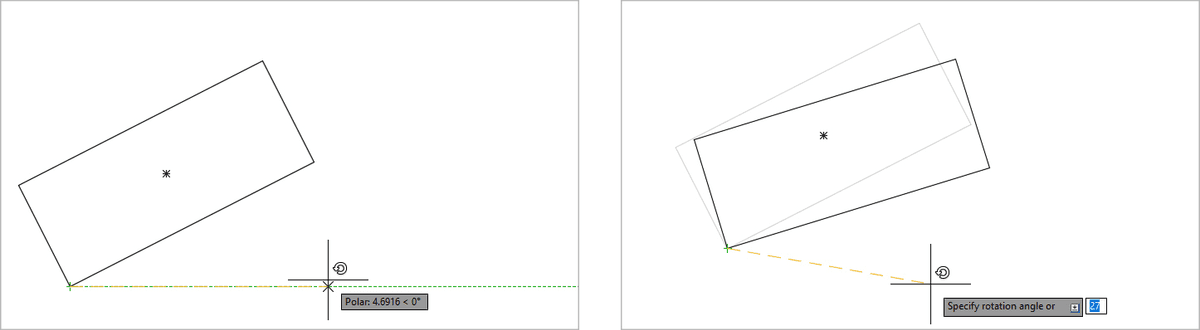
  • Here's the problem: This rectangle sits at an irregular 23.7° angle. Using standard rotation with the default 0° reference makes alignment nearly impossible without precise angle calculations:

    rotate reference 1 and 2

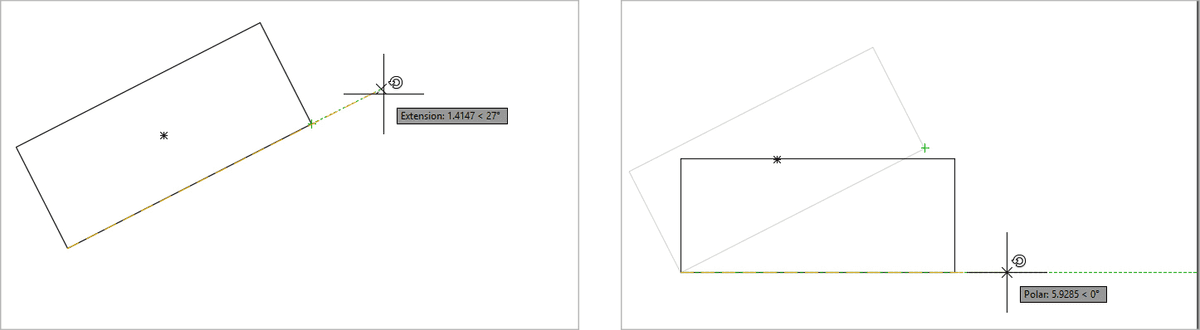
  • The solution: By establishing the rectangle's bottom edge as your reference angle, you can instantly snap that edge to any Polar Tracking angle—in this case, perfectly horizontal at 0°. The rotation happens automatically, regardless of the original angle:

    rotate reference 3 and 4

This technique proves invaluable when cleaning up survey data, aligning imported geometry from other CAD systems, or standardizing drawings that originated from field sketches. Let's put this powerful workflow into practice.

How Reference Option Works

1

Establish Reference Line

Click two points to create a reference angle line that matches the current orientation of your object or edge.

2

Set Target Angle

Move cursor to desired final position, typically snapping to Polar Tracking angles like 0, 90, or 180 degrees.

3

Complete Rotation

AutoCAD calculates the difference between reference and target angles, rotating the object precisely to the new orientation.

Key Advantage

The Reference option eliminates the need to calculate rotation angles manually. Simply define what is and what should be, and AutoCAD does the math.

Rotating the Shape Using the Reference Option

  1. Open the file Rotate-Triangular Plate.dwg. This file contains a triangular plate positioned at an arbitrary angle, simulating geometry that might come from a manufacturing drawing or site measurement.

  2. Initiate the Rotate command rotate tool. Type ALL and press Enter to select all objects in the drawing. Press Enter again to confirm your selection and advance to the rotation parameters.

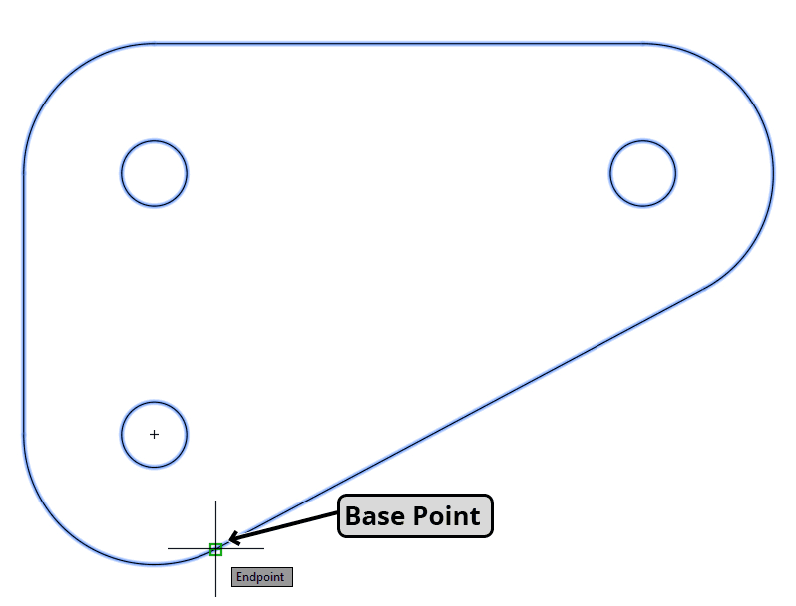
  3. Establish your rotation pivot by clicking the left endpoint of the bottom edge's straight line segment. This base point will remain stationary during the rotation—choose it strategically based on how you want the final geometry positioned.

    rotate base point

  4. Press R then Enter to activate the Reference option. Now define your reference line by clicking two points along the edge you want to align: first, click the left endpoint of the bottom edge (the same point as your base point), then click the right endpoint. This establishes the current angle of the edge as your reference.

    rotate reference points

  5. Move your cursor downward until Polar Tracking displays the 0° horizontal indicator, showing that the bottom edge will align perfectly with the horizontal baseline. Click to complete the rotation and lock the object in its new position.

    Professional Tip: Ensure Polar Tracking is enabled (F10) and set to appropriate angle increments for your drawing standards—typically 90° for architectural work or 30° for mechanical applications.

    rotate reference finished

Step-by-Step Rotation Process

1

File Setup and Selection

Open Rotate-Triangular Plate.dwg file. Start Rotate command and type ALL to select all objects, then press Enter twice to end selection.

2

Set Base Point

Click the left endpoint of the straight line segment on the bottom edge. This point remains stationary during rotation.

3

Activate Reference Option

Press R and Enter to select the Reference option. This switches from standard rotation to reference-based rotation mode.

4

Define Reference Line

Click left endpoint (same as base point) for first reference point, then click right endpoint of line segment for second reference point.

5

Complete Alignment

Pull cursor down to snap bottom edge to 0-degree horizon line using Polar Tracking, then click to finish the rotation command.

Essential Techniques Checklist

0/5

Key Takeaways

1The Reference option on AutoCAD's Rotate tool enables precise rotation of objects at irregular angles by establishing custom reference lines instead of using the default 0-degree horizon.
2Reference rotation works by defining two points to create a reference angle, then snapping that reference to a desired Polar Tracking angle for precise alignment.
3The base point selection is critical as it determines the center of rotation and affects the final position of the rotated object.
4Using the ALL selection command ensures the entire object rotates as a single unit, maintaining geometric relationships between all components.
5The Reference option eliminates manual angle calculations by allowing visual point selection and automatic angle computation between current and desired orientations.
6Polar Tracking integration provides essential visual guides and snap points that ensure accurate alignment to standard angles like 0, 90, and 180 degrees.
7The reference line should align with the existing feature you want to reorient, typically an edge or line that needs to conform to a standard orientation.
8This technique is particularly valuable for correcting drawings with objects at non-standard angles that need to be aligned to architectural or engineering standards.

RELATED ARTICLES