April 1, 2026Dan Perico/4 min read

Selection Part 2: Free AutoCAD Tutorial

Master AutoCAD Selection Tools and Techniques Efficiently

Tutorial Series Continuation

This is Part 2 of the AutoCAD Selection tutorial series. Ensure you have completed Part 1 or are familiar with basic AutoCAD navigation before proceeding.

Topics Covered in This AutoCAD Tutorial:

Selection Techniques and Methods

Key Learning Areas

Block Selection Fundamentals

Learn how blocks function as single entities with unique selection properties. Understand the difference between blocks and individual objects in AutoCAD.

Selection Box Techniques

Master both Crossing Selection (green) and Window Selection (blue) methods. Practice creating precise selection boundaries for complex drawings.

Advanced Selection Methods

Explore keyboard shortcuts, Select Similar commands, and bulk selection techniques. Learn to efficiently manage large numbers of objects.

Exercise Preview

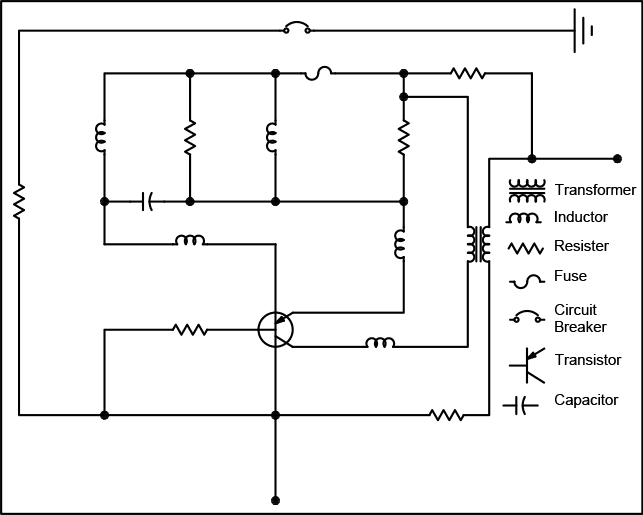
ex preview selection

Understanding Blocks in AutoCAD

Blocks are pre-drawn named objects that behave as single entities. They feature only one grip point, making them significantly easier to select and manipulate compared to complex multi-object drawings.

Exercise Overview

This exercise focuses on mastering selection techniques using blocks—pre-drawn, named objects that AutoCAD treats as single entities regardless of their internal complexity. This characteristic makes blocks particularly valuable for efficient drafting workflows, as they feature only one grip point, streamlining selection and manipulation processes. Understanding these selection methods is fundamental to developing professional-level AutoCAD proficiency and will significantly accelerate your drafting productivity.

Selection Methods Comparison

FeatureCrossing SelectionWindow Selection
Box ColorGreenBlue
Cursor DirectionRight to LeftLeft to Right
Selection CriteriaTouches any partCompletely enclosed
Best Use CasePartial object selectionPrecise bounded selection
Recommended: Use Crossing Selection for inclusive selections and Window Selection for precise bounded selections.

Selection in a File

Now let's put these concepts into practice with hands-on selection exercises that demonstrate real-world application scenarios.

  1. Open the file Selection-ElectronicScematic.dwg.

  2. Position your cursor above and to the right of the outer rectangle. Without pressing the mouse button, drag the cursor left to create a green selection box—this is a Crossing Selection. The green color indicates that any object touched by or enclosed within the selection box will be selected. Create a box encompassing the upper half of the diagram and click to establish the opposite corner. Notice how every object intersected by the box, including the outer rectangle polyline, becomes selected. Practice creating multiple Crossing Selections to build your selection set. To refine your selection, hold Shift and create another crossing selection to remove objects from your current selection set. Press Escape to clear all selections and reset.

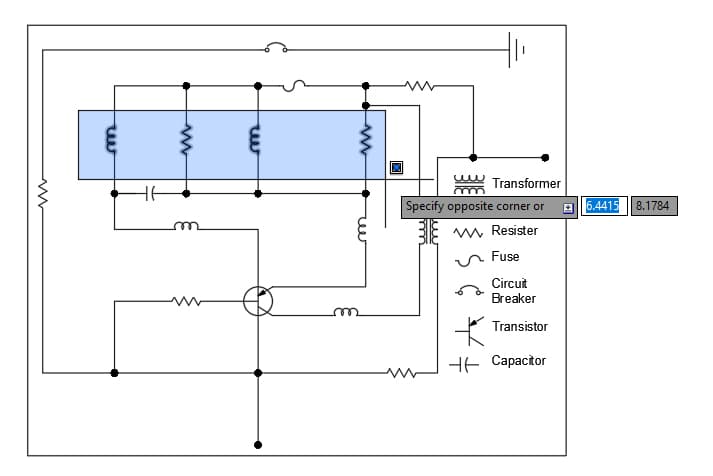
  3. Now position your cursor above and to the left of the outer rectangle. Drag the cursor right to create a blue selection box—this is a Window Selection. The blue color indicates a more restrictive selection method: only objects completely enclosed within the selection window will be selected. Create a box encompassing the upper half of the diagram and click to establish the opposite corner. Observe that the outer rectangle polyline remains unselected because it's only partially covered by the window selection. This precision makes Window Selection invaluable for complex drawings where selective editing is critical. Press Escape to deselect all objects.

  4. Press E Enter to initiate the Erase command. When the Select Objects prompt appears in the Command Line, use a Window Selection to carefully select only the upper row of symbol blocks, avoiding any connecting lines in the schematic. This demonstrates the precision possible with proper selection techniques—a skill essential for maintaining drawing integrity in professional environments. Press Enter to complete the command and erase the selected objects.

    window

  5. Practice individual selection by clicking to select the Transistor, Capacitor, and Fuse blocks. To modify your selection set, hold the Shift key and click on the Transistor to deselect it—a technique professionals use constantly for precise editing. Press the Delete key to erase the remaining selected blocks. This method offers granular control over your selection sets, essential for detailed design work.

  6. Click to select any Resistor symbol block. Right-click on the selected block and choose Select Similar from the context menu. AutoCAD will intelligently select all Resistor blocks in the drawing—a powerful feature that saves significant time when working with repetitive elements common in electrical schematics and architectural drawings. Press E Enter to start the Erase command. Notice that the blocks delete immediately without additional prompts because AutoCAD recognizes pre-selected objects, streamlining your workflow.

  7. Press Enter to repeat the Erase command. At the Select Objects prompt, press Ctrl+A to select all objects. Notice that grips appear, indicating you've exited the Erase command and entered direct manipulation mode—a common workflow pattern in AutoCAD. Press Escape to deselect everything and reset. Now press E Enter to restart the Erase command. When the Select Objects prompt appears, type ALL and press Enter. This command-line method maintains command context while selecting all objects—the preferred approach for complete clearing operations. Press Enter to complete the Erase command and clear the drawing entirely.

Crossing Selection Technique

1

Position Cursor

Move cursor above and to the right of the target area without clicking

2

Create Green Box

Pull cursor left to create a green selection box that encompasses desired objects

3

Complete Selection

Click to establish the opposite corner - all touched objects will be selected

Window Selection Technique

1

Position Cursor

Move cursor above and to the left of the target area

2

Create Blue Box

Pull cursor right to create a blue selection box

3

Precise Selection

Only objects completely covered by the box will be selected

Essential Selection Commands

0/5
CTRL-A vs ALL Command Difference

CTRL-A activates grip mode and exits the current command, while typing ALL during a Select Objects prompt keeps you in the active command. Use ALL for command-based selections.

Block-Based Drawings

Pros
Single grip point simplifies selection and manipulation
Pre-drawn objects ensure consistency across drawings
Faster selection process for complex symbols
Easier to move and rotate as single units
Cons
Individual components cannot be modified without exploding
May require specific block libraries for projects
Can increase file complexity if overused

Key Takeaways

1Crossing Selection (green box) selects objects that the selection boundary touches, while Window Selection (blue box) only selects completely enclosed objects
2Blocks in AutoCAD function as single entities with one grip point, making them significantly easier to select and manipulate than individual objects
3The Shift key allows you to add or remove objects from your current selection set by clicking on them
4Right-click Select Similar command automatically selects all objects of the same type as the currently selected object
5CTRL-A activates grip mode and exits commands, while typing ALL during Select Objects prompts maintains the active command
6The Erase command can be started with E + Enter, and will automatically use pre-selected objects without additional prompting
7Understanding the difference between cursor direction determines whether you create a Crossing Selection or Window Selection
8Professional CAD workflows rely heavily on efficient selection techniques to manage complex drawings with multiple object types

RELATED ARTICLES