April 1, 2026Dan Perico/3 min read

The Polygon Tool: Edge Method

Master AutoCAD Polygon Edge Method Techniques

About the Edge Method

The Edge method allows you to create polygons by defining the length and position of one edge, rather than specifying a center point and radius.

Topics Covered in This AutoCAD Tutorial:

The Polygon Tool's Edge Method

Key Learning Objectives

Edge Method Mastery

Learn to use the Edge option of the Polygon tool to create shapes by defining edge length instead of center points.

Precision Matching

Master the technique of clicking endpoints to match polygon dimensions with existing architectural elements.

Polygon Properties

Understand how equal sides and angles allow you to define entire shapes through a single edge definition.

Exercise Preview

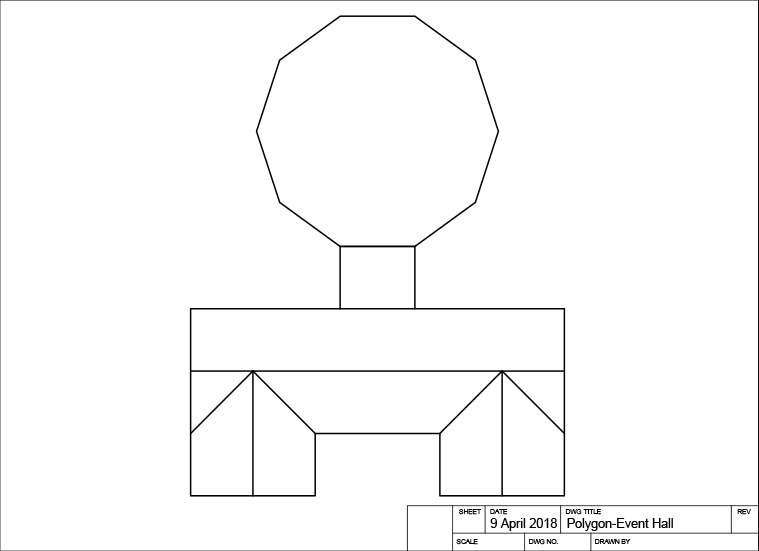
ex preview polygon edge method

Exercise Parameters

10
sided polygon
1
edge definition needed
Polygon Efficiency

Because all sides and angles of a polygon are equal, you can define the entire shape by establishing the length and angle of just one edge.

Exercise Overview

In this hands-on exercise, you'll master the Edge method of AutoCAD's Polygon tool—a technique that allows you to create precise polygons by defining edge dimensions rather than relying on circumscribed or inscribed circles. This approach proves invaluable when you need to match existing geometry or work with specific dimensional constraints. Your practical application will involve designing a large polygonal ballroom for an event space, demonstrating how geometric precision translates into real-world architectural solutions.

The beauty of regular polygons lies in their mathematical symmetry: all sides and angles are equal, meaning you only need to establish the length and orientation of one edge to define the entire shape. While you have the flexibility to either type precise dimensions or click reference points, this exercise will teach you the latter method—clicking existing endpoints to ensure your polygon sides perfectly match an existing wall length. This technique exemplifies the precision and efficiency that makes AutoCAD indispensable for professional drafting work.

Now let's walk through the step-by-step process to create your polygonal ballroom using the Edge method.

Edge Method Process

1

Define Edge Points

You can either type in the dimension of an edge or click two points to establish the edge length

2

Match Existing Elements

Click on endpoints of preexisting walls to ensure polygon sides match existing architectural dimensions

3

AutoCAD Generates Shape

The software automatically creates the complete polygon based on your single edge definition

Edge Method vs Center Method

FeatureEdge MethodCenter Method
Definition PointEdge endpointsCenter point
Size ControlEdge lengthRadius distance
Matching Existing ElementsDirect alignmentManual calculation
Recommended: Use Edge method when matching existing architectural elements

Matching the Length of the Polygon & Wall

  1. Open the file Polygon-Event Hall.dwg to begin working with the event space layout.

  2. Initiate the Polygon Command polygon tool (or type the shortcut POL). When prompted for the number of sides, enter 10 to create a decagon—an elegant shape that provides ample space while maintaining architectural interest. AutoCAD will then prompt you to specify the center point or use the Edge option. Press E followed by Enter to select the Edge method, which gives you direct control over the polygon's size and orientation.

    polygon command line

  3. Precisely click on the endpoint at the upper-left corner of the rectangular section at the building's rear to establish your edge's first point. Next, move your cursor horizontally along the positive X-axis and click the endpoint at the upper-right corner of the rectangle. This action defines the bottom edge of your polygon, which AutoCAD uses as the template for all remaining sides.

    Here's a crucial point to remember: AutoCAD measures all angles counter-clockwise from the positive X-axis, and polygons generated with the Edge method follow this same counter-clockwise construction pattern. Your initial edge direction determines the polygon's orientation—starting from the upper-left and moving right ensures the polygon extends upward and away from the existing building structure. Had you reversed this direction (starting from the upper-right and pulling left), the polygon would have been constructed counter-clockwise in a downward direction, potentially overlapping with the existing building elements.

    polygon edge endpoint

  4. Save your work and close the file. You've successfully created a perfectly proportioned polygonal ballroom that seamlessly integrates with the existing architectural elements.

Step-by-Step Execution

0/6
Direction Matters

AutoCAD measures angles counter-clockwise. Starting from the upper-right and pulling left would create the polygon downward, potentially overlapping the building.

All angles in AutoCAD are measured counter-clockwise, so Polygons will be created in that direction when you use the Edge option.
This fundamental AutoCAD principle affects polygon orientation and placement

Key Takeaways

1The Edge method allows polygon creation by defining edge length rather than center point and radius
2A 10-sided polygon can be completely defined by establishing just one edge through two endpoint clicks
3Clicking on existing wall endpoints ensures perfect dimensional matching between polygon and architectural elements
4AutoCAD creates polygons in a counter-clockwise direction when using the Edge option
5The POL command with E + Enter activates the Edge method for polygon creation
6Starting point selection is critical - wrong direction can cause polygon overlap with existing structures
7Equal sides and angles in polygons mean one edge definition determines the entire shape geometry
8The Edge method is particularly valuable for matching new polygonal elements to existing architectural features

RELATED ARTICLES