April 1, 2026Dan Perico/4 min read

The Arc Tool: Free AutoCAD Tutorial

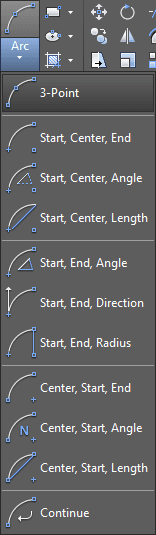
Master AutoCAD Arc Tool with Step-by-Step Instructions

Tutorial Focus

This tutorial covers the Arc command in AutoCAD, focusing on practical application through drawing a trash bin container and door swings using various arc creation methods.

Topics Covered in This AutoCAD Tutorial:

The Arc Tool

Key Learning Objectives

Arc Tool Fundamentals

Understanding the basic Arc command and its various options available in the Ribbon and Draw menu. Learn how counter-clockwise measurement affects arc creation.

Start, End, Radius Method

Practice creating arcs by defining start point, end point, and radius values. Apply this technique to complete the trash bin container floor.

Start, Center, End Method

Master the alternative arc creation method using start point, center point, and end point. Use this for drawing door swing patterns.

Exercise Preview

ex preview arc tool

Exercise Overview

In this comprehensive exercise, you'll master the Arc command by completing a practical drawing of a trash bin container and adding door swings. This real-world application demonstrates how arcs are essential for creating accurate architectural and mechanical drawings, skills that remain crucial for CAD professionals in 2026's design landscape.

Exercise Workflow

1

File Setup

Open the Arc-Bin Container.dwg file to begin the exercise with the pre-configured drawing environment.

2

Complete Container Floor

Use the Start, End, Radius arc method to finish drawing the curved floor of the trash bin container.

3

Add Door Swings

Switch to Doors layer and use Start, Center, End method to create door swing arcs showing movement patterns.

4

Refine with Grips

Make final adjustments to arc endpoints using grip editing to ensure precise positioning.

Using the Arc Tool

  1. Begin by opening the file Arc-Bin Container.dwg. This exercise file contains the foundation elements you'll need to practice arc creation techniques.

  2. You'll now utilize the Arc command arc tool to complete the floor of the bin container. The Arc tool offers multiple methods for creation, and while you can follow Command Line prompts for basic options, the Ribbon interface provides access to advanced options that aren't available through command-line input alone. This flexibility makes the Ribbon approach particularly valuable for precision work. Navigate to the Draw panel in the Ribbon and click the Arc arc tool dropdown menu to access these enhanced options.

    arc tool in ribbon

  3. Select Start, End, Radius from the dropdown menu. This method requires you to specify a start point, an end point, and then define the radius value. Understanding AutoCAD's directional conventions is critical here: by default, angles and arcs are measured and created in a counter-clockwise direction. This means your start and end points must be positioned so the arc flows counter-clockwise from the starting location. Zoom in on the right door hinge for precision, then click on the center intersection of the hinge for your start point, as shown in the diagram below. For the end point, select the corresponding hinge intersection on the opposite side. When prompted for the radius, enter 60 units.

    arc tool start end radius

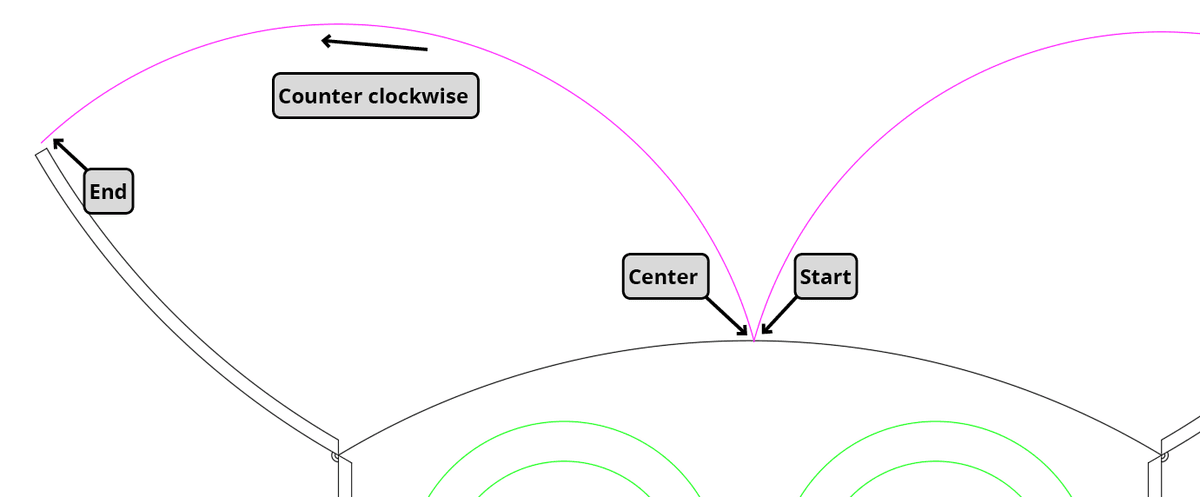
  4. With the container floor complete, you'll now create the door swings using a different arc method. First, change your current layer to Doors to maintain proper drawing organization—a best practice that becomes increasingly important in complex projects. From the Arc arc tool dropdown menu, select Start, Center, End. Remember that counter-clockwise creation rule: click and snap to the upper-left corner of the right door for your Start Point, as indicated in the diagram below. For the Center point, click the hinge intersection where you began the previous arc. Finally, select the midpoint of the floor arc you created in the previous step as your End Point.

    arc tool start center end

  5. Continue building your door swing by selecting Start, Center, End from the Arc arc tool dropdown once again. Note an important workflow detail: because you're using a specific Arc tool option rather than the default command, you cannot simply press Enter to repeat the previous operation—doing so will revert to the tool's default settings. Maintaining your counter-clockwise approach, select the midpoint where you concluded the previous door swing as your new Start point. For the Center, choose the hinge intersection on the opposite side. Complete the arc by selecting the upper-right corner endpoint of the right door as your End point, following the diagram below. Don't be concerned if the endpoints of your door swing arcs appear slightly misaligned—this is normal and will be corrected in the next step.

    arc tool start center end 2

  6. The Arc tool arc tool generates arcs as segments of perfect circles, which means endpoints may not always align precisely with your intended locations. This mathematical precision is actually a strength of the tool, but it requires fine-tuning for practical applications. Fortunately, AutoCAD's Grips system provides an elegant solution for these minor adjustments. Select each arc individually and use the grip points (small squares) to make precise corrections. This grip-editing capability exemplifies why AutoCAD remains the industry standard for technical drawing—it combines mathematical accuracy with practical flexibility.

    Right door swing (use red square grip to correct it):
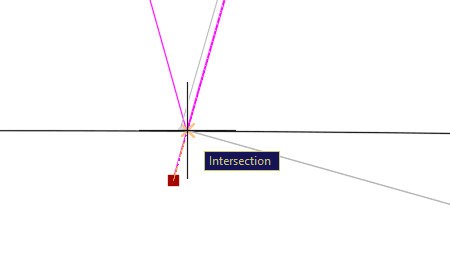
    arc tool grips right door swing

    Left door swing (use red square grip to correct it):
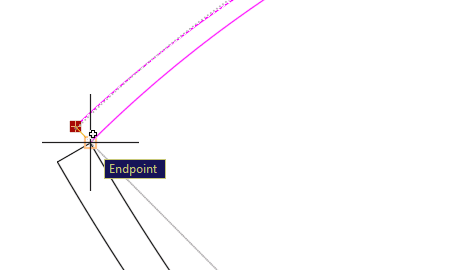
    arc tool grips left door swing

  7. Save and close the file to preserve your work. You've now successfully demonstrated multiple arc creation methods and learned essential grip-editing techniques that will serve you throughout your AutoCAD career.

Counter-Clockwise Direction Rule

Remember that by default, angles and arcs are measured and created in a counter-clockwise direction. Your start and end points must be chosen so they emanate counter-clockwise from the start point.

Arc Creation Methods Comparison

FeatureStart, End, RadiusStart, Center, End
Input SequenceStart point → End point → Radius valueStart point → Center point → End point
Best Use CaseKnown radius requirementsKnown pivot/center point
Control LevelRadius-based precisionCenter-based precision
Tutorial ApplicationContainer floor (radius 60)Door swings (hinge center)
Recommended: Choose Start, End, Radius when you know the exact curve radius needed, and Start, Center, End when working with pivot points like door hinges.

Arc Tool Best Practices

0/5
Command Repetition Limitation

You cannot use Enter to repeat the Arc command with the same options. You must select the specific method from the Arc dropdown menu each time to maintain your chosen parameters.

Arc Tool Technical Details

Radius Specification

Enter numerical radius values like 60 for precise arc curvature. The radius determines how tight or wide your arc will be.

Grip Editing

Use red square grips to adjust arc endpoints after creation. This allows fine-tuning when perfect circle sections don't align exactly with your design needs.

Key Takeaways

1AutoCAD's Arc tool offers multiple creation methods accessible through the Ribbon Draw panel dropdown menu, providing more options than Command Line prompts alone
2The Start, End, Radius method works best when you know the exact curvature needed, as demonstrated with the 60-unit radius for the container floor
3The Start, Center, End method excels for pivot-based designs like door swings, where the center point (hinge location) is the critical reference
4Arc creation follows a counter-clockwise direction by default, requiring careful consideration of start and end point selection order
5Layer management is essential when drawing different elements - switch to appropriate layers like 'Doors' before creating related geometry
6The Arc command cannot be repeated with Enter while maintaining specific options - you must reselect the method from the dropdown menu
7Arc endpoints may require adjustment using grip editing since arcs are sections of perfect circles that might not align exactly with design requirements
8Successful arc creation requires understanding the relationship between start points, end points, center points, and radius values for different drawing scenarios

RELATED ARTICLES