April 1, 2026Dan Perico/4 min read

Design Center: Free AutoCAD Tutorial

Master AutoCAD Design Center for Professional Workflows

Before You Begin

Ensure you have AutoCAD installed with access to the Class files folder. This tutorial requires two specific drawing files: Blocks-Studio.dwg and Design Center-Furniture.dwg.

Topics Covered in This AutoCAD Tutorial:

Design Center

Core Skills You'll Develop

Block Management

Learn to import and manage blocks from external drawings using Design Center's intuitive interface.

Drawing Elements Transfer

Master the transfer of layers, layouts, linetypes, and styles between different AutoCAD drawings.

Dynamic Block Manipulation

Understand how to modify dynamic blocks using grips and parameter controls for custom fitting.

Exercise Preview

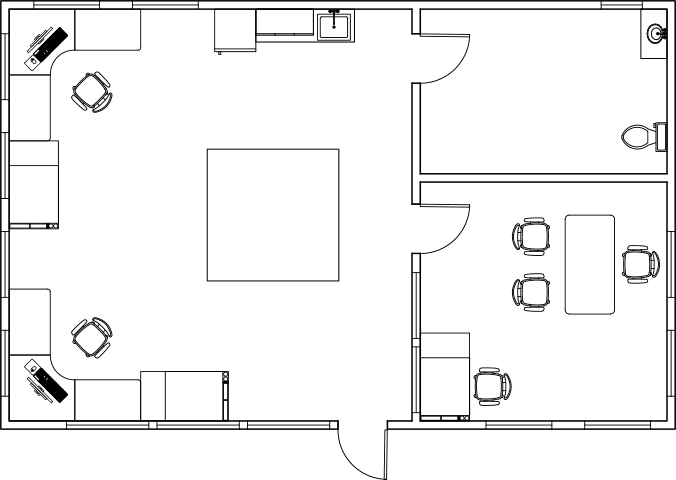
ex preview blocks insert command

Required Files and Setup

0/3

Exercise Overview

In this comprehensive exercise, you'll master the Design Center—one of AutoCAD's most powerful productivity tools for managing drawing assets. You'll learn to seamlessly import blocks from other drawings while also accessing other essential named elements including layers, layouts, linetypes, and text styles. This workflow is fundamental to maintaining consistency across complex projects and maximizing your drawing efficiency.

Design Center Workflow Overview

1

Access Design Center

Open Design Center using CTRL-2 keyboard shortcut or toolbar button

2

Navigate Drawing Sources

Switch between Folders tab and Open Drawings tab to locate source files

3

Import Drawing Elements

Drag and drop blocks, layers, and other elements between drawings

4

Position and Modify

Use standard AutoCAD tools to place and adjust imported elements

Design Center

The Design Center serves as your central hub for accessing and managing drawing content across multiple files. Let's explore its capabilities through hands-on practice.

  1. Keep the Blocks-Studio.dwg open and simultaneously open Design Center-Furniture.dwg from the Class files folder. This multi-file workflow demonstrates real-world project scenarios where you'll work with multiple drawings simultaneously. Once both files are loaded, click on the Blocks-Studio.dwg File Tab to make it your active drawing workspace.

  2. Launch the Design Center using the keyboard shortcut CTRL–2, or alternatively, click the Design Center icon from the Palettes panel. The Design Center interface presents two primary navigation methods: the Folders tab enables you to browse your entire file system for .dwg files, including AutoCAD's extensive sample drawing library, while the Open Drawings tab provides immediate access to currently loaded files—a more efficient approach for active projects.

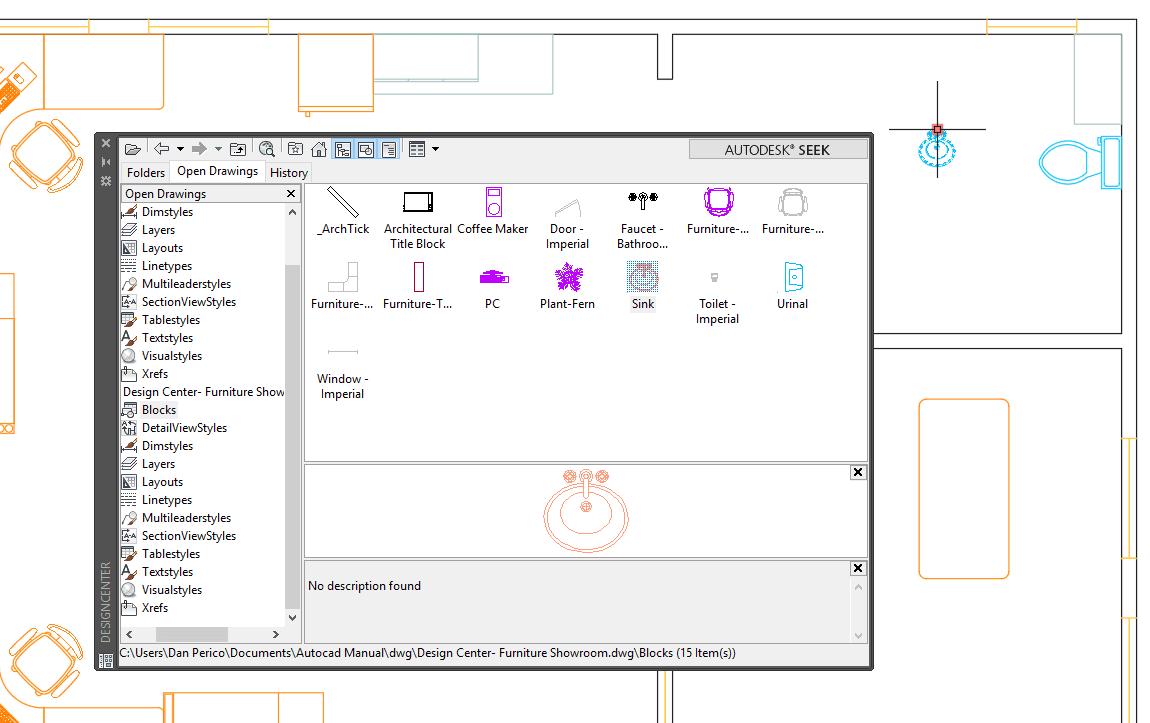
    Navigate to the Open Drawings tab and expand Design Center-Furniture Showroom to reveal its available content categories. Select Blocks from the hierarchy, and the right panel will populate with thumbnail previews of all available blocks. This visual approach significantly streamlines block selection compared to traditional text-based lists. Drag and drop the Sink block directly into your Blocks-Studio.dwg workspace—this intuitive method works seamlessly between any open drawings.

    design center dialog

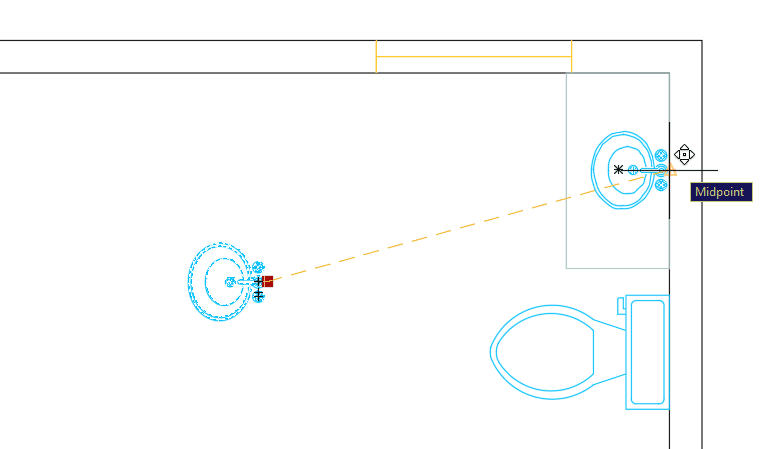
  3. Now refine the sink's placement to match professional drafting standards. Rotate the sink –90° to align with the bathroom layout, then precisely position it by snapping the block's base point to the midpoint of the counter rectangle's rear edge in the upper-right bathroom area. This attention to accurate placement and snapping demonstrates the precision that separates professional CAD work from amateur attempts.

    design center rotate sink

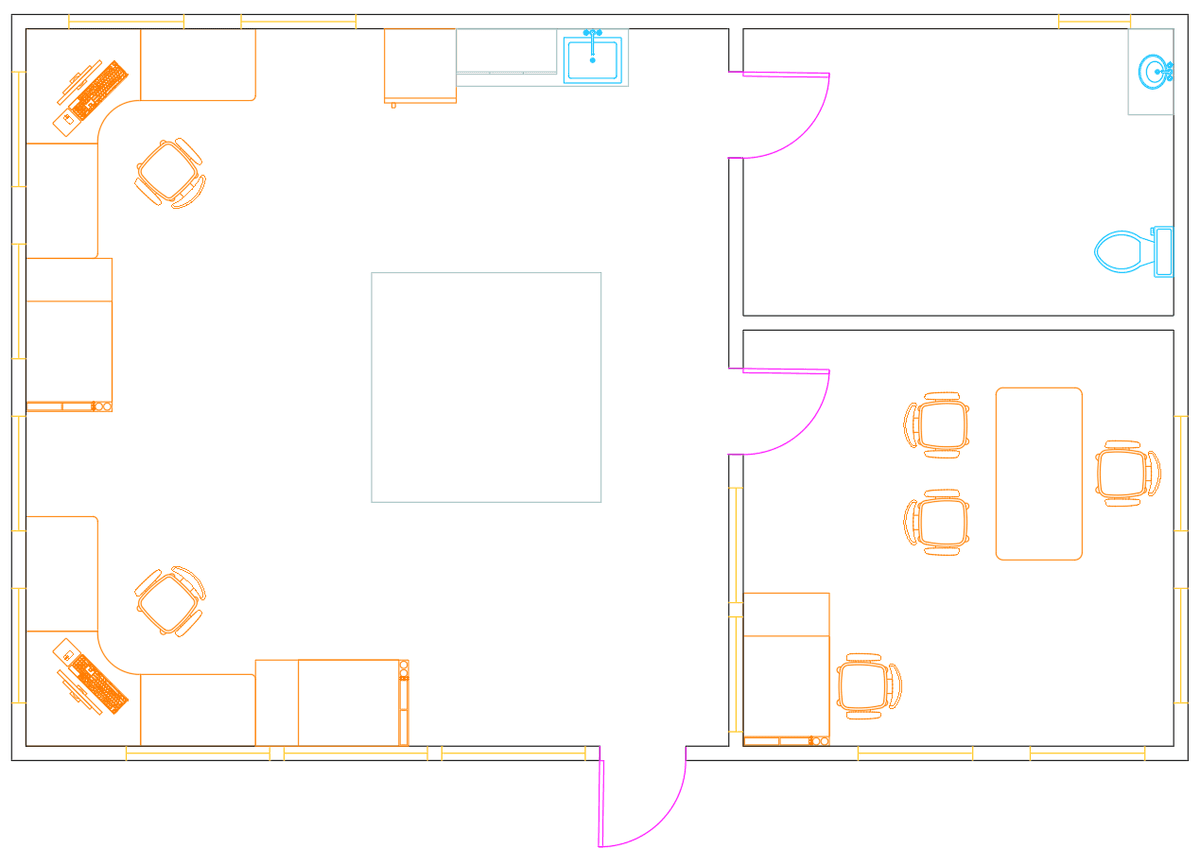
  4. To complete your bathroom and kitchen layout, employ AutoCAD's essential modification tools strategically. Use the Copycopy tool, Movemove tool, Rotaterotate tool, and Mirrormirror tool commands to position fixtures as shown in the reference image. Next, utilize the Insert command to place the Kitchen Sink block adjacent to the refrigerator—this method gives you additional control over insertion parameters.

    Pay special attention to the bathroom window, which demonstrates AutoCAD's powerful dynamic block technology. These intelligent blocks contain built-in parameters that allow real-time modifications. Use the window's Lengthen/Shorten grip to adjust its width to exactly 2'6", showcasing how dynamic blocks eliminate the need for multiple similar block definitions.

    design center finish placing blocks

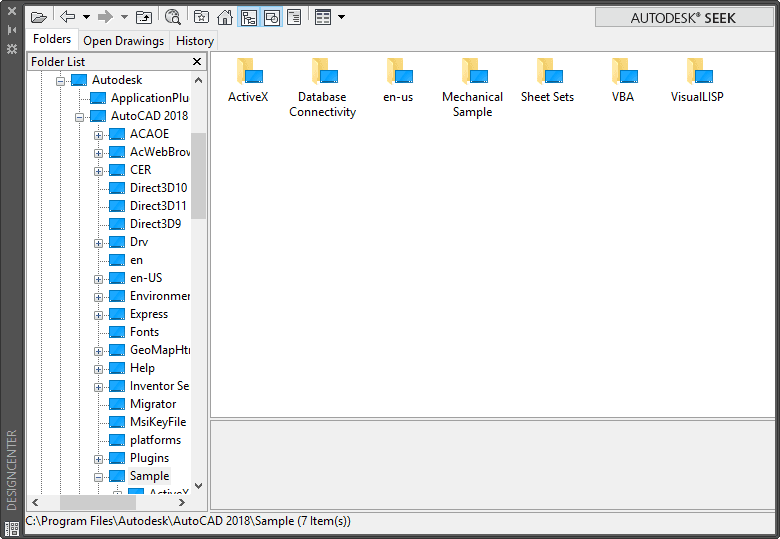
  5. Reopen the Design Center with CTRL–2 to explore additional content resources. In the upper-right corner, you'll find the Autodesk Seek button—though the original Autodesk Seek service was discontinued, this button now redirects to bimobject.com, reflecting the evolution of online CAD resources. BIMobject has emerged as the industry-leading platform for manufacturer-specific content, offering thousands of professionally created blocks, families, and BIM objects.

    As of 2026, BIMobject provides enhanced integration with major CAD platforms and offers both free and premium content libraries. This resource proves invaluable for specifying actual manufactured products in your designs, ensuring accuracy from concept through construction documentation.

    design center autodesk seek

  6. Complete this exercise by closing and saving Blocks-Studio.dwg, preserving your work for future reference.

    Beyond BIMobject, today's CAD professionals have access to an expanded ecosystem of content sources. Many manufacturers now provide direct downloads of .dwg files from their websites, often with enhanced detail and accuracy compared to generic alternatives. Additionally, modern conversion tools have evolved significantly—current versions of Adobe Acrobat, Adobe Illustrator, and various online services offer improved PDF-to-DWG conversion capabilities, though manual cleanup is often required for optimal results.

    Note that while this tutorial references Autodesk's A360 cloud service, this platform has since evolved into Autodesk Drive and other cloud-based collaboration tools, which we'll explore in advanced coursework. These modern cloud solutions offer enhanced collaboration features, version control, and cross-platform accessibility that have become essential for contemporary CAD workflows.

Keyboard Shortcut

Press CTRL-2 to quickly open and close the Design Center dialog box. This shortcut works as a toggle for efficient workflow management.

Design Center Navigation Options

FeatureFolders TabOpen Drawings Tab
Search ScopeEntire computer file systemCurrently open drawings only
Access SpeedRequires file browsingImmediate access
File RequirementsFiles can be closedFiles must be open
Best Use CaseAccessing AutoCAD sample librariesWorking between active projects
Recommended: Use Open Drawings tab for active project work, Folders tab for accessing libraries

Importable Drawing Elements

Blocks

Reusable drawing components like furniture, fixtures, and symbols that maintain their properties across drawings.

Layers and Styles

Layer properties, text styles, dimension styles, and other formatting elements for consistent drawing standards.

Layouts and Linetypes

Page layouts for plotting and custom linetype definitions for specialized drawing requirements.

Autodesk Seek Discontinuation

The Autodesk Seek button now redirects to bimobject.com. While the button label remains unchanged in AutoCAD 2018, the original Autodesk Seek service has been discontinued.

Block Placement Workflow

Step 1

Drag and Drop Import

Move Sink block from Design Center to target drawing

Step 2

Initial Positioning

Rotate sink -90 degrees using Rotate tool

Step 3

Precise Placement

Snap block base point to midpoint of counter rectangle

Step 4

Dynamic Block Adjustment

Modify bathroom window length to 2'6" using grips

External Block Sources

Pros
Free access to manufacturer-specific components via bimobject.com
Web searches reveal numerous downloadable DWG files from manufacturers
File conversion tools like Adobe Acrobat can convert PDF to DWG format
Cloud storage services like A360 enable block library management
Cons
Quality and accuracy of free online blocks may vary
File conversion processes may introduce formatting issues
External dependencies require internet access for downloads
Advanced cloud features require Level 2 training

Key Takeaways

1Design Center provides two primary navigation methods: Folders tab for computer-wide file access and Open Drawings tab for currently active files
2The CTRL-2 keyboard shortcut offers the fastest way to toggle Design Center access during active drawing sessions
3Drag and drop functionality enables seamless transfer of blocks, layers, layouts, linetypes, and styles between drawings
4Dynamic blocks can be modified using grip controls, such as adjusting the bathroom window length to specific dimensions
5Standard AutoCAD tools like Copy, Move, Rotate, and Mirror work normally with imported blocks for precise placement
6External block sources include bimobject.com, manufacturer websites, and file conversion from PDF sources using Adobe tools
7The former Autodesk Seek service has been discontinued, though the button remains in AutoCAD 2018 interface
8Advanced features like A360 cloud block storage are covered in Level 2 training for enhanced workflow management

RELATED ARTICLES