April 1, 2026Dan Perico/4 min read

The Extend Command: Free AutoCAD Tutorial

Master AutoCAD's Extend Command with Professional Techniques

About This Tutorial

This hands-on tutorial focuses on the Extend command in AutoCAD, demonstrating how to efficiently extend edges between drawing views and clean up excess lines using complementary commands.

Topics Covered in This AutoCAD Tutorial:

Extend Command

Core AutoCAD Skills You'll Master

Extend Command Fundamentals

Learn the primary function and workflow of AutoCAD's Extend command for extending lines to boundaries.

Boundary Selection Techniques

Master the Select All option and understand how to efficiently choose extension boundaries.

Multi-View Drawing Coordination

Apply extend techniques to coordinate edges across front, left, and right drawing views.

Exercise Preview

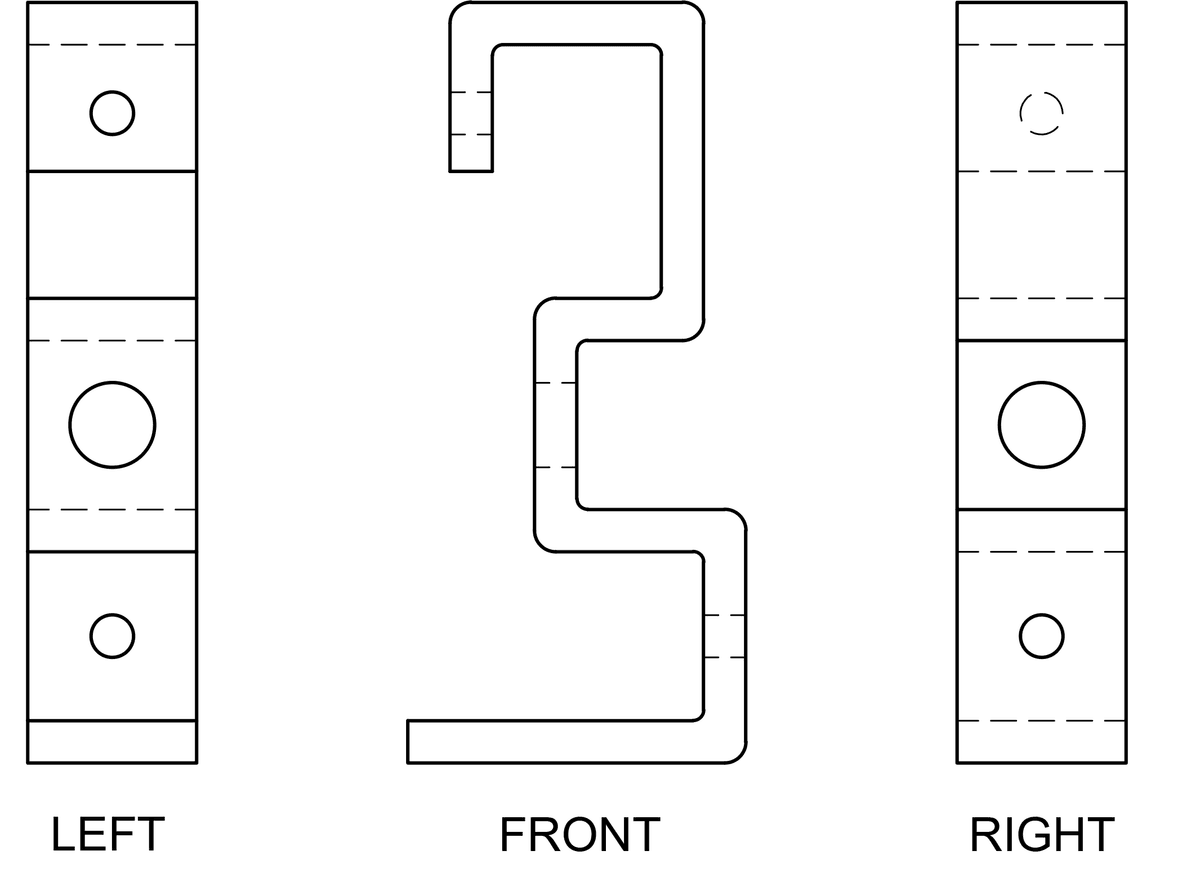
ex preview extend bracket views

Exercise Workflow Overview

1

Open Drawing File

Load the Extend-Bracket Views.dwg file to access the multi-view bracket drawing with incomplete edge projections.

2

Extend Edges Between Views

Use the Extend command with Select All option to project edges from the front view into left and right views.

3

Clean Up Excess Lines

Apply the Trim command to remove unwanted line segments and organize visible vs. hidden edges.

4

Format Hidden Lines

Move non-visible edges to Hidden layer and adjust linetype scale for proper dashed line appearance.

Exercise Overview

In this hands-on exercise, you'll master the Extend command to efficiently project edges from one technical drawing view to adjacent views, then use Trim to clean up excess geometry. This workflow is essential for creating professional multi-view drawings that maintain proper orthographic relationships—a fundamental skill for any CAD professional working in manufacturing, architecture, or engineering.

Extend vs. Trim Command Comparison

FeatureExtend CommandTrim Command
Primary FunctionExtends lines to boundariesCuts lines at intersections
Selection ProcessSelect boundaries, then linesSelect cutting edges, then lines
Select All OptionAvailable via Enter keyAvailable via Enter key
Typical Use CaseProjecting between viewsRemoving excess geometry
Recommended: Both commands work together effectively for complete drawing coordination between multiple views.

The Extend Command

The Extend command is one of AutoCAD's most powerful editing tools for maintaining geometric relationships across multiple views. Let's explore its practical application through a bracket drawing exercise.

  1. Open the file Extend-Bracket Views.dwg. Examine the drawing carefully—notice that the front view contains detailed edges that aren't yet represented in the side views. This is a common scenario in technical drafting where you develop one view fully before projecting features to other views. You'll use the Extend command to project these edges systematically to the left and right views.

  2. Understanding the Extend command's default behavior will make you more efficient. By default, Extend prompts you to first select boundary objects, then select lines to extend to those boundaries. However, like the Trim command, Extend offers a powerful <Select All> option that treats every object as a potential boundary. This eliminates the tedious boundary selection step—simply select any line, and it extends until it intersects another object.

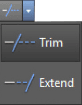
    Since <Select All> appears in angle brackets, you activate it by pressing Enter when prompted for boundary selection. For maximum efficiency, use the keyboard shortcut: type EX then press Enter twice. The first Enter executes the command, the second activates Select All mode. Alternatively, access Extend through the Modify Panel in the Ribbon (located under the Trim icon) or via the Modify Toolbar.

    extend command menu

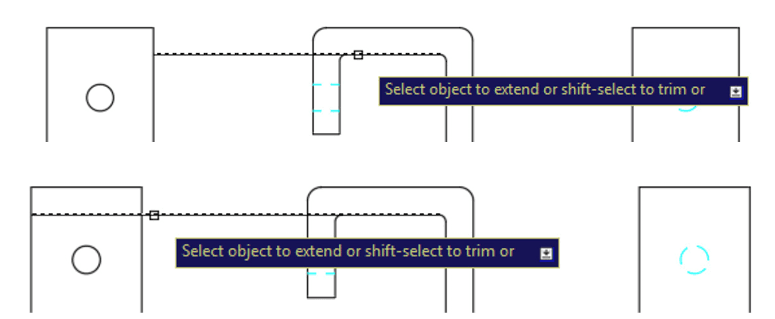
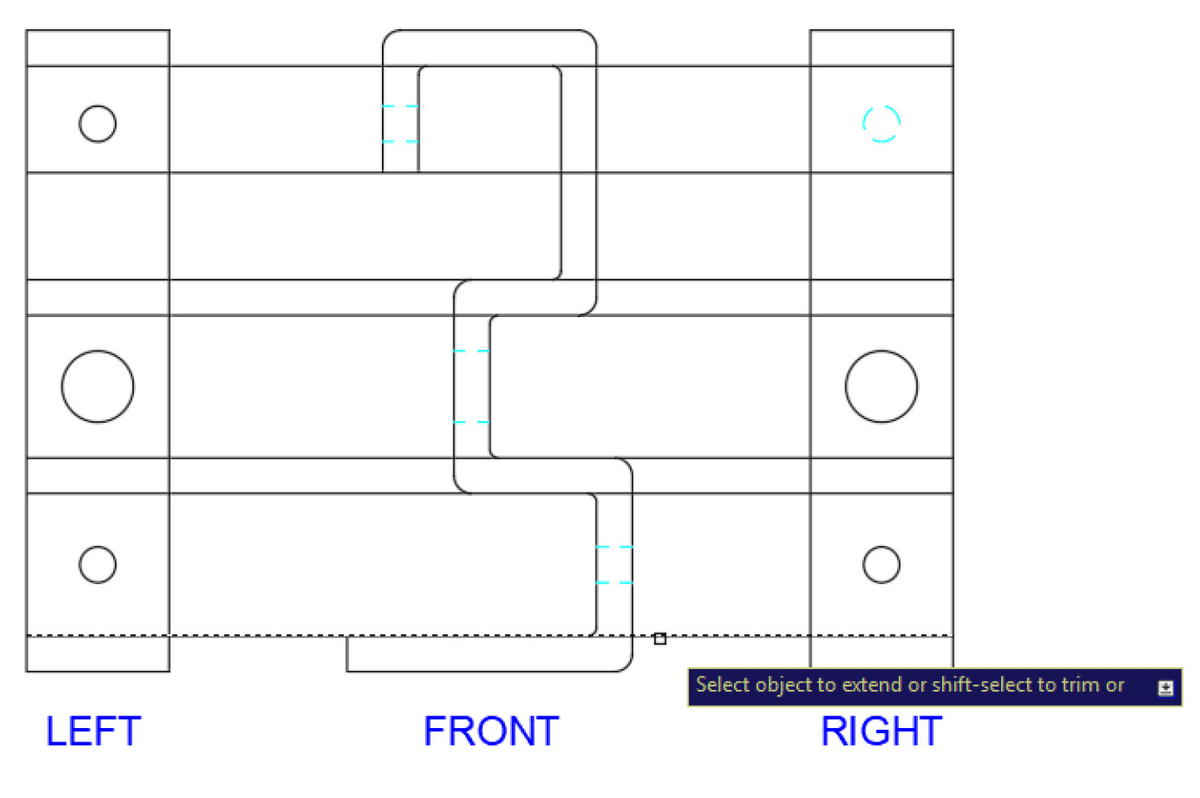
  3. Now let's put this into practice. Press EX Enter Enter to start the Extend command with <Select All> activated. Click the inner edge of the bracket's top surface in the front view, positioning your cursor on the left side of the line as illustrated below. Watch as the line extends leftward until it encounters the bracket's outer edge—AutoCAD automatically stops at the first intersection.

    Here's where the real power emerges: click the same line again, and it extends to the next boundary. Continue clicking to project the line completely into the left view. This incremental extension gives you precise control over how far each line projects. Keep the Extend command active for the next step.

    extend command lines

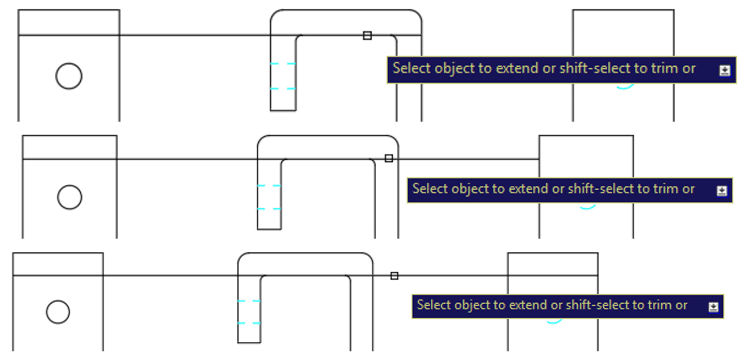
  4. Apply the same technique to project this edge into the right view. Click the line on its right side, extending it incrementally through each boundary until it reaches the right view. This symmetrical approach ensures your orthographic projections maintain proper alignment—a critical requirement in technical documentation. Notice how each click extends the line to the next logical boundary, giving you complete control over the projection process. Keep the Extend command active.

    extend command view

  5. Now extend all remaining horizontal edges from the front view into both side views using the same methodical approach. Work systematically from top to bottom or use whatever sequence feels natural to you. The key is maintaining consistency in your projections to ensure all views remain properly coordinated. This process simulates real-world drafting practices where geometric features must align perfectly across all views. Press Enter or Escape to complete the Extend command when all horizontal edges are projected.

    extend horiz edges

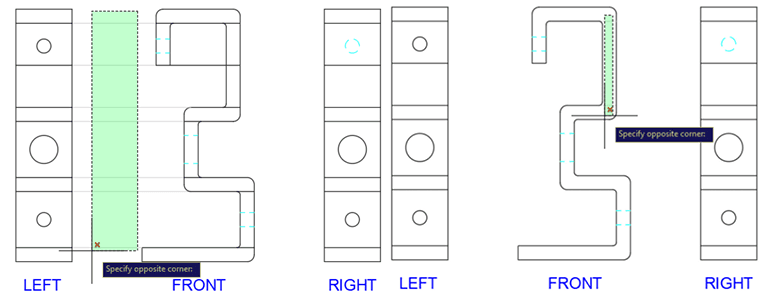
  6. With your projections complete, it's time to clean up the drawing using the Trim command. Remove excess geometry from the front view and eliminate construction lines between views, leaving only the cleanly projected edges in the left and right views. This cleanup phase is crucial for professional presentation—clients and manufacturers expect clean, uncluttered drawings that clearly communicate design intent.

    extend trim excess

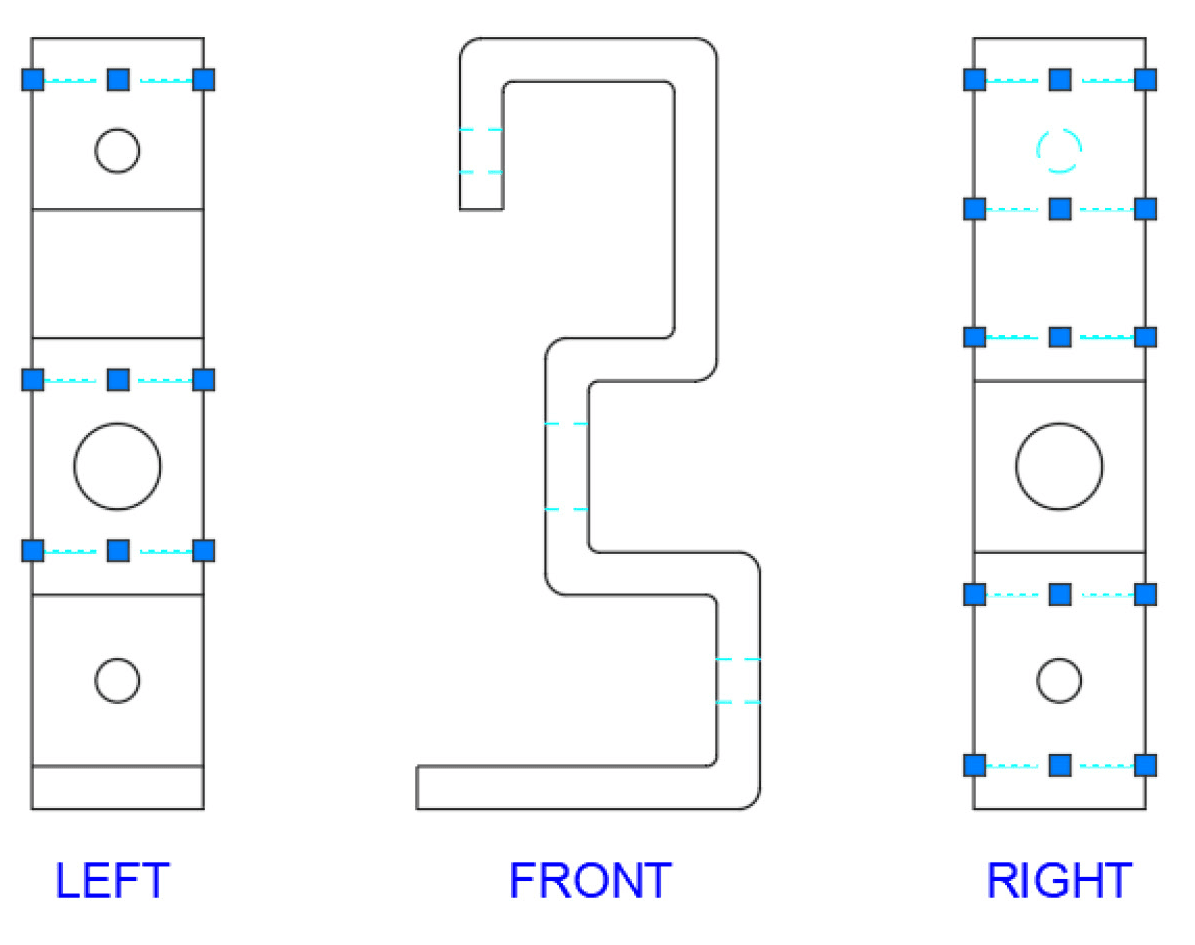
  7. Professional technical drawings distinguish between visible and hidden features using different line types. Identify edges in the left and right views that would be obscured by the bracket's solid material—these represent internal features not visible from the viewing direction. Select these edges and assign them to the Hidden layer, which automatically converts them to dashed lines. This follows standard drafting conventions (ASME Y14.2 and ISO standards) that manufacturing professionals expect. Keep the lines selected for the next adjustment.

    extend hidden edges

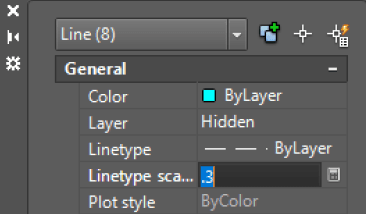
  8. Fine-tune the hidden line appearance for optimal readability. With the hidden lines still selected, press CTRL+1 to open the Properties Palette. Change the Linetype Scale to 0.3 to create appropriately sized dashes for your drawing scale. This attention to detail separates professional drawings from amateur work—proper line weight and dash sizing ensure your drawings reproduce clearly whether viewed on screen, printed, or plotted. Press Escape to deselect the lines and review your work.

    extend properties line type

  9. Save and close the file. You've successfully completed a fundamental CAD workflow that combines geometric projection with professional presentation standards.

Quick Start Method

The most efficient way to start the Extend command is by typing EX followed by Enter twice. The first Enter starts the command, and the second Enter activates the Select All option.

Command Access Methods

Keyboard Shortcut

Type EX and press Enter to quickly access the Extend command from the command line.

Ribbon Interface

Click the Extend button located under the Trim icon in the Modify Panel of the Ribbon.

Modify Toolbar

Access the Extend command directly from the traditional Modify Toolbar interface.

Detailed Extend Command Workflow

1

Activate Command and Select All

Press EX Enter to start the Extend command and immediately activate the Select All boundary option.

2

Select Lines to Extend

Click on the inner edge of the top bracket in the front view, positioning the click on the left side of the line.

3

Continue Extension Process

Keep clicking the same line to extend it progressively through each boundary until it reaches the left view.

4

Extend to Right View

Repeat the clicking process on the right side to extend the same edge into the right view.

5

Complete All Horizontal Edges

Continue using the Extend command for all horizontal edges in the front view, projecting them into both side views.

Post-Extension Cleanup Tasks

0/5
Properties Palette Shortcut

Use Ctrl+1 to quickly open the Properties Palette when you need to modify linetype scales or other object properties for selected elements.

Key Takeaways

1The Extend command efficiently projects edges between multiple drawing views by extending lines to selected boundaries or using the Select All option.
2The most productive workflow combines EX Enter Enter to start the Extend command with Select All option activated immediately.
3Multiple access methods exist for the Extend command including keyboard shortcuts, Ribbon interface, and traditional toolbars to suit different user preferences.
4The Select All option eliminates the need to manually select boundary objects, making every object a potential extension boundary for streamlined workflow.
5Effective drawing coordination requires combining Extend with Trim commands to first project edges between views then clean up excess geometry.
6Hidden edges should be moved to the Hidden layer and formatted with appropriate linetype scales (such as 0.3) for proper technical drawing standards.
7The Extend command works progressively, allowing users to click repeatedly on the same line to extend it through multiple boundaries in sequence.
8Professional drawing completion includes proper layer management, linetype scaling, and file organization through saving and closing procedures.

RELATED ARTICLES