April 1, 2026Dan Perico/9 min read

The Array Command: Free AutoCAD Tutorial

Master AutoCAD Array Commands for Professional Design

Three Array Methods You'll Master

Rectangular Array

Create organized grids with precise column and row spacing. Perfect for systematic layouts and structured designs.

Polar Array

Arrange objects in circular patterns around a center point. Ideal for radial designs and symmetric arrangements.

Path Array

Distribute objects along curved or straight paths. Essential for complex geometry and organic layouts.

Topics Covered in This AutoCAD Tutorial:

Array Command

Exercise Preview

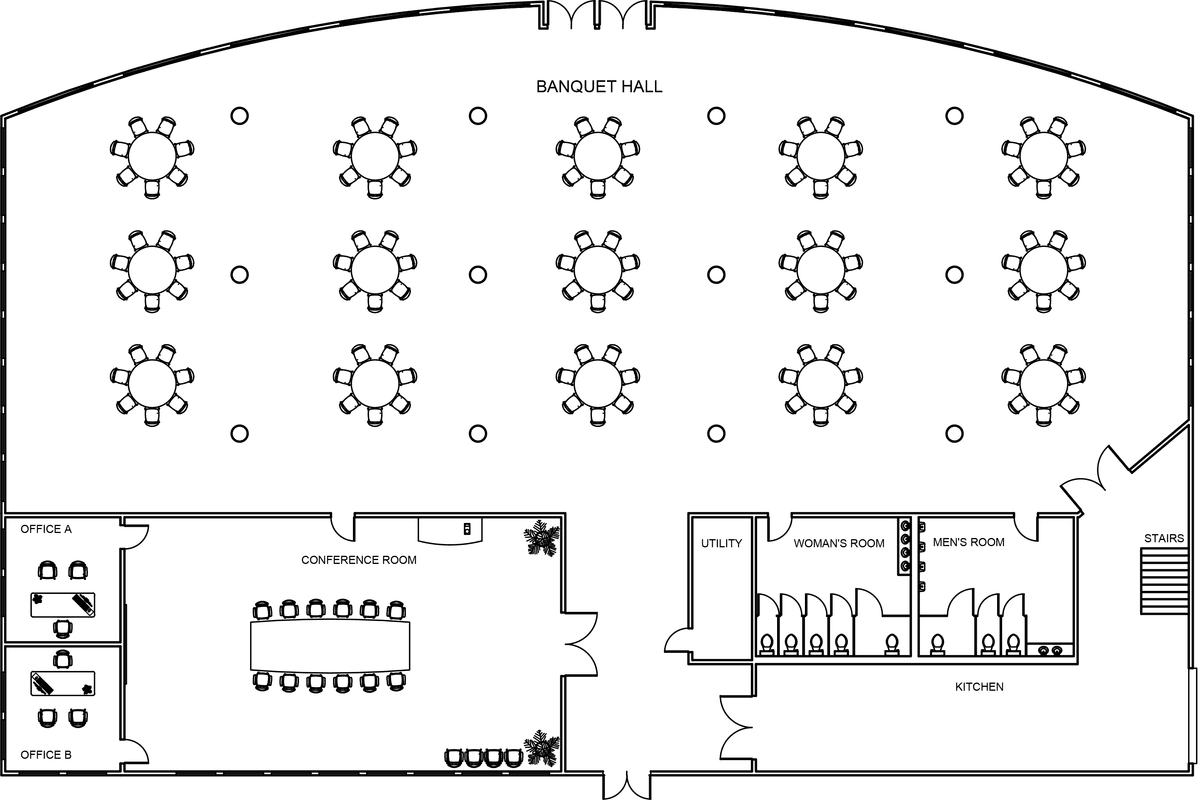
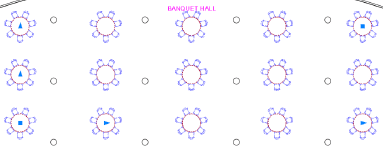
ex preview array banquette hall

Exercise Overview

The Array command represents one of AutoCAD's most powerful productivity multipliers, enabling you to create arranged and evenly spaced copies of multiple objects in a single operation. Whether you're designing architectural layouts, mechanical assemblies, or facility plans, mastering this command will dramatically accelerate your drafting workflow. You can initiate the Array command by typing AR Enter or selecting from the three specialized Array methods available in the dropdown menu attached to the Array button in the Modify panel. This comprehensive exercise will guide you through all three array methodologies—Rectangular, Path, and Polar—each serving distinct professional applications that you'll encounter regularly in practice.

Quick Start Command

Type 'AR' followed by Enter to quickly access the Array command, or use the Array button in the Modify panel for menu options.

The Array Command

  1. Open the file Array-Banquette Hall.dwg to begin working with a realistic architectural scenario.

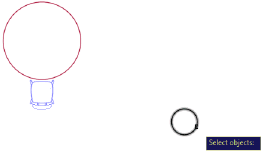
  2. Type AR Enter to launch the Array command. When the command prompts you to select objects, choose the column (represented by the small circle) positioned in the lower left corner of the Banquette Hall adjacent to the round table and chair assembly. Enter Rectangular for the Array Type to establish a grid-based duplication pattern.

    array circles

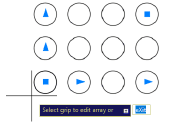
  3. AutoCAD immediately duplicates the selected circle and arranges the copies in the default Rectangular Array configuration. Notice the dynamic grips that appear—these allow real-time modification of row and column quantities, as well as spacing adjustments between elements. While these grips offer intuitive visual control (which we'll explore shortly), for precision work you'll want to input exact values through the Array Creation tab in the Ribbon, ensuring your arrays meet exact project specifications.

    array circles 2

  4. The Array Creation tab appears automatically whenever you create an array, providing comprehensive control over array parameters. Configure the settings as follows: set Columns to 4, Rows to 3, and for the critical Between distances, enter 30' under Columns and 20' under Rows. These measurements establish the center-to-center spacing that ensures proper structural clearances in architectural applications.

    array tab

    NOTE: Arrays in AutoCAD remain dynamically editable after creation—a significant advantage for iterative design processes. Simply select any array at any time to modify its properties using either the intuitive grips or the Array tab (nearly identical to the Array Creation tab, but optimized for post-creation editing). This flexibility proves invaluable during design revisions and client feedback cycles. Press Esc to deselect the array and close the Array Creation tab.

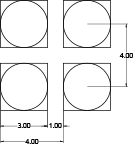
  5. Understanding spacing calculations proves crucial for professional array applications. In Rectangular Arrays, the distance between columns and rows represents the measurement between object center points, not the clear gap between objects. This distinction becomes critical when working with building codes, equipment clearances, or manufacturing tolerances. To achieve specific gap distances, calculate the total spacing by adding the desired gap plus the object's length or height.

    array rectangle length

    TIP: For precise gap control, use this formula: Object dimension + desired gap = array spacing distance. For example, if your objects measure 3 inches and you need a 1-inch clearance gap, enter 4 inches as the array spacing (3" object + 1" gap = 4" center-to-center distance). This approach ensures code compliance and functional clearances in professional applications.

Creating Your First Rectangular Array

1

Open the Exercise File

Open Array-Banquette Hall.dwg and locate the column (small circle) in the lower left corner next to the round table and chair.

2

Select and Configure

Type AR Enter, select the column, choose Rectangular array type, and set 4 columns, 3 rows with 30' column spacing and 20' row spacing.

3

Use Array Creation Tab

Access the Array Creation tab in the Ribbon to make precise adjustments to your array configuration.

Understanding Distance Measurements

Array distances are measured between center points of objects, not the gaps between them. To calculate proper spacing, add the object dimension plus desired gap distance.

The Polar Array

Transitioning from linear arrangements, Polar Arrays excel at creating circular patterns—perfect for architectural elements like lighting fixtures around atriums, mechanical components like bolt patterns, or furniture arrangements around gathering spaces.

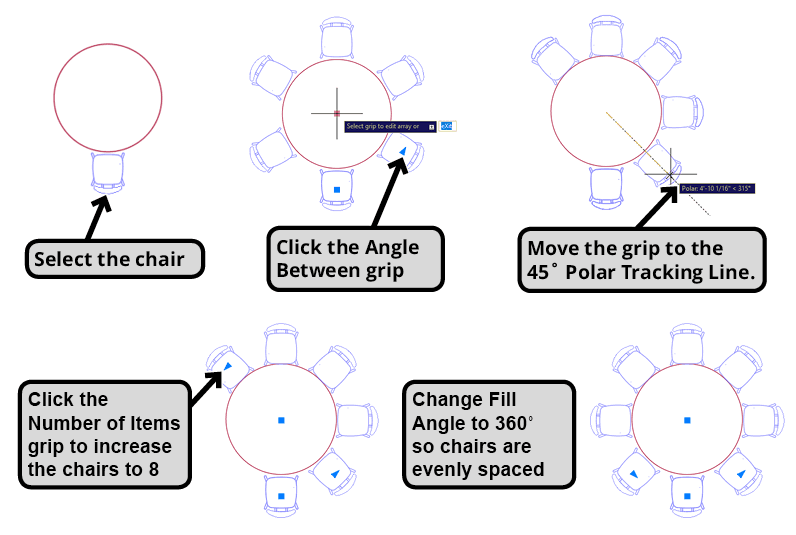
  1. Focus on the round table and chair in the lower left corner of the Banquet Hall by zooming in for precision work. Initiate the Array command and select the chair as your base object. Choose Polar for the Array type—this immediately shifts AutoCAD into radial duplication mode. When prompted to specify the center point, click precisely on the center point of the table. AutoCAD instantly arranges six chairs around the table perimeter, utilizing the default Polar Array configuration optimized for common furniture groupings.

    The Array Creation Ribbon tab reappears with Polar-specific options, notably the Fill field displaying 360. This indicates the arrayed items occupy the complete 360° circle. You'll now manipulate this using AutoCAD's intelligent grip system for real-time visualization.

    Locate the triangular grip on the lower right chair—this controls the Angle Between spacing. Click and drag this grip downward until it snaps to the 45° Polar Tracking line, demonstrating AutoCAD's precision tracking capabilities. Watch as the angle between chairs decreases and the arrangement no longer fully surrounds the table. The Array Creation Tab dynamically updates, showing the Fill angle reduced from 360° to 225°. This creates a second triangular grip at the array's end, enabling item quantity adjustments when the array doesn't complete a full circle. Experiment by dragging this grip to add 2 additional chairs, creating a total of 8. Notice how the spacing between the first and last chairs differs from the uniform spacing of interior chairs—this indicates the need for adjustment. In the Array Creation tab, reset the Fill to 360° to achieve uniform chair spacing around the complete circle perimeter.

    polar array chairs

  2. The Array Creation Ribbon Tab provides an alternative method for quantity control that often proves more precise than grip manipulation. Click in the Items field and change the value from 8 to 7 for optimal table-to-chair ratios. Observe that all chairs automatically orient toward the table center—this results from the Rotate Items feature being enabled by default, a setting that proves essential for furniture arrangements, lighting fixtures, and similar applications where radial orientation matters.

  3. To understand the full range of Polar Array capabilities, temporarily disable the Rotate Items button in the Array Creation tab and examine the results. This demonstrates scenarios where rotation isn't desired—such as text labels, directional signage, or mechanical components that must maintain specific orientations regardless of their position in the array. For our furniture application, re-enable Rotate Items to restore the natural inward-facing chair orientation. Press Esc to deselect and close the Array Creation tab.

  4. Press Enter to repeat the Array Command, demonstrating AutoCAD's efficiency features. Now you'll create a comprehensive rectangular array to populate the entire Banquet Hall with coordinated table and seating groups. Select both the table and the complete chair array as a unified grouping—this approach maintains design relationships while scaling up the layout. Choose Rectangle for the array type, then utilize the grip system to add one additional column while achieving even distribution throughout the Banquet Hall space. Remember: outer triangular grips control row and column quantities, while inner grips fine-tune spacing for optimal room utilization.

    Using the triangular grips, add one Column for a total of 5, then adjust the spacing grips to distribute tables evenly throughout the Banquet Hall, ensuring adequate circulation paths and code-compliant egress routes as illustrated below:

    array multiple tables

Default Polar Array Configuration

Fill Angle98%
Default Items2%

Mastering Polar Array Controls

1

Set Center Point

Select your object, choose Polar array type, and click the center point of your reference object (like a table center).

2

Adjust with Grips

Use the triangular Angle Between grip to modify spacing. Pull to 45-degree Polar Tracking line to reduce fill angle to 225 degrees.

3

Control Item Count

Use the end grip to add items or modify the Items field in the Array Creation tab. Change fill back to 360 degrees for even spacing.

Rotate Items Feature

The Rotate Items option in the Array Creation tab controls whether objects face the center point. Turn it on for chairs around tables, off for maintaining object orientation.

The Path Array

The Path Array represents AutoCAD's most sophisticated array type, enabling object distribution along complex curved geometries—invaluable for architectural features like curved facades, mechanical applications like conveyor systems, or landscape designs following terrain contours.

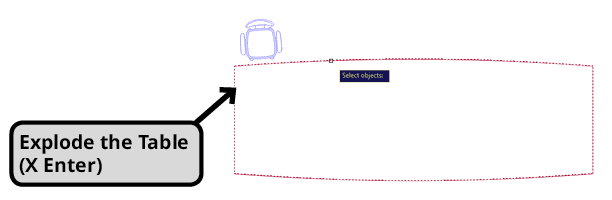
  1. The Path Array functionality arranges copied objects along curved or linear path geometries, but requires individual line segments rather than complex polylines. Navigate to the elongated table in the Conference Room and zoom in for detailed work. Since the table exists as a polyline (multiple connected segments), you must first use the Explode command (X Enter) to separate it into individual line segments that Path Array can process. This preprocessing step is common when working with complex imported geometries or architectural elements created as unified polyline objects.

    array explode table

  2. Press AR Enter to initiate the Array Command. Select the chair as your base object and choose Path for the Array Type. When prompted to Select Path Curve, click on the top curved edge of the table—this defines the distribution path along which chairs will be positioned. AutoCAD immediately generates a row of 6 chairs distributed across the curved path, while the Array Creation tab appears with Path-specific controls. Note that the array may appear slightly off-center initially—this is normal and will be corrected through parameter adjustments. The single triangular grip visible controls inter-chair spacing, and because Path Arrays default to full-path coverage, spacing directly determines chair quantity: closer spacing accommodates more chairs, wider spacing reduces the count.

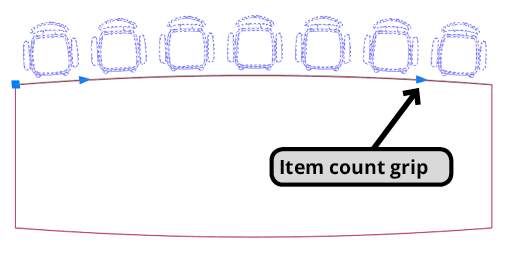
  3. By default, the Items field in the Array Creation tab remains locked because Path Arrays automatically calculate item quantity based on spacing to achieve complete path coverage—a logical approach for most applications. However, for precise control, click the lock icon adjacent to Items to unlock quantity specification. This action reveals a second triangular grip at the array's terminus, providing visual quantity control. With quantity unlocked, you can specify both spacing and count independently, allowing partial path coverage when design requirements dictate. Click the Items lock icon, then change the chair count to 7 either through direct field entry or grip manipulation. Use the spacing grip to center the chair array along the table's curved edge for optimal visual balance.

    array path item count grip

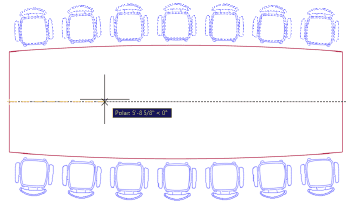
  4. Employ the Mirror command to duplicate the chair array along the table's opposite edge, creating a complete seating arrangement. This workflow—Array followed by Mirror—represents a common professional practice for symmetric layouts. After positioning, use the Explode command on both chair arrays. This decision point is crucial: maintaining arrays preserves editability for future modifications, while exploding enables individual object manipulation. Choose based on your project's likelihood of revision and the need for individual chair adjustments.

    array path mirror explode

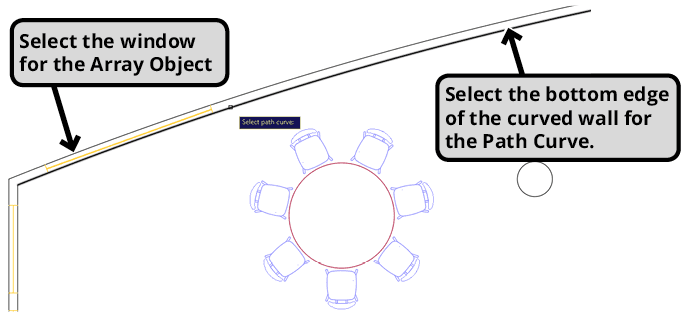
  5. Navigate to the single display window positioned in the curved wall in the upper right corner of the Banquet Hall—this exercise demonstrates Path Array applications for architectural fenestration along curved surfaces. Start the Array Command and select the window as your base object. For the path curve, select the bottom curved edge of the wall, which defines the fenestration alignment. In the Array Creation ribbon tab, enter 14' for the Between distance—this spacing ensures appropriate structural support between openings while maximizing natural light penetration, following contemporary architectural practices for curved curtain wall systems.

    array path window curved path

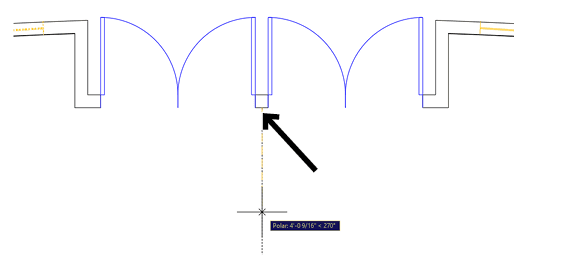
    Complete the symmetric facade design by mirroring the window array to the opposite curved wall. Use the Mirror command with the Midpoint of the rectangular element separating the front entrance doors as your primary reference point for the mirror line, ensuring perfect bilateral symmetry in the building elevation:

    array path mirror table

    Establish the Mirror Line using the Midpoint of the entrance door separation element as the primary reference point, as demonstrated in the following diagram. This approach ensures architectural symmetry and maintains the building's design integrity:

    array path midpoint

  6. Save and close the file to preserve your completed array exercise, which now demonstrates all three professional array methodologies essential for efficient CAD production work.

Path Array Prerequisite

Path arrays require single line segments. Use the Explode command (X Enter) to break complex polylines into individual segments before creating path arrays.

Path Array Control Methods

FeatureDistance-BasedItem Count-Based
Control MethodGrip adjustmentItems field input
FlexibilityAutomatic item countFixed item count
Path CoverageAlways full pathPartial path possible
Best ForConsistent spacingSpecific quantities
Recommended: Use item count-based control for precise centering and specific object quantities.

Path Array Best Practices

0/4

Key Takeaways

1The Array command (AR Enter) creates three types of organized object copies: Rectangular, Polar, and Path arrays, each suited for different design scenarios.
2Rectangular arrays use center-point distances, not gap measurements - calculate spacing by adding object size plus desired gap distance.
3Polar arrays default to 6 items in a 360-degree circle, with triangular grips controlling angle spacing and item quantity for precise radial arrangements.
4The Array Creation tab provides precise numerical control over all array parameters and appears automatically when creating any array type.
5Path arrays require single line segments and can be controlled by distance (automatic item count) or by unlocking the Items field for manual quantity control.
6The Rotate Items feature in polar arrays determines whether objects maintain their original orientation or rotate to face the center point.
7Arrays remain editable after creation - select any array to access grips and the Array tab for modifications without recreating the entire array.
8Complex workflows combine multiple array types with tools like Mirror and Explode to create sophisticated layouts like banquet halls with properly arranged furniture.

RELATED ARTICLES