April 1, 2026Dan Perico/5 min read

The Chamfer Command: Free AutoCAD Tutorial

Master AutoCAD's Chamfer Command for Professional Technical Drawing

What You'll Learn

This tutorial covers the essential Chamfer command in AutoCAD, teaching you to create professional beveled corners using distance and angle methods while building a complete screwdriver drawing.

Topics Covered in This AutoCAD Tutorial:

Chamfer Command

Core AutoCAD Chamfer Techniques

Distance Method

Learn to specify two different distances from a corner to create asymmetrical bevels. Master the fundamental approach for precise corner modifications.

Angle Method

Create angled bevels by specifying both distance and angle measurements. Perfect for technical drawings requiring specific angular cuts.

Polyline Option

Efficiently chamfer all corners of a polyline simultaneously. Streamline your workflow when working with closed shapes and complex geometries.

Exercise Preview

ex preview chamfer screwdriver

Chamfer Command Access Methods

1

Keyboard Shortcut

Type CHA and press Enter for the fastest command activation method

2

Ribbon Interface

Click the Chamfer button from the Fillet drop-down menu in the Modify panel

3

Toolbar Access

Select the Chamfer button directly from the Modify Toolbar

Exercise Overview

In this comprehensive exercise, you'll master the Chamfer command by transforming basic rectangular shapes into a detailed screwdriver drawing. This practical application demonstrates how professional drafters use chamfering to create realistic mechanical components with precisely beveled edges. You can initiate the Chamfer command using the keyboard shortcut CHA followed by Enter, or by selecting the Chamfer button from the Fillet dropdown menu in the Modify panel. For users working with the classic interface, you'll find it on the Modify Toolbar.

Screwdriver Drawing Progression

Step 1

Handle Creation

Apply uniform 0.125 inch chamfers to all corners using the Polyline option

Step 2

Shaft Modification

Use Angle method with 1 inch distance and 10 degree angle for technical precision

Step 3

Head Formation

Apply asymmetric chamfers with 0.75 and 0.125 inch distances for functional design

Step 4

Final Details

Complete the drawing using Line tool and Object Snap for professional finish

Chamfer vs Fillet Commands

FeatureChamferFillet
Corner ShapeAngled bevelRounded curve
ParametersDistance/AngleRadius only
Technical UseManufacturing edgesAesthetic curves
Command OptionsMultiple, Distance, Angle, PolylineMultiple, Radius, Polyline
Recommended: Use Chamfer for technical drawings requiring precise angular cuts and manufacturing specifications

The Chamfer Command

  1. Open the file Chamfer-Screwdriver.dwg to begin this hands-on exercise.

  2. You'll transform a series of simple adjoining rectangles into a professional-grade screwdriver drawing using the Chamfer command. While the Chamfer command shares operational similarities with the Fillet command, it creates angled cuts rather than rounded corners—a critical distinction in mechanical drafting where sharp, precise bevels are often required for manufacturing specifications.

    The Chamfer tool offers multiple methods for beveling corners, each suited to different design requirements. We'll begin with the distance method, which provides the most control for precision work.

    Launch the Chamfer command by pressing CHA Enter. Immediately press M Enter to activate the Multiple option, allowing you to chamfer several corners without repeatedly restarting the command. Next, press D Enter to select the Distance option, which enables you to specify exact measurements for your bevels.

    The system will prompt for two critical measurements: the first chamfer distance and second chamfer distance. These values determine how far from the corner the chamfer cut begins along each intersecting edge. This dual-distance approach provides exceptional flexibility for creating asymmetrical bevels common in tool design.

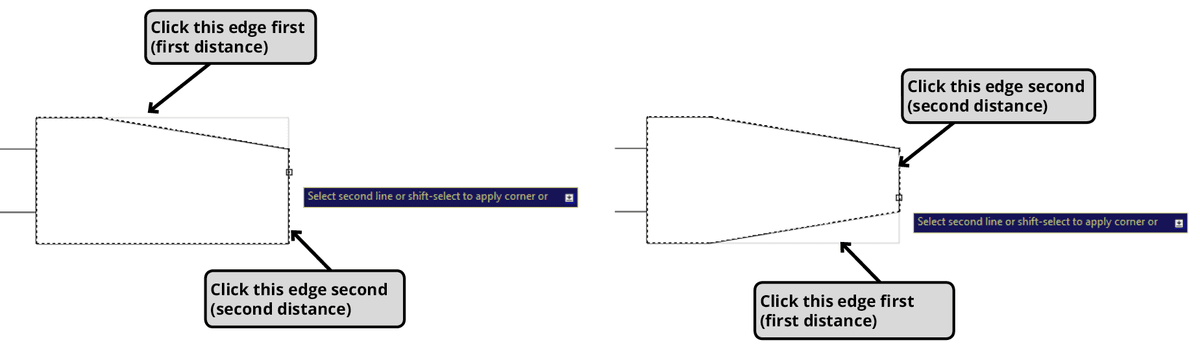
    When prompted for the first chamfer distance, enter .75 and press Enter. For the second chamfer distance, input .125. Remember this key principle: the first edge you select will use the first distance value, while the second edge applies the second distance value.

    Navigate to the rightmost rectangle—this will become the screwdriver's head. Zoom in for precision and click first on the top edge, then the right edge of the rectangle. Repeat this process by clicking the bottom edge followed by the right edge, as illustrated below. Keep the Chamfer command active for the next operation.

    chamfer clicking edges

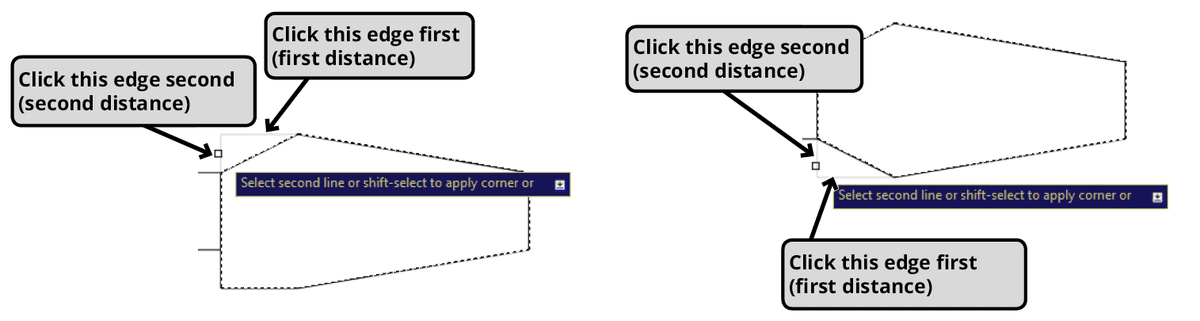
  3. While maintaining the active Chamfer command, press D Enter to modify the distance values for the left side of the screwdriver head. This demonstrates the command's flexibility for creating varied bevels on a single component. Enter .25 for the first chamfer distance and .125 for the second chamfer distance.

    Execute the chamfers with precision: click the top-left edge first (applying the .25 distance), then the left edge second (applying the .125 distance). Repeat this sequence for the bottom-left corner by clicking the bottom-left edge first, then the left edge second, as demonstrated in the illustration below. Maintain the active Chamfer command for the upcoming angle-based operation.

    chamfer clicking edges 2

  4. The Angle option introduces a different approach to chamfering, particularly valuable when working with design specifications that call for specific angular relationships rather than dual-distance measurements. This method requires both a distance from the corner and an angular specification for the beveled edge.

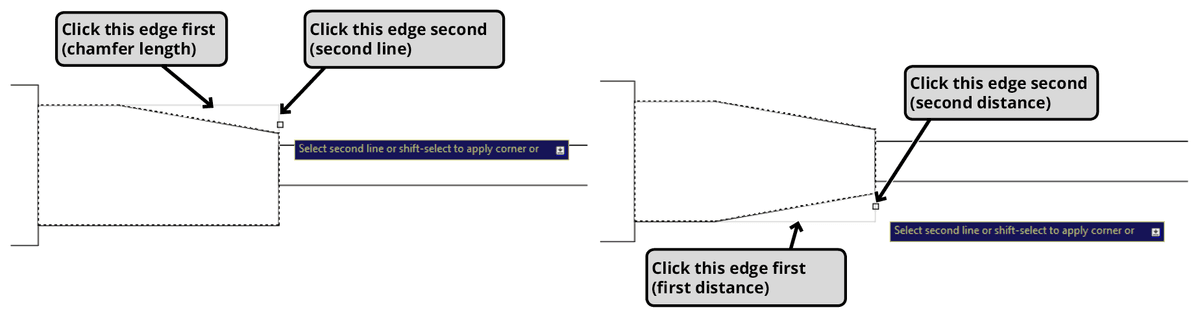
    Press A Enter to activate the Angle option from the command line. When prompted for the chamfer length, enter 1—this establishes the distance from the corner where the angled cut begins. Next, specify a chamfer angle of 10°, creating a subtle but precise bevel typical of tool manufacturing.

    Focus on the second rectangle from the left and zoom in for accuracy. Click the top edge first, then the right edge. AutoCAD will create a bevel exactly 1 inch from the upper-right corner at your specified 10° angle. Complete this section by clicking the bottom edge followed by the right edge once more. Keep the Chamfer command active for the final polyline operation.

    chamfer clicking edges 3

  5. For the screwdriver handle (the leftmost rectangle), you'll employ the Polyline option—an incredibly efficient feature that mirrors the Fillet command's capability to process all corners simultaneously. This approach is invaluable when working with complex shapes requiring uniform chamfers, significantly reducing drafting time while ensuring consistency.

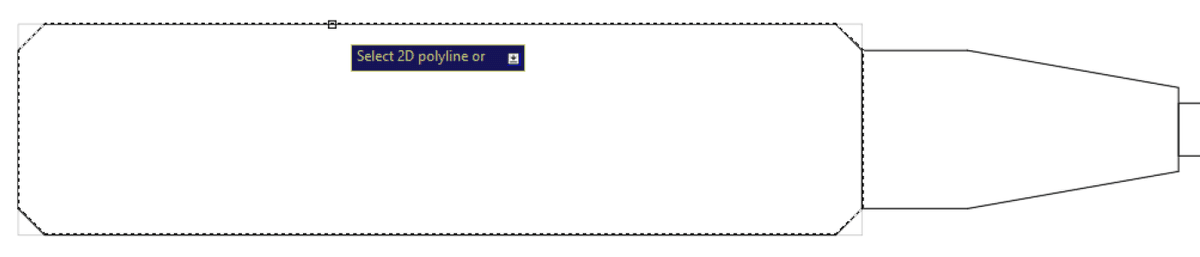
    Press P Enter to select the Polyline option, then press D Enter to establish new distance parameters. Enter .125 for the first distance. For the second distance, simply press Enter to duplicate the first distance value of .125, ensuring perfectly symmetrical corner treatments.

    Click anywhere on the rectangle's perimeter, as shown below. AutoCAD will automatically chamfer all four corners using your specified measurements, demonstrating the power of the polyline option for batch operations. Press Enter to conclude the Chamfer command sequence.

    chamfer rectangle

  6. Complete your professional screwdriver drawing by connecting the chamfered components. Utilize the Line tool in conjunction with Object Snap to create precise connecting edges between the handle, shaft, and head components. This final step demonstrates how chamfered elements integrate seamlessly into complete technical drawings, as shown in the finished illustration below.

    ex preview chamfer screwdriver

  7. Save and close your completed file, preserving this practical example of professional chamfering techniques for future reference.

Chamfer Distance Values Used in Exercise

Screwdriver Head (Right)
0.75
Screwdriver Head (Left)
0.25
Secondary Distance
0.125
Shaft Length
1

Essential Chamfer Command Workflow

0/6
Professional Workflow Tip

Use the Multiple option to stay in the Chamfer command when creating several beveled corners. This eliminates the need to restart the command and maintains your selected parameters for consistent results.

Distance Method vs Angle Method

Pros
Distance method provides precise control over both edges
Angle method ensures consistent angular cuts
Multiple distances create functional asymmetrical bevels
Angle specification matches manufacturing requirements
Cons
Distance method requires careful edge selection order
Angle method still needs distance parameter input
Different methods cannot be combined in single operation
Polyline option uses same parameters for all corners

Key Takeaways

1The Chamfer command creates angled bevels at corners using either distance or angle methods, essential for technical and manufacturing drawings
2Access the command via CHA Enter shortcut, Modify panel Fillet dropdown, or Modify Toolbar for efficient workflow integration
3Distance method requires two measurements: first chamfer distance applies to first clicked edge, second distance to second clicked edge
4Angle method combines a chamfer length with a specific angle measurement, ideal for precision technical drawings requiring exact angular specifications
5Multiple option keeps the command active for sequential chamfer operations without restarting, improving productivity for complex drawings
6Polyline option chamfers all corners of a closed shape simultaneously using the same distance parameters, perfect for uniform corner treatments
7Edge selection sequence is critical for asymmetrical chamfers, as the first distance value applies to the first edge clicked
8The Chamfer command operates similarly to the Fillet command but creates angled cuts instead of rounded corners, making it suitable for manufacturing and technical applications

RELATED ARTICLES