April 1, 2026Dan Perico/5 min read

Modifying with Grips Part 2

Master Advanced AutoCAD Grip Modification Techniques

Tutorial Continuation

This tutorial builds upon Part 1 of Modifying with Grips. Ensure you have completed the previous section or open the provided starting file to follow along effectively.

Topics Covered in This AutoCAD Tutorial:

Advanced object modification using grips for stretching operations and accessing comprehensive modify tools through grip-based workflows

Key Grip Modification Techniques

Stretching with Grips

Learn to dynamically resize objects by selecting and pulling grip points. Master precise distance input and polar tracking integration.

Accessing Modify Tools

Discover how to access Move, Copy, Rotate, and other modify commands directly through grip context menus for efficient workflow.

Advanced Copy Operations

Implement multiple copy techniques using grips, including base point selection and repeated copy patterns with CTRL key shortcuts.

Exercise Preview

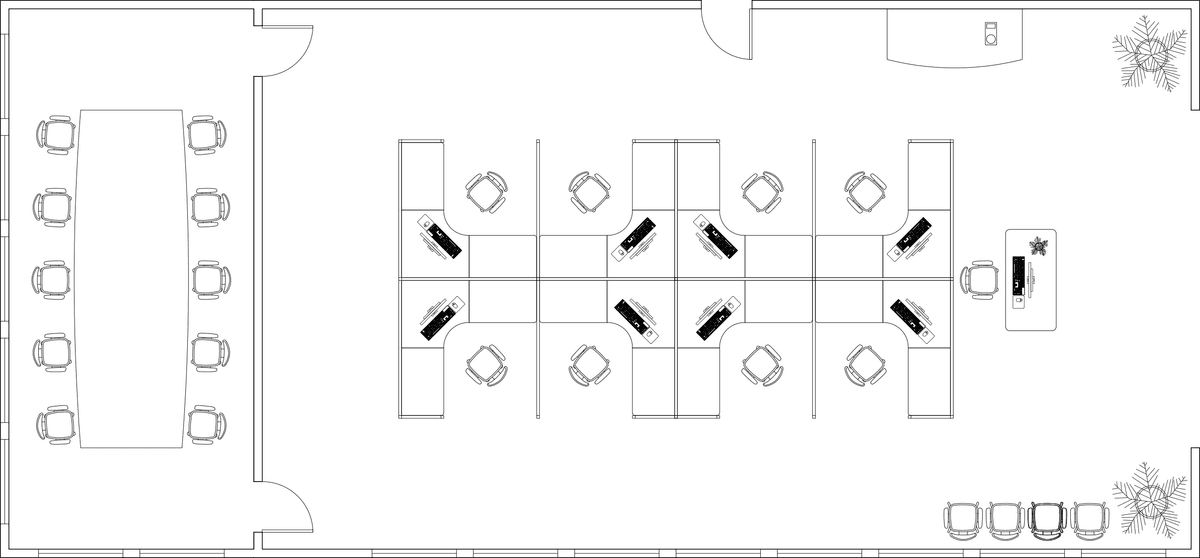
Before diving into the hands-on exercises, let's examine what you'll accomplish in this tutorial. The following preview demonstrates the sophisticated grip-based modification techniques that remain fundamental to efficient AutoCAD workflows in 2026.

ex preview modifying objects

Exercise Workflow Overview

1

Table Modification

Stretch table width by 12 inches and convert edge to arc with 6-inch depth using grip points

2

Chair Duplication

Create multiple chair copies using grip-based Move and Copy commands with CTRL key repetition

3

Computer Placement

Position and rotate computers on desks using grip operations with geometric center base points

File Setup

Continue with Modify Tools-Office.dwg or open Modify-Office-Grips.dwg to begin the exercises. Use Pan and Zoom to navigate between different areas of the office layout.

Modifying with Grips in a File

Now that you understand the scope of grip-based modifications, let's work through these essential techniques step by step. These methods form the backbone of efficient AutoCAD object manipulation.

  1. Continue working with Modify Tools-Office.dwg or open Modify-Office-Grips.dwg to begin this exercise.

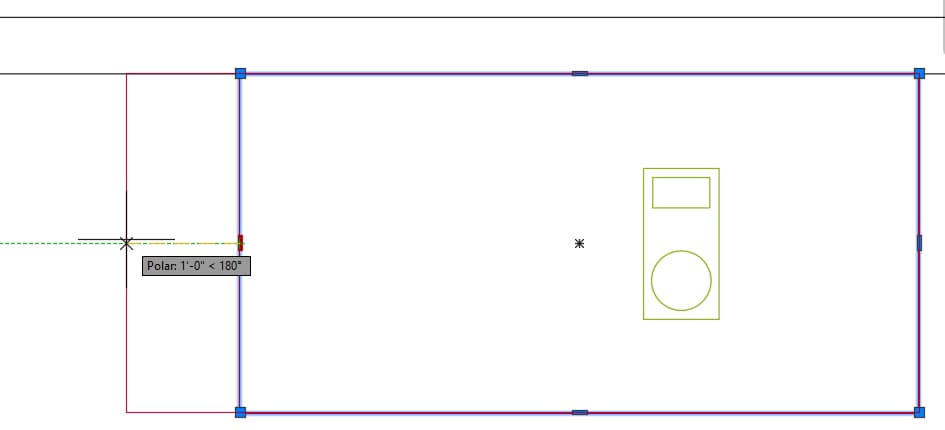
  2. Navigate to the table in the upper right area of the office where you previously placed the coffee maker, then select the table object. Click the grip located at the midpoint of the left side to activate it (making it "hot"). Pull the grip to the left until the horizontal Polar Tracking line appears, ensuring precise alignment. Type 12 to specify the distance in inches and press Enter. This stretching operation extends the table by exactly 12 inches, demonstrating how grips provide both visual feedback and precise dimensional control.

    table stretch

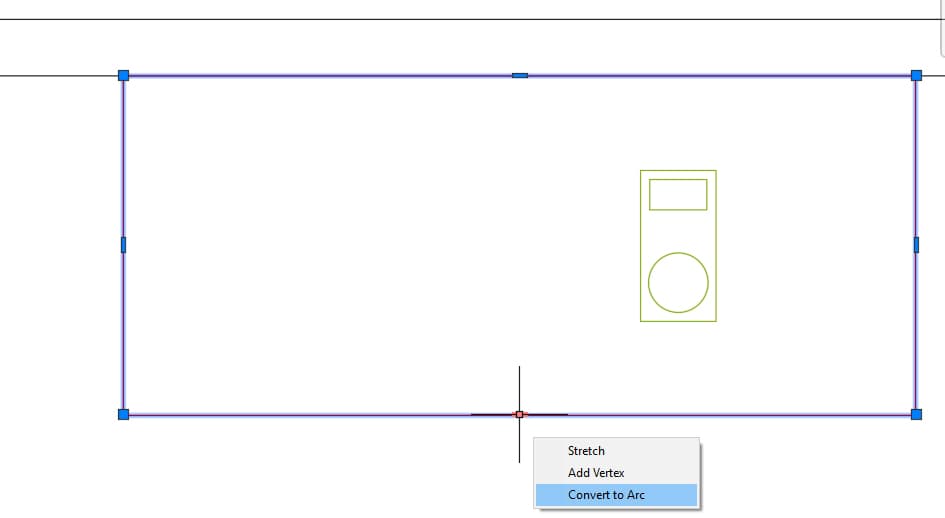
  3. Without clicking, hover your cursor over the grip at the midpoint of the table's bottom edge. When the contextual menu appears, select Convert to Arc. This powerful feature transforms the straight line segment into a curved arc, showcasing AutoCAD's ability to dynamically change object geometry through grip interactions.

    table menu

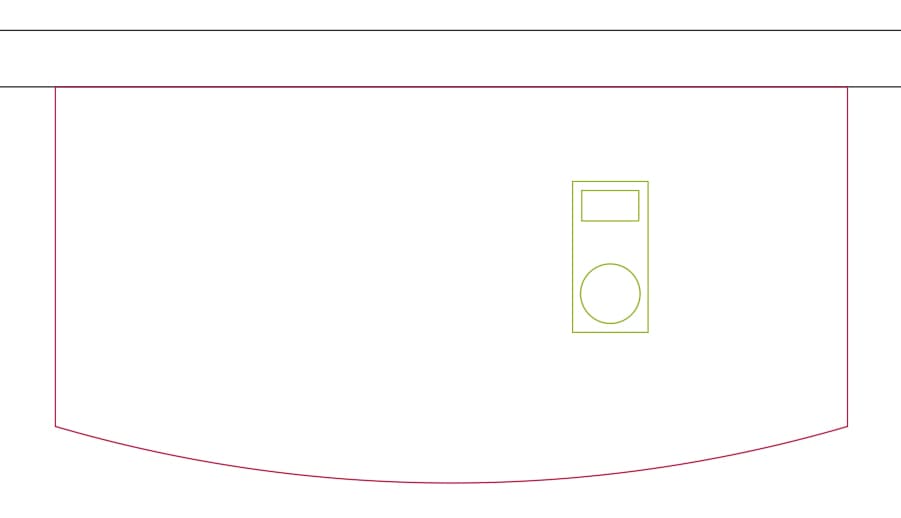
  4. Pull the cursor downward until the vertical tracking line appears, ensuring accurate movement along the intended axis. Type 6 for the arc distance and press Enter to confirm. Press Escape to deselect the table and observe the completed modification. The result demonstrates how grip editing can create both functional and aesthetically pleasing design elements.

    table arc

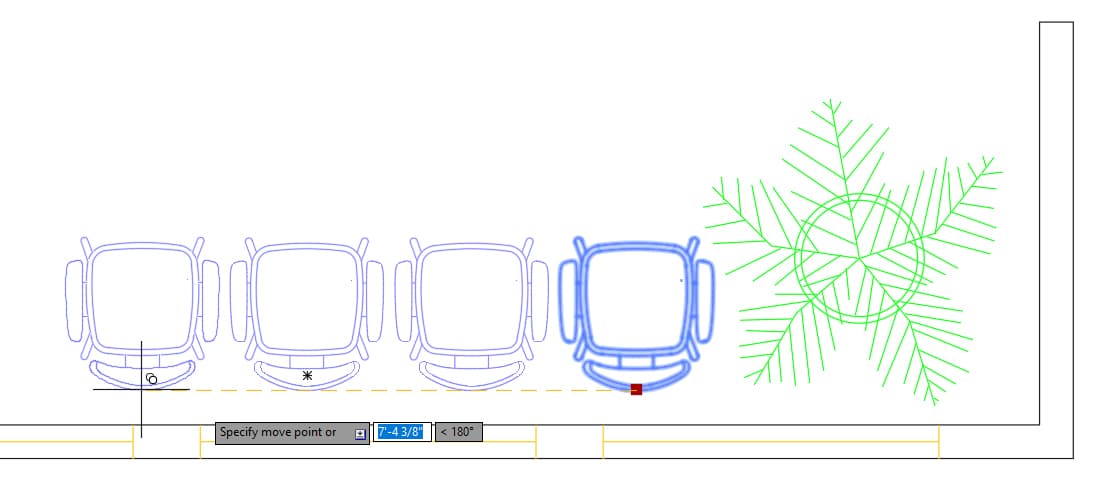
  5. Navigate to the chair positioned by the wall in the bottom right area of the office and click to select it. Activate the grip by clicking it, then right-click to access the grip context menu. Select Move from the menu, right-click again, and select Copy to enable the copy mode. Pull the cursor to the left and create one copy along the horizontal tracking line. This initial copy establishes both the distance and angle for subsequent operations. Now hold down the CTRL key while pulling the cursor to the left again—you'll notice the next copy automatically snaps to the same distance and angle as the first copy. Click to create this copy when the snap occurs. Repeat this CTRL-key process to create a total of four chairs efficiently. Press Enter to end the command, then press Escape to deselect all objects. This technique demonstrates AutoCAD's intelligent pattern recognition for repetitive copying operations.

    chair copy

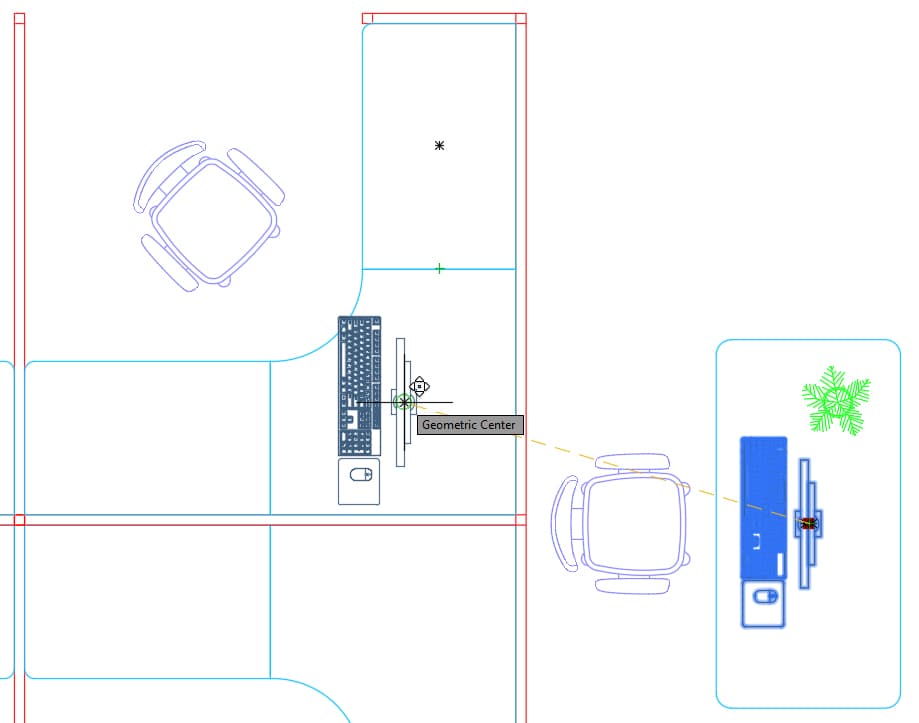
  6. Navigate to the front desk containing the computer workstation. Select the computer object and activate its grip by clicking. Right-click and choose Move, then right-click again to select Copy. Move the computer to the desk in the upper right cubicle, using the geometric center snap to precisely position the base point at the corner of the destination desk. Maintain the computer's selection for the next operation.

    computer copy move

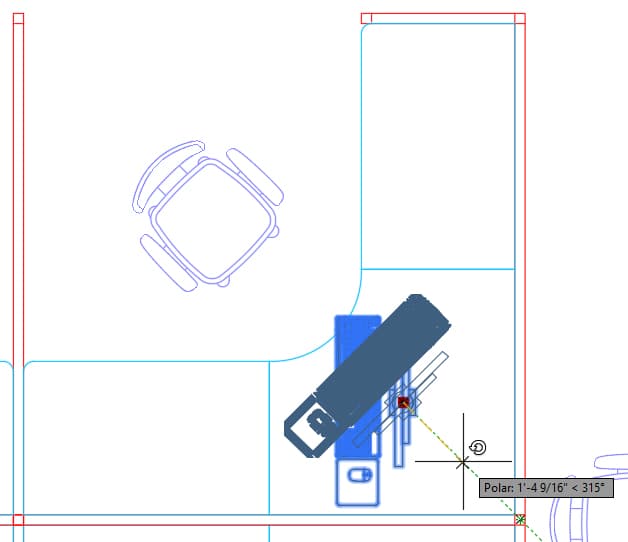
  7. With the new computer copy selected, click its grip to activate it and right-click to access the menu. Choose Rotate from the context menu. Utilize Polar Tracking and mouse movement to rotate the computer precisely 45° to the right, orienting it to face the chair naturally. Keep the computer selected for continued modification. This rotation demonstrates how grip-based editing maintains object relationships while allowing precise angular adjustments.

    computer copy move rotate

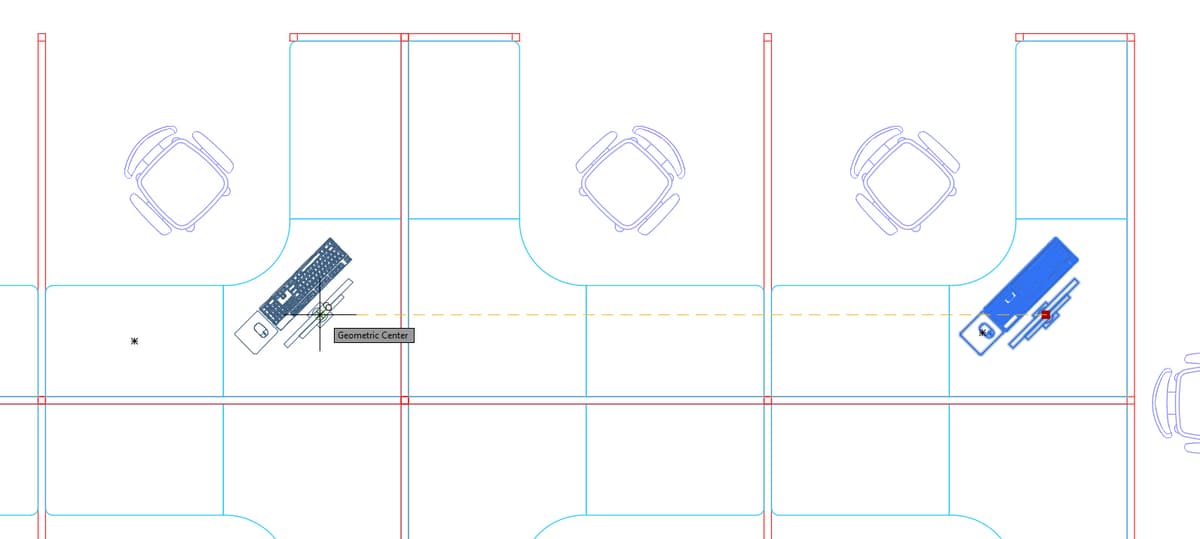
  8. Using the same grip technique, create another copy of the computer for the desk located 2 cubicles to the left. This placement is strategic—you're positioning the computer on this particular desk because it's the only other desk that matches the current 45° orientation of the computer, ensuring design consistency throughout the office layout.

    computer copy move2

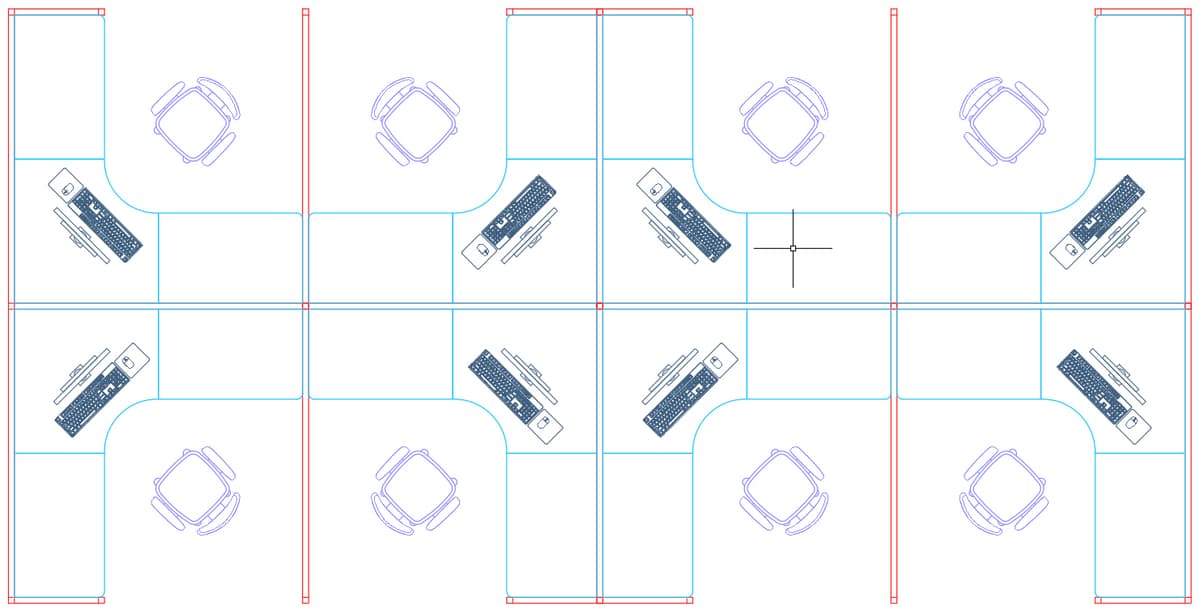
  9. Now you'll employ grips to create multiple copies in the remaining desks using an advanced technique similar to the mirror tool workflow, but with crucial differences. The mirror tool wouldn't work effectively with the computer because it's an asymmetrical object, and using the standard Rotate tool outside of the grip menu would be less efficient since its copy option only allows single copies. Select the computer and activate its grip. Choose Rotate from the right-click menu, then right-click again and select Copy. Right-click a third time and select the Base Point option to establish a custom rotation center. Click the Geometric Center snap at the center of the small square where the cubicle partitions intersect—this strategic base point ensures all rotated copies maintain proper spatial relationships. Use your mouse and Polar Tracking to systematically create copies on the other 3 adjoining desks, ensuring each computer faces its respective chair. Press Escape to deselect when complete.

    Professional Tip: Position the base point at the geometric center where partitions intersect for optimal rotational control, as demonstrated in the screenshot below:

    computer copy rotate

  10. Complete the office layout by using the Copy command to place computers on all remaining desks, ensuring each maintains the correct orientation for its specific location. This final step demonstrates the importance of combining multiple modification techniques to achieve professional, functionally logical design layouts.

    computer copy final

Table Modification Process

1

Select and Stretch

Click table grip at left midpoint, pull left with polar tracking, type 12 and press Enter

2

Convert to Arc

Snap to bottom edge midpoint grip, select Convert to Arc from menu

3

Arc Adjustment

Pull down with vertical tracking, type 6 for distance and press Enter

Grip Menu Access

Right-click on hot grips to access modify tools like Move, Copy, and Rotate directly without switching to separate commands.

Chair Duplication Technique

1

Activate Copy Mode

Select chair, make grip hot, right-click for Move, then right-click again for Copy

2

Establish Pattern

Make first copy along horizontal tracking line to set distance and angle

3

Repeat with CTRL

Hold CTRL key and pull left - cursor snaps to same distance and angle automatically

Grip-Based vs Traditional Modify Tools

Pros
Faster access to modify commands through right-click menus
Visual feedback with hot grips and tracking lines
Seamless integration of copy operations with move and rotate
CTRL key repetition for consistent spacing patterns
Cons
Requires understanding of grip selection sequence
Limited to objects that display grip points
Can be less precise than command line input methods

Computer Placement Strategy

1

Initial Copy and Move

Select computer, use grip Move and Copy to place on upper right desk at geometric center

2

Orientation Adjustment

Keep selected, use grip Rotate to turn 45 degrees right for proper chair alignment

3

Strategic Base Point

Set base point at geometric center of partition intersections for accurate multi-desk placement

Asymmetrical Object Handling

The mirror tool won't work with asymmetrical objects like computers. Grip-based Rotate with Copy is more efficient than separate Rotate commands for multiple copies.

Computer Placement Best Practices

0/4

Key Takeaways

1Grip modification provides direct access to Move, Copy, and Rotate commands through right-click context menus
2Hot grips combined with polar tracking enable precise object stretching with numerical distance input
3The Convert to Arc feature transforms straight line segments into curved elements using grip manipulation
4CTRL key repetition maintains consistent spacing and angles when creating multiple copies with grips
5Base point selection at geometric centers of partition intersections ensures accurate multi-object placement
6Grip-based operations are more efficient than traditional modify commands for asymmetrical objects requiring rotation and copying
7Visual feedback through tracking lines and grip highlighting improves accuracy during modification operations
8Sequential right-click operations unlock advanced grip options like Copy mode and Base Point selection

RELATED ARTICLES