April 1, 2026Dan Perico/3 min read

Ortho Tracking Part 2

Master AutoCAD precision with advanced tracking techniques

Tutorial Series Context

This is Part 2 of the Ortho Tracking series. Make sure you have completed Part 1 fundamentals before proceeding with these advanced tracking techniques.

Topics Covered in This AutoCAD Tutorial:

Master Ortho Tracking and Advanced Polar Angles for precision drafting

Core Learning Objectives

Ortho Tracking Mastery

Learn to efficiently draw vertical and horizontal lines using F8 or Status Bar controls. Master the technique of directional cursor movement with precise distance input.

Advanced Polar Angles

Configure custom polar tracking angles beyond standard increments. Set up additional angles like 50 and 230 degrees for complex geometric constructions.

Precision Drawing Workflow

Combine multiple tracking methods to create complex shapes efficiently. Use Close command and coordinate entry for professional-grade technical drawings.

Quick Setup Process

1

Enable Ortho Tracking

Access through Status Bar or press F8 to activate horizontal and vertical line constraints

2

Configure Polar Tracking

Press F10 or use Status Bar, then set 30 degree incremental angles through the dropdown menu

3

Add Custom Angles

Use Tracking Settings to add additional angles of 50 and 230 degrees for specialized drawing requirements

Exercise Preview

ex preview ortho tracking

This hands-on exercise demonstrates two essential precision tools that separate efficient AutoCAD users from those who struggle with accuracy. Ortho Tracking and Polar Tracking eliminate guesswork in line placement, allowing you to create perfectly aligned geometry with minimal cursor movement.

  1. Launch AutoCAD and navigate to the Start tab. Click Start Drawing to create a new drawing file. This establishes your workspace for exploring tracking functionality.

  2. Activate Ortho Tracking by clicking its icon in the Status Bar ortho tracking button or press F8. This constrains your cursor movement to perfectly horizontal and vertical directions—a fundamental skill for technical drawing accuracy.

  3. Initiate the Line command and specify your first point at coordinates 5,5. This establishes a known reference point for your geometry.

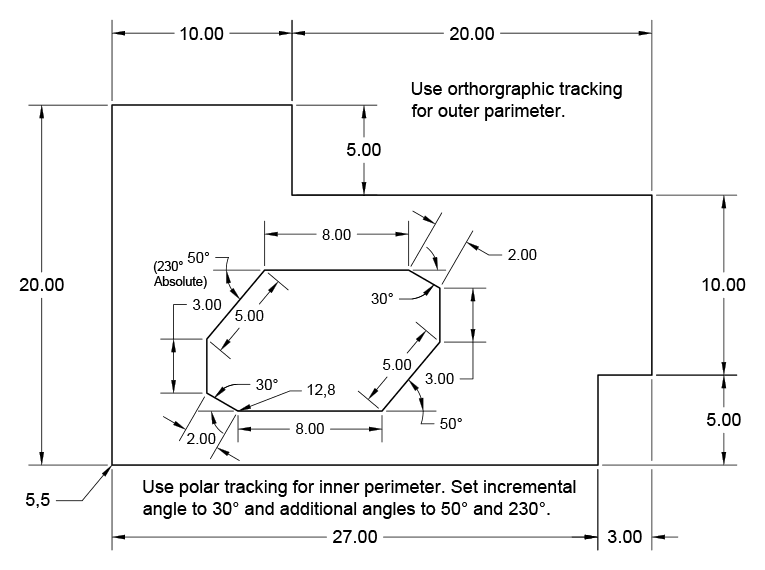
  4. Move your cursor upward or rightward—notice how the line preview locks to either vertical or horizontal orientation along the Ortho Tracking guidelines. This constraint allows you to input precise distances without worrying about cursor position. Create the outer perimeter shown in the preview image, taking advantage of Ortho Tracking's efficiency. For the final segment, use the Close option to ensure perfect connection. Professional tip: You'll discover that many line segments can be drawn without moving your cursor at all—simply type the distance and direction. This workflow dramatically increases drafting speed while maintaining precision.

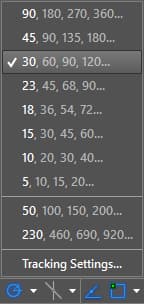
  5. Now enable Polar Tracking via the Status Bar polar tracking button or press F10. Click the dropdown arrow beside the Polar Tracking button to access its menu, then set the incremental polar angle to 30°. This expands your tracking capabilities beyond the basic horizontal and vertical constraints.

    polar tracking menu30

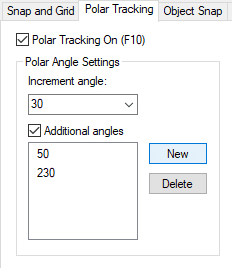
  6. Access Tracking Settings from the Polar Tracking menu to customize additional angles. Click New and add 50° and 230° as additional tracking angles. These complementary angles (180° apart) create a bidirectional tracking line, enabling precise movement in both directions along the same angular path. This technique proves invaluable for complex geometric constructions.

    polar angles additional30

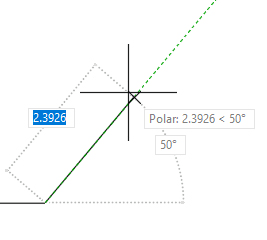
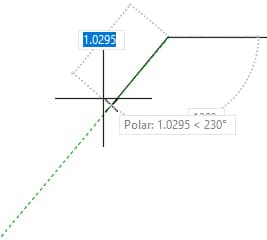
  7. Start a new Line command with the first point at 12,8. Move your cursor horizontally to engage the 0° tracking line and enter a distance of 8 units. Next, position your cursor to snap to the 50° additional tracking line—exercise caution here, as the 30° and 60° incremental lines are visually similar. Precision matters: ensure you've locked onto the correct 50° angle before entering the distance of 5 units.

    additional practice 50

  8. Continue building the complex geometry by moving vertically upward along the 90° tracking line for 3 units. Then engage the 30° incremental tracking line (displayed as 150° absolute angle) by pulling up and left, entering 2 units. Create the next segment by moving 8 units leftward along the horizontal tracking line. Finally, pull down and left to snap to your custom 230° additional tracking line and input 5 units. This sequence demonstrates how multiple tracking angles work together for complex geometry creation.

    additional practice 230

  9. Complete the exercise by pulling downward to engage the vertical tracking line and entering 3 units. Finish the shape using AutoCAD's Close option: press C followed by Enter. This automatically connects your final point to the starting point with perfect precision. Clean up your workspace by removing the additional angles from the Tracking Settings dialog box, then save or close the file as needed.

Mastering these tracking tools transforms your AutoCAD efficiency. Professional drafters rely on Ortho and Polar Tracking to maintain accuracy while maximizing speed—skills that become increasingly valuable as project complexity grows.

Essential Keyboard Shortcuts

0/4

Tracking Method Comparison

FeatureOrtho TrackingPolar Tracking
Angle Options90 degree onlyCustom increments
Best Use CaseRectangular shapesAngular geometry
Setup ComplexitySingle F8 pressRequires angle configuration
Drawing SpeedVery fastModerate
Recommended: Use Ortho for simple rectangular layouts, Polar for complex angular designs

Exercise Drawing Sequence

Phase 1

Outer Perimeter Creation

Start at point 5,5 using Ortho Tracking for rectangular boundary

Phase 2

Polar Angle Configuration

Set 30 degree increments and add custom 50/230 degree angles

Phase 3

Inner Complex Shape

Draw 8-segment polygon starting at 12,8 using mixed tracking methods

Final

Cleanup and Reset

Delete additional angles and close file to complete exercise

Common Precision Error

When snapping to the 50 degree additional tracking line, be careful not to accidentally snap to the nearby 30 degree or 60 degree incremental lines, which can compromise drawing accuracy.

Advanced Tracking Benefits and Limitations

Pros
Significantly reduces cursor movement and increases drawing speed
Maintains precise geometric relationships automatically
Allows complex angular constructions with minimal calculation
Integrates seamlessly with distance input for exact measurements
Cons
Requires initial setup time for custom polar angles
Can be overwhelming for beginners with too many angle options
Easy to snap to wrong angle when multiple lines are close together
Additional angles must be manually deleted after use

Key Takeaways

1Ortho Tracking activated with F8 constrains line drawing to horizontal and vertical directions only, dramatically speeding up rectangular geometry creation
2Polar Tracking with F10 enables custom angular constraints, with the ability to set both incremental angles like 30 degrees and additional specific angles like 50 and 230 degrees
3Coordinate entry starting points like 5,5 or 12,8 provide precise positioning foundation for subsequent tracking operations
4Distance input works regardless of exact cursor position as long as the cursor points in the correct tracked direction
5The Close option activated with C and Enter automatically completes polygons by connecting the last point to the first point
6Custom additional angles like 50 and 230 degrees work as opposite pairs, allowing bidirectional tracking along the same angular line
7Tracking Settings dialog provides comprehensive control over polar angles, including the ability to add and delete custom angles as needed
8Efficient AutoCAD workflows combine multiple tracking methods within single drawings, switching between Ortho and Polar tracking as geometry requirements change

RELATED ARTICLES