April 1, 2026Jerron Smith/9 min read

Social Media Ad: Exporting Files

Master After Effects Export Workflows and Video Compression

What You'll Master

Adobe Media Encoder

Learn to use the professional export tool included with Creative Cloud for high-quality video rendering.

File Export Optimization

Master bitrate settings, multi-pass encoding, and format selection for different distribution channels.

Workflow Efficiency

Understand when to use Media Encoder versus Render Queue for optimal production workflows.

Topics Covered in This After Effects Tutorial:

Using Adobe Media Encoder, Exporting Files, Media Encoder Vs. Render Queue

Exercise Preview

preview export

Exercise Overview

In this exercise, we'll transform your animated composition into a polished, shareable video file. This final step in the motion graphics workflow is crucial for delivering professional-quality content to clients or audiences.

Getting Started

  1. Ensure Your Name—Guitar Picks.aep remains open in After Effects. If you closed the project, reopen it by navigating to File > Open Project then Desktop > Class Files > After Effects Class > Guitar Picks. We strongly recommend completing the previous exercises (1B–2B) before proceeding, as they establish the foundation for this export workflow. If you haven't completed them, follow the sidebar instructions below.

    Pre-Export Checklist

    0/3

If You Did Not Complete the Previous Exercises (1B–2B)

  1. If a project is currently open in After Effects, save your work with File > Save, then close it with File > Close Project.
  2. Navigate to File > Open Project and locate Desktop > Class Files > After Effects Class > Guitar Picks > Finished Projects.
  3. Double–click Guitar Picks—Done.aep to open the completed project.
  4. Create your working copy by selecting File > Save As > Save As. Name the file Your Name—Guitar Picks.aep and save it to Desktop > Class Files > After Effects Class > Guitar Picks, replacing any existing file if prompted.

Exporting an H.264 Video File

Professional motion graphics demand professional output. To share your animation beyond the After Effects environment, you'll need to render it into a universally compatible video format. This process transforms your layered composition into a single video file that can be viewed on any device or platform.

Adobe Media Encoder serves as the industry-standard export engine for this task. Included with your Creative Cloud subscription at no additional cost, Media Encoder offers sophisticated compression algorithms and delivery presets that ensure your content looks exceptional across all viewing contexts—from social media platforms to broadcast television.

If Media Encoder wasn't automatically installed with your After Effects installation, you can add it through the Adobe Creative Cloud desktop app. This companion application is essential for producing the most common video formats that clients and platforms require.

NOTE: While After Effects 2023 and later versions can export H.264 files directly through the Render Queue, Media Encoder remains the preferred choice for most professionals. It processes exports in the background, allowing you to continue working in After Effects while your video renders—a significant productivity advantage in deadline-driven environments.

  1. First, verify your export duration by checking the work area bar. If you've modified its length during your workflow, double–click the gray work area bar above the timeline to reset it, ensuring it spans your entire composition duration.

  2. With your Timeline panel active, initiate the export by choosing File > Export > Add to Adobe Media Encoder Queue (alternatively, use Composition > Add to Adobe Media Encoder Queue).

  3. Exercise patience as Adobe Media Encoder launches and processes your composition. This initial handoff can take several moments, particularly with complex projects containing multiple layers or effects.

    Media Encoder is ready when your composition name appears in the Queue panel at the top right of the Media Encoder interface.

  4. Configure your output format by clicking the Format column's dropdown arrow media encoder arrow and selecting H.264. This codec provides excellent quality-to-file-size ratio and enjoys universal compatibility across devices and platforms.

  5. From the Preset dropdown arrow media encoder arrow, select Match Source—High Bitrate. This preset maintains your composition's original resolution while applying professional-grade compression settings.

  6. Define your export destination by clicking the blue text in the Output File column.

  7. Navigate to your designated export folder: Desktop > Class Files > After Effects Class > Guitar Picks > Exports.

  8. Rename your output file to Your Name—Guitar Picks Square for clear identification in your project deliverables.

  9. Click Save to confirm your file name and location preferences.

    NOTE: This Save action only establishes the export parameters—the actual rendering process occurs in the next steps.

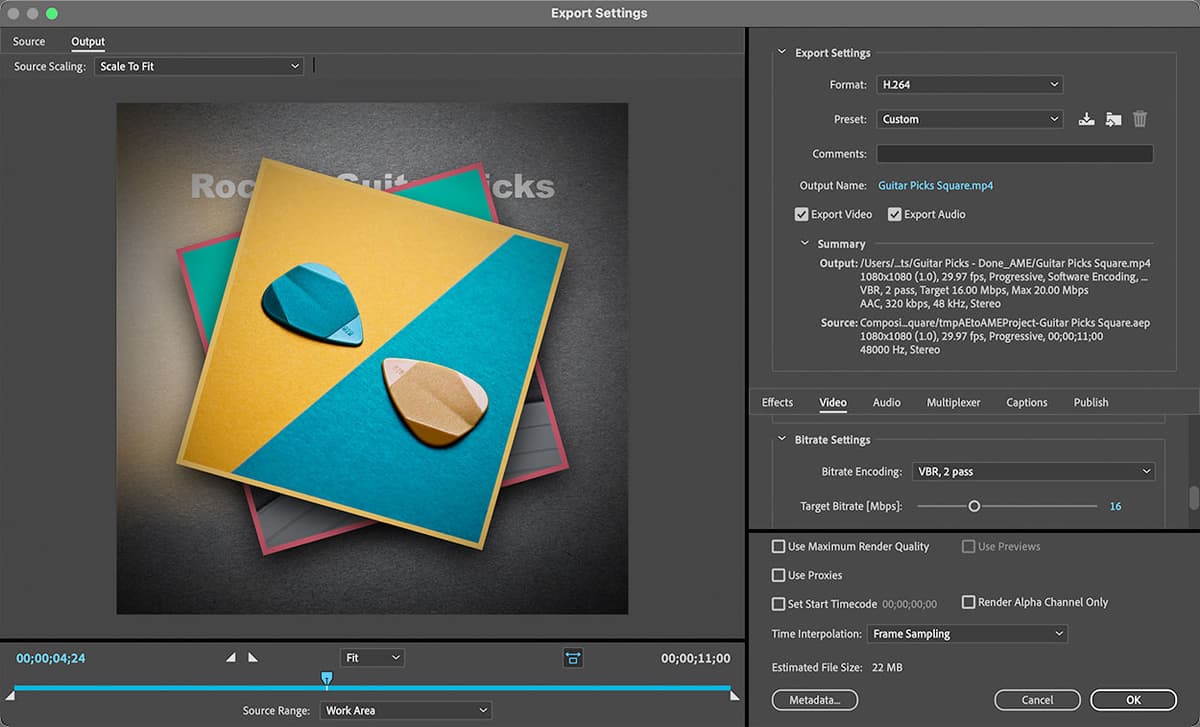
  10. Now we'll optimize the export settings for professional delivery. Click the blue Match Source—High bitrate text in the Preset column to access advanced options.

  11. In the Export Settings dialog's Video tab, locate and enable Render at Maximum Depth (scroll down if necessary).

    NOTE: Maximum Depth rendering leverages After Effects' internal 32-bit processing to preserve the full quality of your effects, gradients, and compositing work. While this increases render time, it's essential for maintaining the visual fidelity that distinguishes professional motion graphics from amateur content.

  12. Scroll to the Bitrate Settings section to fine-tune your compression strategy.

  13. Change Bitrate Encoding to VBR, 2 pass for optimal quality distribution.

    NOTE: Two-pass encoding analyzes your entire composition twice—first to understand its complexity, then to allocate bandwidth precisely where needed. This results in superior visual quality, though it requires additional processing time. For time-critical projects, VBR, 1 pass provides a reasonable compromise.

  14. Set the Target Bitrate [Mbps] to 16 for high-quality web delivery.

  15. Adjust the Maximum Bitrate [Mbps] to 20 to accommodate complex visual passages.

    NOTE: These elevated bitrate settings account for the compression that occurs when uploading to social media platforms, streaming services, or client review portals. Starting with premium quality ensures your final output maintains professional standards throughout the distribution chain.

  16. Preserve these optimized settings for future projects by clicking the Save Preset button ame save preset in the Export Settings panel.

    • Name your custom preset My Match Source—HQ for easy identification.
    • Click OK to save this preset to your Media Encoder library.
  17. Confirm your settings by clicking OK at the bottom of the Export Settings dialog to return to the main Media Encoder interface.

  18. Initiate the rendering process by clicking the green Start Queue button media encode start button in the top right corner. Media Encoder will now process your composition using the professional settings you've configured.

  19. Once rendering completes, click the blue file path in the Output File column to reveal your finished video in its destination folder.
  20. Double-click Your Name—Guitar Picks Square.mp4 to preview your completed motion graphics project in your system's default video player.

With your export complete, let's examine the technical concepts that ensure your videos maintain professional quality across all viewing platforms.

After Effects 2023 Update

As of After Effects 2023, you can export H.264 files directly from the Render Queue, though Media Encoder is still helpful since it doesn't tie up After Effects while exporting.

Media Encoder Export Process

1

Add to Queue

Choose File > Export > Add to Adobe Media Encoder Queue

2

Configure Format

Select H.264 format and Match Source—High Bitrate preset

3

Set Output Location

Navigate to Exports folder and name file Your Name—Guitar Picks Square

4

Optimize Settings

Enable Render at Maximum Depth and configure VBR 2-pass encoding

Bitrate & Multi–Pass Encoding

Bitrate

Bitrate, measured in megabits per second (Mbps), determines the data allocation for each second of your video. This fundamental parameter directly impacts both visual quality and file size, making it a critical consideration in professional video production workflows.

Higher bitrates dedicate more data to representing visual information, resulting in sharper images, smoother gradients, and more accurate color reproduction. However, this quality improvement comes at the cost of larger file sizes and increased bandwidth requirements for streaming or download. Conversely, lower bitrates create smaller, more manageable files but may introduce compression artifacts, particularly in areas of high visual complexity such as detailed textures or rapid motion.

The optimal bitrate depends on your delivery context. Social media platforms typically require moderate bitrates due to their own compression algorithms, while broadcast television or cinema applications demand significantly higher bitrates to maintain professional visual standards. A well-chosen bitrate balances quality expectations with technical constraints, ensuring your content looks exceptional while remaining practical to distribute.

Remember that bitrate works in conjunction with other encoding parameters—resolution, frame rate, codec efficiency, and compression algorithms all contribute to your final output quality. Modern H.264 and H.265 codecs achieve remarkable quality even at modest bitrates through sophisticated compression techniques.

Multi–Pass Encoding

Multi-pass encoding represents one of the most significant advancements in modern video compression technology. This process fundamentally changes how encoders analyze and compress your footage, resulting in superior quality at any given bitrate.

Single-pass encoding processes your video sequentially from beginning to end, making real-time compression decisions based only on the current frame and a limited buffer of surrounding frames. While faster, this approach cannot account for the overall complexity distribution throughout your composition, potentially wasting bits on simple passages while starving complex sections of the data they need for quality representation.

Two-pass encoding transforms this process through comprehensive analysis. The first pass examines your entire composition, creating a detailed map of visual complexity, motion vectors, and optimal bit allocation strategies. The second pass uses this intelligence to distribute your target bitrate precisely where it will have maximum visual impact—dedicating more data to complex animations while efficiently compressing static elements.

This analytical approach becomes particularly valuable in motion graphics, where compositions often contain a mix of static text, complex particle effects, and smooth gradients. Two-pass encoding recognizes these varying demands and allocates compression resources accordingly, resulting in consistently high quality throughout your video.

Understanding these technical foundations prepares you to make informed decisions about export workflows. Next, we'll explore how different export tools serve different professional needs.

Adobe Media Encoder Vs. the Render Queue

After Effects provides two distinct export pathways, each optimized for different stages of the professional video production pipeline. Understanding when and why to use each tool is essential for efficient workflow management and optimal output quality.

  • The Render Queue functions as After Effects' native export engine, designed for high-fidelity intermediate files.
  • Adobe Media Encoder operates as a specialized delivery application, optimized for final distribution formats and audience-ready content.

The Render Queue excels in professional production environments where compositions become source material for subsequent editing, color correction, or compositing stages. It specializes in generating high-quality, minimally compressed files using codecs like ProRes, DNxHD, or uncompressed formats that preserve maximum image fidelity. These files serve as digital intermediates—pristine source material that withstands multiple processing generations without quality degradation. Notably, as of After Effects 2023, the Render Queue gained the ability to export H.264 files directly, expanding its utility for certain delivery scenarios.

Adobe Media Encoder transforms these high-quality sources into audience-ready content optimized for specific viewing contexts. Its sophisticated preset library includes configurations for broadcast television, streaming platforms, social media networks, and mobile devices. Each preset balances quality, file size, and compatibility requirements for its intended destination. Media Encoder also supports specialized formats like Animated GIFs, interactive video formats, and platform-specific outputs that the Render Queue cannot produce.

The choice between tools often depends on your project's final destination and your role in the production pipeline. Motion graphics artists creating assets for larger productions typically rely on the Render Queue for maximum quality preservation. Content creators developing finished pieces for direct audience consumption leverage Media Encoder's delivery-focused optimization. Many professionals use both tools in sequence—Render Queue for archival masters, Media Encoder for distribution versions.

Export Method Comparison

FeatureRender QueueAdobe Media Encoder
Primary UseProduction workflowPublic distribution
File TypesLimited formatsComprehensive formats
CompressionLow compressionOptimized compression
IntegrationBuilt into AEStandalone app
Best ForVideo editing pipelineSocial media uploads
Recommended: Use Media Encoder for final delivery files and social media content

Adobe Media Encoder Benefits

Pros
Specializes in public viewing formats
Doesn't tie up After Effects during rendering
Supports animated GIF and web formats
Optimized for social media compression
Works with both After Effects and Premiere Pro
Cons
Requires separate application launch
Additional step in workflow
May have slight learning curve for new users

Key Takeaways

1Adobe Media Encoder is included free with Creative Cloud and essential for creating web-ready video files from After Effects compositions
2H.264 format with VBR 2-pass encoding at 16-20 Mbps bitrate produces optimal quality for social media distribution
3Render at Maximum Depth setting enhances transparency and blending effects quality, though it increases render time significantly
4Media Encoder specializes in public distribution formats while Render Queue focuses on production workflow files
5Multi-pass encoding analyzes video twice for superior compression efficiency and quality compared to single-pass methods
6Social media platforms re-compress uploaded videos, making higher quality source files beneficial for final output
7After Effects 2023 can export H.264 directly, but Media Encoder remains valuable for non-blocking background rendering
8Proper file organization and naming conventions are crucial for managing exported video assets in professional workflows

RELATED ARTICLES