March 23, 2026Tziporah Zions/8 min read

2.5D Features in After Effects

Master dimensional animation with professional After Effects techniques

Prerequisites

This tutorial assumes basic familiarity with After Effects interface and keyframe animation. You'll need the project files to follow along with the step-by-step instructions.

2.5D%20GIF

Getting the Project Files

  1. Download the project files.
  2. After the download completes, extract the ZIP file if your system hasn't done so automatically. You should see an After Effects folder labeled 2.5D Features containing all the necessary assets for this tutorial.

Project Overview

In this comprehensive tutorial, we'll explore the powerful 2.5D capabilities of After Effects by creating dynamic text animations that move through three-dimensional space. You'll learn to manipulate text layers along the X, Y, and Z axes, then add a virtual camera to showcase your work from compelling angles. This technique is essential for motion graphics professionals looking to add depth and visual interest to their projects without the complexity of full 3D rendering.

The key to mastering 2.5D animation lies in understanding how keyframes interact with spatial properties. Unlike traditional 2D animation, 2.5D gives you the Z-axis to work with, opening up possibilities for rotations, parallax effects, and camera movements that create the illusion of three-dimensional space while maintaining After Effects' efficient rendering pipeline.

Tutorial Components

Text Layer Animation

Learn to animate text layers in 2.5D space using scale and rotation keyframes. Master the timing and easing for professional results.

Camera Movement

Create dynamic camera animations to showcase different angles. Understand position, rotation, and orientation controls for cinematic effects.

2.5D Space

Explore the dimensional capabilities between 2D and 3D. Work with X, Y, and Z axes for depth and perspective in your animations.

Enable 2.5D

1. Begin by activating the 2.5D switch for your layers. If you don't see the 2.5D column in your timeline, click Toggle Switches/Modes at the bottom of the Timeline panel. Image2

2. Enable the 2.5D checkbox for both text layers. This transformation unlocks additional spatial properties including Z-position and three-axis rotation controls, which are fundamental to creating convincing dimensional movement.

3. Position the Playhead at 00;00;00;00 to establish your starting keyframes.

4. Select the WHIRL layer to begin animating the first text element.

5. Press S to reveal the Scale property, which we'll animate to create a dynamic entrance effect.

6. Click the stopwatch icon Image3 next to Scale to enable keyframe recording for this property.

7. Set the initial Scale value to 0 to create an entrance animation from nothing.

8. Move the Playhead Image1 to 00;00;00;10 to create the peak of your scale animation.

9. Change the Scale to 110% to create a slight overshoot that adds energy to the animation.

10. Move the Playhead to 00;00;00;15 for the final scale keyframe.

11. Set the Scale to 100% to settle the text at its final size. This overshoot-and-settle technique is a cornerstone of professional motion graphics.

12. Select all three scale keyframes using Shift+Click to prepare them for easing.

13. Press F9 to apply Easy Ease to all selected keyframes. This creates smooth acceleration and deceleration curves that feel natural to the eye. While the animation may not yet reveal its 2.5D nature, the dimensional aspects will become apparent once we add camera movement.

14. Return the Playhead to 00;00;00;00 to begin setting up rotation keyframes.

15. Press R to reveal the Rotation properties. Notice how enabling 2.5D has expanded this single rotation value into separate X, Y, and Z rotation controls. For this tutorial, we'll focus on Y-axis rotation, which creates left-to-right tilting motion, but experimentation with all three axes often yields surprising and useful results.

16. Click the stopwatch Image3 next to Y Rotation to begin keyframe recording.

17. Set the Y Rotation to 40 x +0.0° to establish the starting rotation angle.

18. Move the Playhead to 00;00;00;20 to create the end point of your rotation.

19. Change the Y Rotation to 0 x +0.0° to rotate the text into its final position. Note that we're deliberately not applying Easy Ease to rotation keyframes, as the linear interpolation prevents unwanted axis flipping that can occur with eased 3D rotations.

Now we'll animate the second text layer with offset timing to create a layered, professional appearance.

20. Move the Playhead to 00;00;00;10 to offset the second text element's entrance.

21. Select the AND TWIRL layer to begin animating the second text element.

22. Press S to access the Scale property.

23. Click the stopwatch Image3 to enable keyframe recording.

24. Set the Scale to 0 to match the entrance style of the first text layer.

25. Move the Playhead Image1 to 00;00;01;10 for the peak scale value.

26. Set the Scale to 110% to create the same overshoot effect.

27. Move the Playhead Image1 to 00;00;01;14 for the final scale keyframe.

28. Reduce the Scale to 100% to complete the settle animation.

29. Select all scale keyframes for this layer using the marquee selection tool or Shift+clicking.

30. Press F9 to apply Easy Ease. Your text animations are now complete and ready to be enhanced with camera movement.

31. Locate the glitter layer, which adds visual polish to the final animation.

32. Toggle the layer's visibility by clicking the eye icon to enable it. Image5 This decorative element will help sell the dimensional effect once the camera begins moving.

With your text animations established, it's time to add the camera that will transform this into a truly dimensional experience.

Text Animation Workflow

1

Scale Animation Setup

Create keyframes at 0%, 110%, and 100% scale values with Easy Ease applied for smooth transitions

2

Y-Axis Rotation

Animate from 40 degrees to 0 degrees on Y-axis without Easy Ease to prevent unwanted rotation artifacts

3

Layer Timing

Offset the second text layer animation to create staggered entrance effects for visual interest

Easy Ease Strategy

Apply Easy Ease to scale keyframes but avoid it on rotation keyframes to prevent odd spinning behaviors in 2.5D space.

Camera

1. Create a new camera by navigating to Layer > New > Camera. After Effects cameras are sophisticated tools that simulate real-world camera behavior, complete with focal length, depth of field, and aperture controls. For 2.5D work, the camera is what transforms flat layers into apparently three-dimensional scenes by providing perspective and parallax.

2. Position the Playhead Image1 at 00;00;00;13 to begin the camera animation after the first text element has begun its entrance.

3. With the Camera layer selected, press P to reveal its Position property.

4. Add Shift+R to also display rotation controls. Camera rotation in After Effects includes both standard X, Y, Z Rotation and Orientation properties. Orientation provides more intuitive camera aiming, while individual axis rotations offer precise control over camera banking and tilting.

5. Enable keyframe recording for Position by clicking its stopwatch icon.

6. Do the same for Orientation to prepare for camera aiming adjustments.

7. Enable keyframing for X Rotation to control camera tilt.

8. Finally, enable keyframing for Y Rotation to control horizontal camera swing.

9. Set the Position values to 636, 600, -690. These coordinates position the camera in 3D space, with the negative Z value pulling it back from the default position to frame your text elements properly.

10. Adjust X Rotation to 17° to create a slight downward angle that adds visual interest.

11. Set Y Rotation to 30° to establish the camera's starting angle relative to your text.

12. Move the Playhead Image1 to 00;00;01;00 to create the midpoint of your camera move.

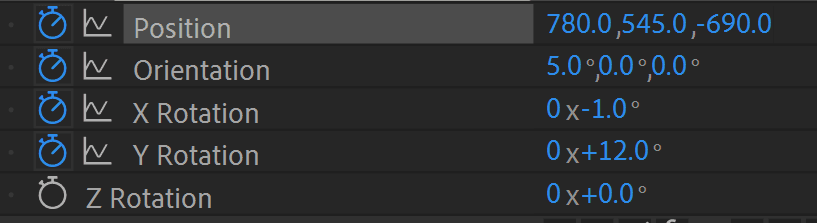
13. Update the Position to 770, 545, -690, creating a subtle camera slide that reveals different perspectives of your text.

14. Adjust X Rotation to 0 x -1.0° to level out the camera angle.

15. Set Y Rotation to 0 x +12° to reduce the side angle while maintaining visual interest. Your keyframe structure should resemble this:

Image6

16. Move the Playhead Image1 to 00;00;01;16 for the penultimate camera position.

17. Adjust Position to 780, 545, -690 for a subtle continued movement.

18. Add an Orientation keyframe by clicking the diamond icon Image7 next to the property name. This maintains the current orientation values while preparing for the final camera adjustment.

19. Move the Playhead Image1 to 00;00;02;00 for the final camera position.

20. Set the final Position to 793, 485, -622. This moves the camera slightly closer (less negative Z) and repositions it for the final framing.

21. Adjust Orientation to 1.0°, 0, 0 for a subtle final camera adjustment that adds polish to the movement.

22. Select all camera keyframes using Shift+Click to prepare them for easing.

23. Apply Easy Ease with F9. This creates smooth camera movements that feel cinematic rather than mechanical.

24. Return to the beginning of your composition at 00;00;00;00 with the Playhead.

25. Press Spacebar to preview your complete 2.5D animation. You should see your text elements rotating into view while the camera gracefully moves around them, creating convincing dimensional depth and visual sophistication.

Camera Animation Timeline

00;00;00;13

Initial Position

Set starting camera position and rotation values

00;00;01;00

Mid Animation

Adjust position and rotation for dynamic movement

00;00;01;16

Near Completion

Fine-tune position for optimal viewing angle

00;00;02;00

Final Frame

Set final position and orientation values

2.5D Animation Benefits

Pros
Faster rendering than true 3D animations
Adds depth without complex modeling
Familiar After Effects interface and tools
Lightweight file sizes and processing
Perfect for motion graphics and titles
Cons
Limited to flat layers in dimensional space
No true volume or complex 3D geometry
Camera movements more restricted than full 3D
Lighting options are simplified compared to 3D

Conclusion

Congratulations—you've created a professional-grade 2.5D animation using just two fundamental After Effects tools and strategic keyframe placement. This technique demonstrates how seemingly simple tools can produce sophisticated results when applied with understanding of timing, easing, and spatial relationships.

The principles you've learned here extend far beyond text animation. You can apply these same 2.5D techniques to logo animations, product showcases, architectural visualizations, and interface demonstrations. Consider experimenting with multiple camera angles in a single composition, or create more complex spatial arrangements by varying Z-positions among your layers. The addition of expressions can further automate camera movements, while plugins like Element 3D can extend these concepts into full 3D territory when your projects demand it.

As motion graphics continue to evolve in 2026's creative landscape, mastering these foundational 2.5D techniques provides you with efficient tools for creating depth and visual interest without the rendering overhead of true 3D applications. Happy animating!

Animation Quality Checklist

0/5

Go Beyond After Effects

We offer a comprehensive suite of motion graphics courses designed for creative professionals at every career stage. Our curriculum combines industry-standard techniques with cutting-edge approaches, taught through hands-on projects by working professionals. Explore our current offerings:

Key Takeaways

1Enable 2.5D by toggling the switch to access additional dimensional attributes for layers
2Scale animations work best with Easy Ease applied, starting from 0% to 110% then settling at 100%
3Y-axis rotation creates dimensional reveals but should not use Easy Ease to prevent unwanted spinning
4Camera layers provide dynamic viewpoints by animating position, rotation, and orientation properties
5Stagger text layer animations using different timing to create professional entrance sequences
62.5D space offers depth and dimension while maintaining faster rendering than full 3D workflows
7Combining text animation with camera movement creates cinematic motion graphics effects
8The glitter layer adds visual enhancement and should be enabled during the final animation preview

RELATED ARTICLES