Social Media Ad: Assembling the Assets
What This Tutorial Covers
Asset Import
Bring in video, audio, and graphics from various sources.
Composition Setup
Create comp sized for the target platform.
Layer Organization
Color labels, names, and shy layers for sanity.
Noble Desktop's Video Editing & Motion Graphics Certificate teaches After Effects alongside Premiere Pro, Cinema 4D, and DaVinci Resolve.
Learn the essentials of Adobe After Effects in this comprehensive tutorial, covering topics such as composition creation, media importing, project panel organization, layer manipulation, and transform properties.
Exercise Preview
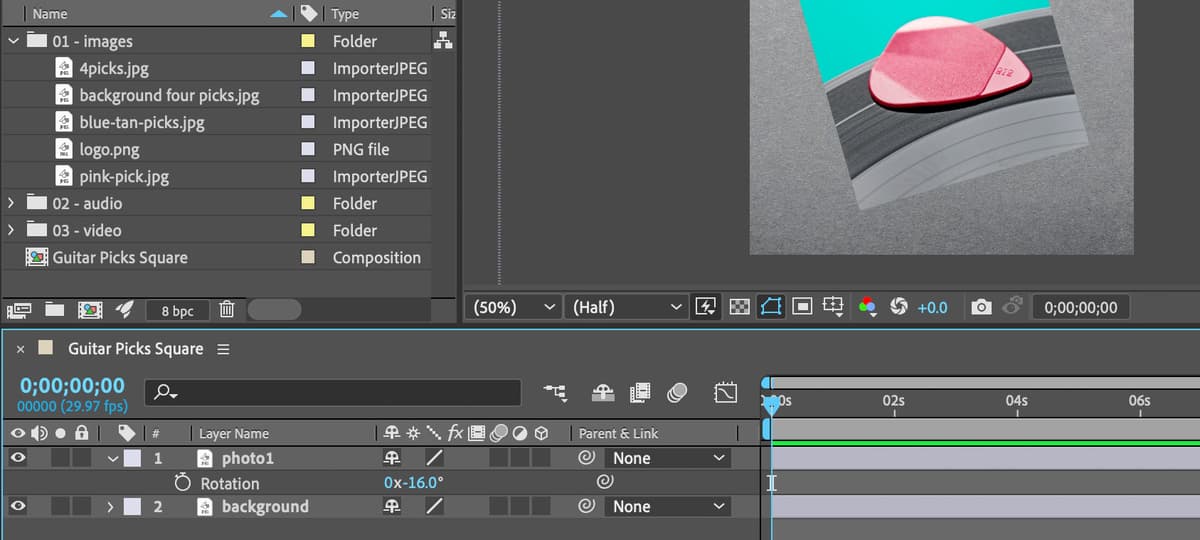
Getting Started—Creating a New Composition
Choose Composition > New Composition (or click the New Composition button in the middle of the window).
Do NOT click OK until we say so! Set the following:
- Next to Composition Name type in Guitar Picks Square
- From the Preset menu choose HD • 1920x1080 • 29.97 fps
- Uncheck Lock Aspect Ratio
- Change Width to 1080
- Make sure the menu to the far right of Frame Rate is set to Drop Frame.
- Make sure Resolution is set to Full.
- For Duration type in 1500 and hit Tab to set it 0;00;15;00 (15 seconds).
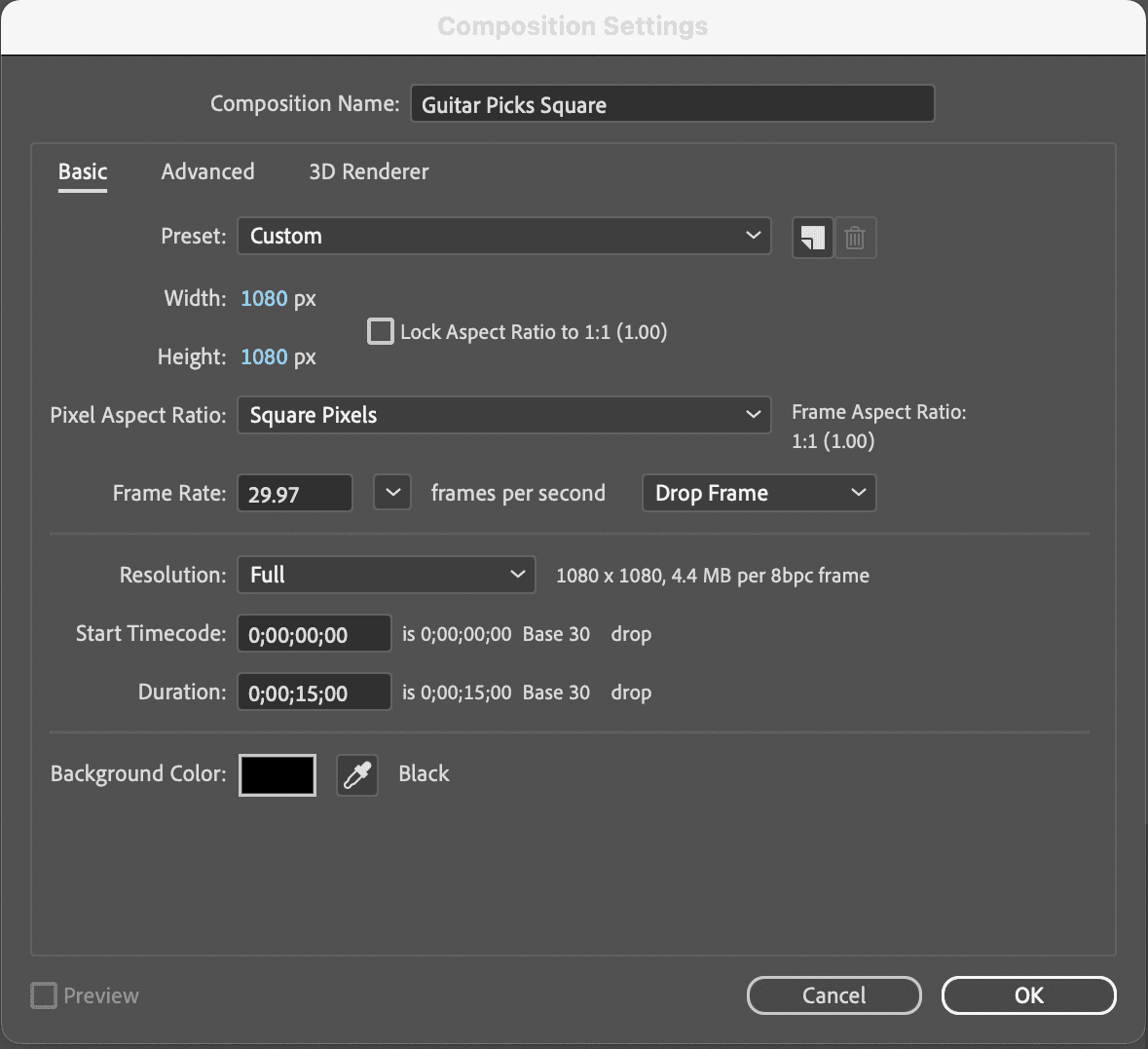
We’ll want to create square compositions like this in future, so let’s save this custom size as a preset. To the right of the Preset menu, click the New Preset button
 .
.Name it 1080 Square and click OK.
Notice the Preset menu now displays the new preset’s name.
Now click OK to create the Composition.
Choose File > Save As > Save As.
- Navigate to Desktop > Class Files > After Effects Class > Guitar Picks.
- Name it Your Name—Guitar Picks.aep.
- Click Save.
Importing Files
In Adobe After Effects, you first need to import files to use them in your project. This is because After Effects needs to be able to access and work with the various elements (such as videos, images, and audio files) that make up your project to create the final output. By importing files into After Effects, you are creating links to the files on your computer, this allow AE to then use them in your compositions.
In the Project panel at the top left of the window, make sure you can read the entire comp name (Guitar Picks Square). If you can’t see the whole name, find the divider between the Name and
 column headers and drag it to the right until the you see the whole name.
Choose File > Import > File (or press Cmd–I (Mac) or CTRL–I).
Navigate to Desktop > Class Files > After Effects Class > Guitar Picks.
Click on the Media folder to select it.
Click Open (Mac) or Import Folder (Win) to import the folder, and all of its sub–folders into your project.
In the Project panel, click the reveal arrow
 next to the Media folder to reveal its contents.
Click on the Images folder to select it and press Return (Mac) or Enter (Windows) on your keyboard to make the name editable
NOTE: Double–clicking on a folder or footage item name does not make the name editable (it previews it) but CTRL–click (Mac) or Right–click (Windows) on a folder name and you can choose Rename from the menu.
Rename the Images folder 01—Images and press Return (Mac) or Enter (Windows) again to finalize the name change.
CTRL–click (Mac) or Right–click on the audio folder and choose Rename.
- Type in 02—Audio
- Click on any empty area of the panel or press Return (Mac) or Enter (Windows) to finalize the change.
Click on the video folder to highlight it and press Return (Mac) or Enter (Windows) to make the name field editable.
- Type in 03—Video
- Hit Return (Mac) or Enter (Windows) to finalize the change.
Click on the 01—Images folder to select it:
- Hold Cmd (Mac) or CTRL (Windows) on your keyboard and click on 02—Audio and 03—Video to select them as well.
- Release the Cmd (Mac) or CTRL (Windows) key before continuing.
With all three folders selected drag them down and out of the Media folder.
Click on the Media folder to select it and press Delete (Mac) or Backspace (Windows) to delete it.
Choose File > Save or hit Cmd–S (Mac) or CTRL–S (Windows) to save your After Effects project.
Adding Files to a Composition & Positioning Them
Files that you import are usually referred to as either footage or media. But once you add the footage to a composition, they exist as layers inside that composition.
If you’ve used other layer-based apps like Adobe Photoshop or Adobe Illustrator, layers works similarly. Each layer has its own independent properties that you can control, and you can stack layers above each other to control their visibility.
In the Project panel, click on the arrow
to the left of the 01—images folder to reveal its contents.NOTE: You can also double–click on a folder name to reveal its contents.
Drag background four picks.jpg into the left side of the Timeline, as shown below:
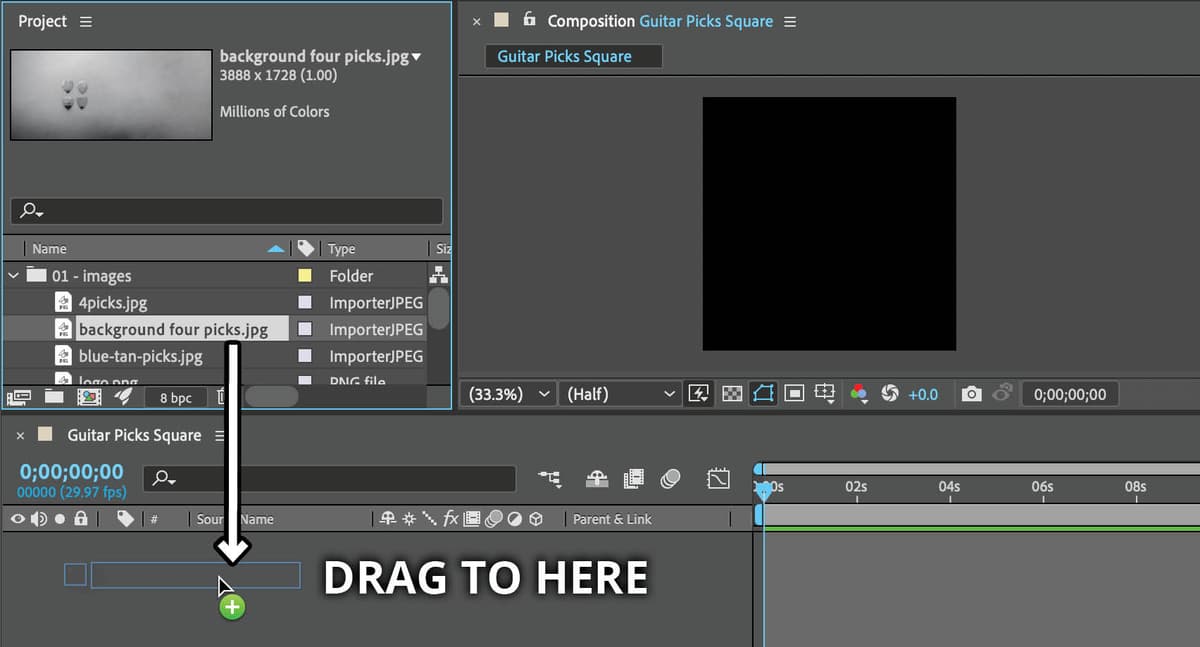
In the Timeline, CTRL–click (Mac) or Right–click (Windows) on the background four picks.jpg layer and choose Rename.
NOTE: You can also press Return (Mac) or Enter (Windows) to make the name field editable.
Type in background and hit Return (Mac) or Enter (windows) to finalize the change.
When you add a layer to the Timeline it’s automatically centered in the composition. This is a wide image, so let’s reposition it to see the area we want to start on. Click the arrow
on the left of the background layer to reveal Transform.Click the arrow
next to Transform to reveal the individual transform properties.Hover your cursor over the first Position value (horizontal position).
Drag to the right to scrub (change) the value. Continue dragging until the value reads 1240 so the guitar picks are visible.
You can also click on the first Position value, type 1240 and hit Return (Mac) or Enter (windows) to apply it.
- Click the arrow next to Transform to hide the properties.
Click the arrow next to the background layer to hide Transform.
In After Effects we use these Transform properties a lot. Using the arrows to open and close them gets tedious and time-consuming. So from now on, we’ll mostly use keyboard shortcuts to speed up this process.
Scaling & Rotating
- From the Project panel, drag pink-pick.jpg into the left side of the Timeline above background.
With the
[pink-pick.jpg]layer highlighted in the Timeline:- Hit Return (Mac) or Enter (Windows) to make the name editable.
- Rename it photo1
- Hit Return (Mac) or Enter (Windows) again to finalize the change.
This image is much larger than the composition size of 1080 X 1080, so we have to scale it down.
With the photo1 layer highlighted, press the S key to reveal the Scale property.
Hover over the first Scale value and drag to the left until it reads 42 (or click on the value and type in 42).
NOTE: Horizontal and vertical scale are linked together thanks to the link button
 on the left of the first scale value.
- With the photo1 layer still highlighted, press the R key to reveal Rotation property
Set Rotation to 0x-16° and don’t miss that it’s negative 16!
NOTE: Rotation is written as 2 values. The first value is only used when you’re animating, and is the number of full rotations to make. The second value is the degree of rotation of the layer. So every time the degree value goes above 360°, the first value increases by 1.
Choose File > Save or hit Cmd–S (Mac) or CTRL–S (Windows) to save your file.
PARTS (Transform Keystrokes)
Every visual layer in After Effects has the same 5 Transform properties: Position, Anchor Point, Rotation, Opacity, and Scale.
These properties can be revealed using the arrow to the left of the layer’s label color and then expanding Transform. You can also show them individually using these keystrokes:
| Property | Keystroke |
|---|---|
| P osition | P |
| A nchor Point | A |
| R otation | R |
| Opacit y | T |
| S cale | S |