April 1, 2026Jerron Smith/15 min read

Social Media Ad: Animating Opacity & Audio/Video Fades

Master Professional Video Animation and Fade Techniques

Core Skills You'll Master

Opacity Animation

Learn to create smooth fade transitions for logos and text elements. Master keyframe timing for professional visual effects.

Audio/Video Fades

Implement seamless fade-in and fade-out effects for both audio and video tracks. Create perfect looping content.

Advanced Masking

Apply vignette effects and sophisticated masking techniques to enhance visual storytelling and composition.

Topics Covered in This After Effects Tutorial:

Master essential animation techniques including opacity keyframes, professional audio and video fade transitions, composition timing adjustments, keyframe workflow optimization, and advanced masking techniques for cinematic vignette effects.

Exercise Preview

preview animating opacity

Animation Timeline Breakdown

0:00 - 6:14

Photo Drop Animation

Initial background animation with photo elements

6:14 - 7:24

Logo Animation

Black logo silhouette transforms to white logo

7:24+

Text Fade-in

Website text appears with synchronized timing

9:00 - 10:29

Final Polish

Video/audio fades and smoke effects complete the piece

Exercise Overview

In this comprehensive exercise, you'll learn to animate opacity properties to create compelling logo reveals while implementing smooth fade transitions for both video and audio elements. These fundamental techniques form the backbone of professional motion graphics workflows and are essential skills for any serious After Effects practitioner.

Getting Started

  1. You should have Your Name—Guitar Picks.aep currently open in After Effects. If you've closed the project, reopen it by navigating to File > Open Project, then locate Desktop > Class Files > After Effects Class > Guitar Picks. For optimal learning outcomes, we strongly recommend completing the previous exercises (1B–2A) before proceeding. If you haven't finished those foundational exercises, follow the catch-up instructions below.

Pre-Exercise Setup Requirements

0/4

If You Did Not Complete the Previous Exercises (1B–2A)

  1. If a project is currently open in After Effects, save your work via File > Save, then close it using File > Close Project.
  2. Navigate to File > Open Project and browse to Desktop > Class Files > After Effects Class > Guitar Picks > Finished Projects.
  3. Double-click Guitar Picks—Ready For Fades.aep to open the prepared project file.
  4. Immediately save this as your working file by choosing File > Save As > Save As. Name it Your Name—Guitar Picks.aep and save to Desktop > Class Files > After Effects Class > Guitar Picks, replacing any existing file if prompted.

Darkening the Background Where the Logo Will Go

Before adding our logo animation, we need to prepare the background composition. This technique creates visual contrast that makes logo reveals more impactful—a principle used extensively in professional branding and commercial work.

  1. Press the Spacebar to preview your current timeline and observe the composition flow:

    • After the photo animation completes, we'll introduce a logo and accompanying text elements.
    • The logo animation will transition from black to white, creating a sophisticated reveal effect.
    • To ensure the black logo silhouette blends seamlessly with the background, we need to darken the right portion of the background image where the logo will be positioned.
  2. Position the timeline playhead at 6;14 to align with your animation timing.
  3. Select the background layer in your timeline.
  4. If the Effects & Presets panel isn't visible on the right side of your workspace, enable it by choosing Window > Effects & Presets.
  5. In the Effects & Presets panel's search field, type linear to filter the available effects.
  6. Double-click the Linear Wipe effect to apply it to your selected background layer.
  7. In the Effect Controls panel (located on the left side of your workspace), configure these parameters for optimal darkening:

    • Transition Completion: Ensure the stopwatch stopwatch appears white (not blue) by clicking it if necessary—we want a static effect, not an animated one.
    • Transition Completion: 50%
    • Wipe Angle: 0x-90° (note the negative value for proper directional control)
    • Feather: 800 (creates a smooth, natural-looking transition)
  8. Advance the playhead to 7;00 to position for the next phase of your animation.

Linear Wipe Effect Configuration

1

Position Timeline

Move playhead to 6:14 and select background layer for effect application

2

Apply Linear Wipe

Search for and double-click Linear Wipe effect in Effects and Presets panel

3

Configure Settings

Set Transition Completion to 50%, Wipe Angle to -90 degrees, and Feather to 800

Adding the Logo

Now we'll implement a professional logo reveal technique that transforms a black silhouette into the full-color company logo. This approach creates visual intrigue and is commonly used in high-end motion graphics work.

  1. Locate the Project panel—you can access it by clicking the Project tab (grouped with Effect Controls) or selecting Window > Project from the menu.
  2. From the 01—Images folder in your Project panel, drag logo.png into the Timeline, positioning it above the smoke 2 layer.
  3. Hold Shift and press the Up Arrow key three times to reposition the logo vertically, creating appropriate spacing for the accompanying text that follows.
  4. With the logo.png layer selected, press Cmd–D (Mac) or Ctrl–D (Windows) to duplicate the layer—this gives us two identical logo layers for our reveal effect.

  5. Select the top logo layer and rename it for clarity:

    • Press Return (Mac) or Enter (Windows) to enter edit mode
    • Type logo—white to clearly identify this layer's purpose
    • Press Return (Mac) or Enter (Windows) to confirm the name change
  6. Similarly, rename the bottom logo layer to logo—black for organized layer management.

  7. Press the Spacebar to preview your timeline and observe that the logo currently remains static while other elements move—we'll fix this next.

  8. Move the playhead to 7;00 for precise timing alignment.
  9. Select both logo layers by clicking one, then holding Shift while clicking the other.
  10. In the Parent column (located on the right side of the layer names), set both logo layers to 1.controller—this links their movement to your existing animation controller.

  11. Preview your timeline again using the Spacebar. The logo elements now move cohesively with your other animated elements, maintaining composition unity.

  12. Ensure your playhead remains at 7;00 for the following steps.
  13. Press Cmd–Shift–A (Mac) or Ctrl–Shift–A (Windows) to deselect all layers and avoid accidental modifications.
  14. Click the eye icon eye icon next to the logo—white layer to temporarily hide it while we work on the black silhouette.
  15. Select the logo—black layer to prepare it for the fill effect.
  16. In the Effects & Presets panel search field, type fill to locate the appropriate effect.
  17. Double-click the Fill effect to apply it to your selected layer.
  18. In the Effect Controls panel, click the color swatch next to Color to open the color picker dialog.
  19. Set the hex code to #000000 for pure black, then click OK to apply the change.
  20. Re-enable visibility for the logo—white layer by clicking its eye icon eye icon.

Layer Duplication Strategy

Creating separate black and white logo layers allows for sophisticated transition effects. The black version blends with the darkened background while the white version provides the final reveal.

Logo Setup Process

1

Import and Position

Drag logo.png from Project panel above smoke layer, then shift-position upward

2

Duplicate and Rename

Create two versions: rename top layer to 'logo-white' and bottom to 'logo-black'

3

Parent to Controller

Set both logo layers' parent to controller for synchronized movement

Animating Transform Properties: Opacity

Opacity animation is one of the most fundamental and powerful techniques in motion graphics. This exercise demonstrates how to create smooth, professional transitions that add sophistication to any project.

  1. Position the playhead at 7;04 to establish your animation start point.
  2. Select the logo—white layer to prepare for opacity keyframing.
  3. Press T to reveal the Opacity property—this keyboard shortcut is essential for efficient workflow.
  4. Set the Opacity value to 0 to make the layer completely transparent.
  5. Click the stopwatch stopwatch next to Opacity to create your first keyframe and enable animation for this property.
  6. Move the playhead to 7;24 to set your animation endpoint—this creates a 20-frame transition, which is approximately 2/3 of a second at standard frame rates.
  7. Change the Opacity value to 100 to create full visibility. After Effects automatically creates the second keyframe.
  8. Press the Spacebar to preview your animation. You should observe the black logo silhouette initially visible, followed by the white logo gracefully fading in over the black version—this creates a sophisticated reveal effect commonly used in professional branding.

Keyframe Timing Precision

The 20-frame duration from 7:04 to 7:24 creates a smooth, professional fade transition that feels natural to viewers while maintaining visual impact.

Adding the Website Text

Complementing your logo with website information creates a complete branding package. We'll use duplication and alignment techniques to maintain visual hierarchy and professional presentation standards.

  1. Position the playhead at 7;24 to align with your logo reveal timing.
  2. In the Timeline, select the existing Rockin' Guitar Picks text layer.
  3. Press Cmd–D (Mac) or Ctrl–D (Windows) to duplicate the layer, preserving all formatting and properties.
  4. Open the alignment controls by choosing Window > Align—proper alignment is crucial for professional-looking compositions.

  5. In the Align panel, configure these settings:

    • Verify that Align Layers to is set to Composition for consistent positioning
    • Click the Align Center button horizontal center align to center the text horizontally
  6. Press P to reveal the Position property for precise placement control.
  7. Modify the second Position value (Y-coordinate) to 380, which positions the text appropriately below the logo while maintaining visual balance.

  8. Double-click the layer name Rockin' Guitar Picks 2 in the Timeline to enter text editing mode:

    • Replace the existing text with guitarpicks.com
    • Press Cmd–Return (Mac) or Ctrl–Enter (Windows) to finalize the text change and exit editing mode
  9. In the Tools panel (top-left corner of your workspace), select the Selection tool selection tool to return to normal layer manipulation mode.

Reusing Animations by Copying & Pasting Keyframes

Keyframe copying is a cornerstone of efficient motion graphics workflow. This technique ensures timing consistency across multiple elements while dramatically reducing production time—a practice used in professional studios worldwide.

  1. Press J to jump the playhead to the previous keyframe, which should be the Opacity keyframe for logo—white at 7;04. This navigation shortcut is invaluable for keyframe-heavy projects.
  2. Click directly on the logo—white layer's Opacity property name (not the value, but the actual word "Opacity"). This selects all keyframes associated with that property—they'll appear as blue diamonds when properly selected.

  3. Press Cmd–C (Mac) or Ctrl–C (Windows) to copy the keyframes. The system now holds both the keyframe timing and the values in memory.

    NOTE: When you paste keyframes, they'll be positioned relative to the current playhead location, which is why precise playhead positioning is crucial.

  4. Click on the guitarpicks.com text layer to select your target for the keyframe paste operation.
  5. Press Cmd–V (Mac) or Ctrl–V (Windows) to paste the keyframes. After Effects automatically applies the same opacity animation timing and values to the text layer.

    NOTE: The pasted keyframes maintain their relative timing from the playhead position, ensuring perfect synchronization.

  6. Press U to reveal all animated properties (those with keyframes) on the selected layer—this is an excellent way to verify your keyframe placement.
  7. Preview your animation with the Spacebar. The website text now fades in precisely synchronized with the white logo, creating a cohesive, professional presentation.

  8. Press Cmd–A (Mac) or Ctrl–A (Windows) to select all layers in your composition.
  9. Press Cmd–` (Mac) or Ctrl–` (Windows) once or twice to hide all visible properties, cleaning up your Timeline view for better organization.
  10. Press Cmd–Shift–A (Mac) or Ctrl–Shift–A (Windows) to deselect all layers, preventing accidental modifications.

Keyframe Copy Process

1

Navigate to Source

Press J to jump to previous keyframe at 7:04 on logo-white layer

2

Select and Copy

Click Opacity property name to highlight all keyframes, then copy with Cmd/Ctrl+C

3

Paste to Target

Select guitarpicks.com layer and paste keyframes at current playhead position

Workflow Efficiency

Copying keyframes maintains exact timing relationships and saves significant time when applying consistent animation patterns across multiple layers.

Changing Work Area & Composition Duration

Professional workflow management includes optimizing composition length for final delivery. Starting with extra duration and trimming to final length is industry standard practice, as it's far easier to remove excess time than to add time later in the production pipeline.

  1. If the entire timeline isn't visible in your workspace, press the – (minus) key repeatedly to zoom out until you can see the complete timeline from start to finish—proper timeline overview is essential for duration management.
  2. Move the playhead to 10;29, which represents your desired endpoint based on the animation content.
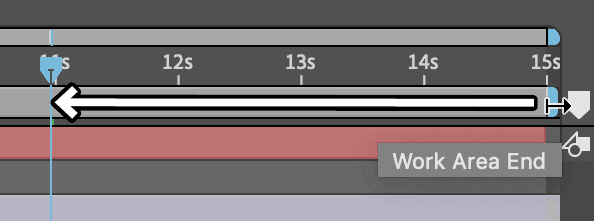
  3. Locate the blue Work Area End marker at the top-right of the Timeline. Drag this marker to align with your playhead while holding Shift to enable snapping—this ensures precise alignment.

    resize work area

    NOTE: The work area serves multiple critical functions in professional workflows:

    • Defines the exact frame range that will be exported in your final video file
    • Controls the preview loop area, allowing you to focus on specific sections during review and refinement
  4. While you could proceed with just the work area adjustment, that approach limits future flexibility. For optimal workflow control, Ctrl–click (Mac) or Right–click on the gray work area bar and select Trim Comp to Work Area from the context menu.

  5. Your timeline has been permanently trimmed to remove unwanted footage, optimizing both file size and export efficiency.

    NOTE: The advantage of Trim Comp to Work Area over manually adjusting duration in Composition Settings is its ability to trim both beginning and end sections, while the manual method only removes from the end.

  6. Save your progress by choosing File > Save or pressing Cmd–S (Mac) or Ctrl–S (Windows).

Duration Adjustment Methods

FeatureWork Area TrimComposition Settings
FlexibilityTrims beginning and endOnly trims end
ProcessDrag work area, right-click trimMenu-based duration change
Best UsePrecise timeline controlSimple end trimming
Recommended: Work Area Trim offers more precise control for professional editing workflows

Adding a Video Fade

Professional video transitions never start or end abruptly. Fade-in and fade-out effects create polished presentations and, when properly executed, enable seamless looping—a technique essential for social media content and digital displays.

  1. In the Timeline, select the photo2 layer to establish the stacking order for your new fade layer.

  2. Create a new solid layer by choosing Layer > New > Solid or using the keyboard shortcut Cmd–Y (Mac) or Ctrl–Y (Windows).

  3. Click the Make Comp Size button in the dialog to ensure the solid layer exactly matches your composition dimensions—this prevents edge artifacts and ensures complete coverage.

  4. Configure the solid color by clicking the color swatch:

    • Set the hex code to #000000 for pure black
    • Click OK to confirm the color selection
  5. Click OK again to create the solid layer in your composition.

  6. With the newly created solid layer selected, rename it for clarity:

    • Press Return (Mac) or Enter (Windows) to enter edit mode
    • Type fade—in/out to clearly identify the layer's function
    • Press Return (Mac) or Enter (Windows) to confirm the name change
  7. Position the playhead at the very beginning of your timeline (frame 0).
  8. Press T to reveal the Opacity property for the fade layer.
  9. Click the stopwatch stopwatch next to Opacity to create the first keyframe at 100% opacity (solid black).
  10. Move the playhead to 0;15—this creates a half-second fade duration, which is standard for professional video transitions.
  11. Change the Opacity value to 0, creating the fade-in effect as the black solid becomes transparent.
  12. Preview this fade-in effect using the Spacebar—you should see a smooth transition from black to your animation content.
  13. Move the playhead to 10;14 to position for the fade-out sequence.
  14. In the keyframe controls area (left side of the Timeline), click the Add or Remove Keyframe diamond diamond icon next to the Opacity property. This creates a keyframe that maintains the current opacity value.

  15. Move the playhead to your timeline's end at 10;29.
  16. Set Opacity to 100 to create the fade-out to black.
  17. Preview the complete sequence using the Spacebar. Notice how the fade-out creates visual closure and, when looped, provides seamless transitions from end back to beginning.
  18. Press T again to hide the Opacity property and clean up your Timeline view.

Seamless Loop Creation

Adding identical fade-in and fade-out effects creates a seamless loop where the end state matches the beginning, essential for social media content and continuous playback scenarios.

Adding an Audio Fade

Audio fades are just as crucial as video fades for professional presentations. Abrupt audio cuts are immediately noticeable and mark amateur work, while properly executed audio transitions create the seamless experience audiences expect.

  1. Move the timeline playhead to 0;15 to match your video fade timing.
  2. Select the bg audio layer at the bottom of your Timeline.
  3. Press the L key twice (LL) to reveal the audio waveform—visual audio representation is essential for precise editing.
  4. Hold Shift and press L again to also display the Audio Levels property while maintaining the waveform view.
  5. Click the stopwatch stopwatch next to Audio Levels to create the first keyframe at the current playhead position.
  6. Move the playhead to the timeline beginning (frame 0).
  7. Set Audio Levels to -24 dB—this creates a significant volume reduction without complete silence, maintaining some audio presence during the fade.
  8. With the first Audio Levels keyframe selected (it should appear blue), copy it using Cmd–C (Mac) or Ctrl–C (Windows). Copying keyframes with specific values eliminates guesswork and ensures consistency.

  9. Position the playhead at 10;14 to begin your fade-out sequence.

  10. Click the Add or Remove Keyframe diamond diamond icon in the keyframe controls to maintain current audio levels at this point.
  11. Move the playhead to 10;29 (your timeline's end).
  12. Paste the copied keyframe using Cmd–V (Mac) or Ctrl–V (Windows)—this ensures identical fade-in and fade-out audio levels for perfect symmetry.

  13. Preview the complete sequence with the Spacebar. Your audio now fades in and out in perfect synchronization with your video fades, creating a truly seamless loop suitable for continuous playback.

  14. Press U to hide all keyframe properties and maintain a clean Timeline workspace.

  15. Save your work using File > Save or Cmd–S (Mac) / Ctrl–S (Windows).

Audio Level Animation

1

Reveal Audio Controls

Press LL to show waveform, then Shift+L to reveal Audio Levels property

2

Set Fade Points

Create keyframes at 0:15 and 10:14 with -24 dB values for smooth transitions

3

Copy Keyframe Values

Copy initial keyframe to maintain consistent fade levels at beginning and end

Optional Bonus: Finishing the Smoke

Attention to detail separates professional work from amateur efforts. Fine-tuning element positioning and adding strategic layers enhances the overall production value and creates more sophisticated visual storytelling.

  1. Move the playhead to 9;00 to observe your composition at this point in the animation.
  2. Examine the left side of your composition—you'll notice light orange smoke that may be distracting from your logo presentation. We'll reposition this outside the visible area for better visual balance.
  3. Select the smoke layer in your Timeline.
  4. Hold Shift and click the smoke 2 layer to select both smoke elements simultaneously.
  5. Press P to reveal Position properties for both selected layers.
  6. Modify the first Position value (X-coordinate) to 775 for either layer—since they're both selected, this change applies to both layers simultaneously.
  7. Press P again to hide the Position properties and clean up your Timeline view.
  8. Preview your animation using the Spacebar. The composition should now feel more balanced, but we can enhance the logo reveal further by adding atmospheric elements.

  9. Select only the smoke 2 layer (you may need to click elsewhere first to deselect both smoke layers, then click specifically on smoke 2).
  10. Press Cmd–D (Mac) or Ctrl–D (Windows) to duplicate this layer, creating a third smoke element.
  11. Move the playhead to 6;18 to position for the new smoke timing.
  12. Press the [ key to move the In point of the new smoke 3 layer to align with the current playhead position—this creates staggered smoke appearances for more dynamic visuals.
  13. In the Effect Controls panel, locate the Tritone effect and click the color swatch next to Midtones to modify the smoke color.

  14. Change the hex code to #23bcb8 and click OK. This creates a complementary color that adds visual interest without overwhelming your logo presentation.

  15. Preview the enhanced composition using the Spacebar. The multi-colored smoke with strategic timing creates a more sophisticated reveal effect that enhances rather than competes with your logo animation.

Layered Smoke Effects

Using multiple smoke layers with different colors and timing creates depth and visual interest. The teal smoke overlay adds sophistication to the logo reveal sequence.

Optional Bonus: Creating a Vignette Effect with a Mask

A vignette effect adds cinematic quality to any composition by creating subtle darkening around the edges. This professional technique draws viewer attention to the center of your composition while adding visual depth and sophistication commonly seen in high-end motion graphics and film work.

Professional Vignette Creation

1

Create Base Layer

Duplicate black solid and rename to 'vignette' for organized layer management

2

Apply Elliptical Mask

Double-click Ellipse tool to create composition-sized mask, then change mode to Subtract

3

Fine-tune Settings

Set Mask Feather to 400 and Opacity to 85% for subtle, professional edge darkening

Key Takeaways

1Master opacity keyframe animation for professional logo and text fade effects with precise timing control
2Implement seamless audio and video fades to create polished, loop-ready content for social media platforms
3Utilize keyframe copying and pasting to maintain consistent animation timing across multiple layers efficiently
4Apply work area trimming techniques for precise composition duration control without losing flexibility
5Create sophisticated visual depth using layered smoke effects with multiple colors and staggered timing
6Develop professional vignette effects using elliptical masks with proper feathering and opacity settings
7Organize complex projects using strategic layer naming and parent-child relationships for easier management
8Apply Linear Wipe effects for targeted background darkening to enhance logo visibility and contrast

RELATED ARTICLES