April 1, 2026Jerron Smith/9 min read

Social Media Ad: Adding Text & Layer Styles

Master After Effects text styling and layer enhancements

Core Skills You'll Master

Text Creation

Learn to create and format professional text directly within After Effects using the Horizontal Type tool and Character panels.

Layer Styles

Apply drop shadows and strokes to enhance visual depth and create professional-looking graphics that stand out.

Composition Layout

Master positioning and layering techniques to create compelling social media advertisements with proper visual hierarchy.

Topics Covered in This After Effects Tutorial:

Adding Text, Adding Layer Styles: Drop Shadow & Stroke

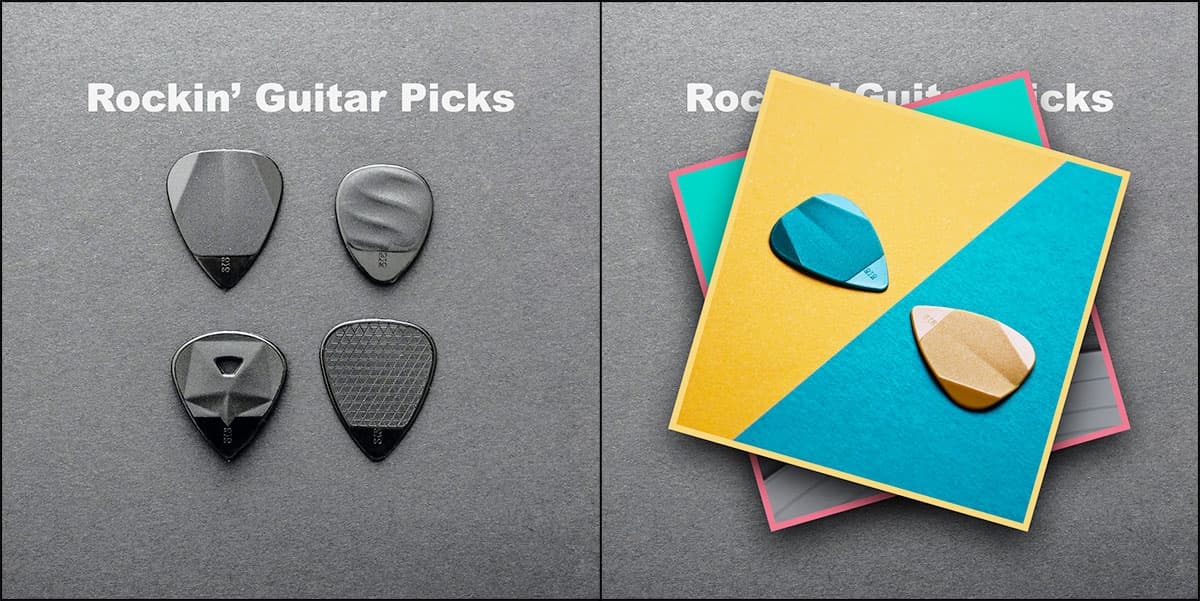
Exercise Preview

preview adding text

Exercise Overview

In this exercise, you'll master the fundamentals of text creation in After Effects and learn to enhance visual impact through strategic layer styling. We'll explore drop shadows for depth perception and stroke effects for professional borders—two essential techniques for creating polished motion graphics that stand out in today's competitive visual landscape.

Project Context

This tutorial builds upon previous exercises using the Guitar Picks project. You'll be working with existing animated elements while adding professional text styling to create a complete social media advertisement.

Getting Started

  1. You should still have Your Name—Guitar Picks.aep open in After Effects. If you closed it, re-open it now by going to File > Open Project then Desktop > Class Files > After Effects Class > Guitar Picks. We strongly recommend completing the previous exercises (1B–1C) before proceeding, as they establish the foundation layers we'll be working with. If you haven't finished them, follow the sidebar instructions below.

    Pre-Exercise Requirements

    0/3

If You Did Not Do the Previous Exercises (1B–1C)

  1. If a project is open in After Effects, go to File > Save, then File > Close Project.
  2. Go to File > Open Project and navigate to Desktop > Class Files > After Effects Class > Guitar Picks > Finished Projects.
  3. Double–click on Guitar Picks—Ready For Text.aep.
  4. Go to File > Save As > Save As. Name the file Your Name—Guitar Picks.aep and save it to Desktop > Class Files > After Effects Class > Guitar Picks (replacing the file if it's already there).

Project Recovery Process

1

Close Current Work

Save and close any open project to start fresh

2

Open Ready File

Navigate to Finished Projects folder and open Guitar Picks—Ready For Text.aep

3

Save As New Version

Create your personal copy named Your Name—Guitar Picks.aep in the main project folder

Adding Text

While most motion graphics assets are typically created in specialized programs like Photoshop or Illustrator and then imported for animation, After Effects excels at native text creation and manipulation. This integrated approach gives you real-time control over typography and ensures your text layers remain fully editable throughout your workflow—a significant advantage when client revisions inevitably arrive.

  1. Move the playhead to the beginning of the Timeline to establish a consistent starting point for our text creation.

  2. In the Tools panel at the top left of the window, choose the Horizontal Type tool type tool.

    Notice that After Effects automatically opens the Character and Paragraph panels on the right side of the window when you activate the Type tool. This contextual interface design keeps typography controls accessible exactly when you need them.

    TIP: Master the keyboard shortcut Cmd–T (Mac) or CTRL–T (Windows) to quickly activate the Horizontal Type tool type tool—it's faster than clicking and will speed up your workflow significantly.

  3. In the Character panel, configure the following typographic settings for maximum impact:

    Font Family: Arial Black (chosen for its bold, readable presence that will cut through busy backgrounds)
    Font Size font size: 70 (large enough to command attention without overwhelming the composition)
    Leave the other settings at their defaults for now.

  4. In the Paragraph panel, click the Center text button center text to ensure proper alignment within our composition.

  5. In the Timeline, click on the topmost layer to make it active. This is crucial because After Effects places new layers directly above the currently selected layer—proper layer management prevents organizational headaches later.

  6. Click in the center of the Composition window and type Rockin' Guitar Picks. Don't worry about precise positioning at this stage; we'll refine placement in subsequent steps.

  7. Press Cmd–Return (Mac) or CTRL–Enter (Windows) or click any empty area of the Timeline to finalize the text layer creation and exit text editing mode.

  8. In the Timeline, CTRL–click (Mac) or Right–click (Windows) on the text layer and choose Transform > Center in View to automatically center the text within your composition.

  9. With the Rockin' Guitar Picks text layer still selected, press P to reveal the Position property—one of After Effects' most-used shortcuts.

  10. Change the second value (vertical position) to 200 to position the text above the guitar picks in the background, creating proper visual hierarchy.
  11. Hit Cmd–A (Mac) or Ctrl–A (Windows) to select all layers in preparation for the next step.
  12. Press Cmd ~ (Mac) or CTRL ~ (Windows) to hide all layer properties, cleaning up your Timeline view for better focus.
  13. In the Tools panel at the top left of the window, choose the Selection tool selection tool to return to normal navigation mode.
  14. Click in an empty part of the Timeline to deselect all layers.
  15. In the Timeline, drag the Rockin' Guitar Picks text layer below the photo layers (just above the background layer). This layer order ensures the animated photos will fall on top of the text, creating the desired visual effect.

  16. Press Spacebar to preview the animation and observe how your text integrates with the existing motion.

    You should see that when the two images fall onto the screen, they now properly cover both the background and the text—exactly the layered effect we're aiming for.

  17. Press Spacebar again to stop the preview whenever you're ready to continue.

Now that we have our text foundation in place, let's enhance the visual impact of our photo elements with professional styling techniques that add depth and polish to the composition.

Text Creation Advantage

Unlike other assets that require external programs, text can be created entirely within After Effects, giving you complete control over typography and animation without switching applications.

Text Formatting Specifications

Font Settings

Arial Black font family with 70pt size creates bold, readable text perfect for social media advertising impact.

Alignment & Position

Center-aligned text positioned at vertical value 200 ensures proper placement above background guitar picks imagery.

Adding a Drop Shadow (Layer Style)

Drop shadows are fundamental to creating visual depth in motion graphics. By adding carefully crafted shadows to the rotating photos, we'll simulate realistic lighting conditions and make the elements appear to float naturally above the background—a technique essential for professional-quality compositions.

  1. At the top left of the Timeline, click on the Timecode to edit it directly—a precise way to navigate to specific moments in your composition.

  2. Type 500 and hit Return (Mac) or Enter (Windows).

    This moves the playhead to 0;00;05;00 (5 seconds), positioning you at the perfect moment to see both photos clearly for styling purposes.

  3. In the Timeline, select the photo1 layer to begin the selection process.
  4. Hold Shift and click on the photo2 layer to select both photo layers simultaneously. This allows us to apply consistent styling across multiple elements efficiently.
  5. Choose Layer > Layer Styles > Drop Shadow to apply the shadow effect to both selected layers.
  6. In the Timeline, you should now see new Layer Styles sections below the Transform properties for both photo layers—this is where After Effects stores all layer style parameters.
  7. Under the photo2 layer, expand the Drop Shadow section by clicking the arrow right arrow menu to reveal the customizable properties.
  8. Adjust the following settings to create a realistic shadow effect. After entering each value, hit Return (Mac) or Enter (Windows) to apply it (or Tab to move to the next field). Keep the layers selected to maintain simultaneous editing.

    Distance: 30 (controls how far the shadow appears from the object)
    Size: 70 (determines the blur radius and softness of the shadow edge)

  9. With the shadows now visible, fine-tune these additional parameters for optimal realism:

    Opacity: 90% (creates a strong but not overpowering shadow)
    Angle: 0x+90° (positions the shadow to suggest overhead lighting)

  10. Collapse the Drop Shadow settings by clicking its arrow right arrow menu to keep your Timeline organized and focused.

With our shadows adding dimensional depth, let's complete the professional styling by adding colored borders that will help define the photo edges and integrate them better with our overall color scheme.

Drop Shadow Settings Breakdown

FeaturePropertyValuePurpose
Distance30Controls shadow offset distance
Size70Determines shadow blur radius
Opacity90%Sets shadow transparency level
Angle0x +90°Defines shadow direction
Recommended: These settings create realistic depth while maintaining visual clarity for the social media format.

Adding a Stroke (Layer Style)

Strategic use of colored borders can significantly enhance visual cohesion and brand consistency in motion graphics. We'll add complementary colored strokes to differentiate the two photos while maintaining design harmony throughout the composition.

  1. With both photo layers still selected, choose Layer > Layer Styles > Stroke to add the border effect.
  2. In the Timeline, notice that both photo layers now show Stroke properties below their Drop Shadow settings within the Layer Styles sections.
  3. Under the photo2 layer, expand the Stroke settings by clicking its arrow right arrow menu to access the border controls.
  4. Set the Stroke's Size to 12 to create a substantial but not overwhelming border width.
  5. Change Position to Inside. This is crucial because outside strokes create rounded corners that can look unprofessional, while inside strokes maintain crisp, clean square corners that better suit most design applications.
  6. Next to the Stroke's Color, click the color swatch to open the color picker and:

    • Change the hex code to #d46371 (a warm, muted rose tone)
    • Click OK to apply the color.
  7. Press Cmd–Shift–A (Mac) or CTRL–Shift–A (Windows) to deselect all layers, allowing you to work on individual elements.
  8. Currently both strokes appear identical, but visual interest comes from thoughtful variation. We'll give the second photo a complementary color that maintains harmony while creating distinction.

    With the photo2 layer's Stroke options still accessible, click the color swatch next to Color and:

    • Change the hex code to #eac06e (a warm golden yellow that complements the rose tone)
    • Click OK to complete the color scheme.
  9. Press Spacebar to preview the complete animation with your new professional styling effects in action.

  10. Stop the preview by pressing Spacebar again when you're satisfied with the results.

  11. Hit Cmd–A (Mac) or Ctrl–A (Windows) to select all layers for final cleanup.
  12. Press Cmd ~ (Mac) or CTRL ~ (Windows) to hide all layer properties, leaving you with a clean, organized Timeline.

  13. Choose File > Save or hit Cmd–S (Mac) or CTRL–S (Windows) to save your enhanced project file.

Inside vs Outside Stroke Positioning

Pros
Inside positioning creates clean square corners
Maintains original layer dimensions
Better visual consistency across different shapes
More professional appearance for rectangular photos
Cons
Outside strokes create unwanted rounded corners
Can interfere with precise positioning
Less predictable visual results
May cause alignment issues with other elements

Stroke Color Scheme

Photo 1 Stroke50%
Photo 2 Stroke50%

Layer Styles Versus Effects

After Effects's layer styles are designed to match the familiar layer styles found in Photoshop, ensuring consistency across Adobe's creative suite for professionals working in multi-application workflows.

However, there's an important technical limitation to consider: layer styles disable certain features when applied to 3D layers. While this doesn't impact our current project, it's crucial knowledge for advanced After Effects work involving 3D space, camera movements, or dimensional transformations.

It's worth noting that After Effects offers both a Drop Shadow layer style and a Drop Shadow effect—they're different tools for different purposes. The effect version doesn't impose limitations on 3D layers, giving you more flexibility in complex compositions. Unfortunately, After Effects doesn't include a stroke effect equivalent, making the layer style your primary option for border creation.

Layer Styles vs Effects Comparison

FeatureLayer StylesEffects
3D CompatibilityLimited functionalityFull 3D support
Photoshop IntegrationPerfect matchAfter Effects specific
Drop ShadowAvailableAlso available
Stroke OptionsFull stroke supportNo stroke effect available
Recommended: Choose layer styles for 2D work and Photoshop compatibility; use effects when working with 3D layers.
3D Layer Limitation

Layer styles disable certain features when applied to 3D layers. Plan your workflow accordingly if you intend to use After Effects 3D capabilities in your project.

Key Takeaways

1After Effects provides comprehensive text creation tools that eliminate the need for external typography programs, streamlining the design workflow
2Layer styles in After Effects mirror Photoshop functionality, ensuring consistent visual results across Adobe Creative Suite applications
3Proper text positioning using numerical values like vertical position 200 ensures precise placement above background elements in compositions
4Drop shadow settings with Distance 30, Size 70, and 90% Opacity create realistic depth effects suitable for social media advertising
5Inside stroke positioning with 12px size produces clean square corners, while outside strokes create unwanted rounded edges on rectangular elements
6Color differentiation using hex codes like #d46371 and #eac06e helps distinguish multiple photo elements while maintaining visual harmony
7Layer styles have limitations with 3D functionality, while effects maintain full 3D compatibility but lack stroke options
8Timeline organization with proper layer stacking ensures animated elements interact correctly, with text appearing behind falling photos as intended

RELATED ARTICLES