March 23, 2026Tziporah Zions/8 min read

Stroke Animations in After Effects

Master Professional Text Animations with After Effects

Prerequisites

This tutorial assumes basic familiarity with After Effects interface and timeline navigation. Make sure you have After Effects installed before starting.

Animated stroke text effect demonstration

Getting the Project Files

  1. Download the project files.
  2. After the download completes, extract the ZIP file if your system hasn't done so automatically. You'll find an After Effects project folder labeled Animating Strokes containing all the assets you need for this tutorial.

File Setup Checklist

0/4

Project Overview

In this comprehensive tutorial, we'll create a sophisticated text animation that leverages After Effects' powerful Trim Paths tool to produce elegant "writing-on" stroke animations. This technique has become increasingly popular in modern motion graphics, appearing in everything from corporate presentations to social media content. You'll learn to combine multiple animation techniques: applying Gaussian Blur effects to create visual hierarchy, orchestrating smooth text fade-ins, and most importantly, mastering the art of animated stroke reveals that give text the appearance of being drawn in real-time.

This effect is particularly valuable for title sequences, logo reveals, and any project where you want to add a premium, hand-crafted aesthetic. Let's dive in and build something exceptional!

Key Techniques You'll Learn

Trim Paths Animation

Create appearing stroke effects using the Trim Paths tool to control stroke visibility over time.

Gaussian Blur Effects

Apply dynamic background blur to enhance text readability and create professional depth.

Text Layer Management

Convert text to shapes and animate opacity for sophisticated layered animations.

Setting up the File

1. Launch After Effects and ensure you're working with the latest version for optimal performance.

2. Navigate to your downloaded After Effects Animating Strokes Files folder and open Stroke Animation.aep

3. In the layers panel, you'll notice a foundational structure: a base photo layer with two text layers positioned above it. The text layers may appear faint initially since they're set to Overlay blend mode, but we'll enhance their visibility shortly through strategic effects application.

After Effects layers panel showing project structure

4. Select the photo layer by clicking on it in the timeline.

5. Navigate to the Effect menu in the top menu bar.

6. After Effects Effect menu navigation

7. Click to open the effects library.

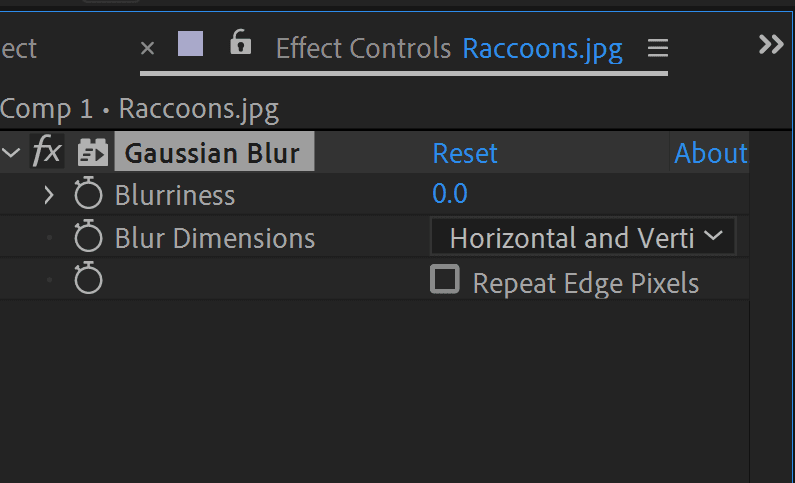
8. Navigate to Blur and Sharpen > Gaussian Blur. The effect applies instantly to your selected photo layer, and you'll see the effect controls populate in the left panel. This blur will create the perfect backdrop contrast for our text animation.

Gaussian Blur effect controls panel

Now we'll animate this blur to create a dynamic focus shift that draws attention to our text elements.

9. Position the playhead at 00;00;01;15.

10. In the Gaussian Blur effect controls, set the Blurriness value to 230. This heavy blur will serve as our animation's endpoint.

11. Click the stopwatch icon Keyframe stopwatch icon next to Blurriness to create your first keyframe.

12. Enable Repeat Edge Pixels to ensure consistent blur quality across the entire image, preventing any harsh edges that might distract from your text.

13. Move the playhead back to the beginning: 00;00;00;00.

14. Change the Blurriness value to 0. After Effects automatically creates a second keyframe since you've activated the stopwatch.

15. To view your keyframes on the timeline, ensure your image layer is selected and press U. This reveals all animated properties.

16. Select both keyframes by dragging across them.

17. Press F9 to apply Easy Ease, creating smooth, natural acceleration curves.

18. Press the spacebar to preview your animation. You should see the background transition smoothly from sharp to blurred, creating an elegant focus shift that will make your text pop off the screen!

Gaussian Blur Setup Process

1

Apply Effect

Navigate to Effect > Blur and Sharpen > Gaussian Blur to add the effect to your photo layer

2

Set Keyframes

Move playhead to 00;00;01;15, set Blurriness to 230, and click stopwatch to create keyframe

3

Create Animation

Return to start, set Blurriness to 0 to automatically create second keyframe

4

Apply Easing

Select both keyframes and press F9 to add Easy Ease for smooth animation

Keyframe Visibility

If keyframes aren't visible on the timeline, select the layer and press U to reveal all animated properties for that layer.

Animating a Fade-In

With our background animation established, let's create a sophisticated text reveal that complements the blur transition.

1. Select the top text layer in your layers panel.

2. Move the playhead to 00;00;01;20.

3. With the text layer selected, press T to reveal the Opacity property.

4. Click the stopwatch to enable keyframe animation.

5. Set the Opacity to 0 percent, making the text completely transparent.

6. Advance the playhead to 00;00;02;08.

7. Increase the Opacity to 100 percent for full visibility.

8. Select both keyframes and press F9 for smooth Easy Ease transitions.

9. Return the playhead to frame one.

10. Press spacebar to preview your elegant text fade-in! This creates a professional layered animation approach that builds visual interest progressively.

Text Fade Animation Timeline

00;00;01;20

Opacity Start

Set opacity to 0% for invisible text

00;00;02;08

Fade Complete

Increase opacity to 100% for full visibility

Keyboard Shortcuts

Press T to quickly access Opacity controls, and F9 to apply Easy Ease to selected keyframes for professional motion.

Animating Text Stroke

Now for the main event: creating the signature stroke animation that makes text appear as if it's being hand-drawn in real-time.

1. Right-click on the bottom text layer to access the context menu.

2. Navigate to Create > Create Shapes From Text.

3. Click Create Shapes From Text.

4. After Effects generates a new shape layer containing vector outlines of your text. Your original text layer remains but is automatically disabled. You can delete the original layer to keep your project organized.

5. Select your newly created text outlines layer.

6. In the top toolbar, locate the Fill and Stroke options.

Fill and Stroke options in After Effects toolbar

7. Click on the word Fill to open its properties.

8. In the color picker window, click the leftmost box with the diagonal line (no fill icon) to remove the fill entirely. Your text may seem to disappear, but this is intentional—we're creating a stroke-only effect.

9. Click the color rectangle next to Stroke.

10. Set your stroke to pure white using hex code #FFFFFF, or drag the color picker to the top-left corner. This creates maximum contrast against most backgrounds.

11. Click OK to confirm.

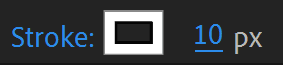
12. Click the stroke width value Stroke width value next to the stroke options.

13. Enter 10 for a bold, visible stroke that reads well at various viewing sizes.

14. Press Return (Mac) / Enter (Windows) to confirm.

15. In the layers panel, click the dropdown arrow next to your outlines layer Layer dropdown arrow to reveal its contents.

16. Locate and click the Add button (circular icon) within the layer.

17. Select Trim Paths from the menu. This powerful tool will control how much of each letter's stroke is visible at any given time.

The magic happens here—Trim Paths allows us to animate the stroke revelation with precise control over timing and sequencing.

18. Expand the first letter's properties and locate the Trim Paths section.

19. Position the playhead at 00;00;01;14.

20. The Trim Paths section contains Start and End parameters that define the visible portion of the stroke path. Think of these as scissors that trim the visible stroke.

21. Click the stopwatch next to the End parameter to enable animation.

22. Set the End value to 0 percent, hiding the entire stroke.

23. Move the playhead to 00;00;02;11.

24. Change the End value to 100% to reveal the complete letter.

25. Select both keyframes and press F9 for smooth Easy Ease animation.

26. Scrub through the timeline to see your letter "drawing" itself—a satisfying effect that never gets old!

27. For a professional staggered reveal, we'll animate each subsequent letter with slightly offset timing.

28. Apply the same technique to the remaining letters using these precise timecodes for optimal flow:

29. Second letter: 0% at 00;00;01;19, 100% at 00;00;02;14.

30. Third letter: 0% at 00;00;01;22, 100% at 00;00;02;15.

31. Fourth letter: 0% at 00;00;01;26, 100% at 00;00;02;19.

32. Fifth letter: 0% at 00;00;02;00, 100% at 00;00;02;24.

Remember to apply Easy Ease (F9) to all keyframes for professional-quality motion!

Text to Shape Conversion

1

Convert Text

Right-click text layer and select Create > Create Shapes From Text to generate editable paths

2

Configure Stroke

Remove fill, set stroke to white (#FFFFFF) with 10px thickness for clean appearance

3

Add Trim Paths

Click Add button in layer options and select Trim Paths for stroke animation control

4

Animate Letters

Set End value from 0% to 100% for each letter with staggered timing

Letter Animation Timing

Letter 1
1.19
Letter 2
1.22
Letter 3
1.26
Letter 4
2
Letter 5
2.24

Final Details

Let's add a finishing touch that elevates the entire composition—an animated underline that provides visual closure to our text reveal.

1. Access the Layer menu in the top menu bar.

Layer menu in After Effects

2. Click to open the menu.

3. Navigate to New > Shape Layer.

4. A blank Shape Layer appears in your timeline—this versatile layer type allows us to create custom vector graphics directly within After Effects.

5. Select the Pen tool Pen tool icon from the toolbar.

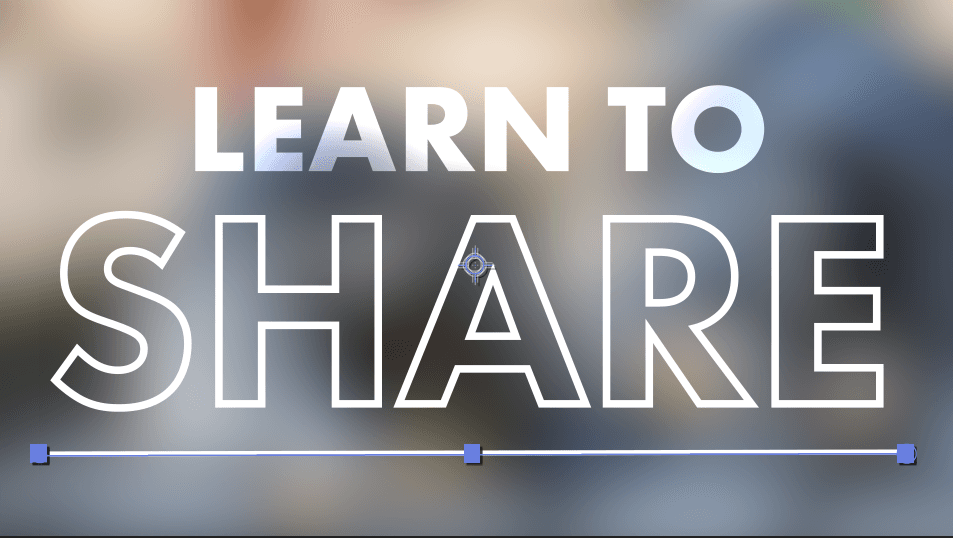
6. Click once below the left edge of your text, then click below the right edge to create a clean horizontal line. This creates a simple but effective underline element.

7. Underline creation in After Effects composition

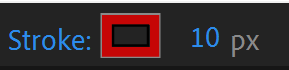
8. If your line doesn't match your text stroke appearance, click the Stroke color rectangle Stroke color rectangle in the toolbar.

9. Set the color to white (drag slider to top-left).

10. Click the stroke width value.

11. Enter 10 to match your text stroke thickness.

12. Press Return (Mac) / Enter (Windows) to apply.

13. Expand your Shape Layer properties Layer dropdown arrow in the timeline.

14. Click the Add button within the layer properties.

15. Select Trim Paths to enable the same drawing animation for your underline.

16. Move the playhead to 00;00;02;26—this timing ensures the underline appears after your text animation completes, creating a satisfying conclusion.

17. Expand Trim Paths to access the Start and End controls. While both parameters offer creative possibilities, we'll focus on End for this effect.

18. Enable keyframes by clicking the stopwatch next to End.

19. Set the initial value to 0%.

20. Advance the playhead to 00;00;03;08.

21. Change the End value to 100% for the complete underline reveal.

22. Select both keyframes.

23. Apply Easy Ease (F9) for smooth animation. Your underline now draws itself in, providing the perfect finishing touch to your text animation sequence.

Adding Emphasis Line

1

Create Shape Layer

Add new shape layer through Layer > New > Add Shape Layer menu

2

Draw Line

Use Pen tool to create straight line below text for visual emphasis

3

Apply Trim Paths

Add Trim Paths effect to animate line appearance from 0% to 100%

4

Time Animation

Set keyframes from 00;00;02;26 to 00;00;03;08 for synchronized reveal

Trimming the Timeline

Let's optimize your project for efficient previewing and rendering.

24. Position the playhead at 00;00;03;13—this captures the complete animation sequence.

25. Press N to set the work area end point, which optimizes preview playback and defines your final render length.

26. Return to the beginning (00;00;00;00) and press spacebar to enjoy your completed animation.

Congratulations! You've created a sophisticated text animation that combines multiple professional techniques. This versatile effect works beautifully across various contexts—from corporate presentations and explainer videos to social media content and title sequences. The Trim Paths technique you've mastered here extends beyond text to any vector shape, opening up endless creative possibilities for future projects.

This drawing-on effect has become a hallmark of premium motion graphics in 2026, and you now possess the skills to implement it with confidence and precision.

Happy animating!

Final Animation Length

Press N at 00;00;03;13 to set the work area end point, optimizing your animation length for rendering and preview loops.

Creative Expansion Opportunities

Background Variations

Replace the photo with graphics, videos, or solid colors to match your project needs.

Shape Applications

Apply Trim Paths technique to logos, icons, and custom illustrations for versatile animations.

Timing Adjustments

Experiment with different keyframe timing to create faster reveals or more dramatic builds.

Go Beyond After Effects

Ready to master more advanced motion graphics techniques? We offer comprehensive motion graphics training designed for professionals at every career stage. Our expert-led courses combine hands-on projects with industry insights to accelerate your creative development:

Key Takeaways

1Trim Paths is a powerful tool for creating professional stroke animations that simulate hand-drawn or writing effects
2Gaussian Blur effects can dramatically improve text readability over busy backgrounds through dynamic blurring
3Converting text to shapes provides greater animation control but requires proper stroke and fill configuration
4Easy Ease keyframes (F9) are essential for creating smooth, professional motion in After Effects animations
5Staggered timing between elements creates more engaging animations than simultaneous reveals
6Shape layers with Trim Paths can be used beyond text for animating logos, icons, and custom illustrations
7Proper timeline management with work area trimming (N key) optimizes rendering and preview performance
8Layer organization and cleanup by deleting unused elements maintains project efficiency and clarity

RELATED ARTICLES