Rotoscoping
What This Tutorial Covers
Roto Brush
AE's automated tool for separating subjects from backgrounds.
Refine Edge
Fine-tune tricky areas like hair and motion blur.
Frame-by-Frame Cleanup
Manual fixes for shots Roto Brush misses.
Noble Desktop's Video Editing & Motion Graphics Certificate teaches After Effects alongside Premiere Pro, Cinema 4D, and DaVinci Resolve.
Delve into the fascinating world of rotoscoping with this comprehensive After Effects tutorial, exploring everything from the basics of rotoscoping to the usage of tools like the Roto Brush and the creation of masks and mattes for video editing.
Exercise Preview
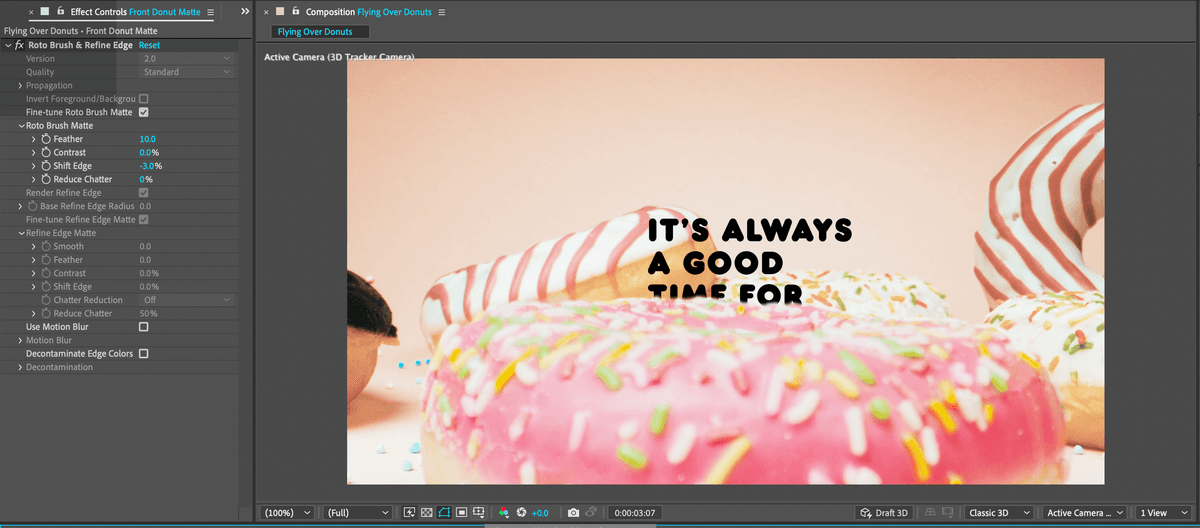
Setting up for Rotoscoping
In this example we have provided you with a project and composition to start with. However, normally you’ll have to create one yourself. When tracking it is necessary to make sure that the dimensions of the video you are going to track match those of your composition.
When creating a project from scratch, follow these instructions:
Drag your main video (the one you want to roto) into the empty Timeline panel or onto the Create a New Composition
 button located at the bottom of the Project panel.
While not absolutely necessary for rotoscoping, if you need to use the 3D Camera Tracker or MochaAE effects you will need to start with a comp that matches the footage attributes.
Rename the layer so that you can remember this is the one you want to roto.
If necessary use motion (as in the case of a screen replacement) or camera (match moving) tracking so that you can place your graphics where you need them.
Manual Rotoscoping
Manual rotoscoping is just what it sounds like. In this process, you would create a mask/matte around your objects by tracing them with the Pen tool. This process can be very tedious and it is sometimes necessary to proceed frame by frame. The most flexible and reusable way to manually rotoscope an element is to use either a shape layer or a solid layer with a mask on it as a track matte.
Add the footage you want to rotoscope to your composition.
Move to the frame of the video where you can see the element you want to rotoscope the best.
In the Tools panel, click on the Pen
 to activate it.
NOTE: As long as you don’t have a layer selected the Pen tool will create a new shape layer.
In the tool options, assign the shape a fill color and disable its stroke.
Use the Pen
tool to begin to outline the element. The fill color will start to cover the video.Pause your tracing and turn off the visibility of the new shape layer. You will still be able to see your path.
Continue outlining the element in this frame.
Open the shape layer options until you find the new shape’s Path property and turn on its stopwatch. This allows you to animate the mask shape.
In the Timeline move the playhead to the first or last frame where you can see your element and use the Selection tool to adjust the shape’s anchor points.
Move the playhead between the first two keyframes and adjust the shape path again.
Continue moving the playhead halfway between existing keyframes until you have rotoscoped the entire video.
NOTE: You will find using this halfway method that you won’t need to create keyframes for every frame of video. Some frames will have very little movement between them and the path interpolation will take care of it.
Applying the Roto Brush Tool
The Roto Brush tool in After Effects allows you to select parts of a video layer based on color similarity. In this scenario you are using the Roto Brush tool on a copy of your background video layer to create a matte.
Make a copy of the layer with the element you want to roto.
Rename this duplicate layer and move it above the layer you want to matte.
Delete any tracker effects you may have on this duplicate.
Switch to the Paint workspace by choosing Window > Workspace > Paint
Double–click on the layer you want to use the Roto Brush tool on. The Roto Brush tool only works in a Layer panel.
Click on the Roto Brush
 tool to activate it.
Adjust the brush size as necessary. The Roto Brush tool settings can be adjusted using the Brushes panel.
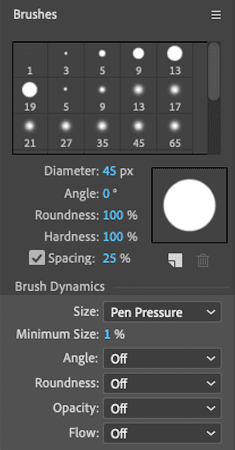
NOTE: The brush size can also be adjusted by holding down the Cmd (Mac) or CTRL (Windows) key and dragging with the mouse.
In the Layer panel, the roto brush appears as a green circle when you are going to add an area.
Drag the roto brush over the element you want to select. It’s important to keey the brush inside the objects you want to remain visible.
If you accidentally select something you don’t want, hold the Option (Mac) or ALT (Windows) key and drag over the area you want to remove.
When the Roto Brush tool is removing an area from the selection it turns into a red circle.
The Roto Brush tool needs to propagate into order to affect the entire video. If you are idle for a few seconds the brush will automatically begin to propagate out from your playhead.
The brush will also propagate whenever you move the playhead forward or back on the timeline.
In the Paint workspace you can view the Composition and Layer panels side by side so you can compare the roto edge you are creating with the final result.
Move the playhead forward or back and adjust the Roto Brush tool edge as necessary. Continue this until you have rotoscoped your element for every frame of your video.
When you are done with your roto work, free the propagation using the Freeze
 button at the bottom of the Layer panel.
Save your project.