Rotating Wedge: Alpha Mattes & Animated Colors
What This Tutorial Covers
Alpha Mattes
Use one layer's alpha to control another's visibility.
Track Mattes
Inverted and luma alternatives to alpha mattes.
Color Animation
Keyframe color over time for dynamic looks.
Noble Desktop's Video Editing & Motion Graphics Certificate teaches After Effects alongside Premiere Pro, Cinema 4D, and DaVinci Resolve.
Explore the subtle art of alpha mattes and color changes in this comprehensive After Effects tutorial, perfect for adding depth and visual interest to your video transitions.
Exercise Preview

Using an Alpha Matte to Hide/Show the Text Based on the Wedge’s Movement
In the previous exercise, we added text that instantaneously changes. To add visual interest, it’s a good idea to transition that change. Instead of adding animation to the text itself, we’re going to use the colored wedge to animate our own transition.
We want the text to only show whenever the wedge intersects with it on-screen. This means we’ll need a mask of sorts. We’ll use an alpha matte, which looks through the opacity (alpha) information of one layer to show the layer below it.
Switch to After Effects, where yourname-Rotating Wedge.aep is open.
To best preview the alpha matte we’re about to add, slide the playhead until you see a portion of the text (but not the entire text) visible on-screen such as at 2;05.
An alpha matte is composed of two layers: the layer you want to look through, and the layer you want to reveal. We want to reveal the Text, so in the Timeline, make sure that layer is selected if it isn’t already.
We want the Text layer to look through the alpha (transparency) information from the Wedge layer, but the Wedge can’t be looked through because it’s not on top. Drag the Wedge layer above the Text layer so it’s the topmost layer.
On the left side of the Timeline panel, near the top, look for the TrkMat column. If instead you see many switches
 , go to the bottom of the Timeline and click the Toggle Switches / Modes button.
Currently the Text layer’s TrkMat (Track Matte) menu is set to None. Change that to Alpha Matte “Wedge”.
Whoa, the Wedge is now invisible and the portion of the text that is inside the colored wedge is now showing, while the part outside it is hidden!
Why did this happen? Let’s zoom out to get a better look. At the bottom left of the Composition panel, click into the menu with a zoom percentage and choose 12.5%.
You should see the wedge’s yellow outline. Phew, the layer isn’t gone!
How Alpha Mattes Work
Once a layer is made into an alpha matte, After Effects makes it invisible on-screen. That’s because it’s looking through this layer’s Opacity info to reveal the layer below it that got matted. Opaque areas become “holes” through which light comes through—the more opaque the matte layer on top is, the more the contents underneath the matte get revealed.
What happens to a matte layer if we can see it? In the Timeline to the left of the Wedge layer name, click in the empty eye box
 to show it again.
You’ll see that the color is back but the text is obscured once more. It’s like painting over a window you want to see through! Toggle its visibility back off:

NOTE: In the Timeline directly to the left of the layer names, you’ll see icons that indicate the matte (top) layer
 and matted (bottom) layer
  . In addition, the eyeball on the matted layer looks ghostly
  because it’s looking through a layer that exerts influence but appears to no longer be there.
Let’s preview! Make sure the zoom is still at 12.5%, then press the Home key (or Fn–Left Arrow) to go to 0;00.
Scrub through with the playhead until you get to the end of the sequence. You’ll see the Wedge layer’s yellow outline revolve around, wiping text on and off in sync with this motion. When the wedge isn’t on-screen there’s nothing for the Text layer to look through, so the text is hidden. This gives it a nice transition!
Now that we’re using our Wedge layer as a matte, we should rename it to remind us what it’s for. In the Timeline, click on the Wedge layer and press Return (Mac) or Enter (Windows). Rename it to Wedge Matte and press Return/Enter again.
At the bottom of the Composition panel, click into the zoom menu and choose Fit.
Bringing Back the Colored Wedge
We just saw that if we use the wedge as a matte, it disappears because it needs to get looked through, not looked at. To get our wedge to appear so it can do all those nifty color changes we saw in the final movie, we’ll duplicate the Wedge Matte.
If you aren’t already at 0;00, press the Home key (or Fn–Left Arrow) to get there.
In the Timeline, select the Wedge Matte layer.
Go to Edit > Duplicate (or press Cmd–D (Mac) or CTRL–D (Windows)).
Select the duplicate layer and press Return (Mac) or Enter (Windows). To remind us of its purpose, rename it Color Wedge and press Return/Enter again.
To make the Color Wedge layer visible:
- In the Timeline, drag it below the Text layer. It should become Layer 3.
- Turn on its visibility by clicking the eye .
With the Color Wedge layer still selected, press the U key on your keyboard and notice that the Rotation keyframes from the Wedge Matte layer got copied over.
That’s well-intentioned, but what if we need to edit our animation in the future? Then we’d need to make sure both sets of identical keyframes stay in sync, creating unnecessary work for ourselves. Because the two Wedge layers are based on the same animation, we should parent one to another so one of them controls the other.
While we normally click the stopwatch to enable keyframing on a property, it can also remove keyframes that are already there. Click the blue stopwatch
 (which indicates there are keyframes for this property) and voilà—the animation is gone!
Under the Color Wedge layer’s Parent & Link column, drag the pick whip
 toward the Wedge Matte layer name. (Alternately, you can go into the Parent & Link menu and change it from None to 1. Wedge Matte.)
Go to the Preview panel and press Play
 to preview the animation from the beginning. Now we can actually see the wedge wipe the text on and off as it moves, and the colorful child is moving with its ghostly parent!
NOTE: The rotation would work the same if the colored wedge was the parent and the matte was the child. Because we’re about to animate the Color Wedge’s color (which wouldn’t show up on the Wedge Matte), we made it the child instead of the parent.
Animating Instantaneous Color Changes
Let’s next change the wedge’s color. Shape layers have a Fill Color property that can be animated, so we’ll keyframe that property.
We want to animate the color change starting at 0;00, so press the Home key.
Select the Color Wedge layer and press UU to pull up the Fill Color property in the Timeline, as well as other settings that have changed from the defaults.
Under Contents > Rectangle 1 > Fill 1 and next to Color, click the stopwatch
 .
.Go to 4;00. Remember that you can go to the top left of the Timeline and click on the timecode
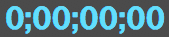 so you can type in the number.
In the Tools panel at the top, in the Fill Color area
 , click the Color swatch to open the Shape Fill Color dialog. (If you don’t see it, choose the Rectangle tool
  .)
.)Set the color to #AF0A0A (an appetizing red) and click OK.
Go to 0;00 and slowly drag the playhead forward to preview the Color Wedge’s first revolution. Notice that by the time the wedge actually starts to wipe on-screen, the blue color is a tad more purple than we set it to in the first keyframe. As the wedge wipes on-screen, it morphs from blue into blue-gray. It turns red-gray, then red as it descends. That’s not what we had in mind…
Go to the Color Wedge layer in the Timeline and under Rectangle 1 > Fill 1, use the arrow
 to expand the Color property. You should see a Value: Color bar.
This provides a nifty visual of the color change. Right now it’s a linear change from one value to another. The Color value is constantly in flux as it shifts from the initial blue to the final red. In the spirit of flat design, we want our graphic to stay the same color whenever we see it revolving on-screen.
Remember that in the last exercise, we made the text automatically change by using hold keyframes. We can do that for the Color property too—we just need to toggle the option on. Draw a selection box over the two Color keyframes.
Go to Animation > Toggle Hold Keyframe.
A hold keyframe either looks like a house on its side
 or a square
  like we experienced with our Text layer in the last exercise. Whatever its shape, hold keyframes hold their value until they encounter a keyframe with a different value.
Go back to 0;00 and drag the playhead across to preview the first two revolutions. Much better—so far, so good!
Go to 7;15 in time.
We can also change the Fill Color value in the Timeline. In the Color Wedge layer next to the Fill 1 > Color value, click the swatch.
In the pop-up set the color to #304479 (an authoritative dark blue) and click OK.
If you look in the Timeline, you’ll see another hold keyframe was added.
In the Preview panel, press Play
to preview our instantaneous color changes. Flat and fabulous!
Ensuring the Logo Stays in the Title Safe Grid
We’re almost done with our animation, so now is the perfect time to add in the hotel logo and have it fade up.
Our logo is going to start in time around 8;07, so get the playhead there.
From the Project panel’s Assets > Vectors folder, drag Hyatt-Regency-logo.ai to the Timeline, above all other layers.
Grab the inside of the [Hyatt-Regency-logo.ai] layer bar, hold Shift, and drag it so it starts at 8;07, and it will snap to the playhead when it gets close to the timecode.
In the Timeline, use the arrows
to expand into the [Hyatt-Regency-logo.ai] layer’s Transform properties.Next to Opacity, click the stopwatch
to add a keyframe.This is the beginning of our fade-in, so change the value to 0%.
In the Timeline, go to 8;22 (at 29.97 frames per second, 15 frames is about a half second later).
Change the Opacity to 100% to add another keyframe.
Drag the playhead through the fade-up sequence. There’s nothing wrong with the fade, but by default, the logo got added in the middle of the screen. The logo is covering the most important text in our TV commercial—Stay with Us!
Remember that when creating content for TV, it’s a good idea to use the Title/Action Safe grid. At the bottom of the Composition panel, click the Choose grid and guide options button
 and select Title/Action Safe.
For best results, always play title safe with type and graphics with text! To ensure the logo text is readable on all TV screens, set the following Transform properties:
Position: 976,892 Scale: 65% NOTE: In this class we’re aiming for high definition title safety, but these values should also ensure the logo also stays in the standard definition (smaller) title safe area.
With the Title/Action Safety Grid still showing, scrub through the entire video with the playhead. As you preview, notice how all the text stays within the bounds of the HD and SD title safe areas. Great, all viewers will be able to get the message!
Finishing up
The last thing we want to do is add a fade-out at the end. Remember that this is best achieved by fading on a new solid color layer, above all the rest. Go to 10;15.
Unlike some other editing software you may have used, fade-outs in After Effects do not involve having all of your layers go from 100% to 0% opacity. It’s easier to think of it as a fade up to a new black layer. With the topmost layer [Hyatt-Regency-logo.ai] selected, go to Layer > New > Solid.
In the dialog that appears, click the Make Comp Size button.
Click the Color swatch at the bottom. Type in 0 (which will get you #000000, the hex code for black).
Click OK twice to exit both dialogs.
Shift–drag the new layer bar so it starts at 10;15, where the playhead is.
With the [Black Solid 1] layer selected, press the T key to display the Opacity property.
- Next to Opacity, click the stopwatch .
- Set Opacity to 0%.
Press the End key (or Fn–Right Arrow) to get to the last frame at 10;29.
Change the Opacity to 100%, and a new keyframe will be added.
Go to the Preview panel and press Play
to preview the entire sequence. We’re ready to render!Do a File > Save.
Rendering the Video
Let’s export our final video file! Make sure the Timeline is selected.
Go to Composition menu > Add to Render Queue.
In the Render Queue panel that appears at the bottom, next to Output To, click on the file name or Not yet specified.
Navigate to Desktop > Class Files > After Effects Class > Rotating Wedge > Renders, name it Rotating Wedge.mov and click Save.
At the top right of the Render Queue panel, click the Queue in AME button.
On the right you should see Rotating Wedge-MAIN has been added to the Queue.
Below the Format column, click the small arrow
 media encoder arrow" class="inline-img"> and choose H.264 if it isn’t already.
Below the Preset column, click the small arrow
and choose Match Source-High Bitrate from the menu.Click the words Match Source-High Bitrate to customize these settings.
In the Export Settings window that opens up, a little further down, make sure you’re viewing the Video tab.
Click the Match Source button to make sure our export is the same dimensions as our sequence settings.
Scroll down in the Video section and check on Render at Maximum Depth so that our video exports at a high quality.
Below that, find the Bitrate Settings.
Set Bitrate Encoding to VBR, 2 pass. This refers to a Variable Bit Rate and number of encoding passes.
Further down in the Video section, under Advanced Settings, check on Key Frame Distance and set it to 30 to match it to our project’s frame rate.
At the bottom of the Export Settings window, check on Use Maximum Render Quality.
At the bottom of the window, click OK to exit out of the Export Settings.
Below the Output File column you’ll see the filename and location where it’s going to save your file should already be set to your Renders folder. If it isn’t already, click the blue filepath text, and set it to Desktop > Class Files > After Effects Class > Rotating Wedge > Renders.
To start the rendering/exporting process, in the top right of the Queue window, click on the green Start Queue button
 .
.When the progress bar below the Queue panel is completely blue, the rendering is complete! Once it’s done, you can click the blue filepath below the Output File column, to go to the folder where the file is located.
Open the Rotating Wedge.mp4 movie and watch your new masterpiece!