April 1, 2026Jerron Smith/10 min read

Medical Animation: Working with Video & Audio

Master After Effects for Professional Medical Animations

Core After Effects Animation Techniques

Video & Audio Integration

Learn to seamlessly combine moving graphics with synchronized audio elements. Master looping techniques for extended animations.

Curved Motion Paths

Create realistic movement by editing spatial interpolation. Design smooth, organic motion that follows natural curves.

PSD Workflow

Import Photoshop files as compositions while preserving layers, styles, and layouts. Maintain design integrity throughout production.

Topics Covered in This After Effects Tutorial:

Working with Video, Working with Audio, Looping Video & Audio

Exercise Preview

preview medical ill setup

Project Specifications

This tutorial creates a medical animation showing blood cells flowing through veins with realistic motion blur, varied cell sizes, and different movement speeds along curved paths.

Exercise Overview

In this comprehensive exercise, you'll create a sophisticated medical animation showcasing blood flowing through the circulatory system. This project demonstrates the powerful integration between Adobe Photoshop and After Effects—a workflow that's become the industry standard for motion graphics professionals. By importing PSD files as compositions, you'll preserve all layer structures, styling, and visual hierarchy while focusing entirely on animation and timing. This seamless workflow is what makes the Adobe Creative Suite indispensable for professional animators and motion designers working in medical visualization, educational content, and scientific communication.

Previewing the Final Video

Before diving into the technical work, let's examine the finished animation to understand our creative objectives and technical requirements.

  1. Keep After Effects open but switch to your Desktop to view the reference material.
  2. Navigate to Class Files > After Effects Class > Medical Animation > Preview Movie and double–click medical animation.mp4 to launch the preview.

  3. Study these critical animation elements that you'll be recreating:

    • The blood cells follow a precise curved path that matches the anatomical structure of the vein
    • Motion blur is applied to simulate realistic movement at high speeds
    • Multiple cell sizes move at varied velocities, creating natural flow dynamics
  4. Review the animation multiple times to internalize the timing and movement patterns, then close the preview when you're ready to begin.

Key Animation Elements to Observe

0/3

Setting up the Workspace

A properly configured workspace is essential for efficient animation work. We'll establish the Standard workspace to ensure consistent tool placement and panel organization.

  1. In After Effects, navigate to Window > Workspace > Standard to activate the optimal layout for this project.

  2. Choose Window > Workspace > Reset "Standard" to Saved Layout to clear any previous customizations and ensure a clean working environment.

  3. Maximize the After Effects window to utilize your full screen real estate:

    Mac: Click the green button (maximize control) in the top-left window corner.
    Windows: Click the Maximize button (square icon) in the top-right window corner.

Workspace Configuration Process

1

Reset to Standard Layout

Navigate to Window > Workspace > Standard, then reset to saved layout for consistent interface organization.

2

Maximize Application Window

Use green button on Mac or maximize button on Windows to optimize screen real estate for animation work.

Getting Started

Now we'll open the project starter file and create your working version. This approach ensures you always have a clean backup while maintaining proper file naming conventions.

  1. If you have an existing project open in After Effects, save your current work by choosing File > Save.

  2. Choose File > Open Project and locate your starter file:

    • Navigate to Desktop > Class Files > After Effects Class > Medical Animation
    • Double–click Medical Animation—Started.aep to open the prepared project file.
  3. Immediately create your working copy by choosing File > Save As > Save As and:

    • Name the file Your Name—Medical Animation.aep using your actual name
    • Save it in the same location: Desktop > Class Files > After Effects Class > Medical Animation
    • Click Save to confirm.

Creating a Dummy Comp & Importing

When importing Illustrator and Photoshop files as compositions, After Effects inherits dimensions from the source file but requires composition settings (duration, frame rate, resolution) from your current project context. This professional technique involves creating a temporary composition with your desired specifications, which After Effects then uses as a template for imported compositions. This workflow ensures consistency across all project elements and prevents the common issue of mismatched composition settings.

  1. Create a new composition using Composition > New Composition, the keyboard shortcut Cmd–N (Mac) or Ctrl–N (Windows), or by clicking the New Composition button in the Composition panel.

  2. Configure these essential settings before proceeding:

    • Set Preset to HD • 1920x1080 • 29.97 fps for broadcast-standard output
    • Confirm Resolution is set to Full for maximum quality during production
    • Set Duration to 30 seconds by typing 3000 and pressing Tab
    • Verify the background color is black (#000000) by clicking the Background Color box if adjustment is needed
    • Click OK to create the template composition.
  3. In the Project panel, select Comp 1 and delete it using Delete (Mac) or Backspace (Windows) since it was only needed to establish our import settings.

  4. Click on the 01—Images folder to select it as the destination for our imported assets.

  5. Launch the import dialog with File > Import > File or Cmd–I (Mac) / Ctrl–I (Windows).

  6. Navigate to Desktop > Class Files > After Effects Class > Medical Animation > Media > images and select Circulation.psd.

  7. Set the Import As menu to Composition—Retain Layer Sizes.

    This critical setting preserves the individual layer dimensions from Photoshop rather than forcing all layers to match the document size, giving you precise control over each element's boundary for animation and effects work.

  8. Ensure both Create Composition and Photoshop Sequence remain unchecked to avoid creating unnecessary duplicates.

  9. Click Open (Mac) or Import (Windows) to proceed.

  10. In the subsequent dialog, verify these import specifications:

    • Import Kind: Composition—Retain Layer Sizes
    • Layer Option: Editable Layer Styles to maintain Photoshop effects
  11. Click OK to complete the import process.

  12. Drag the Circulation composition from the folder to the main Project panel area for easier access.

  13. Double–click the Circulation comp to open it and begin working with your medical animation elements.

Composition Settings Strategy

Creating a dummy composition before importing PSD files ensures proper duration, framerate, and resolution settings are applied to imported compositions.

Standard HD Composition Settings

Resolution Width
1,920
Resolution Height
1,080
Frame Rate
30
Duration (seconds)
30

Organizing the Timeline

Professional timeline organization is crucial for complex animations, especially when collaborating with other artists or revisiting projects months later. Color-coding layers by function creates visual hierarchy and speeds up workflow dramatically.

  1. With the Circulation composition active, select the Main Vein—Top layer in the timeline.

  2. Assign a Yellow label color label color to identify this as a primary structural element.

  3. Select the BG Vein 01 layer to begin grouping background elements.

  4. Hold Shift and click the Gradient Fill 1 layer to select all background layers simultaneously.

  5. Apply an Orange label color to any of the selected layers, which will update the entire selection and clearly differentiate background elements from foreground animation layers.

Layer Organization System

Color-Coded Labels

Use yellow for main vein top layer and orange for background elements. Consistent labeling improves workflow efficiency.

Logical Layer Grouping

Group related layers using shift-click selection. Organize by function rather than creation order for better project management.

Looping Video & Audio

Unlike static image layers, video and audio assets have finite durations that often don't match your composition length. The looping technique you'll learn here is essential for creating seamless, longer-duration content from shorter source material—a common requirement in motion graphics and broadcast work.

  1. In the Project panel, expand right arrow menu the 02—Audio folder to access your sound assets.

  2. Click on heartbeat-loop.wav to select it and examine its properties.

    Notice the 02:01 duration displayed at the top of the Project panel—this 2-second audio clip needs to extend across our 30-second composition.

  3. Right-click (Windows) or Ctrl-click (Mac) on heartbeat-loop.wav and choose Interpret Footage > Main to access looping controls:

    • Set Loop to 15 repetitions to cover the full composition duration
    • Click OK to apply the looping interpretation.
  4. Drag heartbeat-loop.wav to the bottom of your timeline layer stack to establish it as the audio foundation.

    The audio layer now extends to the end of your composition timeline, providing continuous heartbeat sound.

  5. Press the Spacebar to preview the looped heartbeat audio and confirm smooth transitions between loops.

  6. Expand right arrow menu the 03—Video folder to access your video assets.

  7. Select red blood cell.mov and note its 01:01 duration in the Project panel—this 1-second video requires more extensive looping.

  8. Right-click (Windows) or Ctrl-click (Mac) on red blood cell.mov and choose Interpret Footage > Main:

    • Set Loop to 30 to ensure continuous animation throughout the composition
    • Click OK to confirm the setting.
  9. Drag red blood cell.mov into the timeline and position it directly below the Main Vein—Top layer for proper layering hierarchy.

    The red blood cell video features a transparent background, displaying only the animated cell against your vein graphics.

  10. Press Spacebar to preview the combined video and audio elements, observing how the looped blood cell animation synchronizes with the heartbeat rhythm.

  11. Save your progress with File > Save or Cmd–S (Mac) / Ctrl–S (Windows).

File Duration vs Loop Requirements

FeatureOriginal DurationLoop Settings
Heartbeat Audio2:01 seconds15 loops
Blood Cell Video1:01 seconds30 loops
Final Timeline30:00 secondsFull duration
Recommended: Loop shorter media files to match composition duration for seamless playback.

Animating Video Files

Video layers in After Effects behave identically to static images for animation purposes—you can transform, scale, and apply effects while maintaining their temporal content. This flexibility is what makes After Effects the industry standard for motion graphics combining various media types.

  1. First, we'll optimize After Effects for creating smooth, curved motion paths:

    • Choose After Effects > Preferences > General (Mac) or Edit > Preferences > General (Windows)
    • If enabled, uncheck Default Spatial Interpolation to Linear to allow Bezier curve creation
    • Click OK to apply this essential animation preference.
  2. Select the red blood cell.mov layer and rename it for clarity:

    • Press Return (Mac) or Enter (Windows) to enter edit mode
    • Rename it blood cell 1 and press Return/Enter again to confirm
  3. Apply a Blue label color to the blood cell 1 layer to distinguish animated elements from static background graphics.

  4. With blood cell 1 selected, press S to reveal the Scale property and set it to 15% for realistic blood cell proportions within the vein structure.

  5. Press P to reveal the Position property, which we'll animate to create the flowing motion.

  6. Ensure the Selection tool selection tool is active (press V if needed) for precise positioning work.

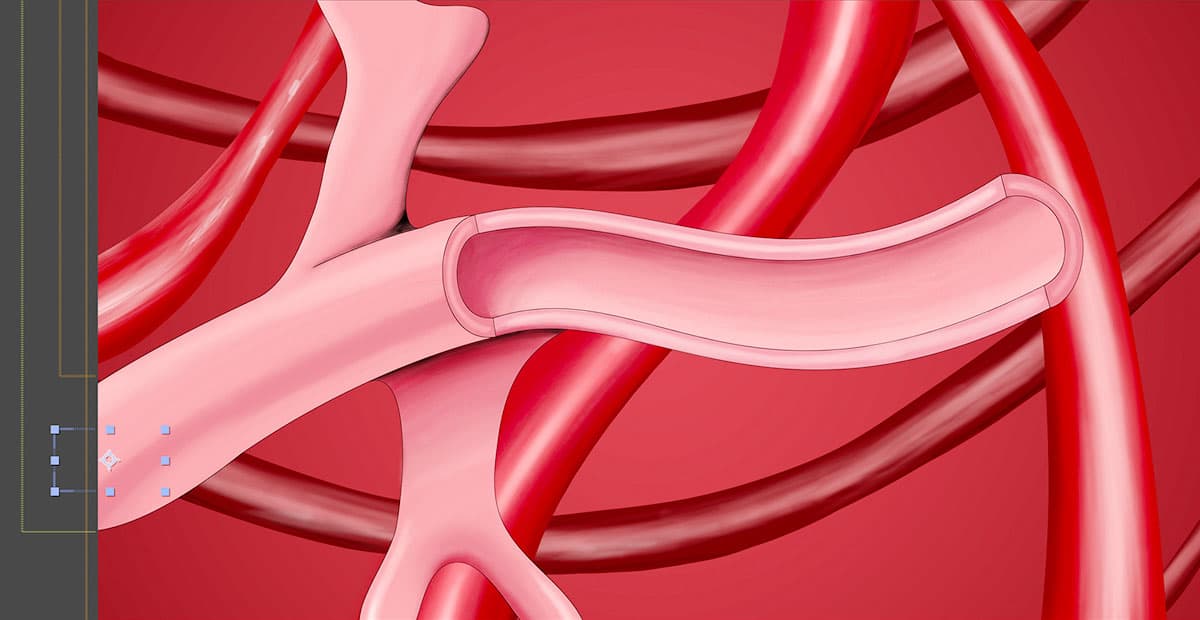
  7. In the Composition panel, drag blood cell 1 to the left side of the vein where it will begin its journey, positioning it behind part of the vein structure to simulate depth.

    animateVideoFiles 01

    Reference position values: 20, 800 (you may adjust based on your composition)

  8. Move the playhead to frame 0 (the beginning) of your timeline to set the starting keyframe.
  9. Click the Position stopwatch stopwatch to create the initial position keyframe and begin recording position changes.

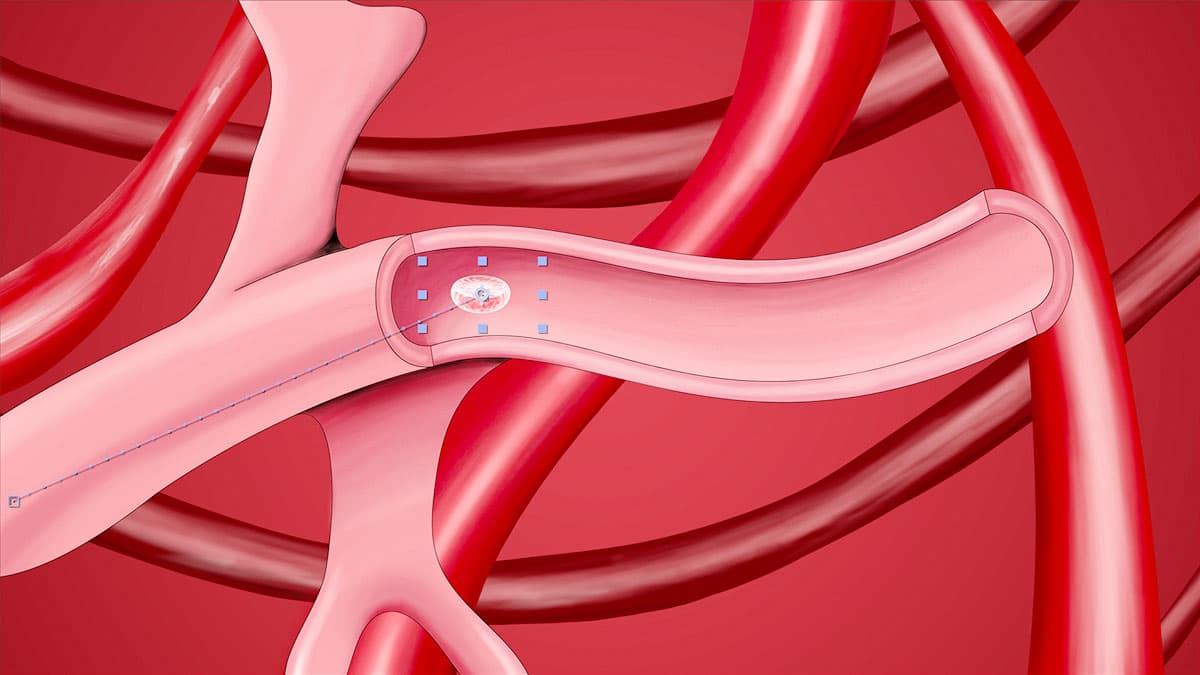
  10. Advance the playhead to 1;00 (1 second) for the middle animation point.

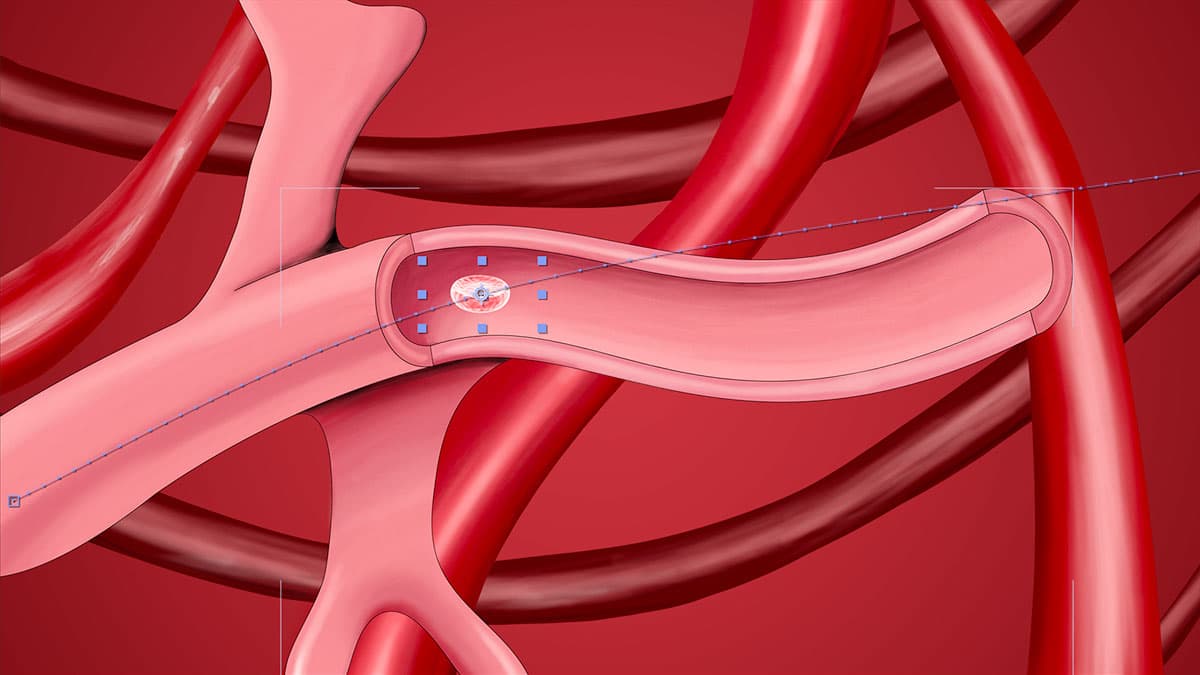
  11. Drag blood cell 1 to the center of the vein structure, creating the curved path's midpoint (reference values: 770, 470).

    animateVideoFiles 02

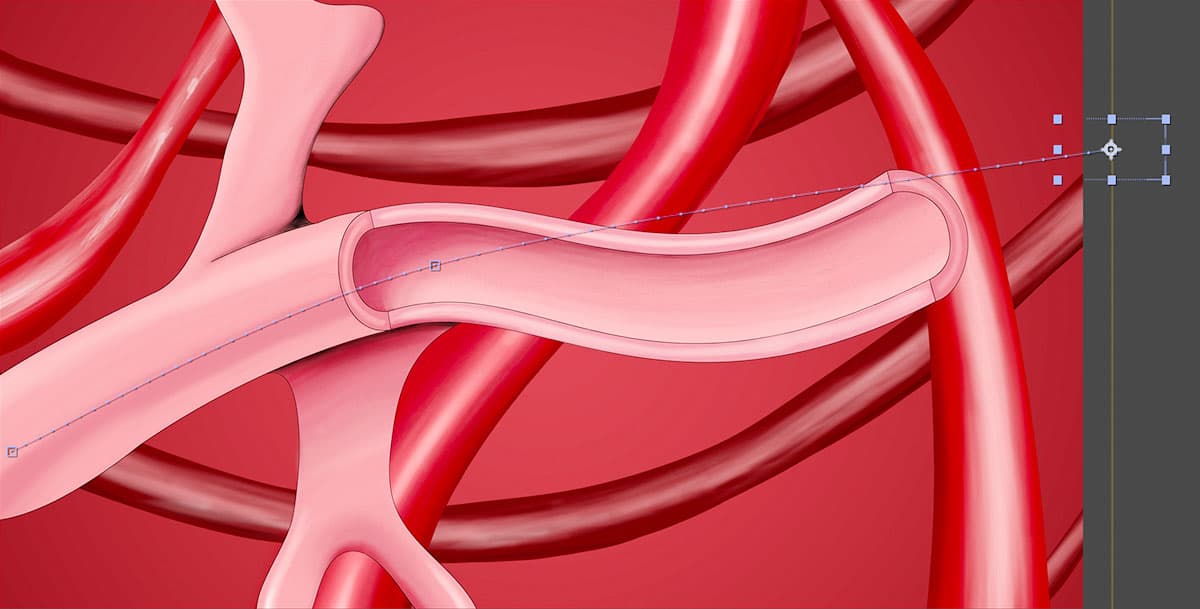
  12. Move the playhead to 2;00 (2 seconds) for the final position.

  13. Position blood cell 1 at the right edge of the composition, aligned with the vein's exit point (reference values: 1970, 265).

    animateVideoFiles 03

  14. Scrub the timeline playhead across your keyframes to preview the basic motion path. After Effects automatically creates smooth curves between your position points, but we'll refine this path in the next section.

  15. Save your animation progress with File > Save or Cmd–S (Mac) / Ctrl–S (Windows).

    You've now established the foundation motion path that we'll perfect in the following exercise.

Spatial Interpolation Setting

Disable 'Default Spatial Interpolation to Linear' in preferences to enable smooth curved motion paths for realistic blood cell movement.

Blood Cell Animation Workflow

1

Scale and Position Setup

Set blood cell scale to 15% and position it hidden behind the vein at the starting point of animation.

2

Keyframe Animation Path

Create position keyframes at 0, 1, and 2 seconds, moving cell from left vein entrance to right vein exit.

3

Timeline Organization

Apply blue label color and rename layer to 'blood cell 1' for clear identification in complex compositions.

Editing Curved Motion Paths

After Effects' automatic spatial interpolation provides a starting point, but professional animation requires precise control over motion paths. The Bezier curve tools allow you to sculpt motion paths that perfectly follow anatomical structures, creating believable and visually compelling animations.

  1. Activate the Selection tool selection tool (press V) to work with motion path control points.

  2. Select the blood cell 1 layer in the timeline and press U if keyframes aren't visible, revealing all animated properties.

  3. Click on the final position keyframe in the timeline to activate its corresponding motion path vertex and direction handles in the Composition panel.

    This selection reveals the Bezier controls that determine the curve's shape and direction.

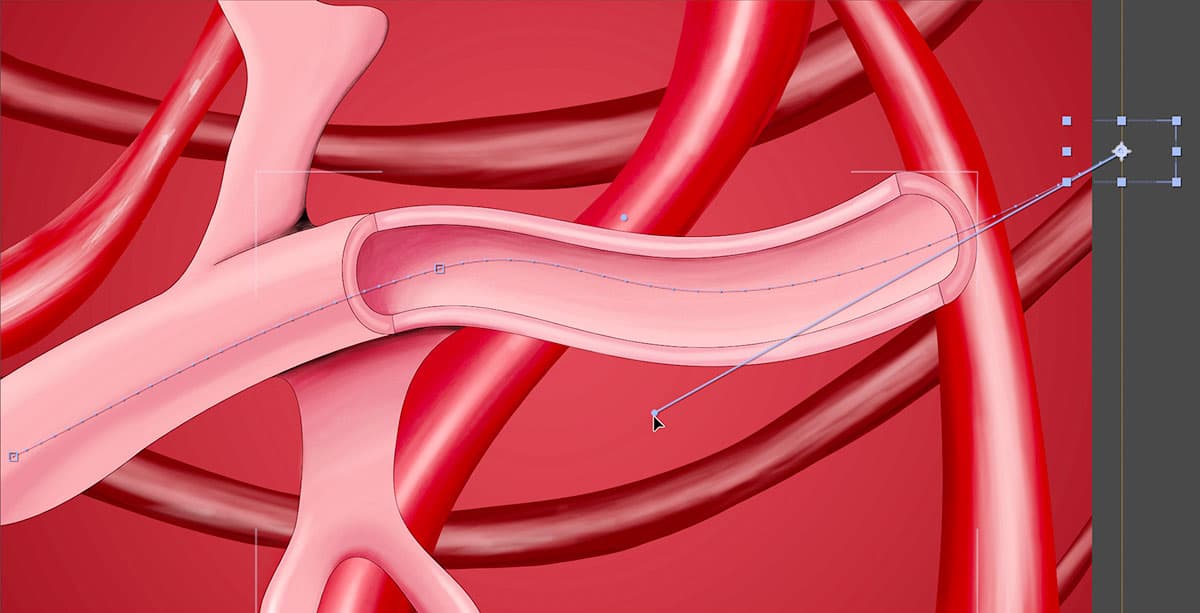
  4. In the Composition panel, carefully drag the direction handle extending from the last vertex to align the motion path with the natural curve of the vein structure.

    animateVideoFiles 04

    This adjustment ensures the blood cell follows anatomically correct flow patterns as it exits the vein.

  5. Select the middle keyframe in the timeline to access its motion path controls.

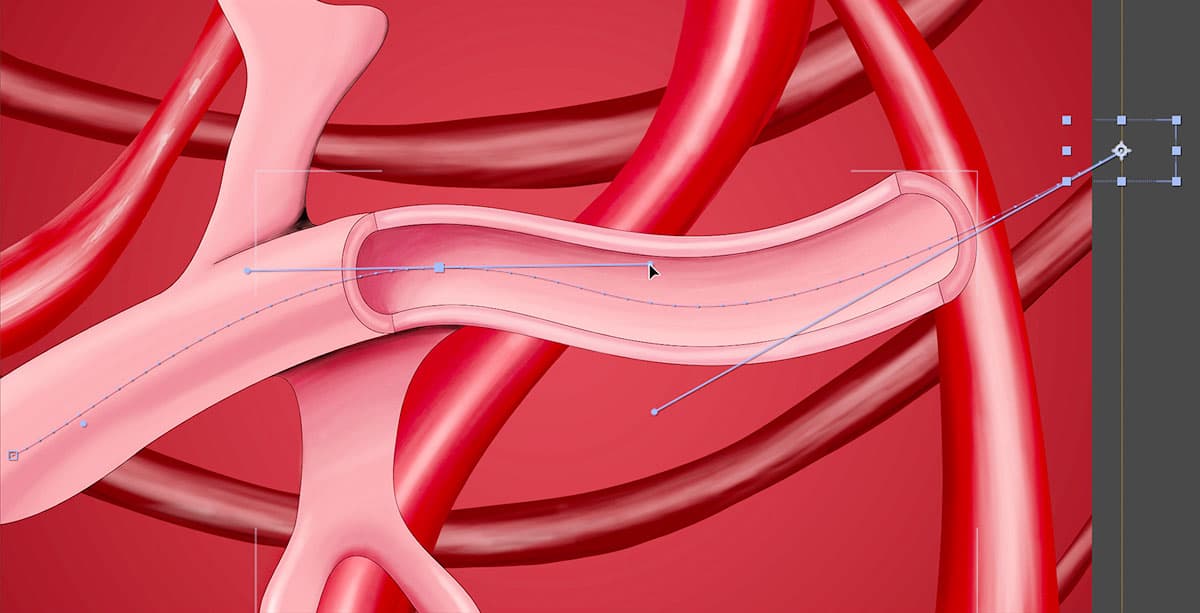
  6. Adjust both direction handles of the middle vertex to create smooth, natural curves that follow the vein's anatomical structure throughout the entire motion path.

    animateVideoFiles 05

  7. Continue refining the direction handles and vertex positions until your motion path accurately traces the vein's curvature. Professional medical animations require this level of anatomical accuracy for credibility.

  8. Scrub through your timeline to test the refined animation, ensuring the blood cell maintains proper positioning within the vein boundaries throughout its journey. The motion should appear natural and follow physiologically accurate flow patterns.

Motion Path Refinement Technique

Select position keyframes in the timeline to reveal direction handles in the composition panel. Adjust handles to match the natural curvature of anatomical structures.

Motion Path Quality Control

0/3

Key Takeaways

1Photoshop PSD files can be imported as After Effects compositions, preserving layer structure, styles, and organization for seamless workflow integration.
2Creating dummy compositions before importing establishes proper duration, framerate, and resolution settings for all imported graphic elements.
3Video and audio files with shorter durations than the composition can be looped using the Interpret Footage settings to match timeline length.
4Disabling linear spatial interpolation in preferences enables smooth curved motion paths essential for realistic organic animation movement.
5Color-coded layer labels and logical organization improve project management efficiency, especially in complex compositions with multiple elements.
6Motion paths can be refined after creation by selecting keyframes and adjusting direction handles to match natural curves and anatomical structures.
7Video layers behave like image layers for animation purposes, allowing scale, position, and effects adjustments while maintaining their temporal properties.
8Professional medical animations require attention to biological accuracy, including varied cell sizes, realistic motion blur, and anatomically correct movement paths.

RELATED ARTICLES