Cellphone Commercial: Greenscreen Removal
What This Tutorial Covers
Keylight
Industry-standard chroma key plugin built into After Effects.
Spill Suppression
Remove green color contamination from talent edges.
Edge Refinement
Clean up tricky areas like hair and motion blur.
Noble Desktop's Video Editing & Motion Graphics Certificate teaches After Effects alongside Premiere Pro, Cinema 4D, and DaVinci Resolve.
Learn how to work on digital compositing in After Effects as you follow along with a tutorial on color keying the background and phone screen in a T-mobile spot, featuring scenes with an actor named Janet.
Exercise Preview

Removing Janet’s Background
We’ll start with the third scene where the actor, Janet, looks up and throws her hands in the air.
If you do not have Cellphone-MAIN open in the Timeline already, open it now.
In the Timeline, double–click [4-Janet-yay] to open it in a new Timeline tab.
Go to the beginning of the Timeline. The footage of Janet will have a fun animated background in the final video, so we need to get rid of that green screen.
In the Timeline, select the first layer, [Janet-yay.mov]. It should be soloed already.
Go to Effect > Keying and look at the options.
After Effects has a variety of keying effects. Most are quite simple, but Keylight (1.2) is the most robust and sophisticated of them. Click on Keylight (1.2).
In the Effect Controls panel, to the right of Screen Colour click the eyedropper
 .
.We want to select a representative sample of the green background. We don’t want just one pixel of color, we want an average. Press the Cmd (Mac) or CTRL (Windows) key and notice that the eyedropper gets bigger when you do so. This will help us select more of an average of the color.
To get the best keying result, we want to select an area of the screen that will give the best average–an area that’s not too light, or too dark. While holding down Cmd (Mac) or CTRL (Windows), click on the green background to the left of Janet’s head as shown below:

NOTE: You can also click on the swatch next to Screen Colour and input a hex code instead. We found that #80B891 works well for this shot.
You should see the green background replaced with a bright magenta. If you see a transparent background instead, click the Toggle Transparency Grid button
 .
.In the Effect Controls panel, to the right of View change the menu to Status.
Status gives us a visual road map of how well things are keyed. Take a look at the Composition panel. Black represents colors that are fully transparent. White represents areas that are not transparent (opaque). Gray is semi-transparent. Our goal is to have the background as solidly black as possible and Janet’s silhouette as white as possible.
Let’s see how we can improve our selection. In the Effect Controls panel, set the Screen Balance to 5. Notice that removes more of Janet from the selection.
Try setting Screen Balance to 95. Wow, that selects way too much.
Change the setting back to 5.
To further refine our selection, in the Effect Controls panel, expand
 into the Screen Matte property.
Clip Black and Clip White are very similar to the controls in Levels. Next to Clip Black, drag the number to the right to include more pixels of the background. We think around 16 is a good number.
Drag the number next to Clip White to the left to include more pixels of the foreground. Leave it around 49.
NOTE: These values may vary depending on where you clicked on the screen with the eyedropper.
Notice there are now some green halos around the silhouette. Green represents areas of spill, where the screen color is influencing the color of our pixels.
In the Effect Controls panel, to the right of View, change the menu to Final Result.
Zoom in to check the area between Janet and the background. There’s an ugly halo so let’s get rid of it!
In the Effect Controls panel, under Screen Matte, set Screen Shrink/Grow to –2.5.
Still under Screen Matte, change Screen Softness to 1. Much better! We actually don’t need to be overly picky about the keying here since we’ll be making the footage black and white.
Keying the Background in the Next Scene
Go back to the Cellphone-MAIN tab.
Double–click [2-Janet-phone] to open it in a new Timeline tab.
In the 2-Janet-phone tab, select the janet layer and duplicate it.
Rename janet 2 to phone matte.
Hide the phone matte layer by clicking its eye
 . We’ll use this layer to isolate the phone screen shortly.
Select the janet layer and press I to go to its in point.
Go to Effect > Keying > Keylight (1.2).
In the Effect Controls panel, to the right of Screen Colour click the eyedropper
.Hold Cmd (Mac) or CTRL (Windows) and click onto the green background, between Janet’s head and the phone.
Feel free to enter a hex code instead. We found a Screen Colour value of #418C58 works well.
To the right of View, change the menu to Status.
In the Effect Controls panel, set the Screen Balance to 5. That looks pretty good!
Expand into Screen Matte.
Set Clip Black to 26. Don’t worry if some of the corners don’t become fully black—we’ll mask them out soon.
Set Clip White to 70.
Let’s draw a rectangular mask. Press Q and look in the Tools panel. If the Rectangle tool
 is already selected, skip the next step.
Press Q a few more times until you see the Rectangle tool
(three times if the Ellipse tool was selected).With the janet layer still selected in the Timeline, in the Composition panel, draw a rectangle around Janet, making sure she is fully covered.
Let’s make sure Janet stays inside the mask as she moves. Switch to the Selection tool
 , and double–click anywhere on the rectangle outline to edit it.
Scrub through the Timeline to check and adjust the rectangle as needed. It should end up looking something like this:
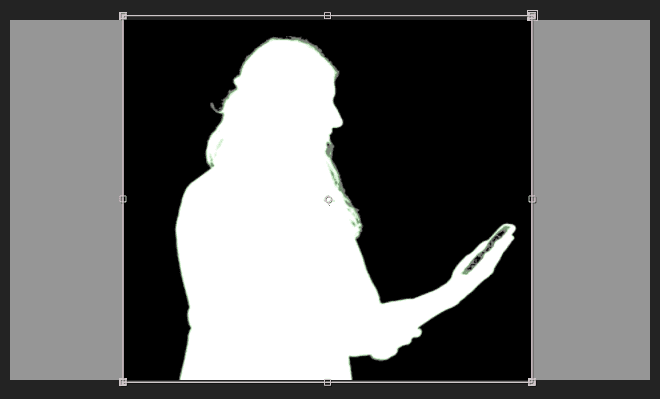
In the Effect Controls panel, click the menu to the right of View and change it to Final Result. Hmm we’ve still got some ugly green edges around Janet.
In the Screen Matte section, change Screen Shrink/Grow to –2.6.
Still in the Screen Matte section, change Screen Softness to 1.
There’s still some green around the edges of Janet’s hair. To help remove the color spill, let’s add an effect. Go to Effect > Keying > Advanced Spill Suppressor.
In the Effect Controls panel, under Advanced Spill Suppressor, set the menu next to Method to Ultra.
To the right of Key Color and to the left of the eyedropper, click the color swatch.
In the Key Color window, set the color to #398750 and click OK.
To get rid of more green, under the Keylight effect’s Screen Matte property, change the menu next to Replace Method to Hard Colour.
There’s still a little green left in her hair but we can work with this—remember, she’s going to turn black and white shortly.
Creating a Matte for the Phone Screen
Select the phone matte layer and show it
.Press the I key to go to its in point.
Apply the Keylight (1.2) effect.
In the Effect Controls panel, to the right of Screen Colour click the eyedropper
.Hold Cmd (Mac) or CTRL (Windows) and click onto the blue screen of the phone.
In the Effect Controls panel, click the menu to the right of View and change it to Combined Matte.
The Combined Matte takes the Screen Matte (the footage after only removing the eyedropper color) and adds it to the inside and outside masks and any source alpha. This shows a black and white version of the matte, to separate your opaque foreground elements (shown in white) from your transparent background elements (shown in black). It’s a good way to better see your color key.
Scrub through with the playhead. Where the screen is black, it’s all good. But notice at certain points, it’s gray or patchy. To deal with this, we can keyframe the color over time.
Click the menu to the right of View and change it back to Final Result.
Let’s turn off the effect for now. At the top of the Effect Controls panel, and to the left of Keylight (1.2), click the fx icon
 .
.Go to 2;23 (right before her phone turns away) and make sure the phone matte layer is still selected.
In the Effect Controls panel, next to Screen Colour click the stopwatch
 to add a keyframe.
In the Timeline, go to 2;26.
To the right of Screen Colour click the eyedropper
.Hold Cmd (Mac) or CTRL (Windows) and click onto the blue screen of the phone.
In the Timeline, go to 2;28.
Repeat the previous steps by grabbing the Screen Colour eyedropper
from the Effect Controls panel, and Cmd (Mac) or CTRL (Windows) clicking onto the blue screen of the phone.In the Timeline, go to 3;00.
Repeat the previous steps by grabbing the eyedropper
from the Effect Controls panel, and Cmd (Mac) or CTRL (Windows) clicking onto the blue screen of the phone.In the Effect Controls panel, to the left of Keylight (1.2) click the
icon.To the right of View, change the menu to Combined Matte.
Scrub with the playhead to check out the results.
Set the playhead to 2;29.
Make the phone matte layer end a frame later by pressing Opt–] (Mac) or ALT–] (Windows).
Hide the phone matte layer by clicking its eye
.After turning the visibility off, it’s no longer being used as a matte for any other layers, so it’s not affecting our scene at all. You’ll also still see that the background is keyed out well and the phone screen is keyed out badly, because of our settings for the Janet layer’s Keylight effect. Not to worry—we’ll take care of this in later exercises when we use 4-point tracking, as well as the phone matte to replace the old blue phone screen with a new Cellphone branded magenta one.
Color Correcting the Janet Phone Scene
Let’s go ahead and make this shot black and white!
Select the janet layer and make sure it’s visible
.Apply the Black & White effect, followed by the Levels effect.
In the Effect Controls panel, adjust the Levels as follows:
Input Black: 7 Input White: 203 Gamma: 1.14
Keying the Background in the Close up Shot
Go to the Cellphone-MAIN tab.
We’ll be working with the [3-Janet-CUphone] pre-comp, so double–click it.
In the 3-Janet-CUphone tab, select the hands layer, and duplicate it.
Rename the hands 2 layer to phone matte and hide it by clicking its eye
.Select the hands layer and go to its in point.
Apply the Keylight (1.2) effect.
Click the Screen Colour eyedropper
.Hold Cmd (Mac) or CTRL (Windows) and click onto the green background to the left of her thumb.
We found a Screen Colour value of #3C9057 works well.
Change the View menu to Status.
Try out different values for Screen Balance (we think 5 works best).
Expand into Screen Matte.
Set Clip Black to 21.
Set Clip White to 31. Don’t worry if the phone screen turns green, we just want it to be as clean as possible.
Change the View menu to Combined Matte.
Actually, let’s readjust the Screen Matte settings. We need to be careful not to go too far with the Clip adjustments because otherwise, the matte starts to invert. Try playing around with the Clip White number to see this.
Leave Clip White at 24.
Scrub through with the playhead to see that the selection looks pretty clean.
Change the View menu to Final Result.
Notice that it still has some messy borders. In the Screen Matte section, change Screen Shrink/Grow to –2.7.
Still in the Screen Matte section, change Screen Softness to 1.5.
Change the View menu to Combined Matte.
Scrub through to see that there are some pesky black spots on the screen. We can use Screen Despot Black (under Screen Matte) to get rid of these. Change its value to 2.9.
Change the View menu to Final Result.
Scrub through with the playhead to check the results.
Creating a Matte for the Phone Screen in the Close up
Select the phone matte layer and show it
.Apply the Keylight (1.2) effect.
Click the Screen Colour eyedropper
.Hold Cmd (Mac) or CTRL (Windows) and click onto the blue phone screen.
In the Effect Controls panel, change the View menu to Combined Matte.
Scrub through with the playhead to check the results. Pretty clean!
The last thing we want to do is invert the phone matte. With phone matte selected, go to Effect > Channel > Invert.