Movie Rating: Vector Layouts & the Graph Editor
What This Tutorial Covers
Vector Layouts
Illustrator artwork that scales and animates cleanly.
Graph Editor
Visual tweening for refined easing curves.
Custom Easing
Bezier curves that produce natural-feeling motion.
Noble Desktop's Video Editing & Motion Graphics Certificate teaches After Effects alongside Premiere Pro, Cinema 4D, and DaVinci Resolve.
Learn the intricacies of animation with this comprehensive After Effects tutorial, covering concepts like Adjustment Layers, The Invert Effect, The Value Graph Editor, and Animating Vector Shapes Using Trim Paths.
Exercise Preview
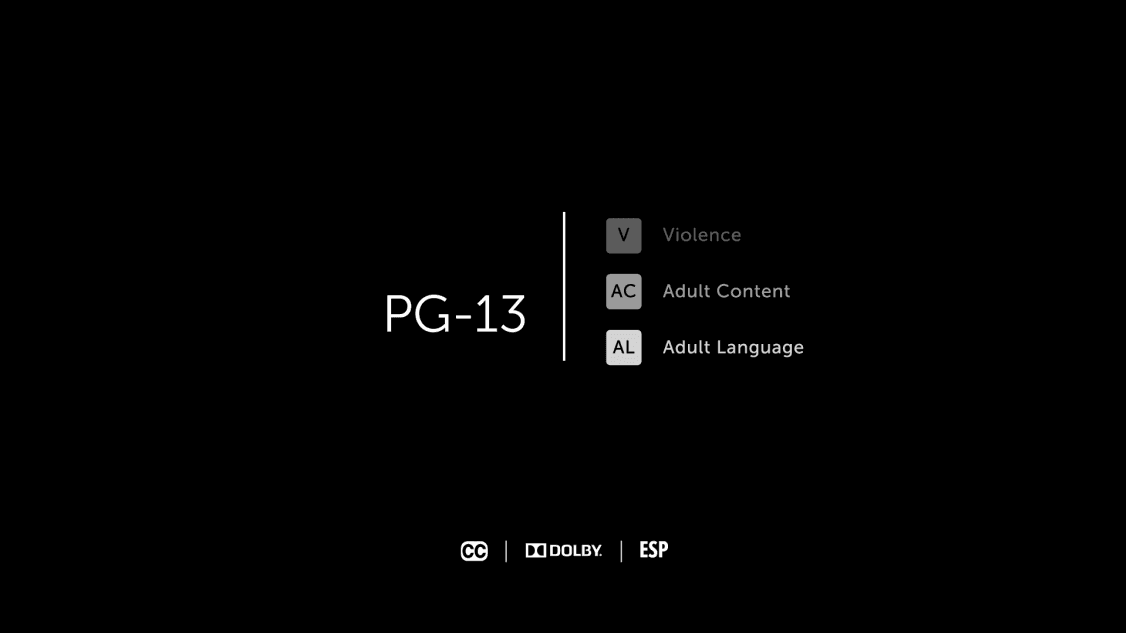
Creating Our Rating Comp & Making the Content Visible
Switch to After Effects, where yourname-Movie Intro.aep is open.
Go to Composition > New Composition so we can create a dummy comp.
Set the Duration to 5 seconds and 10 frames by typing 510 and clicking OK.
Go to the Project panel, click on the new composition, and press the Delete key.
Let’s import our layered Illustrator file. Press Cmd–I (Mac) or CTRL–I (Windows).
Navigate into Desktop > Class Files > After Effects Class > Movie Intro > Assets > Vectors, and click on Movie-rating-page.ai. Do not open it yet!
Near the bottom, find the Import As menu (Mac users may need to click the Options button). As is the best practice, we are importing this file after we’re done editing it, so choose Composition – Retain Layer Sizes. As you saw in a previous exercise, cropping bounding boxes to fit the layers is the best option for final art.
Click Open (Mac) or Import (Windows).
In the Project panel, double–click the Movie-rating-page composition to open it.
Almost nothing is visible, but don’t worry—this composition actually has a transparent background. Let’s take a look at the content without the illusory solid “background”. Go to the bottom middle of the Composition panel and click the Toggle Transparency Grid button
 .
.Notice that almost all of the text is black, and the rest is white. It’s really easy to change the black areas to white and vice versa. Go to Layer > New > Solid.
In the dialog that opens, don’t change any options and click OK.
We want the solid to be a white background, which will help us invert the colors. However, your solid is likely black (or whatever color you chose for the last solid color layer you created). To change the solid’s settings, go to Layer > Solid Settings.
In the dialog that opens, click the Make Comp Size button and set the following:
Name: BG Color: Click the color swatch and enter #FFFFFF (White) Click OK twice.
In the Timeline, drag the [BG] layer below all the other layers.
Let’s swap out the colors. At the top of the Timeline, click on the PG-13 layer so the layer we’re about to add will get added above all the other layers.
Go to Layer > New > Adjustment Layer. An adjustment layer is an invisible layer that will affect the layers below it, but not above it. It’s similar to placing clear film or acetate in front of the camera or between subjects.
Adjustment layers are an effective way to add an effect to multiple layers. To add our effect, go to Effect > Channel > Invert.
The colors will get swapped out so it’s white text and graphics on a black background. Everything is visible because the adjustment is above all our layers.
Click on the adjustment layer and rename it to Invert Adjustment (press Return (Mac) or Enter (Windows), type in the name, and press Return/Enter once more).
For the topmost and bottommost layers (Invert Adjustment and [BG]), click in the Lock column
 so we don’t accidentally mess with them.
When working with Illustrator layers, remember that it’s a good idea to turn on the Continuously Rasterize switch
 that’s displayed at the top of the Timeline’s left-hand side. If you don’t see it, go to the bottom of the Timeline and click the Toggle Switches / Modes button now.
Under the Continuously Rasterize column, click in the empty space to turn the option on
 for all the Illustrator layers (which should be Layers 2–7).
Vector layers are based on math, not static pixel data. Remember that this switch ensures vector layers will stay sharp at all times.
Using the Graph Editor to Customize Easing Speed
So far, we’ve been using easy eases to slow down animation as the playhead leaves or approaches certain keyframes. But what if you want to customize an ease? Enter the Graph Editor. We’ll use it to give the PG-13 layer a “hard ease in” (an extreme amount of slowdown when approaching a keyframe) as it enters the composition.
In the finished animation, the PG-13 rating fades up in about 2⁄3 of a second. Move the playhead to 0;20, where we’ll add the final set of keyframes.
Select the PG-13 layer and press P to bring up its Position property.
We only want to animate the Y Position so CTRL–click (Mac) or Right–click (Windows) on the Position property and select Separate Dimensions. This allows us to have 2 separate sets of keyframes: one for X position and another for Y position.
Click into an empty area of the Timeline to deselect the separated properties.
Next to Y Position, click the stopwatch
 to add a keyframe at this point in time.
We also want a fade, so press Shift–T to display the Opacity property.
Click the stopwatch
next to Opacity to add a keyframe on this property.Press the Home key (or Fn–Left Arrow) to get to the first frame at 0;00.
Change Y Position to 505 and Opacity to 0%.
Let’s add an easy ease so we can customize it using the Graph Editor. Draw a selection box around the second column of keyframes
 at 0;20.
Go to Animation > Keyframe Assistant > Easy Ease In.
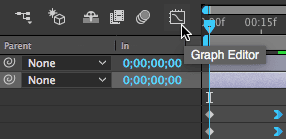
To open the Graph Editor, go to the top middle of the Timeline and click its icon
 :
:
At the bottom of the graph, click the following buttons (listed from left to right):
- Click the eye menu
 and make sure Show Selected Properties is selected.
 - There are two types of graph in After Effects, so click the Choose graph type and options menu
 . From the menu that appears, choose Edit Value Graph if it isn’t already. It’s easier to use than the Speed Graph, so we’ll use the Value Graph in this exercises. Note that the Value Graph can only be used with the Position property when the dimensions are separated.
 - If the Transform Box icon
 is selected (blue), click it to turn the option off.
 - Click the “double noodle” Fit all graphs to view button
 .
.
- Click the eye menu
To make a hard ease, click and hold on one of the yellow handles and press Shift to constrain it to a straight horizontal line. Drag it leftward, all the way to the 05f (5 frame) mark, as shown in the screenshot below:
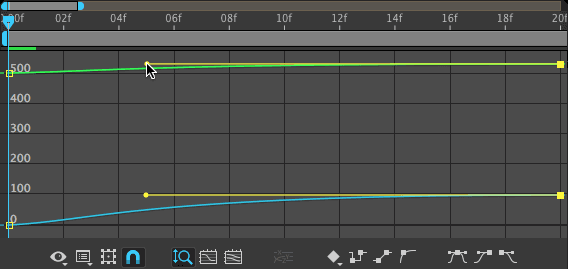
Look at the graph to see that most of the line is very shallow. The shallower the curve, the slower the ease. You just edited the ease to start at the 5 frame mark, which means it starts slowing down almost immediately. Because we pulled both keyframes’ handles together, the Y Position and Opacity animation timing and look match each other. That’s what we want!
Let’s make this a slightly harder ease by adding an ease to the first set of keyframes at 0;00. While we can’t see diamond-shaped keyframes here in the Graph Editor, you can select the square ends of the curve. Drag a selection box over them.
Go to Animation > Keyframe Assistant > Easy Ease and you’ll see yellow handles appear in the Graph Editor.
Easing Handles in the Graph Editor
As you just saw, the Graph Editor won’t give you handles for keyframes without easing. Easy Eases will have handles on both sides of a keyframe, except when they are applied to a keyframe at the start or end of a group of keyframes (like this first keyframe). Easy Ease Ins and Ease Outs will only have a handle on the side that’s easing.
Drag one of the yellow handles to around 02f, similar to the screenshot below:
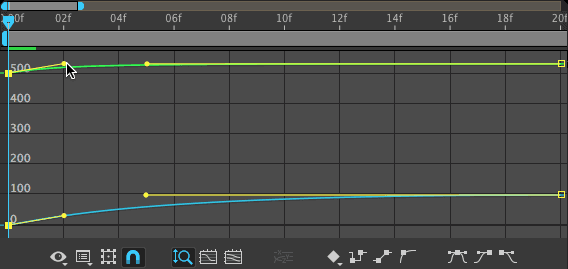
At the top middle of the Timeline, click the Graph Editor button
to get back to the normal Timeline.When we fit the graph to view, we made it so only 20 frames are showing in the Timeline at a time! To see the entire length of the layer bars, go to the bottom of the Timeline and drag the zoom slider
 all the way to the left.
We want the footer layer to have the same Opacity animation, so make sure you’re still at 0;00 and you can see the PG-13 layer’s Opacity property.
In the PG-13 layer, click in an empty area, then on the word Opacity.
Press Cmd–C (Mac) or CTRL–C (Windows) to copy the Opacity keyframes.
Select the Footer layer and do a Cmd–V (Mac) or CTRL–V (Windows).
Slowly drag the playhead forward to see that our custom ease slows the animation to a snail’s pace as it approaches the last set of keyframes. Nice and weighty!
Animating Vector Shapes Using the Trim Paths Feature
In the final video, the vertical dividing line slowly draws down from top to bottom, starting at the beginning of the animation, and not stopping until all three buttons appear. (Feel free to re-watch the video anytime you need.)
CTRL–click (Mac) or Right–click (Windows) on the Vertical Line layer. We’ll animate it using a shape layer, so from the menu choose Create > Create Shapes from Vector Layer.
This creates the new shape layer right above the Vertical Line layer it’s based on.
At the bottom left of the Composition panel, click the Toggle Mask and Shape Path Visibility button
 to make the button gray out. Now we can see the line better!
NOTE: Because the new Vertical Line Outlines layer is below our Invert Adjustment layer, we can see it. If it were above the adjustment layer, it would not be visible!
To get a better look at the line, zoom in by pressing the period (
.) key.Notice the ends of this line are very sharp, because that’s how they were created in Illustrator. We want to smooth them out, and luckily we can do so without leaving After Effects. Swivel open Vertical Line Outlines > Contents > Group 1 > Stroke 1.
Remember that shape layers have one or more groups, which keep it all together. A group must contain a path and either a stroke or fill for the shape to be visible.
Notice that the Line Cap is currently a Butt Cap. Not so PG-13! Click the dropdown that says Butt Cap and change it to Round Cap to make the ends of the line rounder.
We actually want to add a new animation, so swirl Group 1 closed.
Next to Contents, click on the button next to Add
 and from the flyout that appears, choose Trim Paths.
Swivel open Trim Paths 1, and experiment with the Start and End properties, which in this case represent the two ends of the line:
- Hover over the Start value until you see a hand slider
 . Slowly drag it to the right to see the line shrink from the top.
 - Drag the End value to the left to see it shrink from the bottom. Keep dragging it until it has the same value as Start, and you’ll see the line disappears ONLY when it gets to this point. Any difference between the two values means part of the shape is visible!
- Set Start back to 0% and End back to 100%.
- Hover over the Start value until you see a hand slider
Before we put an “invisibility sock” on our line by animating the shape layer, make sure the playhead is at 0;00.
Set the End property to 0% and turn on its stopwatch
. Because its value is the same as Start, the line is fully invisible.NOTE: Because we want it to appear from the top, we’re animating the End. If we wanted an upward animation, we’d animate Start instead.
Move the playhead to 1;10—when we want the animation to end.
Our goal is to get After Effects to draw the entire path, so change the End value to 100%, making it fully visible.
CTRL–click (Mac) or Right–click (Windows) on the second keyframe
and go to Keyframe Assistant > Easy Ease In to slow down the end of the animation.Press Spacebar to play back, and notice the animation looks pretty good so far!
Animating the Three Pay Television Content Descriptors
Next we’ll animate the buttons with short descriptions of the movie’s objectionable content. These are called pay television content descriptors, because you’ll see them on pay-per-view and premium channels. We want them to fall down as a unit but fade up one at a time starting from the bottom and working their way up.
In the Timeline, select the Violence layer so the layer we’re about to add will go on top of that.
To help us animate the buttons as a unit, go to Layer > New > Null Object.
Rename it Button Mover Null (press Return/Enter to start and end renaming).
Press P and change the Position to 1065,534.
CTRL–click (Mac) or Right–click (Windows) on the Position property and select Separate Dimensions.
Click on the Button Mover Null layer name to deselect the properties, then Shift–click on the Adult Language layer. (Four layers should be selected.)
To visually distinguish the null and the layers it’ll affect, click on the colored square to the left of the layer number and from the Label Color menu, choose Green.
Cmd–click (Mac) or CTRL–click (Windows) on the Button Mover Null layer to remove it from the selection.
In any selected layer, change the Parent & Link menu from None to 5. Button Mover Null.
If the playhead isn’t already at 1;10, move it there.
In the Button Mover Null layer, click the stopwatch
next to Y Position.Move the playhead back in time to the 5 frame mark—0;05.
Change Y Position to 434 and notice all three buttons move with the null object.
Drag the playhead forward to see that the three button layers are moving downward with the null. Great!
The next step is to fade these buttons from the bottom on up. We want to animate them independently but it’s important to know we couldn’t do this with the null object even if we wanted to. Remember that this is because a parent cannot control either effects or Opacity. If a null changes in Opacity, its child layers will not.
Hold Shift and drag the playhead until it snaps to the keyframe at 1;10.
Let’s animate them all at once before we stagger their appearance. In the Timeline, click on the Violence layer and Shift–click on Adult Language.
Press T for Opacity and in any selected layer, turn on the stopwatch
.Go to 0;15 and set Opacity to 0%.
Scrub through the animation and see all three buttons fade in together. A good start.
Select all four of the keyframes
at 1;10. (This includes Button Mover Null’s Y Position keyframe!)Go to Animation > Keyframe Assistant > Easy Ease In.
If you have time, now would be a good place to customize easing for these keyframes in the Graph Editor. Because our position values are separated, you can follow the same process as you did for the PG-13 a few pages earlier.
Now let’s stagger these fades. Move the playhead to 0;10.
Select both of the Adult Content keyframes by drawing a selection box over them.
Start dragging the keyframes to the left, then press Shift. Release the mouse when the first keyframe in the set snaps to the playhead at 0;10.
Hold Shift and drag the playhead until it snaps to the null’s keyframe at 0;05.
Select the Adult Language keyframes and drag them so they snap to the playhead.
Scrub through with the playhead. Great, our entrance animation is done!
The Exit Animation
Let’s next create the exit sequence. This animation starts on the right-hand side with the pay television content descriptors. These buttons start moving down and fade off from the bottom to the top, then the PG-13 rating joins in a little bit after that. Similar to the entrance animation, the footer just fades off and the horizontal line doesn’t finish animating until everything else is off-screen.
This information needs to stay on-screen long enough for viewers to read the text—it’s a legal thing. Move the playhead to 3;20, the beginning of our exit sequence.
In the Timeline, select the Button Mover Null layer and add a Y Position keyframe by clicking the diamond
 .
.If the new Y Position keyframe has an Easy Ease
 , Cmd–click (Mac) or CTRL–click (Windows) on it to remove the easing.
We want the null object to stop animating at 5;00, so move the playhead there.
Set the Button Mover Null layer’s Y Position to 720.
Similar to their entrance, we want the objectionable content buttons to fade out in a staggered manner. This’ll start at 3;20, so press J to return to the previous keyframe.
In the Timeline, click on the Violence layer and Shift–click on Adult Language. Make sure the Opacity keyframes are visible, as we’re about to add more.
To the left of Opacity, click any of the three layers’ diamonds
to add linear keyframes. If they’re Easy Eases , Cmd–click (Mac) or CTRL–click (Windows) on it to remove the easing.We want the buttons’ fade-out to end a second later, so move the playhead to 4;20.
Set Opacity to 0%.
Select all four of the keyframes
 at 3;20: the three buttons’ Opacity keyframes and Button Mover Null’s Y Position keyframe.
Go to Animation > Keyframe Assistant > Easy Ease Out.
Let’s stagger these fades. Move the playhead to 3;25.
In the Adult Content layer, draw a selection box over its last 2 keyframes.
Start dragging the keyframes to the right, then press Shift. Release the mouse when the first keyframe in the set snaps to the playhead at 3;25.
Move the playhead to 4;00.
Select the Violence keyframes and drag them so they snap to the playhead.
Move the playhead to 3;20 (where there are keyframes) and scrub through to see your work so far. It’s coming along nicely, so let’s animate the rating next.
The rating will start fading out and falling down at 4;00. Move the playhead there.
Select the PG-13 layer and press the U key if you can’t see its keyframes.
Next to both Y Position and Opacity, click the diamonds
to add two keyframes.If the new Opacity keyframe has an Easy Ease
, Cmd–click (Mac) or CTRL–click (Windows) on it to remove the easing.Move the playhead to 5;00.
Set Y Position to 640 and Opacity to 0%.
Select the first column of new keyframes
(at 4;00) and go to Animation > Keyframe Assistant > Easy Ease Out.The footer will start fading away at 4;10, so move the playhead there.
Select the Footer layer and press T if you can’t see its Opacity keyframes.
Next to Opacity, click the diamond
to add another keyframe.If it has an Easy Ease
, Cmd–click (Mac) or CTRL–click (Windows) on the keyframe.Move the playhead to 5;00 and change the Opacity to 0%.
Select its first keyframe
at 4;10 and go to Animation > Keyframe Assistant > Easy Ease Out.Lastly we’ll erase the horizontal divider from top to bottom. This will start at 4;00, so move the playhead there.
In the Timeline, swivel open Vertical Line Outlines > Contents > Trim Paths 1. We want the line to disappear from the top this time, so next to the Start property (not the End!), turn on the stopwatch
.Go to 5;00 and set Start to 100%. Now both the Start and End values are the same so the line is invisible.
At 4;00, CTRL–click (Mac) or Right–click (Windows) on the first new keyframe
 and go to Keyframe Assistant > Easy Ease Out.
Go to 3;20 and drag the playhead to preview the exit sequence. Oof, the line is quite bright at full opacity! Near the end of its exit, let’s fade it out.
Move the playhead to 4;15.
With the Vertical Line Outlines layer selected, press T to pull up its Opacity.
Add a keyframe by clicking the stopwatch
next to Opacity.Go to 5;00 and set Opacity to 0%.
Select the first keyframe
at 4;15 and go to Animation > Keyframe Assistant > Easy Ease Out.Press Spacebar to preview the animation from the beginning. Great job!
Do a File > Save and leave this project open to use in the next exercise.