April 1, 2026Kalika Kharkar Sharma/13 min read

Movie Bumper: Editing Compositions & Adding Audio

Professional After Effects movie bumper creation workflow

Core After Effects Skills You'll Master

Composition Sequencing

Learn to combine multiple animated scenes into a cohesive timeline. Master the art of organizing complex projects with multiple compositions.

Advanced Blending Techniques

Utilize Screen blending mode and overlapping shots to create seamless transitions. Understand how different blend modes affect layer interaction.

Professional Audio Integration

Synchronize audio tracks with visual elements for polished results. Learn proper timing techniques for broadcast-quality output.

Topics Covered in This After Effects Tutorial:

Sequencing Multiple Compositions, Overlapping Shots & Using Blending Modes, Adding Audio

Exercise Preview

preview hbo putting together

Exercise Overview

In this capstone exercise, we'll synthesize the three individual compositions you've crafted in the previous lessons into a polished 15-second broadcast-quality bumper. This promotional segment will introduce a feature film presentation with PG-13 rating, complete with professional audio integration and final render optimization. You'll master the art of seamless transitions between compositions—a critical skill for modern motion graphics professionals working in broadcast, streaming, and digital content creation.

15-Second Bumper Structure

0:00-0:05

Tiles Animation

Opening sequence with animated tile elements

0:04-0:10

Feature Presentation

Gradated Movie Feature Presentation text animation

0:09-0:15

PG-13 Rating

Final rating animation with vector graphics

Previewing the Final Movie

  1. You should still have yourname-Movie Intro.aep open in After Effects. If you closed it, re-open it now. We strongly recommend completing the previous exercises (4A–4C) before proceeding, as they establish the foundational compositions. If you haven't finished them, do the following:

    • Open Movie Intro-Ready for Rendering.aep (from the Movie Intro > Finished AE Projects folder).
    • Save the file as yourname-Movie Intro.aep in the Movie Intro folder.
  2. You're about to preview a video with synchronized audio. Ensure your speakers are active and properly configured—audio timing is crucial for professional broadcast work. Consider using quality headphones for accurate audio assessment if available in your workspace.

  3. On the Desktop, navigate to Class Files > After Effects Class > Movie Intro > Final Movie and double–click Movie-Movie-Intro-Sequence.mov.

  4. Play the video and observe the sophisticated timing: the tiles animation leads into the Movie Feature Presentation gradated text, which seamlessly transitions to the PG-13 rating animation. Pay attention to how the compositions subtly overlap—this bleeding technique creates the fluid continuity that distinguishes professional work from amateur attempts.

  5. Study this reference multiple times, analyzing the transition timing and visual flow. This attention to detail separates industry-standard work from basic compositing. Close the preview when you're ready to begin construction.

Adding Audio & Organizing the Project Panel

Professional workflow begins with meticulous project organization. A well-structured project panel prevents costly mistakes and ensures efficient collaboration when working with teams or revisiting projects months later.

  1. On the top left, ensure the Project panel is visible and active. If you see the Effect Controls panel instead, close it by clicking the small X to the left of its name. Clean workspace management is fundamental to professional efficiency.

  2. Collapse any expanded folders in the Project panel and deselect all items by clicking in an empty area. This gives you a clean slate for organization.

  3. Cmd–click (Mac) or CTRL–click (Windows) to multi-select these automatically generated folders: Movie Feature Pres Layers, Movie-rating-page Layers, and yourname-Movie Tiles-120 Scale Layers.

    NOTE: After Effects creates these layer folders automatically when importing layered files using Composition options—a time-saving feature that preserves your original file structure while maintaining editability.

  4. Drag these selected folders to the Create a new Folder button folder icon at the bottom of the panel.

  5. Rename the new folder Assets and keep it selected. This ensures the audio file we're importing will automatically nest within this organizational structure—a best practice that scales beautifully for larger projects.

  6. Import the audio file using Cmd–I (Mac) or CTRL–I (Windows), or navigate to File > Import > File.

  7. Navigate to Desktop > Class Files > After Effects Class > Movie Intro > Assets, and double–click Movie-feature-presentation.aif to import this professionally mixed audio track.

  8. The Assets folder should expand automatically, confirming proper import organization. This systematic approach prevents the chaotic project panels that plague rushed productions.

  9. Now we'll prepare our compositions for sequence assembly by establishing clear naming conventions. Select Movie Feature Pres and press Return (Mac) or Enter (Windows) to enter rename mode.

  10. Rename it to 02-Movie Feature Pres and press Return (Mac) or Enter (Windows) to confirm. This numerical prefix system ensures consistent playback order regardless of alphabetical sorting.

  11. Similarly, rename Movie-rating-page to 03-Movie Rating Page using the same rename process. These prefixes become invaluable when managing complex sequences with dozens of compositions.

  12. Select 01-Movie Tiles and Shift–click 03-Movie Rating Page to select all three sequenced compositions.

  13. Drag this selection to the Create a new Folder button folder icon at the bottom of the panel.

  14. Rename this folder Pre-comps. This industry-standard terminology clearly identifies these as nested compositions that will serve as building blocks within a master timeline.

Project Organization Workflow

1

Consolidate Layer Folders

Select all automatically created layer folders from imported PSDs and AI files, then group them into a single Assets folder

2

Import Audio File

Import Movie-feature-presentation.aif while Assets folder is selected to automatically nest the audio file

3

Rename Compositions

Use numbered prefixes (01-, 02-, 03-) to clearly indicate sequence order for better organization

Pro Organization Tip

After Effects automatically creates folders when importing layered files using Composition options. Always organize these immediately to maintain clean project structure.

Sequencing Multiple Compositions

We're now ready to construct our master composition using After Effects' powerful sequencing tools. This automated approach ensures frame-accurate timing while maintaining the flexibility to fine-tune transitions.

  1. In the Project panel, expand the Pre-comps folder and select the complete sequence: click 01-Movie Tiles and Shift–click 03-Movie Rating Page to select all three compositions in order.

  2. Drag these three selected compositions to the Create a new Composition button composition icon at the bottom of the panel. This action triggers After Effects' intelligent composition assembly dialog.

  3. Configure the sequencing parameters with professional precision:

    • Under Create, confirm Single Composition is selected—this creates one master timeline rather than multiple individual compositions.
    • Check Sequence Layers to enable automatic chronological arrangement based on your selection order.
    • Uncheck Overlap initially—we'll add strategic overlaps manually for greater creative control.

    Click OK to generate your master composition with industry-standard settings.

  4. Professional naming conventions demand descriptive identifiers. Access Composition > Composition Settings or use the keyboard shortcut Cmd–K (Mac) or CTRL–K (Windows).

  5. Change the composition name to 00-Movie-MAIN and click OK. The "00" prefix ensures this master composition appears first in sorted lists—a small detail that improves workflow efficiency.

  6. In the Project panel, drag the new 00-Movie-MAIN composition out of the Pre-comps folder to an empty area. Master compositions deserve top-level visibility for quick access during review and revision cycles.

  7. Return to the Timeline and scrub through with the playhead, analyzing the current sequence structure:

    • The tiles, Movie Feature Presentation, and rating animations play sequentially without overlap—clean but potentially static for broadcast standards.
    • Notice the problematic gap: after the Movie logo and text fade out at 10;10, nearly a full second of black screen precedes the PG-13 sequence. This dead space kills momentum and appears unprofessional in broadcast context.
  8. We need to trim the excessive duration from our second composition. Click anywhere in the Timeline and deselect all layers using Cmd–Shift–A (Mac) or CTRL–Shift–A (Windows) if needed.

  9. Double–click the 02-Movie Feature Pres layer in the Timeline to access its internal composition structure. This opens the pre-composition for direct editing.

  10. To identify the optimal cut point, reveal all keyframe data: select all unlocked layers with Cmd–A (Mac) or CTRL–A (Windows), then press U to display all animated properties.

  11. Locate the final keyframes in the Presentation layer. Hover over these keyframes keyframe end to reveal the precise timecode in the tooltip—it should read 5;05. This represents the last moment of meaningful animation.

  12. Access the Composition Settings with Cmd–K (Mac) or CTRL–K (Windows) to trim the excess duration.

  13. Set the Duration to 506 (preserving the final frame at 5;05) and click OK. This surgical precision eliminates dead time while maintaining visual completeness.

  14. Click the 00-Movie-MAIN tab at the top of the Timeline to return to your master composition and assess the improved timing.

  15. Press the End key (or Fn–Right Arrow on some keyboards) to jump to the final frame of the sequence. The composition now exceeds 16 seconds—far too long for effective broadcast bumper use. Professional bumpers typically run 10-15 seconds maximum to maintain viewer engagement and meet network timing requirements. We need to trim this to exactly 15 seconds.

  16. Position the playhead precisely at the 15;00 mark—our target endpoint for broadcast compliance.

  17. Select the 03-Movie Rating Page layer (the final sequence element) in the Timeline.

  18. Press the Right Bracket (]) key to snap the layer's out point to the playhead position. This keyboard shortcut provides frame-accurate editing essential for broadcast timing.

Master Composition Creation

1

Select All Pre-comps

Select all three numbered compositions in sequence order

2

Create Single Composition

Drag to Create Composition button and choose Single Composition with Sequence Layers enabled

3

Configure Settings

Rename to 00-Movie-MAIN and ensure Overlap is unchecked for clean sequencing

Duration Management

Trim the Movie Feature Presentation composition to 5:06 to eliminate dead space and maintain tight pacing in your bumper.

Animating Like an Editor: Overlapping Shots & Using Blending Modes

Now we'll apply professional editing techniques that elevate this sequence from basic assembly to broadcast-quality storytelling. Strategic overlap combined with intelligent blending modes creates the seamless flow that characterizes premium content. This approach mirrors techniques used in high-end commercial and network production.

With our second shot now overlapping the third, we can enhance the opening transition with similar sophistication. We'll utilize the Timeline's In column for precise timing control—a workflow that mirrors professional editing suites and ensures frame-accurate results.

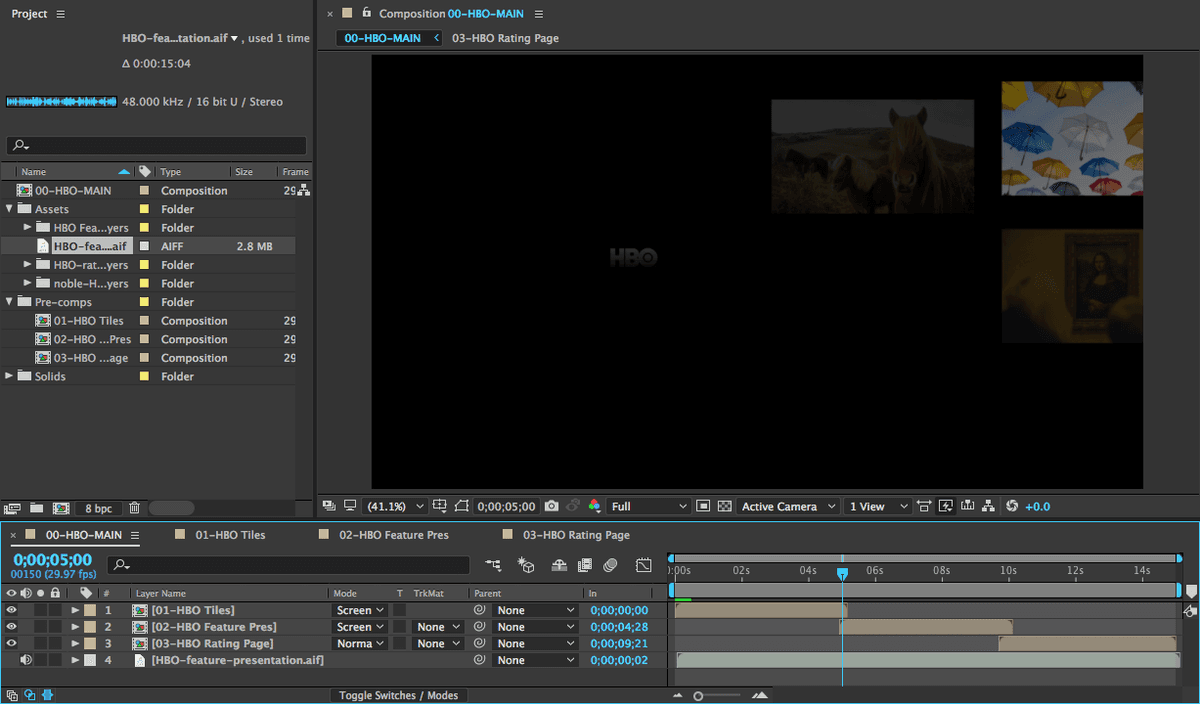
  1. Access the Timeline's In column for enhanced timing visibility. If it's not visible, CTRL–click (Mac) or Right–click (Windows) on any column header, navigate to Columns, and check In. This reveals each layer's start time—crucial data for professional timing decisions.

    You'll see that the 03-Movie Rating Page layer now begins at 9;21, creating our desired overlap with the preceding sequence.

  2. Position the playhead at 4;28 to locate the optimal transition point. At this moment, the final tiles are executing their fade-out sequence—perfect for introducing the gradated Movie logo without jarring cuts.

  3. In the 02-Movie Feature Pres layer's In column, click the current timecode value to access direct numerical input.

  4. In the Layer In Time dialog, enter 428 and click OK. This advances the second composition's start point to create strategic overlap with the tiles sequence.

  5. Now we'll identify the blending challenges that occur with default compositing modes:

    • Slowly drag the playhead from 4;28 to approximately 5;10. Notice how the Movie logo appears abruptly after the first shot completes—this jarring transition breaks the visual flow that distinguishes professional work.
    • Select the 03-Movie Rating Page layer and press I to jump directly to its in point at 9;21.
    • Again, scrub slowly from this point until around 10;10 to observe the same problem: the PG-13 rating appears suddenly after the Movie logo animation concludes, creating an even more disjointed transition that obscures the rating's entrance animation—unacceptable for broadcast quality.

    Professional compositing requires seamless transitions where outgoing and incoming elements blend naturally, allowing viewers to appreciate both the conclusion of one sequence and the introduction of the next.

  6. Access the blending mode controls in the Timeline. Look to the right of any layer name—if you don't see the Mode column, click the Toggle Switches / Modes button to reveal these essential compositing tools.

  7. Select both transitioning compositions: click 01-Movie Tiles and Shift–click 02-Movie Feature Pres to multi-select the layers that transition into subsequent shots.

  8. In any selected layer's Mode menu, change from Normal to Screen. This blending mode intelligently removes black values while preserving luminant information—perfect for layering animated elements with dark backgrounds.

    The Screen mode mathematically inverts, multiplies, and re-inverts the color values, effectively making black pixels transparent while maintaining the integrity of brighter elements. For comprehensive blending mode theory and applications, reference industry resources at tinyurl.com/use-blend-modes

  9. Scrub through the overlap regions to evaluate the professional-grade results:

    • As the final tiles reach near-complete fade-out in the upper right, the gradated Movie logo begins its elegant fade-in at frame center—creating visual continuity that guides viewer attention naturally.
    • During the Movie Feature Presentation text's downward fade and fall, the rating sequence simultaneously animates upward and inward, creating complementary motion that feels choreographed rather than coincidental.

    NOTE: While overlapping animations require careful consideration for each project's specific needs, this implementation succeeds because the motion directions are complementary and the timing creates visual rhythm rather than chaos. This technique is standard in high-end broadcast graphics and premium streaming content.

  10. Update the master composition duration to match broadcast requirements. Access Composition Settings with Cmd–K (Mac) or CTRL–K (Windows).

  11. Set the Duration to 1500 or 15. (both inputs yield a precise 15-second composition) and click OK. This duration meets standard broadcast bumper specifications while providing sufficient time for complete message delivery.

Creating Seamless Transitions

1

Set Strategic Overlap Points

Move second composition start to 4:28 when tiles are fading out, and third composition to 9:21 for smooth transitions

2

Apply Screen Blend Mode

Change first two compositions from Normal to Screen mode to drop out black areas and allow proper layering

3

Adjust Final Duration

Set master composition duration to exactly 15 seconds for proper bumper length

Screen Blend Mode Advantage

Screen blending mode drops out black pixels, making it perfect for layering animations with consistent downward motion direction.

Adding Audio to the Composition

Professional audio integration transforms motion graphics from mere visual elements into compelling multimedia experiences. Proper audio timing and synchronization separate amateur work from broadcast-ready content.

  1. From the Project panel's Assets folder, drag Movie-feature-presentation.aif directly into the Timeline, positioning it below the three existing composition layers. This placement ensures audio doesn't interfere with visual layer organization while maintaining easy access for timing adjustments.

  2. Fine-tune the audio entrance timing by clicking the value in the Movie-feature-presentation.aif layer's In column.

  3. In the Layer In Time dialog, enter 2 (representing 0;02) and click OK. This 2-frame delay allows the visual sequence to establish before audio reinforcement begins—a subtle but important timing consideration that prevents audio from overwhelming the opening visual impact.

  4. Press Spacebar to preview the complete sequence with audio. Initial playback may exhibit sync issues due to After Effects' real-time preview optimization—the software prioritizes visual rendering over audio accuracy during first-pass preview. Multiple playback passes typically resolve sync accuracy as the preview cache builds.

  5. Execute File > Save to preserve your work before proceeding to the final render phase. Regular saving prevents data loss and enables efficient revision workflows.

Audio Integration Steps

0/3

Rendering High-Quality Video

We'll now export broadcast-quality video directly from After Effects using professional codec standards. This high-fidelity approach ensures maximum quality preservation for broadcast delivery, client approval, or archival purposes. Modern production workflows demand pristine master files that withstand multiple generations of compression and format conversion.

  1. Initiate the render process by navigating to Composition > Add to Render Queue. This queuing system allows batch processing and provides granular control over export parameters.

  2. Click Lossless next to Output Module to access advanced codec options.

  3. In the Format menu, select QuickTime—the industry standard container format that supports professional codecs while maintaining broad compatibility across editing and delivery platforms.

  4. Verify that Video Output is checked, then click the Format Options button to access codec-specific settings.

  5. For maximum quality output, configure the codec based on your system and After Effects version:

    • Apple ProRes 422 (Mac or Windows, AE 2019 and newer)—provides exceptional quality with reasonable file sizes, ideal for broadcast and high-end web delivery
    • DNxHR/DNxHD (Windows, older AE versions)—Avid's professional codec standard, excellent for broadcast workflows
    • For older Windows installations, also set Resolution to DNxHR RGB 444 10-bit for maximum color fidelity

    These professional codecs maintain near-lossless quality while providing reasonable file sizes for efficient storage and transfer.

  6. Click OK twice to confirm your codec selection and return to the Render Queue.

  7. Notice that your Output Module now displays "Custom: QuickTime"—indicating successful customization. Next to Output To, click the file name or Not yet specified to define the export destination.

  8. Navigate to Movie Intro > Renders, name the file Movie-Feature-Presentation-Bumper.mov and click Save. This descriptive naming convention facilitates project management and client delivery organization.

  9. Click the Render button in the upper-right corner of the Render Queue to begin the export process. Render time depends on composition complexity and codec selection—professional codecs require more processing time but deliver superior results.

  10. After render completion, exit After Effects and navigate to your Desktop to review the final output.
  11. Navigate to Class Files > After Effects Class > Movie Intro > Renders to locate your exported file.

  12. Open Movie-Feature-Presentation-Bumper.mov and evaluate your professional broadcast-quality bumper. Assess the seamless transitions, audio synchronization, and overall production value that distinguishes this work from basic motion graphics exercises.

High-Quality Codec Options

FeatureMac/Windows (AE 2019+)Windows (Older AE)
Recommended CodecApple ProRes 422DNxHR/DNxHD
Resolution SettingStandardDNxHR RGB 444 10-bit
Quality LevelBroadcast QualityBroadcast Quality
Recommended: Choose codec based on your After Effects version and operating system for optimal quality output.

Professional Export Process

1

Add to Render Queue

Use Composition menu to add your final composition to the render queue

2

Configure Output Module

Select QuickTime format and choose appropriate high-quality codec for your system

3

Set Output Destination

Name file Movie-Feature-Presentation-Bumper.mov and save to designated Renders folder

Key Takeaways

1Master project organization by grouping imported layer folders into an Assets folder and using numbered prefixes for composition sequencing
2Create master compositions by selecting multiple pre-comps and using the Single Composition option with Sequence Layers enabled
3Trim composition durations to eliminate dead space and maintain professional pacing in short-form content like bumpers
4Use Screen blending mode to create seamless transitions by dropping out black pixels when overlapping animated compositions
5Set strategic overlap points between compositions to create smooth transitions while maintaining consistent motion direction
6Professional bumpers should be exactly 15 seconds or less to serve their purpose as brief program identifiers
7Start audio tracks slightly after video begins (0:02) to provide professional timing and prevent abrupt audio starts
8Export using broadcast-quality codecs like Apple ProRes 422 or DNxHR for professional distribution and archival purposes

RELATED ARTICLES