April 1, 2026Jerron Smith/6 min read

Motion Tracking – Position, Rotation & Scale

Master Professional Motion Tracking in After Effects

Tutorial Prerequisites

This advanced tutorial assumes familiarity with After Effects basics. You'll be working with the MochaAE plugin for professional planar tracking.

Topics Covered in This After Effects Tutorial:

Planar Tracking, Tracking Transform Properties, Mocha AE Plugin

Core Motion Tracking Concepts

Planar Tracking

Track surfaces and planes rather than single points for more accurate motion data across complex movements.

Transform Properties

Capture and apply position, rotation, and scale data from tracked elements to other layers seamlessly.

Mocha AE Integration

Leverage professional tracking tools within After Effects for advanced motion tracking workflows.

Exercise Preview

preview 5a

Preview Files to Examine

1

Logo Replacement.mp4

Watch how graphics are seamlessly integrated and follow surface movement throughout the video sequence

2

Magic Hand.mp4

Observe the tracking accuracy and how elements maintain proper perspective and positioning

Exercise Overview

In this comprehensive exercise, you'll master the Mocha AE effect to precisely track a video element's transform properties and seamlessly apply them to another layer. This technique forms the backbone of professional motion graphics work, enabling you to create convincing composites where graphics appear naturally integrated into live-action footage. By the end of this tutorial, you'll have the skills to tackle complex tracking scenarios that would be impossible with After Effects' built-in point trackers alone.

Previewing the Final Video

Before diving into the technical process, let's examine the professional results you'll achieve with proper planar tracking implementation.

  1. Let's see a preview of what you'll be creating. If you're currently in After Effects, keep it open but switch to your Desktop.
  2. On the Desktop, navigate to Class Files > After Effects Advanced Class> Motion Tracking—Transform > Preview Movie and double-click Logo Replacement.mp4.
  3. Also preview Magic Hand.mp4 to see an additional example of this technique in action.
  4. Notice the following critical elements:

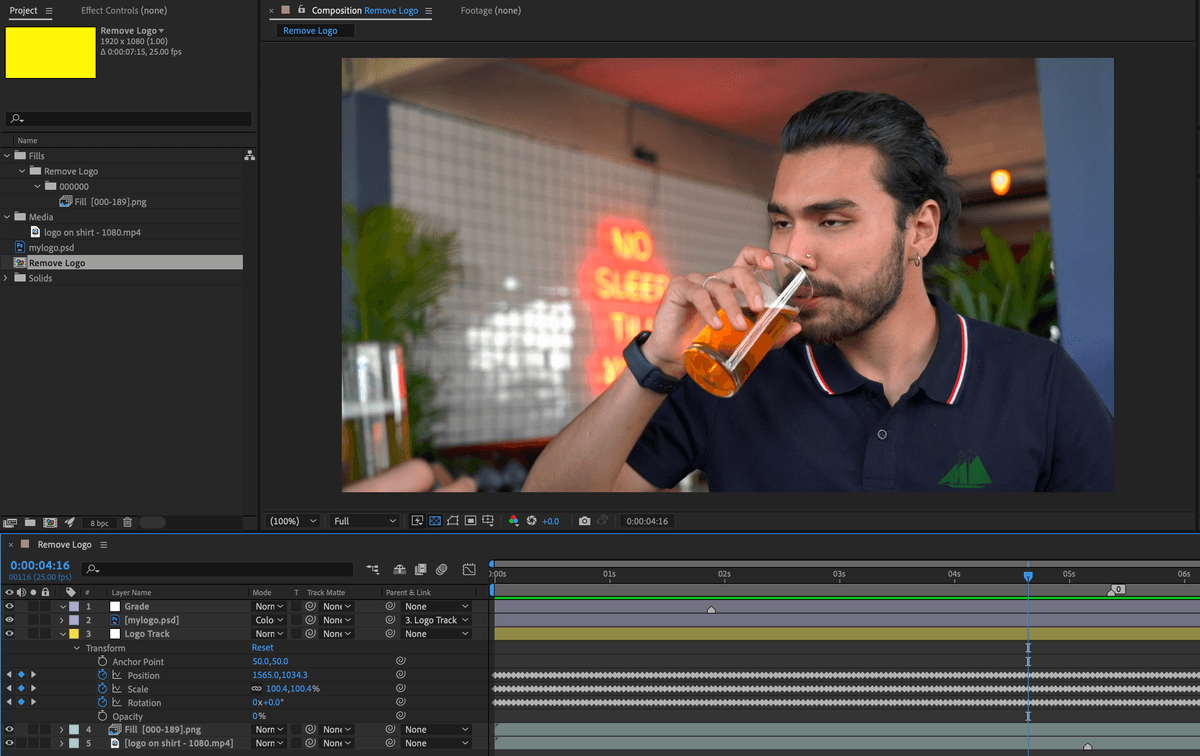
    • Graphics are seamlessly integrated into the video, matching the perspective and movement perfectly.
    • The graphics follow the surface movement with precise accuracy, maintaining proper scale, rotation, and position throughout the sequence.
  5. Replay the video to analyze how the tracking maintains accuracy even through complex camera movements, then close it when you've finished your analysis.

Analysis Focus Points

Pay attention to how graphics maintain proper perspective and scale as they follow the tracked surface. Notice the seamless integration between real footage and added elements.

Setting up the Workspace

A properly configured workspace is essential for efficient tracking workflows. Let's optimize your After Effects interface for this advanced technique.

  1. In After Effects, go to Window > Workspace > Standard.

  2. Choose Window > Workspace > Reset "Standard" to Saved Layout to ensure all panels are in their optimal positions.

  3. If the After Effects window does not fill the screen, maximize it for the best tracking experience:

    Mac: At the top left of the window, click the green button (the third button).
    Windows: At the top right of the window, click the Maximize button (the middle button).

Workspace Setup Checklist

0/3

Getting Started

Now we'll set up a new project specifically optimized for motion tracking work. Proper project organization is crucial when working with tracking data.

  1. In After Effects, if you have a project open, choose File > Save to preserve your current work.

  2. Choose File > Close Project to start fresh.

  3. In your new project, choose File > Save As > Save As and:

    • Name the file Your Name—Logo Replacement.aep and
    • Save it into Desktop > Class Files > After Effects Advanced Class> Motion Tracking—Transform.
File Management Best Practice

Always save your current work before starting a new project. Use descriptive naming conventions for tracking projects to maintain organization.

Project Setup and Composition Creation

When working with motion tracking, ensuring that your composition settings match your source footage dimensions is absolutely critical. Mismatched settings will result in tracking data that doesn't align properly with your composition space.

For tracking projects created from scratch, follow this essential workflow:

  1. Drag your primary video footage (the clip you want to track) into the empty Timeline panel or directly onto the Create a New Composition button. This automatically creates a composition with matching dimensions and frame rate.

  2. Rename the layer to something descriptive like "Source Footage" or "Tracking Layer" so you can easily identify it throughout the tracking process.

Dimension Matching Critical

Ensuring video dimensions match composition settings prevents scaling issues and maintains tracking accuracy throughout the workflow.

Project Setup Process

1

Import Main Video

Drag the video you want to track directly onto the Timeline or New Composition button

2

Rename Layer

Use descriptive names like 'Main_Video_Track' to identify the tracking source layer clearly

Applying the Mocha AE Effect

Mocha AE represents one of the most powerful tracking tools available within After Effects. Unlike traditional point trackers, Mocha uses planar tracking technology that analyzes entire regions of pixels, making it significantly more robust for complex camera movements and perspective changes.

  1. Select the video layer that contains the element you want to track.

  2. In the Effects & Presets panel, type Mocha into the search field to quickly locate the effect.

  3. Double-click on the Mocha AE effect to apply it to your selected layer.

  4. In the Effect Controls panel, click on the Mocha logo to launch the Mocha interface. This opens the full Mocha application within After Effects.

MochaAE Application Workflow

1

Select Target Layer

Choose the video layer containing the element you want to track

2

Apply Mocha AE Effect

Search for and double-click Mocha AE in the Effects & Presets panel

3

Launch Mocha Interface

Click the Mocha logo in Effect Controls to open the dedicated tracking environment

Understanding Mocha AE's Tracking Workflow

Before diving into the technical steps, it's important to understand that Mocha AE is developed by Boris FX, not Adobe. This means the interface, terminology, and workflow concepts differ significantly from After Effects. Even fundamental concepts like "layers" work differently in Mocha's planar tracking environment.

The core Mocha AE tracking workflow follows this proven sequence:

  • Create a spline shape (similar to an After Effects mask) which automatically generates a tracking layer.
  • Execute the track across your footage timeline, making real-time adjustments to the layer boundaries or tracking parameters as needed.
  • Perform post-tracking refinements and adjustments to ensure maximum accuracy throughout the entire sequence.

Now let's implement this workflow step by step:

  1. In Mocha, scrub through your timeline to locate the frame where the element you want to track is most clearly visible and has good contrast with the surrounding areas.

  2. Create a spline layer around the element you want to track, ensuring you select an area with sufficient detail and contrast for reliable tracking.

  3. Reveal the Planar Surface indicator and verify it's positioned precisely in the center of the element you're tracking. This surface represents the plane that your tracked graphics will align to.

  4. If necessary, adjust the Minimum % Pixels Used parameter to optimize tracking performance based on your footage characteristics.

  5. Execute the tracking process across your entire timeline, monitoring the results in real-time.

  6. Save the Mocha project to preserve your tracking data, then return to the After Effects interface.

Applying Tracking Data to a Layer

Successfully completing the track in Mocha is only half the process. The crucial next step involves transferring that tracking data back into your After Effects composition and applying it to the layers you want to move. This is where many users encounter challenges, but following this precise workflow ensures reliable results.

  1. Back in the After Effects interface, create a null object layer that will serve as the recipient for your tracking data.

  2. Select your tracked layer and locate the Tracking Data properties in the Effect Controls panel.

  3. Click the Create Tracked Data button and press OK to generate keyframe data from your Mocha track.

  4. Set the Export Option to Transform to transfer position, scale, and rotation data.

  5. Set Layer Export To to target the null layer you created, ensuring the effect targets the Source properties of that layer.

  6. Click Apply Export to transfer the tracking data to your null object.

Data Export Workflow

1

Create Null Object

Generate a null layer in After Effects to receive the tracking data

2

Export Transform Data

Set Export Option to Transform and target the null layer for data application

3

Apply to Source Properties

Ensure the effect targets Source properties to properly transfer motion data

Parenting Layers for Final Integration

The final step involves connecting your graphic elements to the tracked null object through After Effects' parenting system. This relationship ensures that any layers you want to move with the tracked surface will inherit all the motion data seamlessly.

  1. Import and add your graphic layer to the composition, positioning it precisely relative to the element you tracked in the original footage.

  2. Set the tracking null object as the parent for your graphic layer using the Parent column in the Timeline panel. This creates the hierarchical relationship that drives the motion.

  3. Save your project file to preserve all tracking data and layer relationships for future revisions.

Parenting Benefits

Using parenting allows your graphics to inherit all transform properties from the tracked null, creating seamless integration with the original footage.

Final Setup Steps

0/3

Key Takeaways

1MochaAE provides professional planar tracking capabilities directly within After Effects for complex motion tracking scenarios
2Proper workspace setup and dimension matching between video and composition prevents tracking accuracy issues
3Mocha uses different terminology than After Effects - splines instead of masks, different layer concepts
4Creating a null object layer serves as an intermediary to receive and apply tracking data to graphic elements
5Parenting graphic layers to tracked nulls automatically applies position, rotation, and scale transformations
6Preview files should be analyzed carefully to understand expected tracking behavior and integration quality
7The planar surface must be properly positioned and centered on the tracking target for optimal results
8Transform export options must be correctly configured to target source properties of the destination layer

RELATED ARTICLES