April 1, 2026Jerron Smith/9 min read

Animating 3D Layers & Depth of Field

Master 3D Animation and Depth Effects in After Effects

Core Animation Concepts

3D Layer Animation

Transform 2D footage into dynamic 3D elements with position, rotation, and scale properties in three-dimensional space.

Depth of Field

Create realistic focus effects by controlling which layers appear sharp based on their distance from the camera.

Timing Precision

Synchronize layer animations with camera movements to achieve perfect focus transitions and visual storytelling.

Topics Covered in This After Effects Tutorial:

Master the fundamentals of animating layers in 3D space and create professional depth of field effects that bring your compositions to life.

Exercise Preview

preview 1c

Prerequisites

This tutorial builds on Exercise 5A. If you haven't completed the previous exercise, you'll need to use the provided starter file to follow along with the marine life animation setup.

Exercise Overview

In this comprehensive exercise, you'll learn to animate marine life elements in three-dimensional space while implementing realistic depth of field effects. These techniques are essential for creating cinematic motion graphics that rival professional broadcast and film work. By the end of this tutorial, you'll understand how to manipulate Z-space positioning, coordinate complex timing sequences, and use camera properties to achieve photorealistic focus effects.

Getting Started

  1. You should still have Your Name—Working with 3D.aep open in After Effects. If you closed it, re-open it now by going to File > Open Project then Desktop > Class Files > After Effects Class > Working with 3D. We strongly recommend completing the previous exercise (5A) before proceeding, as this exercise builds directly on those foundational 3D concepts. If you haven't finished it, follow the sidebar instructions below.

    Project Setup

    1

    Open Project File

    Navigate to Desktop > Class Files > After Effects Class > Working with 3D and open Your Name—Working with 3D.aep

    2

    Verify Previous Work

    Ensure Exercise 5A is complete, or follow the sidebar instructions to load the ready-made project file

If You Did Not Do the Previous Exercise (5A)

  1. If a project is open in After Effects, go to File > Save, then File > Close Project.
  2. Go to File > Open Project and navigate to Desktop > Class Files > After Effects Class > Working with 3D > Finished Projects.
  3. Double–click on Working with 3D—Ready for Marine Life.aep.
  4. Go to File > Save As > Save As. Name the file Your Name—Working with 3D.aep and save it to Desktop > Class Files > After Effects Class > Working with 3D (replacing the file if it's already there).

Alternative Setup Process

0/3

Animating Layers in 3D Space

One of After Effects' most powerful capabilities is animating footage layers in true 3D space—not just simulated 2D transformations. When layers are enabled for 3D, their position properties expand to include Z-depth coordinates, opening up cinematic possibilities that separate professional work from amateur motion graphics. This technique is widely used in broadcast design, film titles, and high-end commercial work.

  1. In the Timeline, show the Puffer Fish, Shark, and Whale layers by clicking in their eye eye icon column.

  2. Select the Puffer Fish layer.

    • Hold Cmd (Mac) or CTRL (Windows) and click on the Shark and Whale layers to add them to your selection.

    • Press P to reveal Position properties for all 3 layers simultaneously. Notice how 3D layers display three position values (X, Y, Z) instead of the standard two.

  3. Press Cmd–Shift–A (Mac) or CTRL–Shift–A (Windows) to deselect all layers and prepare for individual layer manipulation.
  4. Move the playhead to the beginning of the Timeline to establish your starting keyframes.
  5. Select the Puffer Fish layer and begin setting up its animation path.

    • Set the Puffer Fish layer's Position to 1240,830,0. This positions the fish just outside the camera's field of view, creating a natural entrance point.
    • Click the Position stopwatch stopwatch to create your first keyframe.
  6. Move the playhead to 5;00 to set the end position.

    • Change the Puffer Fish layer's first position value (X–position) to -250. This creates a smooth horizontal traverse across the entire composition.
  7. Scrub the playhead back to the beginning of the timeline and preview the puffer fish movement. Pro tip: You can simultaneously observe the motion in both the Active Camera view and the Top view to better understand the 3D spatial relationships.

  8. Return the playhead to the beginning of the timeline to set up the shark's animation.

  9. Select the Shark layer and configure its 3D path.

    • Change the Shark layer's Position to -800,297,700. Note the Z-position of 700—this places the shark significantly behind the puffer fish in 3D space.
    • Click the Position stopwatch stopwatch to establish the starting keyframe.
  10. Press K to jump the playhead to the next visible keyframe at 5;00.

    • Change the Shark layer's first position value (X–position) to 1750. This creates movement in the opposite direction from the puffer fish, adding visual complexity.
  11. Scrub the playhead back to the beginning and preview the shark's movement. Notice how the different Z-positions create natural layering in your 3D scene.

  12. Move the playhead back to the beginning to set up the whale animation.

  13. Select the Whale layer for the most complex of the three animations.

  14. Hold Shift and hit S to add Scale to the displayed properties—we'll need both Position and Scale for realistic depth effects.

    • Change the Whale layer's third Position value (Z-position) to 1320. This places the whale furthest from the camera.
    • Change the layer's Scale to 75 to enhance the illusion of distance—objects further away appear smaller.
    • Set the Whale layer's first two position values to 2100,659,1320, positioning it for entry from the right side.
    • Click the Position stopwatch stopwatch to create the initial keyframe.
  15. Press K to move the playhead to the next visible keyframe at 5;00.

    • Change the Whale layer's first position value (X-position) to -1,000 to complete its journey across the composition.
  16. Scrub through the timeline to preview the whale's movement and observe how all three marine creatures now move through different planes of 3D space.

Layer Animation Timeline

0:00 - 5:00

Puffer Fish Setup

Position at 1240,830,0 moving to -250 X-position

0:00 - 5:00

Shark Animation

Position at -800,297,700 moving to 1750 X-position

0:00 - 5:00

Whale Movement

Position at 2100,659,1320 with 75% scale moving to -1000 X-position

3D Properties

Unlike 2D layers, 3D layers have three position values (X, Y, Z) allowing movement along all three axes. The Z-position controls depth and distance from the camera.

Fine Tuning the Timing of the Marine Life

Professional motion graphics require precise timing coordination. Currently all creatures traverse the scene simultaneously, but we'll refine their timing so each marine animal reaches center screen exactly when the camera crosses their respective 3D focal planes—a technique that creates natural focus transitions and enhances the depth of field effect we'll add later.

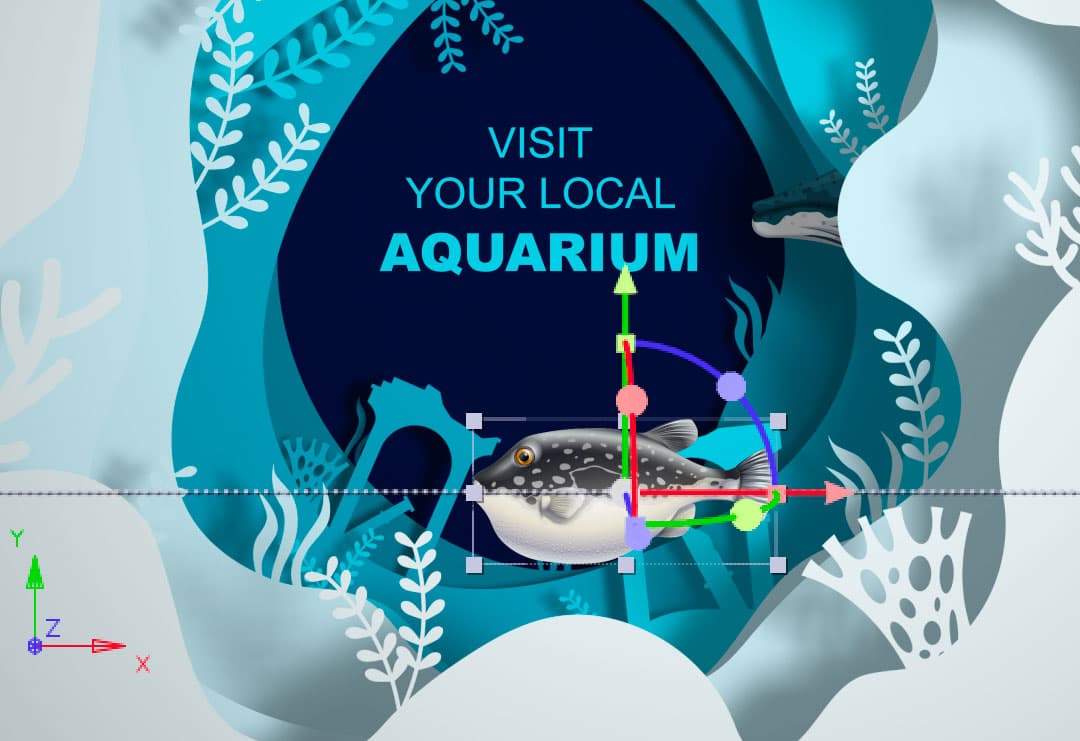
  1. Move the playhead to 0;27 (when the camera crosses the plane of the Puffer Fish).

  2. Select the Puffer Fish layer to adjust its timing.

  3. In the timeline, drag the Puffer Fish layer's colored bar to the left until the Puffer Fish is almost centered in the Active Camera view. This technique—sliding entire layer durations—is fundamental to creating professional timing in After Effects.
    puffer fish center

    Notice that the first keyframe and the beginning of the layer now extend before the timeline start. Unlike traditional video editing programs like Premiere Pro, After Effects allows layers to begin before the composition timeline, providing greater flexibility for complex animations.

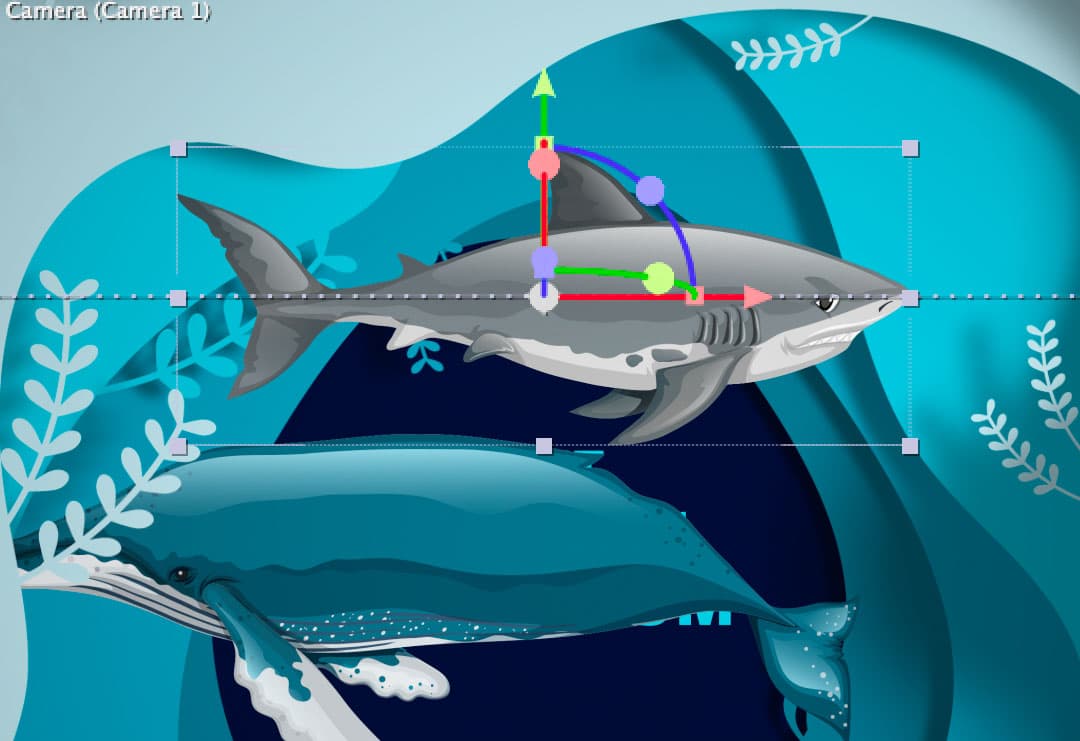
  4. Move the playhead to 2;23 (when the camera crosses the plane of the Shark).

  5. Select the Shark layer for timing adjustment.

  6. Drag the Shark layer's colored bar slightly to the right until the shark is almost centered (positioned slightly left of center for natural composition) in the Active Camera view.

    shark center

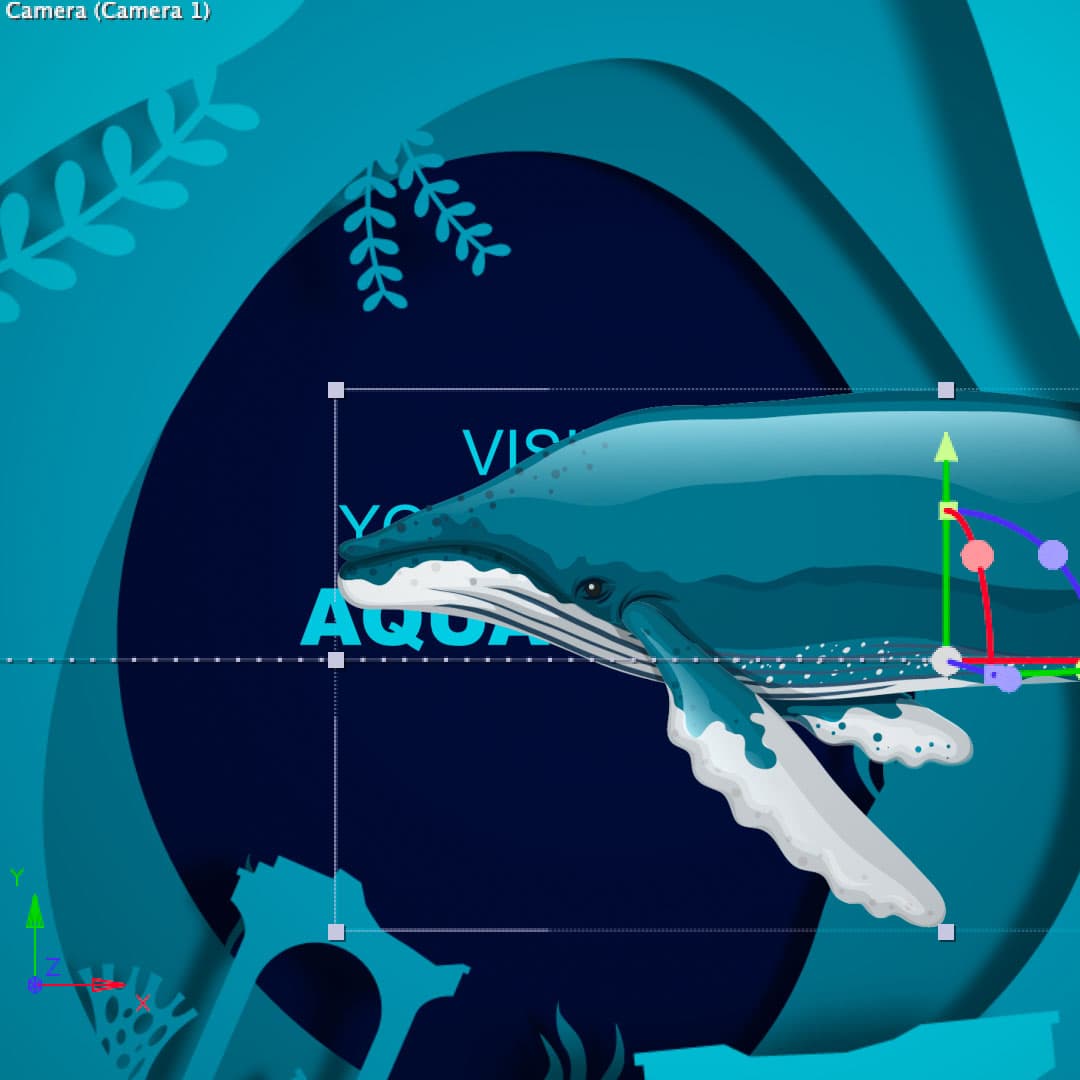
  7. Move the playhead to 4;15 (when the camera crosses the plane of the Whale).

  8. Select the Whale layer for the final timing adjustment.

  9. Drag the Whale layer's colored bar to the right until the whale's head is almost centered in the Active Camera view.

    whale center

  10. Move the playhead to 5;00 when the whale's body should completely obscure the background text.

  11. Select the text layer to coordinate its visibility with the whale animation.

    • Press [ to slide the beginning of the layer to the current playhead position.
  12. Scrub through the timeline, or use the Spacebar to preview the refined animation timing. The text layer now remains hidden throughout most of the animation sequence and is revealed only after the whale passes—a sophisticated reveal technique used in professional motion graphics.

  13. Select the Puffer Fish layer to clean up the timeline display.

    • Hold Cmd (Mac) or CTRL (Windows) and click on the Shark and Whale layers to add them to your selection.

    • Press Cmd ~ (Mac) or CTRL ~ (Windows) to hide all properties on the selected layers, creating a cleaner workspace.

  14. Keep those layers selected and move the playhead to the end of the timeline.

  15. With the 3 layers still selected, hit Option–] (Mac) or ALT–] (Windows) to set the Out Point of the selected layers to the playhead position, optimizing render times.

  16. Move the playhead to 12;00 to establish the final work area.

    • Press N to move the end of the work area bar to the playhead position.
  17. Choose File > Save or hit Cmd–S (Mac) or CTRL–S (Windows) to preserve your timing work.

Camera Crossing Points

Puffer Fish Timing
27
Shark Timing
143
Whale Timing
255

Timing Adjustment Process

1

Position Playhead

Move to specific frame where camera crosses each layer's focal plane

2

Adjust Layer Timing

Drag colored bars in timeline to center each creature when camera passes

3

Set Layer Boundaries

Use bracket keys to trim layer in/out points for optimal timing

Adding Depth of Field

Currently, every layer maintains perfect focus regardless of its distance from the camera—an unnatural look that immediately identifies computer-generated imagery. Real cameras have limited depth of field, the distance between the nearest and furthest objects that appear acceptably sharp. By enabling After Effects' depth of field feature, you'll create photorealistic focus effects that add cinematic quality to your work and naturally guide viewer attention. This technique is standard in high-end motion graphics, from Netflix title sequences to Super Bowl commercials.

  1. Move the playhead to 0;27 to position yourself at the optimal viewing point where the camera's focus distance intersects with the puffer fish's Z-position.

  2. Select the Camera 1 layer to access its optical properties.

  3. Hit AA (press A twice quickly) to reveal the layer's Camera Options properties.

  4. To the right of Depth of Field click the word Off so it changes to On, activating the camera's focus simulation.

  5. Change the Aperture to 200 to create a pronounced depth of field effect. In camera terminology, this represents a wide aperture (shallow focus), similar to shooting at f/2.0 on a professional camera.

    Notice the immediate transformation: layers positioned closer to or further from the camera than the fish now display realistic blur, with blur intensity increasing as distance from the Focus Distance increases. This mimics how professional cameras and high-end cinema lenses behave.

    NOTE: For even more dramatic out-of-focus effects, adjust the Blur Level property. Higher values create more pronounced bokeh effects, useful for dreamy or ethereal compositions.

  6. Press Cmd ~ (Mac) or CTRL ~ (Windows) to hide the camera properties and clean up your workspace.

  7. At the bottom right of the Composition panel, click on the Select view layout menu (currently displaying 2 Views) and choose 1 View to maximize your preview area.

  8. Use the Spacebar to preview the complete animation with depth of field enabled. Note that this preview will take longer to generate because depth of field calculations require significant system resources—this is normal for professional-quality effects. If preview performance becomes problematic, locate the Resolution/Down Sample Factor Popup at the bottom left of the Composition panel (currently showing Full) and change it to Half or Quarter for faster previews during the editing process.

    Observe how each marine animal snaps into sharp focus precisely as the camera passes through its Z-plane, while others fall into beautiful, natural blur. This coordinated timing between camera movement, focus distance, and subject positioning is the hallmark of professional 3D motion graphics work.

  9. Your professional-quality 3D animation with depth of field is now complete. Choose File > Close Project to finish this exercise.

Depth of Field Settings

FeatureWithout DOFWith DOF
Focus QualityAll layers sharpDistance-based focus
Visual DepthFlat appearanceEnhanced dimensionality
Processing LoadMinimal resourcesHigher resource usage
Recommended: Enable depth of field for more realistic and visually appealing 3D animations
Performance Impact

Depth of field requires more system resources to render. Consider reducing resolution to Half or lower for faster preview performance during editing.

Key Takeaways

13D layers in After Effects can be animated using X, Y, and Z position values, with Z controlling depth and distance from the camera
2Timing adjustments are crucial for synchronizing layer animations with camera movements to achieve proper focus transitions
3Layer timing can be adjusted by dragging colored bars in the timeline, and layers can extend before the timeline start
4Depth of field creates realistic focus effects by blurring layers based on their distance from the camera's focus point
5Camera aperture settings control the intensity of depth of field blur, with higher values creating more pronounced effects
6Fine-tuning involves positioning each animated element to be centered when the camera crosses its focal plane
7Bracket keys provide precise control over layer in and out points for optimal timing and visual flow
8Performance optimization may require reducing preview resolution when working with depth of field effects

RELATED ARTICLES