Cellphone Commercial: Lower Thirds & Final Transitions
What This Tutorial Covers
Lower Third Design
Branded text overlays that introduce speakers and topics.
Transition Timing
Eases and durations that feel professional, not jarring.
Final Polish
Color, sound, and timing tweaks for a finished spot.
Noble Desktop's Video Editing & Motion Graphics Certificate teaches After Effects alongside Premiere Pro, Cinema 4D, and DaVinci Resolve.
Master advanced techniques in Adobe After Effects with this tutorial, covering lower third animation, animating transitions, freezing video frames, and simple 3D layer logo animation.
Exercise Preview
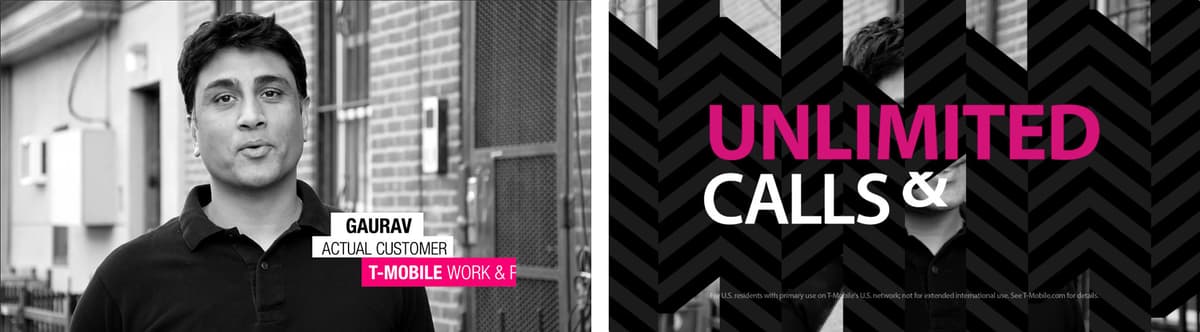
Making the First Lower Third Disappear Using the Pan Behind Tool
The lower third with Gaurav’s name will be constantly in motion, drifting slowly across the screen to the right before it rapidly disappears in the same direction.
During its disappearance, we want to use the graphic’s right edge as a barrier past which the lower third will no longer be visible. Sounds like we need to create a static alpha matte, right? Not necessarily. We can also mask the entire layer, then use the Pan Behind tool  (also known as the Anchor Point tool) to animate the position and mask path so they move in opposite directions, until the mask path fully “eats” the layer.
Zoom in closer to the lower thirds graphics and pan around if they aren’t fully visible. If they aren’t crystal clear, make sure your resolution is set to Full.
Select the name layer and press I to go to its in point at 7;27.
Keyframe its initial X Position by clicking its stopwatch
 .
.This layer will start transitioning off-screen at 12;01, so move the playhead there.
Between the start of the composition and this point in time, we want this first lower third to drift languidly across the screen. To move it 30 pixels to the right, change the value to 1254.
With the name layer still selected, double–click the Rectangle tool
 .
.Double–clicking the tool creates a rectangle shape layer the size of the comp, or a rectangular mask with the same dimensions as the selected layer. Because we had our name layer selected, we now have a mask that’s tailor made to perfectly fit it!
Swivel open the new Mask 1 property and click the Mask Path stopwatch
.We want it to rapidly move off-screen, ending at 12;07. Move the playhead there.
Press the Y key to select the Pan Behind (Anchor Point) tool
. We’re going to use this tool to move the name layer fully out of the mask’s bounds to the right.In the Composition panel, click on the layer anywhere except its anchor point
 , start to drag rightwards, and hold Shift to constrain it to the horizontal. Stop dragging when the layer is fully off-screen and you can only see the layer’s mask (an X Position around 1556).
Even though the mask does not appear to move, this actually moves both the X Position and the Mask Path counter to one another, effectively hiding the layer.
Drag a selection over the two keyframes
 at 12;01.
Press Cmd–Shift–F9 (Mac) or CTRL–Shift–F9 (Windows) to add an Easy Ease Out.
Scrub with the playhead to see the layer move slowly rightward, then shoot off in the same direction until it’s no longer visible on-screen. What a neat trick!
How the Pan Behind Tool Works
To confirm that the mask is actually moving, go to a keyframe and click the word Shape next to the Mask Path property. The first one has a Left value of 0 and a Right value of 302. On the last keyframe, the Right value is zeroed out, just like the original Left value. The Right value is –302 (moving 302 pixels to the left). This shows that the while the X Position zips rightward, the mask is equally compensating by zipping to the left.
For more info about this tool, read tinyurl.com/pan-behind-tool
Revealing & Hiding the Other Lower Thirds As They Come on & Off-Screen
Gaurav’s name is our most important lower third, so we didn’t animate its entrance. However, let’s add entrance animations for our other two lower thirds. We’ll mask the layers and use the same Pan Behind technique to make them both appear on-screen, drift slowly, then disappear out of view.
Move the playhead to 8;09, when we want the second lower third to finish its entrance animation.
Select the actual customer layer and click its X Position stopwatch
.With the actual customer layer still selected, double–click the Rectangle tool
to add a mask that’s the same size as the layer.Press Opt–M (Mac) or ALT–Shift–M (Windows) to keyframe the Mask Path property.
The animation will start at 8;03, so move the playhead there.
Press the Y key to select the Pan Behind (Anchor Point) tool
.In the Composition panel, click on the layer so you can see its anchor point
.Click anywhere except the anchor point and start dragging rightwards while holding Shift. Stop dragging when the layer is fully off-screen and you can only see the layer’s mask (an X Position around 1728.5).
Drag a selection over the two keyframes
at 8;09, and press Shift–F9 (Mac) or Shift–F9 (Windows) to add an Easy Ease In.Scrub with the playhead to see the new entrance animation.
We want it to start its exit at 11;27, so go there now.
Change its X Position to 1240.5, making it drift 30 pixels to the left of its original position (the same amount that Gaurav’s name drifted to the right).
Next to the Mask Path property, click the diamond-shaped dip
 to add a keyframe.
Move the playhead to 12;03.
This time we want to move the box fully to the left of its mask. Make sure the anchor point is visible. Then use the Pan Behind (Anchor Point) tool
to drag the box leftwards while holding Shift until it’s totally invisible (around 781.5).Select the two keyframes
 at 11;27, then press Cmd–Shift–F9 (Mac) or CTRL–Shift–F9 (Windows) to add an Easy Ease Out.
Scrub through to see the actual customer box appearing and disappearing. Once again, the layer and its mask are moving horizontally in opposite directions, which makes it look like it’s revealing and hiding itself.
Let’s animate our last lower third! Go to 8;13, when it’ll stop arriving.
Select the t-mo work and play layer and click its X Position stopwatch
.With the t-mo work and play layer still selected, double–click the Rectangle tool
.Press Opt–M (Mac) or ALT–Shift–M (Windows) to keyframe the Mask Path property.
The third box’s animation will start at 8;07, so move the playhead there.
Press the Y key to select the Pan Behind (Anchor Point) tool
.We want this layer to move in the same direction as Gaurav’s name, creating a nifty animation in which each subsequent lower third wipes off (and on, if applicable) in opposite directions. Make sure the anchor point is visible. Then Shift–drag the layer all the way to the left, fully outside the bounds of its mask (around 720.5).
Drag a selection over the two keyframes
at 8;13, and press Shift–F9 (Mac) or Shift–F9 (Windows) to add an Easy Ease In.We want this last lower third to start zipping away at 11;21, so go there now.
Move it 30 pixels to the right by changing its X Position to 1367.5.
Next to the Mask Path property, click the diamond-shaped dip
.Move the playhead to 11;27.
Let’s move this layer to the right of its mask, matching the name box animation. With the anchor point visible, use the Pan Behind (Anchor Point) tool
to drag the box rightwards while holding Shift until it’s totally invisible (around 1984.5).Select the two keyframes
at 11;21, then press Cmd–Shift–F9 (Mac) or CTRL–Shift–F9 (Windows) to add an Easy Ease Out.We’re done with this scene! Let’s mark it as done. Close the 6-Interview tab.
In Cellphone-MAIN, change the [6-Interview] layer’s color to Green. (If any other layers below it in the layer stack are not green, change them too.)
Press the Spacebar to preview the lower thirds within the main comp. Looking good!
The Pan Behind Technique Vs. Static Alpha Mattes
These two techniques often produce the same result. For instance, we could have used the Pan Behind technique instead of the static alpha mattes we used in our Vacation Stripes title sequence all the way back in Exercise 1B! (If you’re feeling ambitious, feel free to try it out.)
We also used static alpha mattes in our Text Animation project (Section 3). In that case, using the Pan Behind technique would not have worked well. That’s because a downside is that you cannot use the Pan Behind technique with more than 1 word. Furthermore, once you pre-compose, the mask ends up being the same dimensions as the HD comp when you double–click the Rectangle tool (instead of being cropped to only 2 or 3 words). Additionally, the Mask Path property moves in both time and space. This means you cannot edit its keyframes in the easier to use Value Graph.
This is why we generally recommend using the static alpha matte technique.
Setting up Scene 7 for Animation
From the Cellphone-MAIN tab, double–click [7-Unlimited].
Move the playhead to the beginning of the Timeline.
Notice the purple frame, outside of which extends a herringbone pattern.
The purple frame is the size of our HD comp, so let’s trim the size of this pre-comp by adjusting its settings. Press Cmd–K (Mac) or CTRL–K (Windows).
Next to Preset click the menu and choose HDTV 1080 29.97.
Check that Pixel Aspect Ratio is set to Square Pixels. (If not, make sure you actually selected the right preset. Be careful not to select HDV, which causes pixel distortion.)
Click OK.
Hide the purple guide by clicking the eye
 next to guide 1920.
Select the numbered layers by clicking 01 and Shift–clicking 12.
Press P to show their Position properties.
On the right side of the Timeline, draw a selection box around all the I-beams for the selected layers. Make sure to start your drag to the right of the beams.
CTRL–click (Mac) or Right–click (Windows) on any of the selected Position properties and select Separate Dimensions.
Deselect everything.
Animating the Transition Pattern
In order to cover the interview shot, we want half of the herringbone pattern layers to move downwards into the comp. The other half will move upwards. We’ll just animate two of these layers (one per direction) and then copy/paste the keyframes to the other layers to save time.
Set the composition’s zoom to 25% to see the graphics we’ll be working with.
Move the playhead to 1;16, the end of the animation we’re about to create.
Under the 01 layer (the leftmost piece of the pattern, which is currently off-screen), add a keyframe for Y Position.
Move the playhead to 0;00.
This leftmost piece will move downwards, so for its starting position we want to move it all the way up. Under 01, set Y Position to –715.
Select the second keyframe (at 1;16), and press Shift–F9 to Easy Ease In.
We want the pattern to come in very slowly. CTRL–click (Mac) or Right–click (Windows) on the same keyframe and choose Keyframe Velocity.
Under Incoming Velocity, set Influence to 95% and click OK.
With the playhead still at 0;00, under 01, click Y Position to select both keyframes.
Copy them.
To see more of the Timeline, hover your cursor over it and press the tilde (~) key.
We’ll be selecting the odd numbered pieces of the pattern. Deselect all, then use Cmd–click (Mac) or CTRL–click (Windows) to select 03, 05, 07, 09, and 11.
Paste the keyframes onto all the selected layers.
With your cursor over the Timeline, press the tilde (~) key.
Move the playhead to 1;16.
Under the 02 layer, add a keyframe for Y Position by clicking its stopwatch
.Move the playhead to 0;00.
Move this piece of the pattern all the way down by setting its Y Position to 1800.
Select the second keyframe, and press Shift–F9 to Easy Ease In.
CTRL–click (Mac) or Right–click (Windows) on the same keyframe and choose Keyframe Velocity.
Under Incoming Velocity, set Influence to 95% and click OK.
With the playhead still at 0;00, under 02, click Y Position to select both keyframes.
Copy them.
To see more of the Timeline, hover your cursor over it and press the tilde (~) key.
Now we want to select the rest of the even pieces of the pattern. Deselect all, then Cmd–click (Mac) or CTRL–click (Windows) to select 04, 06, 08, 10, and 12.
Paste the keyframes.
With your cursor over the Timeline, press the tilde (~) key.
Staggering the Pieces of the Pattern
We want the 01 and 12 pieces to come in first on the edges, so they’ll start at 0;00. Pieces 02 and 11 will start at 0;01, etc.
Move the playhead to 0;01.
Under 02, click Y Position to select both keyframes.
Move them to match the playhead at 0;01 by pressing Opt–Right Arrow (Mac) or ALT–Right Arrow (Windows) once.
Press Cmd-Right Arrow (Mac), Page Down (Windows), or Fn–Down Arrow, to go to 0;02.
Move the Y Position keyframes for the 03 layer so they start at 0;02.
Move the Y Position keyframes for the 04 layer so they start at 0;03. If it helps you remember where to move the keyframes, move the playhead first.
We’ll skip a frame. Move the Y Position keyframes for the 05 layer so they start at 0;05.
Continue moving Y Position keyframes to the following positions:
Timecode Layer 0;09 06 0;13 07 0;05 08 0;03 09 0;02 10 0;01 11 Scrub through with the playhead to see that the outside pieces move in first and the pieces in the center move in last. Looking good!
To save you some time, let’s replace the text layers with an animated pre-comp.
Select the For U.S…use on Cellphone’s… layer (Layer 2) and Shift–click CALLS & TEXT (Layer 6).
Press Delete.
From the Project panel’s Pre-comps folder, drag Text-PC below guide 1920.
At the bottom of the layers, we also have a black background that we don’t need here. Hide it by clicking the eye
.Scrub through to see the top two lines of text animate in using Position animators, and there’s a fade-up on the bottom legal line.
Transitioning to the End Card
We’ll transition to the final end card using some 3D positioning. Feel free to rewatch the final movie, and notice that we want to zoom into the “M” of UNLIMITED, transitioning into the magenta background of the end card.
In Cellphone-MAIN, select the [7-Unlimited] layer.
Press A and then Shift–P to show the Anchor Point and Position properties.
If the Pan Behind (Anchor Point) tool
isn’t still selected, press Y.Move the anchor point from the center of the screen to the bottom center of the “M”. You should get 970,490 for both Anchor Point and Position.
Make [7-Unlimited] 3D by clicking its 3D Layer switch
 .
.Move the playhead to 17;11.
Under [7-Unlimited], make sure none of the properties are selected. Then add a keyframe for Position by clicking its stopwatch
.Move the playhead to 17;18.
We’ll use the Z-axis positioning to make the entire scene move “closer” to the camera, but we’ll also need to adjust the X and Y Positions to align it the way we want. Set Position to 960,540, –2625.
Give [7-Unlimited] some motion blur by clicking its Motion Blur switch
 .
.Collapse the [7-Unlimited] layer.
Scrub through to test out the zooming.
Animating the End Card
The end card will involve the logo and the tagline sequentially falling into place, using dramatic 3D animation. However, the provided 8-endcard.ai file is a merged Illustrator file. So that we can animate, we’ll import the unmerged file instead.
In a previous exercise, we mentioned that it’s usually best to import layers from an Illustrator file at their original size. However, in this case we want to set each layer to be the size of this document (1920 X 1080 px) so each file shares the same anchor point. You’ll see soon how this helps keep things aligned.
In the Project panel, select the Assets folder and press Cmd–I (Mac) or CTRL–I (Windows) to import the new file into this folder.
Navigate to Class Files > After Effects Level 2 Class > Cellphone > Assets and double–click 8-endcard.ai.
In the window that appears, set the following before clicking OK:
Import Kind: Composition Footage Dimensions: Document Size In the Project panel, drag the new 8-endcard comp into the Pre-comps folder.
We want to replace the existing end card in our Timeline with the unmerged comp. In the Timeline, select [8-endcard.ai].
Hold Opt (Mac) or ALT (Windows) and drag 8-endcard from the Project panel, dropping it over [8-endcard.ai] in the Timeline.
Double–click [8-endcard].
Select the top two layers, t-mobile logo and The Un-carrier.
Click in the 3D Layer column
for either layer so that they both become 3D.With the two layers still selected, press P.
Select both Position properties.
CTRL–click (Mac) or Right–click (Windows) on Position and choose Separate Dimensions.
Select all four layers and turn on Continuously Rasterize
 .
.Deselect everything.
Move the playhead to 1;02.
Under t-mobile logo and next to Z Position, click the stopwatch
.Move the playhead to 0;00.
Hold Shift and drag the Z Position value to the left so that the text moves towards the screen, ultimately dragging it until it’s no longer visible on-screen. A Z Position of –2550 works well.
Select the second keyframe at 1;02 and press Shift–F9 to Easy Ease In.
CTRL–click (Mac) or Right–click (Windows) the same keyframe and choose Keyframe Velocity.
Under Incoming Velocity, set Influence to 70% and click OK. That’ll make the logo settle nicely as it falls.
Because these layers were imported as a Composition at Document Size, not only are the dimensions of each layer the dimensions of the document, but the anchor point of each layer is, by default, in the center of the screen. This is very handy, because this allows us to copy the t-mobile logo layer’s animation to the second line of text!
Under t-mobile logo, click Z Position to select both keyframes.
Copy the keyframes.
Move the playhead to 0;13.
Select the The Un-carrier layer and paste.
Scrub through to see both lines of text fall into place.
Lastly, we want to fade up the social media elements at the bottom. Go to 1;00.
Select the social line layer and press Opt–T (Mac) or ALT–Shift–T (Windows) to add an Opacity keyframe.
Set Opacity to 0%.
Move the playhead to 1;10.
Set Opacity to 100%.
With the second keyframe selected press Shift–F9 to Easy Ease In.
CTRL–click (Mac) or Right–click (Windows) the same keyframe and choose Keyframe Velocity.
Under Incoming Velocity, set Influence to 70% and click OK.
Scrub through to see the social media line fade in.
We’re done animating the end card. Close the 8-endcard tab.
In Cellphone-MAIN, select [8-endcard] and [7-Unlimited], click their colored squares and choose Green.
Drag the Work Area Start bar to the beginning of the Timeline.
Make sure that none of the layers have their audio
 turned on except for [Tmobile-roughcut.mov].
Make sure the visibility
for [Tmobile-roughcut.mov] is turned off.Scrub through to preview the entire commercial and admire all your hard work!
Make sure the Work Area is the length of the comp and do a File > Save. Let’s get ready to render!
Rendering
Let’s export our video and save it for publishing! In the Timeline, make sure you are in the Cellphone-MAIN tab.
Go to Composition menu > Add to Render Queue.
In the Render Queue panel that appears at the bottom, next to Output To, click on the file name or Not yet specified.
Navigate to Class Files > After Effects Level 2 Class > Cellphone > Renders, name it Cellphone.mov and click Save.
At the top right of the Render Queue panel, click the Queue in AME button.
This should launch Adobe Media Encoder.
Go to Window > Workspaces > Default Workspace
Then go to Window > Workspaces > Revert Workspace to reset to factory settings.
On the right you should see that Cellphone-MAIN has been added to your Queue.
Below the Format column, click the small arrow
 and choose H.264 if it isn’t already.
Below the Preset column, click the small arrow
. If you created an Adobe Media Encoder preset earlier, click on your H264 preset now. If not, please continue with the steps below. If you did set a preset, you can skip to step 21!In the Preset column, choose Match Source-High Bitrate from the menu.
Click the words Match Source-High Bitrate to customize these settings.
In the Export Settings window that opens up, a little further down, make sure you’re viewing the Video tab.
Click the Match Source button to make sure our export is the same dimensions as our sequence settings.
Scroll down in the Video section and check on Render at Maximum Depth so that our video exports at a high quality.
Below that, find the Bitrate Settings.
Set Bitrate Encoding to VBR, 2 pass. This refers to a Variable Bit Rate and number of encoding passes.
Further down in the Video section, under Advanced Settings, check on Key Frame Distance and set it to 30 to match it to our project’s frame rate.
At the bottom of the Export Settings window, check on Use Maximum Render Quality.
At the bottom of the window, click OK to exit out of the Export Settings.
Below the Output File column you’ll see the filename and location where it’s going to save your file should already be set to your Renders folder. If it isn’t already, click the blue filepath text, and set it to Class Files > After Effects Level 2 Class > Cellphone > Renders.
To start the rendering/exporting process, in the top right of the Queue window, click on the green Start Queue button
 .
.When the progress bar below the Queue panel is completely blue, the rendering is complete! Once it’s done, you can click the blue filepath below the Output File column, to go to the folder where the file is located.
Open the Cellphone.mp4 movie and watch your finished piece!