April 1, 2026Dan Rodney/8 min read

Time Interactions & Adding Audio (Sound Effects)

Master Adobe XD Interactions and Audio Integration

Core Adobe XD Interaction Features

Drag Interactions

Create intuitive swipe-to-delete gestures that respond naturally to user input. Perfect for mobile app prototyping.

Time-Based Animations

Implement automatic transitions that trigger after specific delays. Essential for creating seamless user experiences.

Audio Integration

Add sound effects and audio feedback to enhance prototype realism and user testing accuracy.

Topics Covered in This Adobe XD Tutorial:

Master advanced interaction design by implementing drag interactions, time-based triggers, immersive sound effects, and keyboard shortcuts—essential skills for creating production-ready prototypes.

Exercise Preview

preview messages

Exercise Overview

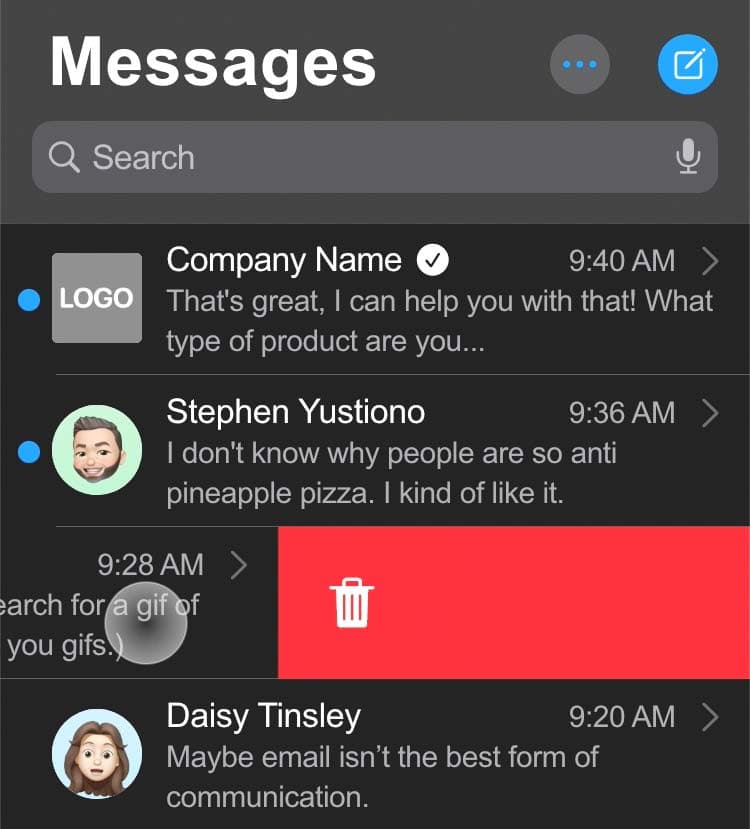
In this hands-on exercise, you'll craft a sophisticated "drag to delete" interaction for a Messages app interface. This tutorial demonstrates how to combine multiple interaction types—drag gestures, timed animations, audio feedback, and keyboard controls—to create the polished, intuitive user experiences clients and stakeholders expect in 2026. While simple swipe-to-delete functionality might seem straightforward, executing it properly requires understanding the nuanced interplay between visual feedback, timing, and user control that separates amateur prototypes from professional presentations.

Project Focus

This exercise demonstrates how to prototype a swipe-to-delete feature for messaging apps. While this functionality cannot be built entirely into a component, prototyping one message interaction provides sufficient detail for client presentations and developer handoffs.

Getting Started

  1. In Adobe XD, go to File > Open from Your Computer or hit Cmd–Shift–O (Mac) or CTRL–Shift–O (Windows).
  2. Navigate into Desktop > Class Files > Adobe XD Class and double–click on Messages App.xd to open it.

    We've already created the layout and graphics for this design, so you can focus entirely on prototyping the sophisticated functionality that enables swipe-to-delete behavior on the Erin Steed message. Since Adobe XD's component system has limitations with complex state changes, we'll implement this interaction on a single message row—a common approach when demonstrating advanced functionality to clients and development teams. This targeted implementation provides a clear proof-of-concept that developers can reference when building the production feature across all message rows.

  3. In the Toolbar, choose the Select tool select tool.
  4. Click on the red trash can graphic to select it.
  5. Cut it by hitting Cmd–X (Mac) or CTRL–X (Windows).
  6. Now we need to embed the delete affordance within the message structure itself. Double–click on the Erin Steed message row to enter the component instance, where we'll position the red deletion bar off-screen for the reveal animation.
  7. Paste the red bar by hitting Cmd–V (Mac) or CTRL–V (Windows).
  8. As shown below, hold Shift and drag the red bar to the right so its edge touches the edge the artboard (it will snap into place).

    position delete row

  9. Click in an empty area of the canvas to deselect all elements. The red bar will disappear from view—this is intentional positioning for the interaction we're building.
  10. Select the artboard by clicking on the artboard name Messages (at the top left of the artboard).
  11. Duplicate it by hitting Cmd–D (Mac) or CTRL–D (Windows).
  12. Rename the new artboard by double–clicking the Messages – 1 name at the top left and change it to Delete.
  13. Drag the Delete artboard down slightly (by dragging its name to move it).

    Proper artboard spacing prevents visual confusion when connecting interactions and makes it easier to track the user flow during complex prototyping work.

  14. On the Delete artboard, drag the Erin Steed message row to the left so you reveal the entire red bar. You should end up with it looking like this:

    delete arboard design complete

    NOTE: The first artboard represents the initial state, while the second shows the fully revealed delete action. This two-state approach is fundamental to creating believable micro-interactions that feel responsive and intentional.

File Setup Process

1

Open Project File

Navigate to Desktop > Class Files > Adobe XD Class and open Messages App.xd using Cmd-Shift-O (Mac) or CTRL-Shift-O (Windows)

2

Prepare Delete Element

Select and cut the red trash can graphic using Cmd-X (Mac) or CTRL-X (Windows) to prepare for repositioning

3

Component Integration

Double-click the Erin Steed message row to enter component instance and paste the red bar off-screen for the swipe reveal effect

Adding a Drag Interaction

With our visual states prepared, we'll now wire up the drag gesture that triggers the reveal animation. Modern users expect drag interactions to feel immediate and responsive—the key is setting the right trigger sensitivity and animation properties.

  1. At the top left of the window click Prototype.
  2. In the first artboard Messages, select the Erin Steed message row.
  3. A blue arrow will appear to the right of the selected element. Drag this blue arrow to the Delete artboard to establish the interaction connection.
  4. In the Property Inspector, configure these critical settings:

    • Trigger: Drag
    • Type: Auto-Animate
    • Destination: Delete
    • Easing: None
  5. At the top right of the window, click on Desktop Preview desktop preview or hit Cmd–Return (Mac) or CTRL–Enter (Windows).
  6. Test the interaction by dragging right to left over the Erin Steed message row. Notice how XD automatically calculates the drag threshold—short drags snap back to the original state, while longer drags commit to revealing the full delete bar. This built-in behavior mimics iOS and Android conventions that users already understand.
  7. Close the preview window to return to the design canvas.

Drag Interaction Configuration

0/4

Adding a Time Interaction

Professional interfaces don't leave users stranded in intermediate states. We'll implement an automatic progression that moves the interaction forward without requiring additional user input—a hallmark of polished, thoughtful design.

  1. At the top left of the window, click on Design.
  2. Click on the Delete artboard's name to select it.
  3. Duplicate it by hitting Cmd–D (Mac) or CTRL–D (Windows).
  4. Double–click on the artboard name Delete – 1 and change it to Done.
  5. In the Done artboard, select the red delete row.
  6. Drag the bottom resize handle up so the red bar's height becomes nothing (the trash can icon will still be partially visible, but the next step will take care of that).

    reduce height of delete row

  7. In the Property Inspector, set Opacity opacity icon to 0%.
  8. The lower messages must be moved up to fill the empty space. We've grouped all those messages, so drag them up (hold Shift as you drag) to fill the gap where the deleted message was positioned.
  9. At the top left of the window click Prototype.
  10. Select the Delete artboard by clicking its name.
  11. A blue arrow will appear on the right side of the artboard. Drag the blue arrow to the Done artboard.
  12. In the Property Inspector, configure these timing parameters:

    • Trigger: Time
    • Delay: 0 s
    • Type: Auto-Animate
    • Destination: Done
    • Easing: None
    • Duration: 0.2 s
  13. Click in an empty area of the canvas to ensure nothing is selected.
  14. At the top right of the window, click on Desktop Preview desktop preview or hit Cmd–Return (Mac) or CTRL–Enter (Windows).
  15. Drag right to left over the Erin Steed message row and release. Watch as the red bar appears, pauses momentarily, then automatically animates away as the message list reflows—exactly the kind of seamless interaction users expect in premium applications.
  16. Close the preview window.

Time Interaction Strategy

Time interactions enable automatic behavior without additional user input. By setting a 0-second delay with 0.2-second duration, the delete animation feels immediate yet smooth enough to provide visual feedback.

Animation Sequence Setup

1

Create Done State

Duplicate Delete artboard and modify red bar height to zero with 0% opacity for complete removal effect

2

Adjust Message Layout

Move remaining messages up to fill gap left by deleted message, maintaining visual continuity

3

Configure Time Trigger

Set 0-second delay with Auto-Animate type for immediate transition with 0.2-second smooth duration

Adding a Sound Effect

Audio feedback transforms good interactions into great ones. While visual animations communicate what's happening, sound confirms that an action has completed successfully—particularly important for destructive actions like deletion where users need clear confirmation.

  1. Select the Done artboard by clicking its name.
  2. A blue arrow will appear on the right side of the artboard. Click the blue arrow (don't drag this time, just click it) to add an additional interaction trigger.
  3. In the Property Inspector, configure the audio playback:

    • Trigger: Time
    • Delay: 0 s
    • Type: Audio Playback
    • Audio File: Click on the menu and choose Add New File. Navigate into Desktop > Class Files > Adobe XD Class > Sounds and double–click on trash.wav to choose it.
  4. Click in an empty area of the canvas to ensure nothing is selected.
  5. Make sure your speakers are on and loud enough to hear sounds.
  6. At the top right of the window, click on Desktop Preview desktop preview or hit Cmd–Return (Mac) or CTRL–Enter (Windows).
  7. Drag right to left over the Erin Steed message row and release. The complete interaction now includes visual feedback, smooth animation, and audio confirmation—the trifecta of polished interaction design that separates professional prototypes from basic wireframes.
  8. Close the preview window.

Audio File Integration

Adding audio files requires navigating to the project's Sounds folder and selecting appropriate WAV files. The trash.wav file provides realistic feedback that enhances the delete action's perceived completion.

Adding a Keystroke

Finally, we'll implement an undo mechanism using keyboard shortcuts. Power users expect keyboard accessibility, and providing an undo path for destructive actions is both a usability best practice and often a legal accessibility requirement.

  1. Select the Done artboard by clicking its name.
  2. A blue plus will appear on the right side of the artboard. Drag the blue plus to the Messages artboard to create the reverse interaction flow.
  3. In the Property Inspector, set up the undo behavior:

    • Trigger: Keys & Gamepad
    • Key: Click into the field and press Cmd–Z (Mac) or CTRL–Z (Windows)
    • Type: Auto-Animate
    • Destination: Messages
    • Easing: Ease Out
    • Duration: 0.2 s
  4. Click in an empty area of the canvas to ensure nothing is selected.
  5. At the top right of the window, click on Desktop Preview desktop preview or hit Cmd–Return (Mac) or CTRL–Enter (Windows).
  6. Drag right to left over the Erin Steed message row to delete the message.
  7. Hit Cmd–Z (Mac) or CTRL–Z (Windows) to trigger the undo action—the Erin Steed message should smoothly reappear, completing our comprehensive interaction design that handles both the primary action and its reversal.

Keystroke vs Other Triggers

FeatureKeystroke TriggerOther Triggers
Activation MethodKeyboard shortcutTouch/click interaction
User ExperiencePower user friendlyUniversal accessibility
Platform ConsistencyMatches OS conventionsCustom app behavior
ImplementationKeys & Gamepad triggerTap or drag triggers
Recommended: Combine keystroke shortcuts with visual interactions for comprehensive user experience coverage

Audio in the Libraries Panel

The first time you add a sound it's embedded into your XD file. It can be seen in the Audio File menu when choosing sounds, and also in the Libraries panel libraries panel icon under Audio.

In the Libraries panel libraries panel icon, you can CTRL–click (Mac) or Right–click (Windows) on a sound and choose Delete if you're not using it and want to reduce the file size of your XD document. Managing audio assets becomes increasingly important as prototypes grow in complexity and need to be shared with stakeholders or development teams.

File Size Management

Audio files are embedded directly into XD files, increasing file size. Remove unused audio assets through the Libraries panel to maintain optimal performance and sharing capabilities.

Free UI Kits

This Messages app was built using Apple's iOS UI Kit, which they provide free to accelerate iOS app design workflows. To download it, in Adobe XD choose File > Get UI Kits > Apple iOS (and notice there are other platform-specific UI kits available as well). As of 2026, Adobe continues to update these kits to reflect the latest iOS design guidelines and component specifications.

Apple's system font San Francisco (SF) is the authentic choice for iOS interfaces. For this exercise we substituted Arial to avoid missing font issues, but when working with Apple's UI Kit in production, you should download San Francisco from developer.apple.com/fonts and install it on your system. This attention to typographic accuracy can make the difference between a prototype that feels like a proof-of-concept and one that feels like a nearly finished product.

Professional UI Kit Benefits

Apple iOS UI Kit

Official components and layouts that match current iOS design standards. Includes system fonts and native interaction patterns.

Font Considerations

San Francisco system font requires separate download from developer.apple.com/fonts. Arial substitution prevents missing font issues during development.

UI Kit Implementation

1

Access UI Kits

Navigate to File > Get UI Kits > Apple iOS to download official design components and templates

2

Install System Fonts

Download San Francisco font family from Apple Developer portal and install on your system for authentic iOS appearance

3

Customize Components

Adapt UI kit components to your specific app requirements while maintaining platform design consistency

Key Takeaways

1Drag interactions enable intuitive swipe-to-delete functionality by connecting artboard states with Auto-Animate transitions and configurable drag thresholds
2Time interactions create automatic behavior sequences using zero-delay triggers with precise duration control for seamless user experience flows
3Audio integration enhances prototype realism through embedded WAV files that provide tactile feedback matching real application behavior
4Keystroke triggers enable power-user functionality by mapping standard OS shortcuts like Cmd-Z to prototype interactions for comprehensive testing
5Component-based prototyping works best for reusable elements, while specific interaction demonstrations require individual artboard-to-artboard connections
6Libraries panel audio management prevents file bloat by allowing removal of unused sound assets while maintaining organized project structure
7Official UI kits from platform vendors provide authentic design foundations, but require proper system font installation for complete visual accuracy
8Professional prototyping combines multiple interaction types - drag, time, audio, and keystroke - to create comprehensive user experience demonstrations for stakeholder review

RELATED ARTICLES