April 1, 2026Dan Rodney/15 min read

Turning a Design into a Clickable Prototype

Master Interactive Prototyping with Adobe XD

Key Prototyping Benefits

Client Communication

Show interactive designs to clients for better feedback and approval processes. Visual prototypes communicate intent more effectively than static designs.

User Testing

Validate design decisions through real user interactions before development begins. Identify usability issues early in the design process.

Development Handoff

Provide developers with clear interaction specifications and animation details. Reduce miscommunication between design and development teams.

Topics Covered in This Adobe XD Tutorial:

Master the essential prototyping skills that separate amateur designers from professionals: linking between artboards, previewing interactive prototypes, creating sophisticated overlays with background blur effects, fixing element positions for optimal scrolling behavior, and producing high-quality prototype recordings for client presentations and portfolio showcases.

Exercise Preview

preview prototyping

Exercise Overview

In this comprehensive exercise, you'll transform static designs into interactive prototypes that demonstrate real-world user experiences. This skill is invaluable for client presentations, stakeholder buy-in, and user testing sessions—three critical phases that can make or break any digital project. By the end of this tutorial, you'll have created a fully functional prototype that simulates how users would navigate through a modern e-commerce interface, complete with smooth animations and professional-grade interactions.

Exercise File Setup

This tutorial uses the Pulse design files located in Desktop > Class Files > Adobe XD Class > Pulse. The design includes a modified navbar and new nav menu artboard for overlay interactions.

Creating a Prototype

We'll begin by setting up the foundation of your prototype, establishing the user flow that will guide visitors through your digital experience.

  1. In Adobe XD, go to File > Open from Your Computer or hit Cmd–Shift–O (Mac) or CTRL–Shift–O (Windows).
  2. Navigate into Desktop > Class Files > Adobe XD Class > Pulse and double–click on Pulse—Ready for Prototyping.xd to open it.

    This carefully crafted design includes several key improvements over basic layouts:
    • An optimized navbar featuring contemporary navigation patterns that users expect in 2026.
    • A dedicated artboard for the navigation menu overlay—a critical component for mobile-first design approaches that prioritize screen real estate while maintaining full functionality.
  3. At the top left of the window click Prototype to enter the interactive design mode where you'll define user behaviors and transitions.
  4. Zoom to 100% by hitting Cmd–1 (Mac) or CTRL–1 (Windows) for optimal precision while working.
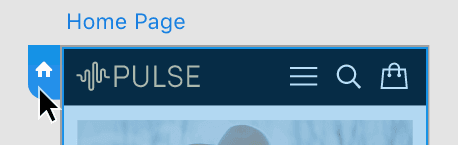
  5. XD needs to know which screen to show first—this entry point is called the Home screen and determines where users begin their journey. Notice the blue home icon at the top left of the Autumn Collection artboard indicates it's currently set as the starting point.
  6. We want the Home Page artboard to serve as our Home screen since it provides the optimal entry experience. At the top left of the artboard, click on the Home Page artboard name to select it.
  7. As shown below, at the top left of the Home Page artboard click the gray Home icon so it changes to blue, designating this as your prototype's starting point.

    set home artboard

  8. Above the artboard Flow 2 will appear. Double–click on Flow 2 and rename it Pulse Main Flow to clearly identify this user journey.

    NOTE: Professional projects often require multiple user flows to accommodate different user types, entry points, or feature sets. Each flow can be named and managed independently, allowing for comprehensive testing of various user scenarios.

  9. We don't want the Flow 1 that was already started in this file, so click the blue Home icon for the Autumn Collection artboard to deactivate it and maintain a clean, focused prototype.
  10. Click onto an empty part of the canvas to deselect and prepare for the next phase of linking.
  11. Near the top of the Home Page artboard, select the Shop New Collection button—this will be your first interactive element.
  12. To zoom out and see all the artboards for better context while creating connections, zoom to fit all by hitting Cmd–0 (Mac) or CTRL–0 (Windows).
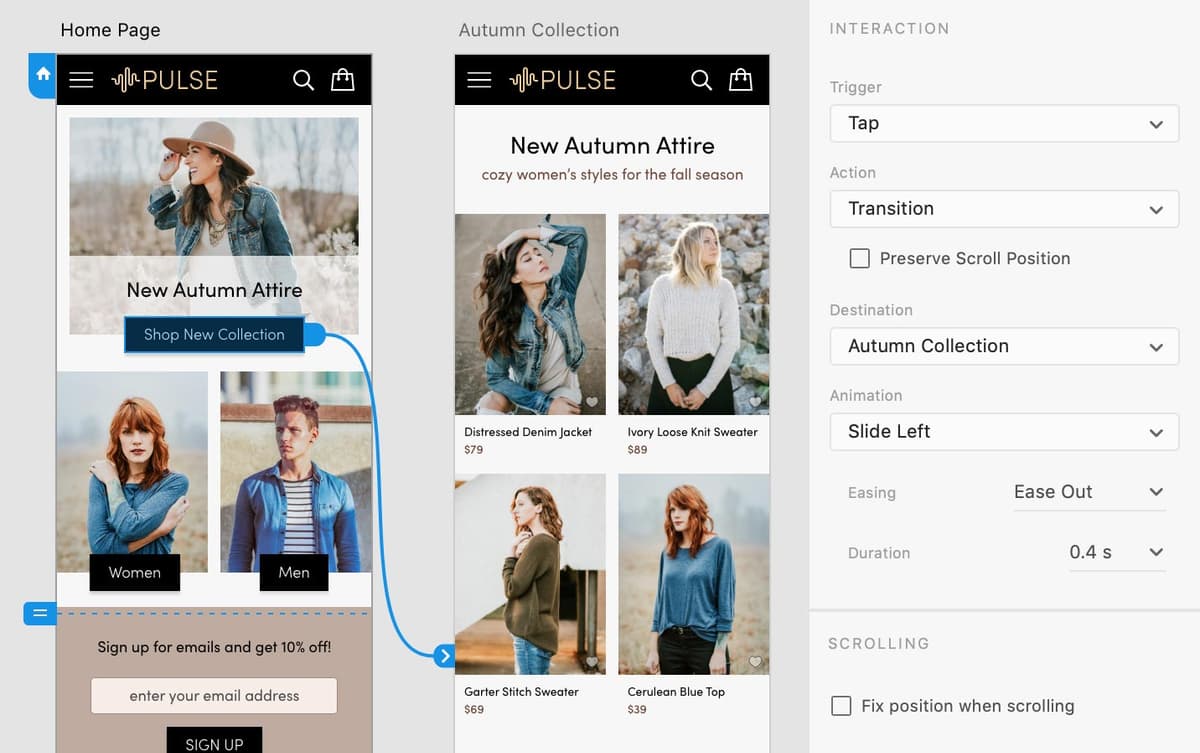
  13. To the right of the selected button, you'll see a blue arrow connector. Drag that blue arrow onto the Autumn Collection artboard to create your first interactive link—the foundation of user navigation.
  14. In the Property Inspector on the right, configure the interaction with these professional-grade settings:

    • Trigger: Tap
    • Action: Transition
    • Leave Preserve Scroll Position unchecked for a fresh page experience.
    • Destination: Autumn Collection (will already be set)
    • Animation: Slide Left (mimics natural reading progression)
    • Easing: Ease Out (provides smooth, natural motion)
    • Duration: 0.4 s (optimal balance of feedback and efficiency)
    • Leave Fix Position When Scrolling unchecked for now.
  15. On the Autumn Collection artboard, double–click on the top left photo (Distressed Denim Jacket) in the product grid. The double–click will enter the repeat grid component and select the individual photo element.
  16. Drag the blue arrow from this product image onto the Product Page artboard to complete the shopping journey flow that users expect in modern e-commerce experiences.

Setting Up Your First Prototype Flow

1

Switch to Prototype Mode

Click Prototype at the top left and zoom to 100% for optimal working view

2

Set Home Screen

Click the gray Home icon on Home Page artboard to make it blue and establish the starting point

3

Name Your Flow

Double-click Flow 2 and rename it to 'Pulse Main Flow' for better organization

4

Create First Link

Select Shop New Collection button and drag the blue arrow to Autumn Collection artboard

Previewing the Prototype

Now it's time to test your interactive creation and experience it from the user's perspective—a crucial step that reveals how your design decisions translate into real user interactions.

  1. Click onto an empty part of the canvas to deselect all elements.

    This ensures the preview starts on your designated Home screen. If an artboard remains selected, the preview will open to that specific artboard instead of following your intended user flow.

  2. At the top right of the window, click the Desktop Preview button desktop preview to launch your interactive prototype.
  3. A preview window will open displaying your Home Page. Click on the Shop New Collection black button and watch as it smoothly animates to the collection page—this is the seamless experience your users will enjoy.
  4. Click on the Distressed Denim Jacket photo to navigate to the detailed product page, completing a typical user journey from discovery to product detail.
  5. Use the Left Arrow key to return to the previous artboard (the Right Arrow also works for navigation between artboards—handy keyboard shortcuts for efficient testing).
  6. Close the preview window to return to your design workspace.

Preview Best Practices

Always deselect all elements before previewing to ensure the prototype starts on the Home screen. If an artboard is selected, the preview will open to that specific artboard instead.

Testing Your Prototype

0/4

Slide Versus Push Transitions

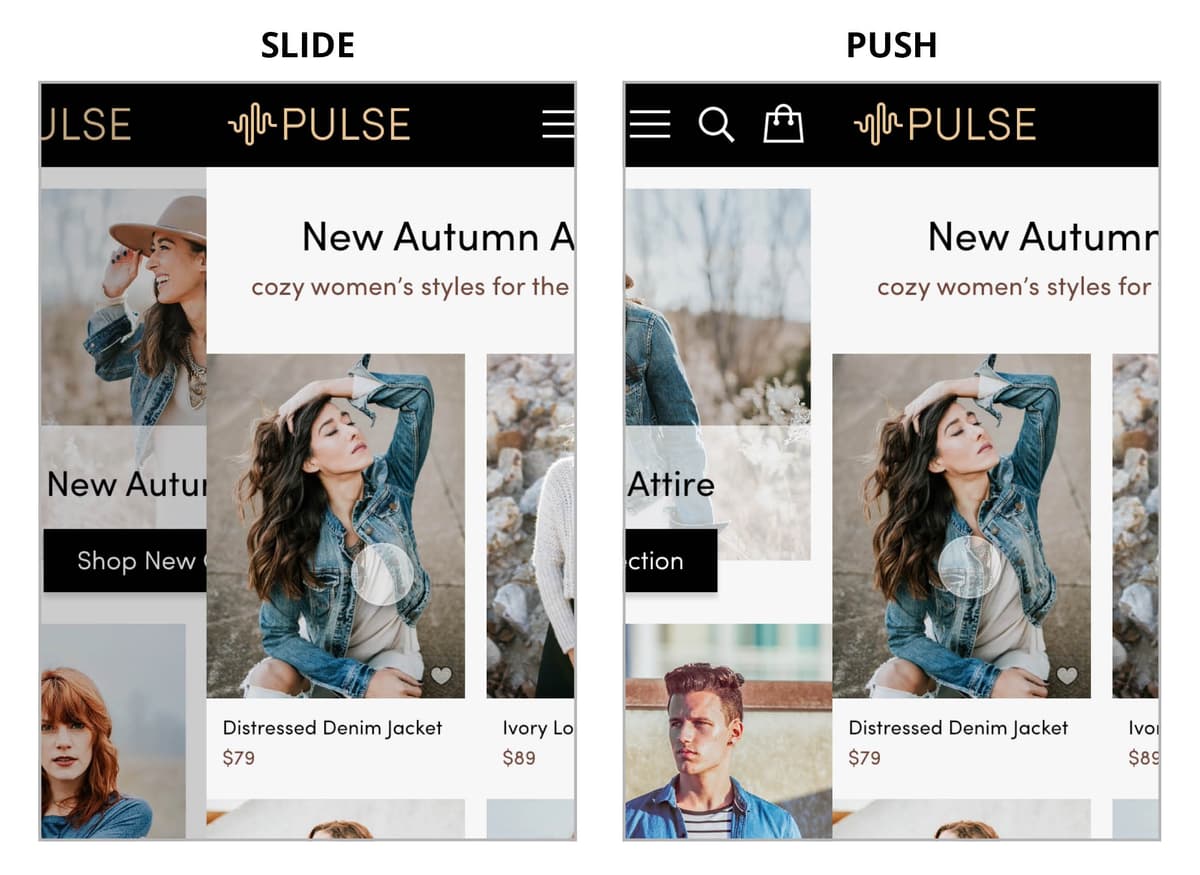
Understanding these transition types helps you create more intuitive user experiences that align with platform conventions:

  • The slide transition moves the new screen in over the previous screen, slightly darkening the previous screen to create visual hierarchy and suggest the ability to return.
  • The push transition moves the new screen in next to the previous screen without darkening, creating a more lateral, equal-weight feeling between screens.

push vs. slide transition

Transition Types Comparison

FeatureSlide TransitionPush Transition
Animation StyleNew screen slides over previousNew screen pushes previous aside
Previous ScreenSlightly darkenedNo darkening effect
Best Use CaseModal-like interactionsSequential page navigation
Recommended: Choose slide transitions for overlays and temporary content, push transitions for main navigation flows

Wiring up the Navbar & Creating a Nav Menu Overlay

Next, we'll implement the navigation system that gives users control over their experience—a critical component that can determine whether users stay engaged or abandon your interface.

  1. If the Libraries panel is not open, at the bottom left of the window click the libraries panel icon icon to access your component library.
  2. In the Libraries panel, CTRL–click (Mac) or Right–click (Windows) on the navbar component and choose Edit Main component to modify the master element that controls all instances.
  3. Zoom to the selection by hitting Cmd–3 (Mac) or CTRL–3 (Windows) for detailed work on this crucial navigation element.
  4. Let's make the logo function as a home button—a web convention users instinctively understand. Double–click on the black background of the navbar to enter the component editing mode. You won't see visual changes, but you can now select internal elements.
  5. Hover over the PULSE logo and when you see a blue outline around the logo, click once to select it for interaction setup.
  6. A blue arrow will appear to the right of the logo—your gateway to creating the home navigation link.
  7. In the Property Inspector on the right, configure this essential navigation element:

    • Trigger: Tap
    • Action: Transition
    • Leave Preserve Scroll Position unchecked for a fresh homepage experience.
    • Destination: Home Page
    • Animation: Slide Right (suggests returning to the beginning)
    • Easing: Ease Out
    • Duration: 0.4 s
  8. Hover over the menu icon (the three white lines—commonly known as a "hamburger menu") and when you see a blue outline, click once to select this critical navigation trigger.
  9. To see all artboards and plan your overlay connection, zoom to fit all by hitting Cmd–0 (Mac) or CTRL–0 (Windows).
  10. Drag the blue arrow from the menu icon onto the Nav Menu artboard to create the overlay connection.
  11. In the Property Inspector, configure this overlay interaction with settings that create a professional, native-app feel:

    • Trigger: Tap
    • Action: Overlay (this creates a layer above existing content)
    • Destination: Nav Menu (will already be set)
    • Animation: Slide Down (mimics natural menu reveal behavior)
    • Easing: Ease Out
    • Duration: 0.3 s (slightly faster for immediate responsiveness)
  12. Click onto an empty part of the canvas to deselect and prepare for testing.

    XD automatically enables overlay closing when users click outside the menu area, so the X close button will function without additional configuration—a smart default that matches user expectations!

  13. At the top right of the window, click the Desktop Preview button desktop preview to test your navigation system.

    TIP: Speed up your workflow with the keyboard shortcut Cmd–Return (Mac) or CTRL–Enter (Windows) to launch preview mode instantly.

  14. The preview window operates as a floating panel, allowing real-time interaction between your design and preview. This live connection is invaluable for rapid iteration:

    • Click on the Autumn Collection artboard to shift focus from the preview window to the XD interface.
    • Click once more on the Autumn Collection artboard to see it immediately appear in the preview window—demonstrating the seamless workflow between design and testing.
  15. Click on the preview window to reactivate it for interaction testing.
  16. Click on the menu icon in the navbar to see the Nav Menu slide down smoothly—notice how the animation creates a sense of the menu emerging from the navigation bar.
  17. Click the X close button (or tap anywhere else on the overlay) to dismiss the menu, testing the intuitive closing behavior users expect.
  18. Click on the PULSE logo in the black navbar to return to the Home Page, confirming your home navigation works flawlessly.
  19. Notice how the preview displays at mobile phone dimensions, requiring vertical scrolling to view the complete design. This mirrors real-world mobile browsing behavior—you can drag up and down like touchscreen interaction, or use your scrollwheel or trackpad for navigation.

Creating Interactive Navigation

1

Edit Main Component

Right-click navbar component in Libraries panel and choose Edit Main component

2

Link Logo to Homepage

Select PULSE logo and set Transition to Home Page with Slide Right animation

3

Create Menu Overlay

Link menu icon to Nav Menu artboard using Overlay action with Slide Down animation

Automatic Overlay Closure

XD automatically closes overlays when clicked, so no additional wiring is needed for close buttons. This behavior mimics native app interactions.

Changing the Design

Let's make some strategic design improvements that enhance usability and align with current interface design standards.

  1. Close the preview window to return to design mode.
  2. At the top left of the window, click on Design to access layout and visual editing tools.
  3. Click on the Autumn Collection artboard name to select the entire artboard for property inspection.
  4. In the Property Inspector, notice that Viewport Height is set to 667—this represents the visible screen area on the target device.
  5. Near the top of the Property Inspector, you'll see that H (height) shows 1435, significantly taller than the viewport height.

    This height difference is intentional and important: Viewport height represents the device's screen dimensions, while artboard height accommodates all content. When an artboard exceeds viewport height, users can scroll to access additional content—exactly how modern web and mobile interfaces work. Device presets automatically set appropriate viewport heights, which remain constant even when you extend artboard dimensions for longer content.

  6. Select the main instance of the navbar component located to the right of all the artboards—this is your master navigation component.
  7. Zoom to the selection by hitting Cmd–3 (Mac) or CTRL–3 (Windows) for precise editing work.
  8. The menu icon's current position doesn't follow modern interface conventions. In 2026, users expect menu icons positioned at screen edges for easier thumb access on mobile devices. Let's optimize the layout by repositioning elements for better usability.

    Hover over the PULSE logo and when you see the thin selection outline, double–click to select it for movement.

  9. Hold Shift and press the Right Arrow key 5 times to move the logo rightward in precise 10-pixel increments.
  10. Select the menu icon in the navbar, preparing to relocate it to a more ergonomic position.
  11. Hold Shift and drag the menu icon (three white lines) into the newly created space to the left of the logo—positioning it for optimal thumb reach on mobile devices.
  12. Zoom to fit all by hitting Cmd–0 (Mac) or CTRL–0 (Windows) to review your layout improvements in context.

Background Blur

Background blur has become a sophisticated design element throughout modern interfaces, from iOS system menus to progressive web applications. This effect creates visual hierarchy while maintaining context—let's implement it professionally.

  1. Zoom to 100% by hitting Cmd–1 (Mac) or CTRL–1 (Windows) for detailed overlay work.
  2. In the Nav Menu artboard (the leftmost artboard), click on the dark background element that covers the artboard—this will serve as your blur container.
  3. In the Property Inspector, set Opacity opacity icon to 100% to provide full background coverage before applying blur effects.
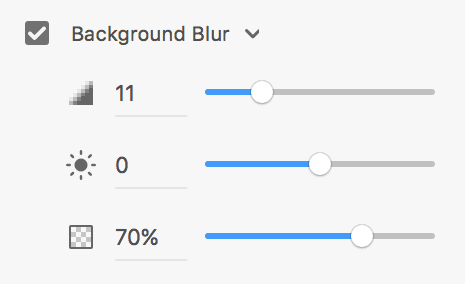
  4. In the Property Inspector, enable Background Blur and configure these settings for a premium, native-app appearance:

    background blur settings pulse menu

  5. Click onto an empty part of the canvas to deselect and prepare for testing this sophisticated effect.
  6. At the top right of the window, click the Desktop Preview button desktop preview to experience your enhanced overlay.
  7. Click on the menu icon in the navbar to reveal how the background blur creates depth and focus while maintaining visual connection to the underlying content—a hallmark of premium interface design.
  8. Click the X close button to dismiss the menu and test the interaction flow.
  9. Scroll down and observe how the black navbar scrolls out of view with the content.

    This default behavior isn't ideal for navigation elements. Let's fix the navbar position to maintain constant access to navigation controls—a crucial usability improvement.

  10. Close the preview window to return to design modifications.

Background Blur Applications

iOS Interface Standard

Blurred backgrounds are used throughout iOS interfaces to create depth and focus. This creates a native app feel in your prototypes.

Progressive Web Enhancement

CSS backdrop-filter works in Safari and can be used as progressive enhancement. Other browsers will fall back gracefully without the blur effect.

Fixing the Position of Elements so They Don't Scroll

Fixed positioning is essential for maintaining navigation access throughout the user's journey—particularly important for mobile experiences where screen space is precious.

  1. Zoom to fit all by hitting Cmd–0 (Mac) or CTRL–0 (Windows) to see all artboards for systematic navbar fixing.
  2. Select the navbar on the Home Page artboard to begin configuring fixed positioning.
  3. Holding Shift, click on the navbars on the Autumn Collection and Product Page artboards to select all navigation instances simultaneously—this batch editing saves time and ensures consistency.
  4. In the Property Inspector, check on Fix Position When Scrolling to anchor these navigation elements at the top of the viewport regardless of scroll position.
  5. At the top right of the window, click the Desktop Preview button desktop preview to test your improved navigation system.
  6. In the preview window, scroll down and notice how the navbar now remains anchored at the screen top while content flows beneath it—this creates the persistent navigation that users expect in professional applications.
  7. Close the preview window and admire your completed prototype.
  8. This prototype demonstrates professional-level interaction design! Save the file to preserve your work.
Fixed Positioning Technique

Select multiple navbar instances across artboards by holding Shift and clicking each one. Then enable Fix Position When Scrolling to create a consistent navigation experience across all screens.

Optional Bonus: Making a Recording of a Prototype

Video recordings of your prototypes are invaluable for client presentations, portfolio showcases, and stakeholder communications. They capture the fluid interactions that static screenshots simply cannot convey, making them essential tools for selling your design vision.

XD on Mac includes built-in recording capabilities optimized for prototype demonstration. Windows users can leverage the integrated Windows Game recording tool (accessible via Win–G), though we'll focus on the Mac workflow for this tutorial.

  1. Click onto an empty part of the canvas to deselect all elements—ensuring your recording begins with the intended home screen experience.
  2. At the top right of the window, click the Desktop Preview button desktop preview to launch the preview for recording.

    • Mac: At the top right of the preview window, click the Record button record button to begin capturing your interaction demonstration.

    • Windows: Hit Windows–G to access the Windows Game recording tool and follow the onscreen prompts for setup and recording initiation.

  3. Click on the Shop New Collection black button to demonstrate the primary user journey from homepage to product collection.
  4. Click on the PULSE logo to showcase the return-to-home functionality that users rely on for navigation confidence.
  5. Click the menu icon to reveal the sophisticated overlay menu with its smooth animation and background blur effects.
  6. Click the X close button to demonstrate the intuitive menu dismissal behavior.
  7. At the top right of the preview window, click the Record button record button again to conclude your recording session.
  8. In the save dialog that appears, navigate into Desktop > Class Files > Adobe XD Class > Pulse for organized file management.
  9. Name the file Pulse Demo.mp4 using a descriptive convention that will make sense to clients and team members.
  10. Click Save to export your professional prototype demonstration.
  11. Close the preview window while keeping your XD file open for potential future modifications.
  12. Let's review the exported recording to ensure quality. Switch to your desktop file manager (the Finder on Mac or Windows Explorer on Windows).
  13. Navigate into Desktop > Class Files > Adobe XD Class > Pulse to locate your exported video.
  14. Double–click on Pulse Demo.mp4 to play your prototype recording and review the captured interactions.

    NOTE: Successful prototype recordings require strategic planning. Consider pacing your interactions to give viewers time to absorb each screen's content and understand the user flow. Deliberate cursor movement can guide attention to key interactive elements, while erratic movement can distract from your design's strengths. Think of your cursor as a presenter's pointer—use it intentionally to enhance rather than detract from your demonstration.

Recording Options by Platform

FeatureMac (Built-in)Windows (External)
Recording MethodXD Desktop Preview Record buttonWindows Game Bar (Win+G)
IntegrationNative XD featureSeparate Windows tool
Output FormatMP4 video fileMP4 via Game Bar
Recommended: Mac users have seamless recording built into XD, while Windows users need to use external tools

Recording Best Practices

0/4

Ways to Find All Elements with Prototype Links (Wires)

When managing complex prototypes with numerous interactions, these techniques help you audit and maintain your prototype connections efficiently:

  • In Prototype mode, select all artboards in the Layers panel (click on the first, then Shift–click on the last). This reveals all connector lines in a structured view, perfect for systematic review.
  • In Prototype mode, use Cmd–A (Mac) or CTRL–A (Windows) to select everything at once. While this creates a busier view, it's faster than the layer-by-layer approach and ensures you don't miss any connections.

2 Ways to Remove Prototype Links (Wires)

Clean prototype management sometimes requires removing connections. These methods ensure precise control over your interaction design:

  • Drag the blue arrow connector to the pasteboard (the gray area outside artboards) to delete the link entirely.
  • In the Property Inspector, set the Destination dropdown to None to remove the connection while maintaining the element's selection.

Copy/Paste in Design & Prototype Modes

Understanding this critical workflow distinction can save hours of rework: When you copy and paste elements in Design mode, all prototype links are automatically removed—the system assumes you're duplicating visual elements, not interactions. To preserve your carefully crafted prototype connections, always perform copy/paste operations in Prototype mode. This maintains both the visual elements and their associated interactive behaviors, ensuring your duplicated components function exactly like the originals.

Prototype Link Preservation

When copying and pasting elements in Design mode, all prototype links are lost. Always switch to Prototype mode before copying elements if you want to maintain their interactive connections.

Key Takeaways

1Prototypes enable effective client communication and user testing by showing interactive design behavior before development begins
2Adobe XD's Prototype mode allows creation of interactive flows with transitions, overlays, and fixed positioning for realistic user experiences
3Setting up proper home screens and naming flows helps organize complex prototypes with multiple user paths and interaction sequences
4Component-based prototyping allows changes to navigation elements to propagate across all instances, maintaining consistency efficiently
5Overlay actions with background blur create native app-like experiences, while automatic overlay closure reduces required interaction wiring
6Fixed positioning for navigation elements ensures consistent user experience across scrolling content and different screen sizes
7Recording prototypes creates valuable assets for client presentations, portfolio documentation, and stakeholder communication
8Understanding the difference between Design and Prototype modes is crucial for maintaining interactive links when duplicating elements

RELATED ARTICLES