Starting the MRP Theme
What This Tutorial Covers
Theme Setup
Required template files and theme manifest.
Functions.php
Theme initialization and feature setup.
Template Hierarchy
How WordPress chooses which template to use.
Noble Desktop's WordPress Bootcamp teaches WordPress for site builders and developers.
Explore the essentials of creating a WordPress theme, including setting up the theme, creating index.php, swapping static HTML with dynamic PHP, and more in this comprehensive tutorial.
Topics Covered in This WordPress Tutorial:
Setting up the Theme, Creating Index.php, Swapping Static HTML with Dynamic PHP
Exercise Preview

Exercise Overview
With a new install of WordPress in place, it’s time to create a new theme (simply a collection of files that defines how the site looks and acts). In this exercise, we will begin converting a finished, static HTML mockup into a dynamic WordPress theme.
Creating the Theme Folder
WordPress themes are stored in subdirectories of your site’s wp-content/themes directory. A theme subdirectory must contain at least two files: index.php and style.css. The index.php file contains the basic structure of the pages, and the style.css contains the styles and header with information about the theme.
The first step is to create a theme subdirectory in wp-content/themes and fill it with the HTML mockup and CSS styles.
Navigate to the Desktop, then Class Files > WordPress.org Class.
Select the mrpTheme folder.
Hit Cmd–C (Mac) or CTRL–C (Windows) to copy the folder.
- Navigate to:
- Mac: Hard Drive > Applications > MAMP > htdocs > mrp > wp-content > themes
- Windows: C: > xampp > htdocs > mrp > wp-content > themes
Hit Cmd–V (Mac) or CTRL–V (Windows) to paste the mrpTheme folder into the themes folder. This folder contains the static HTML mockup of the site design.
Open your code editor.
For the next series of exercises, we will be working with the mrpTheme folder we just copied into the themes folder. You may want to open that folder in your code editor if it allows you to (like Sublime Text does).
Modifying Style.css
Before you can activate the theme, you must ensure that the main style sheet is called style.css and that it contains a comment with the required information. The style sheet we provided is already named style.css, so all we need to do is add the comment. In your own projects, make sure you rename your style sheet to style.css if necessary.
- In your code editor, open style.css from the mrpTheme folder located here:
- Mac: Hard Drive > Applications > MAMP > htdocs > mrp > wp-content > themes
- Windows: C: > xampp > htdocs > mrp > wp-content > themes
Open MRP Theme Header Text.txt from the mrpTheme folder as well. This file holds the comment info we need to put in the style.css file.
Select all of the code.
Copy it.
Close the file. You should be back in style.css.
At the top of the document, before @charset
"UTF-8"; paste the copied code:/* Theme Name: MRP Blog Theme URI: http://Noble Desktop.com/ Description: Custom theme build for Monteith Restoration & Performance. Author: Your Name Version: 1.0 Tags: Cars, Gray, Two-Column */Next to Author, where it currently says Your Name, change it to your name.
Hit Cmd–S (Mac) or CTRL–S (Windows) to save your work.
Creating the Index.php File
The next essential file in a WordPress site is index.php. Unless overridden, the index.php file will determine the default layout for all the pages in your site.
A great starting point for any WordPress site is to create a static HTML mockup, which we have already done for this site. With a solid mockup, it is just a matter of swapping out your content with WordPress PHP functions.
Open index.html from the mrpTheme folder.
Save the file as index.php into the mrpTheme folder.
Activating the Theme
- To use this theme, we need to activate it in the Dashboard. In a browser, go to:
- Mac: localhost:8888/mrp/wp-admin
- Windows: localhost/mrp/wp-admin
If asked, enter your username and password.
On the left side of the Dashboard, mouse over Appearance and click Themes.
You should see your theme listed in the list of installed Themes.
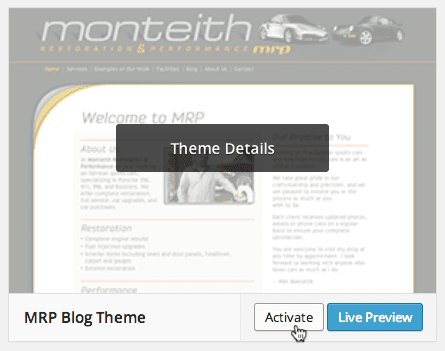
How to Create a Theme Preview Image
We already included the preview screenshot for this theme. To make one:
- Take a screenshot of the finished static HTML page.
- Resize it to 300px wide by 225px high.
- Save the file as screenshot.png in the root level of the theme folder.
Click Activate underneath the theme.
At the top of the screen, click the Monteith Restoration & Performance title link to see what we have so far. Hmmm, it looks like we need to update our links so it can find the images and style sheet.
Introducing PHP
WordPress uses PHP for all the database interaction and displaying of information. PHP is a server scripting language, but it can be written into HTML pages using PHP tags. PHP tags look a little different from HTML tags, but they function in a very similar way. PHP code is wrapped inside an opening <?php and closing ?> tag similar to HTML, as shown below:
<?php some code goes here; ?>Most of WordPress’s code comes in the form of functions. Functions execute blocks of code to pull in information from the database, generate HTML, and many other things. They all follow this format:
<?php function_name(); ?>Some functions can receive extra information (called arguments) in between the parentheses, which causes them to perform different actions:
<?php function_name( 'extra info' ); ?>The spaces around the quotes are optional to improve readability. However, the semi-colons at the end of each PHP statement are very important. Without the semi-colon, there will be errors and the pages might not render. If you ever see a blank page or section, check for typos and missing semi-colons.
Swapping the Static Content
We’re going to replace the static content in our HTML mockup with WordPress PHP functions that dynamically create that content.
Switch back to index.php in your code editor.
First, let’s change the title so that it dynamically generates titles based on the page’s content. In the title tag around line 6, replace the contents with the following code shown in bold:
<title><?php bloginfo( 'name' ); ?><?php wp_title(); ?></title>We’re replacing the static page title with two functions that will get the name of the blog and the title of the page.
bloginfo
()is a very useful function that we will use to pull in all kinds of info. It can be used to retrieve different things depending on what is fed into its parentheses.Save the file.
- Open up a browser and go to:
- Mac: localhost:8888/mrp
- Windows: localhost/mrp
You should see your static page, but with a now dynamic title at the top (it will be the title we set earlier when we installed WordPress).
Updating the Links
Currently, all the links to style sheets, JavaScript files, and images are relative to the mrpTheme folder, not the page. The problem is that the path may be different on any given page, so we need WordPress to dynamically generate all these links too. The good news is that WordPress has functions to easily do that.
Switch back to your code editor.
Around line 7, replace the style.css href with the following bold code:
<link href="<?php bloginfo( 'stylesheet_url' ); ?>" rel="stylesheet" type="text/css">This function will dynamically put in the correct address of the theme’s style sheet. Again bloginfo
()is used to pull in some information.Save the file.
- Open up a browser and go to:
- Mac: localhost:8888/mrp
- Windows: localhost/mrp
The styles should now be correctly displayed! However, the rest of the links are still broken.
Switch back to your code editor.
Below the stylesheet link, change the JavaScript and CSS links by adding the PHP functions before them (don’t miss the slash at the end!). Add the following bold code starting around line 8:
<script type="text/javascript" src="<?php bloginfo( 'template_directory' ); ?>/ jquery/jquery-1.4.2.min.js"></script>
<script type="text/javascript" src="<?php bloginfo( 'template_directory' ); ?>/ js/cufon-winxp.js"></script>
<!—[if lte IE 6]>
<link href="<?php bloginfo( 'template_directory' ); ?>/ ie6.css" rel="stylesheet" type="text/css">
<![endif]—>
We just made it so bloginfo
()is outputting the path to the template folder, so all the links will work.The image links need the same template directory path in front of them. Around line 16, change the image src as shown in bold (again, don’t forget the / at the end):
<img src="<?php bloginfo( 'template_directory' ); ?>/ img/mrp-logo-header.jpg" ALT="Monteith Restoration & Performance MRP" width="936" height="116" id="mrpLogo"></a></div>Add the same template directory PHP code to the last two images in the page, around lines 36 and 77.
Save the file.
- Open up a browser and go to:
- Mac: localhost:8888/mrp
- Windows: localhost/mrp
Excellent! Things are looking better.
Switch back to your code editor.
We need to fix the link to the homepage. Again we can use bloginfo
()to get that link. Around line 16, replace index.html as shown in bold:<div class="contentWrapper"><a href="<?php bloginfo( 'url' ); ?>"><img src="<?php bloginfo( 'template_directory' ); ?>/img/mrp-logo-header.jpg" ALT="Monteith Restoration & Performance MRP" width="936" height="116" id="mrpLogo"></a></div>This will dynamically generate a link to the homepage of the blog.
Save the file.
- To test it out, open up a browser and go to:
- Mac: localhost:8888/mrp
- Windows: localhost/mrp
Click on the banner at the top, and if it brings you to the same page (nothing happens), then it worked!
Replacing the Static Navigation
Next, the navigation needs to be replaced. Again, we’d like WordPress to generate the list and links dynamically instead of having them statically coded into the page.
Switch back to your code editor.
Around line 20, locate the
<ul>that holds the navigation links.Replace the entire
<ul>(around lines 20–28) with the following:<div id="nav"> <div class="contentWrapper"> <?php wp_nav_menu(); ?> </div> </div><!—end nav—>This function creates a list-based navigation, so it will be a perfect replacement for our nav list.
Save the file.
- Open up a browser and go to:
- Mac: localhost:8888/mrp
- Windows: localhost/mrp
You should see just a single Sample Page listed in the nav now. That’s good. We only see one page because we have not created the other pages in the Dashboard yet. Sample Page is provided in the base installation of WordPress.