April 1, 2026Noble Desktop Publishing Team/11 min read

Modifying a Theme: Free WordPress Tutorial

Master WordPress theme customization without touching markup

What You'll Master in This Tutorial

Visual Customization

Transform your WordPress theme appearance through CSS modifications and theme options without touching HTML markup.

Developer Tools Mastery

Learn to debug CSS issues using Chrome Developer Tools to inspect and override existing styles effectively.

Child Theme Implementation

Safely customize themes using child theme structure to preserve changes during parent theme updates.

Topics Covered in This WordPress Tutorial:

Adding a Header Graphic, Customizing Links, Changing the Header Background, Removing the Categories Menu

Exercise Preview

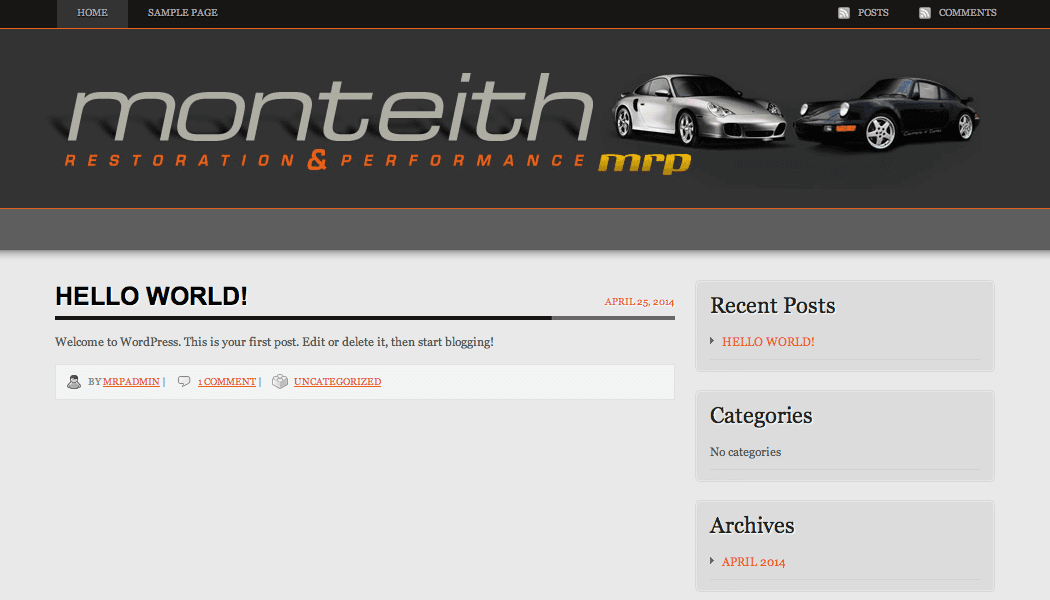
ex prev 1E

Prerequisites

This tutorial assumes you have already created a child theme and have a local WordPress development environment running with MAMP or XAMPP.

Exercise Overview

Now that we've established the child theme foundation, it's time to transform the visual identity of the Monteith Restoration & Performance blog. In this comprehensive exercise, you'll master the art of WordPress customization without touching any core markup. Through strategic CSS modifications and theme option adjustments, you'll achieve a complete brand makeover that demonstrates the power and flexibility of WordPress theming.

This approach reflects modern WordPress development best practices—maintaining clean separation between content structure and visual presentation while preserving your customizations through future theme updates. By the end of this exercise, you'll have hands-on experience with the tools and techniques professional developers use daily.

Setting Theme Options

Modern WordPress themes typically provide extensive customization options through the dashboard interface, reducing the need for manual code modifications. These theme options represent a user-friendly bridge between basic WordPress functionality and advanced development, allowing you to implement sophisticated design changes through intuitive controls.

  1. Open Chrome and navigate to your WordPress admin dashboard:
    • Mac: localhost:8888/mrpBlog/wp-admin
    • Windows: localhost/mrpBlog/wp-admin
  2. Enter your administrative credentials when prompted. These should be the username and password you established during the WordPress installation process.

  3. In the WordPress Dashboard sidebar, hover over Appearance to reveal the submenu, then click Obscure Theme Options. This will take you to the theme's General Settings configuration page.

  4. Locate the Custom Logo section. Notice the URL input field—this is where we'll specify the path to our custom logo file. However, we need to upload the logo to WordPress's media library first to generate the proper URL reference.

  5. Navigate to Media in the sidebar and select Add New to access WordPress's media uploader interface.

  6. Click the Select Files button to launch the file browser. If the uploader interface doesn't respond properly, follow the alternative browser upload method outlined in the sidebar below.

    Accessing WordPress Theme Options

    1

    Navigate to Dashboard

    Access your local WordPress admin at localhost:8888/mrpBlog/wp-admin (Mac) or localhost/mrpBlog/wp-admin (Windows)

    2

    Find Theme Options

    Mouse over Appearance and click Obscure Theme Options to access customization settings

    3

    Locate Custom Logo Field

    Find the Custom Logo field where you can add a URL for your header logo image

Alternative: Using the Browser's Built-in File Uploader

WordPress's media uploader occasionally experiences compatibility issues with certain browser configurations or server setups. When this happens, the browser's native file uploader provides a reliable fallback method that achieves the same result.

  1. Click the browser uploader link located beneath the main upload interface.
  2. Click the Choose File button to open your system's file dialog.
  3. Navigate to Desktop > Class Files > WordPress.org Class > Child Theme Files.
  4. Double-click mrp-logo-header.jpg to select it for upload.
  5. Click the Upload button to transfer the file to your WordPress media library.
  • Using your file browser, navigate to Desktop > Class Files > WordPress.org Class > Child Theme Files.

  • Double-click mrp-logo-header.jpg to select and upload it to your media library.

  • Once uploaded, click the Edit link that appears next to the image filename.

  • In the image details panel, locate the File URL field on the right side and highlight the complete URL path.

  • Copy this URL using Cmd–C (Mac) or CTRL–C (Windows). This URL represents the permanent location of your logo within WordPress's file structure.

  • Return to Appearance > Obscure Theme Options using the sidebar navigation.

  • Click in the Custom Logo input field and paste the copied URL using Cmd–V (Mac) or CTRL–V (Windows).

  • Click Save Changes in the upper right corner to commit your logo configuration.

  • Click the Monteith Restoration & Performance site title link at the top of the admin bar to preview your changes in a new tab.

    Excellent! The new logo is now prominently displayed, but you'll notice it doesn't harmonize well with the existing background design. Additionally, the site would benefit from a cohesive color scheme that incorporates the orange accent found in the logo. These refinements require custom CSS modifications, which we'll tackle next by editing our child theme's stylesheet.

  • Styling the Links

    Professional web design demands consistent visual elements throughout the user experience. Link styling is particularly crucial because it directly impacts both aesthetics and usability. We'll now implement a cohesive color scheme that ties together all interactive elements on the site.

    1. Switch to your preferred code editor. Professional developers rely on editors like Visual Studio Code, Sublime Text, or Atom for their advanced features and WordPress-specific extensions.

    2. Ensure you have style.css open from your child theme directory. If not, navigate to and open the file from:
      • Mac: Hard Drive > Applications > MAMP > htdocs > mrpBlog > wp-content > themes > obscure-mrp
      • Windows: C: > xampp > htdocs > mrpBlog > wp-content > themes > obscure-mrp
    3. Verify you're editing the correct file by confirming the header information matches exactly:

      /*
      Theme Name:     Monteith Restoration and Performance
      Description:    Custom theme based on the Obscure theme. Obscure must be installed in order for this theme to work. 
      Author:         Your Name
      Author URI:     http://www.Noble Desktop.com/
      Template:       obscure
      Version:        1.0
      */

      This verification step is critical—editing the parent theme's stylesheet would result in lost customizations during theme updates. Always work within your child theme files.

    4. Let's establish brand consistency by styling all links to match the vibrant orange in the MRP logo. Add this CSS rule after the header comment block, around line 10:

      a {
         color: #e75c1b;
      }
    5. Save the file using your editor's save function or Cmd–S (Mac) / CTRL–S (Windows).

    6. Return to Chrome and navigate to (or refresh if already open):
      • Mac: localhost:8888/mrpBlog
      • Windows: localhost/mrpBlog
    7. You'll notice the link colors remain unchanged. This is a common challenge in CSS development—specificity conflicts where more targeted selectors override our general rule. This scenario perfectly illustrates why professional developers rely on browser developer tools for debugging.

    Child Theme File Location

    Always ensure you're editing style.css in the obscure-mrp child theme folder, not the parent obscure theme folder. Check the header comment to verify the correct file.

    a { color: #e75c1b; }
    Initial CSS rule to change all links to match the orange color in the MRP logo

    Mastering Chrome Developer Tools for CSS Debugging

    Chrome's Developer Tools represent one of the most powerful resources in modern web development. These built-in utilities allow you to inspect live HTML, analyze CSS cascade behavior, and test modifications in real-time. For WordPress developers, these tools are indispensable for navigating the complex interactions between theme stylesheets, plugin styles, and custom CSS.

    While all major browsers offer developer tools, Chrome's implementation provides the most comprehensive feature set and enjoys widespread adoption among professional developers. The debugging techniques you'll learn here translate directly to production WordPress environments.

    1. Ensure you're viewing your blog in Chrome:
      • Mac: localhost:8888/mrpBlog
      • Windows: localhost/mrpBlog
    2. Right-click on the 1 COMMENT link (use CTRL–click on Mac) and select Inspect from the context menu.

    3. The Developer Tools panel will open, typically docked at the bottom of your browser window. This interface provides real-time access to your page's underlying code and styling information.

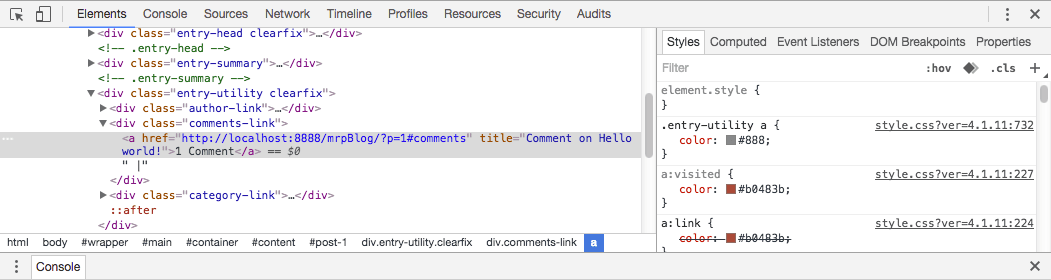
      developer tools

      The left panel displays the page's HTML structure with the selected element highlighted. The right panel shows all CSS rules affecting the currently selected element, arranged by specificity and source. This dual-pane approach allows you to see exactly how styles are being applied and overridden.

    4. In the Elements panel (left side), you'll see the <a> tag for the comment link is highlighted. In the Styles panel (right side), scroll down to locate our recently added CSS rule. Notice it appears crossed out—this strikethrough indicates that more specific rules are overriding our general selector. Understanding CSS specificity is crucial for effective WordPress theme development.

    5. Return to your code editor to refine our CSS approach.

    6. Around line 10, replace the simple a rule with this more comprehensive selector:

      a:link, a:visited, a:hover, a:active {
         color: #e75c1b;
      }

      This enhanced selector targets all link states, providing both greater specificity and comprehensive coverage of user interactions.

    7. Save the file and return to Chrome to reload the page.

    8. Excellent! The link colors now display the cohesive orange branding throughout most of the site. This demonstrates how CSS specificity works—by including pseudo-selectors, we've increased our rule's priority in the cascade.

      Important Note: Recent versions of MAMP include OPcache, a performance optimization feature that can cache your development files. If you don't see changes reflected immediately after saving, you may need to disable OPcache. Refer to the "Disabling OPcache in MAMP" section in your workbook's reference materials for detailed instructions.

    9. Click the 1 COMMENT link to navigate to the post's comment section.

    10. Notice that links within the comment metadata still display in the original reddish-brown color. This indicates another specificity challenge—the comment section uses even more specific selectors that our current rule can't override.

    11. Right-click the PERMALINK link and select Inspect.

    12. In the Styles panel, you'll see that our rule is again crossed out, overridden by a more specific selector targeting the comment metadata. Rather than creating increasingly complex CSS battles, we'll incorporate the winning selector into our own rule.

    13. Switch back to your code editor for the final link styling adjustment.

    14. Modify the link rule around line 10 to include the comment-specific selectors:

      a:link, a:visited, a:hover, a:active,.comment-meta a:link,.comment-meta a:visited {
         color: #e75c1b;
      }

      Note the comma placement—this creates a grouped selector that applies the same styling to multiple target patterns.

    15. Save the file and reload the page in Chrome.

    16. Perfect! Now all links throughout the site maintain consistent branding. This approach demonstrates professional CSS development—rather than fighting specificity with increasingly complex selectors, we've strategically incorporated the existing selectors into our custom rule.

    Customizing the Header Background

    Visual cohesion extends beyond color schemes to include background treatments and overall design harmony. The header background plays a crucial role in establishing your site's professional appearance and brand identity. Let's create a custom background that complements our new logo perfectly.

    1. Right-click on the dark gray background area to the left of your logo and select Inspect.

      In the Elements panel, you'll see a div element with the ID "wrapper" is highlighted. The Styles panel reveals that the #wrapper rule includes a background property that controls this visual element.

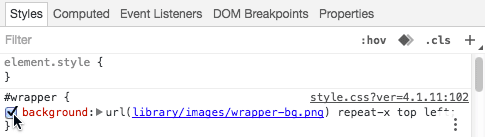
    2. Let's verify we've identified the correct styling by temporarily disabling it. In the Styles panel, hover over the background property until a checkbox icon disable property icon appears on the left.

    3. Click the checkbox disable property icon to temporarily disable the background property.

      disable property

      Excellent! The background disappears, confirming we've located the correct CSS rule. The original styling uses a repeating background image pattern. To override this effectively, we need to add custom artwork to our child theme and create a new CSS rule that takes precedence.

    4. Open a new Finder (Mac) or File Explorer (Windows) window to access your project files.

    5. Navigate to Desktop > Class Files > WordPress.org Class > Child Theme Files.

    6. Select wrapper-bg-mrp.png and copy it using Cmd–C (Mac) or CTRL–C (Windows).

    7. Navigate to your child theme directory:
      • Mac: Hard Drive > Applications > MAMP > htdocs > mrpBlog > wp-content > themes > obscure-mrp
      • Windows: C: > xampp > htdocs > mrpBlog > wp-content > themes > obscure-mrp
    8. Create a new folder named images within your child theme directory. This organizational approach follows WordPress development best practices by keeping asset files properly structured.

    9. Open the newly created images folder.

    10. Paste the background image using Cmd–V (Mac) or CTRL–V (Windows).

    11. Return to your code editor to implement the new background styling.

    12. After the link styles (around line 13), add this CSS rule:

      #wrapper {
         background-image: url(images/wrapper-bg-mrp.png);
      }

      This rule uses an ID selector (#wrapper) which provides high specificity, ensuring it overrides the parent theme's background styling. The relative URL path (images/wrapper-bg-mrp.png) references our custom image within the child theme structure.

    13. Save the file and switch back to Chrome.

    14. Reload the page to see your custom background in action. The new design should harmonize beautifully with your logo, creating a cohesive brand experience.

    15. Close the Developer Tools panel to view your work in full-screen glory.

    Streamlining Navigation: Removing the Categories Menu

    Effective user experience design eliminates redundancy and focuses attention on the most important elements. Since category navigation already exists in the sidebar, the secondary menu beneath the logo creates unnecessary duplication. We'll resolve this by implementing an empty menu—a clean, professional solution that maintains theme functionality while removing visual clutter.

    1. Return to your WordPress admin dashboard in Chrome:
      • Mac: localhost:8888/mrpBlog/wp-admin
      • Windows: localhost/mrpBlog/wp-admin
    2. Navigate to Appearance > Menus in the sidebar. WordPress's menu system provides powerful navigation control capabilities that we'll explore throughout this course.

    3. In the Menu Name field, type Empty. This descriptive name will help you identify the menu's purpose in future development work.

    4. Click Create Menu to establish the new menu structure.

    5. In the Theme locations section on the right side, check the box next to Secondary Navigation. This assignment tells WordPress to use our empty menu in place of the default category display.

    6. Click Save Menu to activate your changes.

    7. Click the Monteith Restoration & Performance link in the admin bar to view your refined site design.

      Excellent! The redundant category menu has been eliminated, creating a cleaner, more professional appearance. This technique demonstrates how WordPress's menu system can be leveraged for both additive and subtractive design approaches. We'll dive deeper into advanced menu configuration and customization techniques in subsequent lessons.

    Creating an Empty Menu Override

    1

    Access Menu Settings

    Navigate to Appearance > Menus in the WordPress Dashboard to manage site navigation

    2

    Create Empty Menu

    Create a new menu named 'Empty' to replace the existing categories menu

    3

    Assign to Theme Location

    Set the empty menu as the Secondary Navigation to override the default categories display

    Menu Management Strategy

    Creating empty menus is an effective way to remove unwanted navigation elements without modifying theme template files.

    Key Takeaways

    1Child themes protect customizations from being lost during parent theme updates and should always be used for modifications
    2WordPress theme options provide code-free customization opportunities that should be explored before writing custom CSS
    3Chrome Developer Tools are essential for debugging CSS issues in WordPress, especially for identifying specificity conflicts
    4CSS specificity determines which styles are applied when multiple rules target the same element, requiring more specific selectors to override existing rules
    5File organization in WordPress themes follows specific conventions, with images typically stored in an 'images' subdirectory
    6WordPress menus can be controlled through the Dashboard, allowing for navigation customization without template modifications
    7Local development environments using MAMP or XAMPP may have caching features like OPcache that can interfere with seeing live changes
    8Proper CSS selector construction using pseudo-classes like :link, :visited, :hover, and :active ensures consistent link styling across all states

    RELATED ARTICLES