April 1, 2026Noble Desktop Publishing Team/8 min read

Creating a Custom Page Template

Master WordPress Custom Templates and Advanced Functionality

What You'll Master

Custom Template Creation

Learn to build WordPress page templates beyond the default page.php structure. Master template hierarchy and naming conventions.

Custom Query Loops

Implement targeted content display using WordPress query functions. Control which posts appear on specific pages.

Layout Customization

Modify content width, remove sidebars, and create responsive designs tailored to your content needs.

Topics Covered in This WordPress Tutorial:

Creating a Custom Template, Creating a Custom Query in the Loop

Exercise Preview

custom template

Template Flexibility

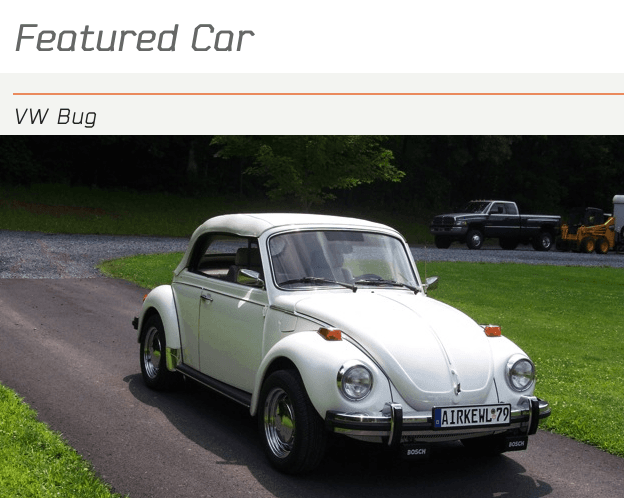
WordPress allows unlimited custom templates beyond the default page.php. This exercise demonstrates creating a specialized Featured Car template with custom queries and layout modifications.

Exercise Overview

While page.php serves as the default template for pages, WordPress provides the flexibility to create unlimited custom templates—a feature that separates professional WordPress developers from casual users. In this comprehensive exercise, we'll construct a custom template for a specialized "Featured Car" page that leverages advanced query customization to display content from specific categories.

This technique is fundamental to modern WordPress development, enabling you to create targeted content displays that enhance user experience and site organization. You'll master custom queries within the WordPress loop, a skill that's essential for building sophisticated, content-driven websites that go beyond basic blog functionality.

If You Did Not Do the Previous Exercise

  1. In a web browser, go to localhost:8888/mrp/wp-admin (Mac) or localhost/mrp/wp-admin (Windows) and log in if prompted.
  2. On the left of the Dashboard, mouse over Appearance and click Themes.
  3. Click the Add New button.
  4. Click the Upload link, then the Browse (or Choose File) button.
  5. Navigate to Desktop > Class Files > WordPress.org Class and double–click mrpTheme-ready-for-custom-page.zip to open it.
  6. Click Install Now, then click Activate.

Quick Setup Process

1

Access WordPress Admin

Navigate to your local WordPress installation admin panel using the appropriate localhost URL for your system

2

Install Theme Package

Upload and activate the mrpTheme-ready-for-custom-page.zip file through the WordPress theme installer

3

Verify Installation

Confirm the theme is active and ready for customization work

Adding a Featured Car Blog Post

Before we can create our custom template, we need sample content to work with. Let's create a blog post that will serve as our featured car showcase, complete with proper categorization and media handling.

  1. Open Chrome and go to:
    • Mac: localhost:8888/mrp/wp-admin
    • Windows: localhost/mrp/wp-admin
  2. If asked, log in.

  3. On the left side of the Dashboard, go to Posts > Add New.

  4. In the title field, type: VW Bug

  5. Click the Visual tab.

  6. Click the Add Media button to upload an image (ensure your cursor isn't positioned in the content area to avoid inline placement).

  7. Click the Upload Files tab, then click the Select Files button.

  8. Navigate to Desktop > Class Files > WordPress.org Class > Gallery.

  9. Double–click vw-11.jpg.

  10. After the image loads, next to ALT Text, type: VW Bug

  11. Configure the following image settings for optimal display:

    Alignment: None
    Link To: None
    Size: Full Size
  12. Click the Insert into post button.

  13. On the right, at the bottom of the Categories module, click the + Add New Category link.

  14. Type Featured Car and click the Add New Category button.

  15. Ensure the Featured Car category is checked—this categorization is crucial for our custom query functionality.

  16. Click the Publish button.

  17. At the top, click the Monteith Restoration & Performance title and navigate to the Blog page to see the new post.

    You'll notice the full-size image extends beyond the main content area into the sidebar—this is intentional for now. We'll address this layout issue by removing Featured Car posts from the main blog display, ensuring clean content separation.

Image Size Consideration

Using full-size images can cause layout overflow into sidebars. This is intentional in our exercise as we'll address it by removing Featured Car posts from the main blog loop.

Removing a Category from the Loop

Professional WordPress sites often require content segregation. We'll now exclude our Featured Car posts from the main blog loop, creating a cleaner user experience and preventing content duplication across pages.

  1. First, we need to identify the unique ID WordPress assigned to our Featured Car category. In the Dashboard, navigate to Posts > Categories.

  2. In the categories list, hover your mouse over Featured Car.

  3. While hovering, examine the status bar at the bottom of your browser window. Look for the URL segment containing &tag_ID= followed by a number (this will vary based on your site's category structure).

    category id

    This numerical identifier is essential for our custom queries. Document this number—you'll reference it throughout the exercise.

  4. Switch to your code editor.

  5. Open index.php from the mrpTheme folder.

  6. Above the WordPress Loop (approximately line 4), insert the following code, substituting your category ID for the number 5:

    <h1><?php wp_title(''); ?></h1>
    <div id="primary">
       <?php query_posts( 'cat=-5' ); ?>
       <?php if ( have_posts() ) : while ( have_posts() ) : the_post(); ?>
          <h2><a href="<?php the_permalink(); ?>"><?php the_title(); ?></a></h2>

    NOTE: The negative sign (-) before the category ID instructs WordPress to exclude that specific category from query results—a powerful technique for content curation.

  7. Save the file.

  8. Switch back to Chrome.

  9. Click the Monteith Restoration & Performance title and navigate to the Blog page. The Featured Car post should now be absent from the main blog feed, demonstrating successful query customization.

Category ID Discovery Process

1

Navigate to Categories

Access Posts > Categories in the WordPress Dashboard to view all category listings

2

Hover Over Category Name

Hover over Featured Car category name and observe the browser status bar at the bottom

3

Extract ID Number

Note the number after 'tag_ID=' in the URL - this is your category's unique identifier

Negative Category Query

Using 'cat=-5' in query_posts excludes posts from category ID 5. The negative sign tells WordPress to show all posts EXCEPT those in the specified category.

Creating the Custom Template

Now we'll build our specialized template designed exclusively for Featured Car category posts. Rather than starting from scratch, we'll leverage WordPress best practices by duplicating and modifying our existing index.php file, ensuring consistency while adding custom functionality.

  1. Return to your code editor with index.php open.

  2. Save the file as featured-car.php in the mrpTheme folder:
    • Mac: Hard Drive > Applications > MAMP > htdocs > mrp > wp-content > themes > mrpTheme
    • Windows: C: > xampp > htdocs > mrp > wp-content > themes > mrpTheme

    Unlike WordPress's predetermined template hierarchy (index.php, page.php), custom templates offer complete naming flexibility. The template header comment we'll add next signals to WordPress that this file serves as a custom page template.

  3. At the file's beginning, add this essential template declaration:

    <?php
    /*
    Template Name: Featured Car
    */
    ?>
    <?php get_header(); ?>
       <h1><?php wp_title(''); ?></h1>
  4. Save the file.

  5. In Chrome, navigate to the WordPress Dashboard.

  6. Go to Pages > Add New.

  7. In the title field, type: Featured Car

  8. In the Page Attributes module on the right, click the Template dropdown and select Featured Car—your custom template now appears as an available option.

  9. Click Publish.

Template Types Comparison

FeatureDefault TemplatesCustom Templates
Filename RequirementsSpecific names (index.php, page.php)Any filename ending in .php
Template DeclarationAutomatic recognitionRequires Template Name comment
Usage FlexibilityFixed functionalityUnlimited customization
Recommended: Custom templates provide maximum flexibility for specialized page layouts and functionality

Adding the New Page to the Nav Menu

WordPress doesn't automatically include new pages in navigation menus, giving you complete control over site architecture. We'll manually add our Featured Car page to maintain intentional navigation design.

  1. Navigate to Appearance > Menus.

  2. In the Pages module, check Featured Car and click Add to Menu.

  3. In the Menu Structure section, drag Featured Car to position it below Blog for logical navigation flow.

  4. Click Save Menu.

  5. Click the Monteith Restoration & Performance title and navigate to the Featured Car page to verify functionality.

    Currently, the page displays identical content to index.php. Our next step involves customizing the loop to show only Featured Car category posts, creating the specialized display we're targeting.

Menu Integration Checklist

0/4

Adding a Custom Loop to the New Template

This is where the magic happens—we'll transform our generic template into a category-specific content display using WordPress's powerful query customization capabilities.

  1. Return to your code editor with featured-car.php open.

  2. Locate this line (around line 9), using your previously identified category ID:

    <?php query_posts( 'cat=-5' ); ?>
  3. Remove the negative sign (-) to reverse the query logic:

    <?php query_posts( 'cat=5' ); ?>

    This modification inverts our earlier exclusion query—instead of hiding Featured Car posts, we're now displaying exclusively those posts assigned to the Featured Car category.

Query Logic Reversal

Removing the hyphen from 'cat=-5' to 'cat=5' reverses the query logic from excluding the category to displaying ONLY posts from that category.

Changing the Number of Posts Displayed

Professional websites often require granular control over content display. While WordPress defaults to showing multiple posts per page, our Featured Car showcase demands a singular focus to maximize visual impact and user attention.

  1. Enhance the custom query with post count limitations:

    <?php query_posts( 'cat=5&posts_per_page=1' ); ?>

    This parameter override ensures only one post displays per page, regardless of global WordPress settings. This approach provides template-specific control without affecting site-wide configurations—a crucial consideration for maintaining design consistency.

  2. Save the file.

  3. Switch to Chrome and reload the Featured Car page.

    Perfect—we now have isolated content display. However, the car image still intrudes into the sidebar space. Let's eliminate the sidebar entirely to create a focused, full-width showcase that properly highlights our featured content.

Custom Query Parameters

Category Targeting

Use 'cat=5' to display only posts from category ID 5. This filters content to specific taxonomies.

Post Quantity Control

Add 'posts_per_page=1' to override global settings and display exactly one post per page load.

Removing the Sidebar

Modern web design increasingly favors focused, distraction-free layouts. By removing the sidebar from our Featured Car template, we're creating an immersive experience that prioritizes visual content over peripheral navigation elements.

  1. Return to your code editor.

  2. In featured-car.php, locate and delete the entire sidebar call (around line 24):

    <?php get_sidebar(); ?>
  3. Save the file.

  4. Switch to Chrome and reload the page.

    The sidebar has disappeared, but our main content area retains its original constrained width. This creates an unbalanced layout with excessive whitespace. Our next modification will optimize the available screen real estate.

Template-Specific Modifications

Removing get_sidebar() only affects this custom template, leaving sidebar functionality intact on other pages using different templates.

Changing the Width of the Main Content Area

With the sidebar removed, we need to reclaim that valuable horizontal space. This requires targeted CSS modifications that affect only our Featured Car template without disrupting other page layouts—a demonstration of surgical precision in WordPress customization.

  1. Return to your code editor.

    We'll add a unique CSS class to our primary content div, enabling specific styling without affecting other pages. This approach maintains clean separation of concerns and prevents unintended layout conflicts across your site.

  2. Modify the primary div's opening tag (around line 8) to include our custom class:

    <h1><?php wp_title(''); ?></h1>
    <div id="primary" class="featured-car-primary">
       <?php query_posts( 'cat=5&posts_per_page=1' ); ?>
  3. Save the file.

  4. Open style.css from the mrpTheme folder.

  5. After the final CSS rule (around line 479), add this targeted styling:

    #mainContent #primary.featured-car-primary {
       width: 100%;
    }

    This CSS selector's specificity ensures it overrides default layout constraints while remaining isolated to our Featured Car template, demonstrating professional-level stylesheet organization.

  6. Save the file.

  7. Switch to Chrome and reload the page to see your optimized layout in action!

CSS Targeting Strategy

1

Add Unique Class

Add 'featured-car-primary' class to the primary div to create a specific CSS targeting hook

2

Create Targeted CSS Rule

Write CSS selector that targets only elements with both the ID and the new class

3

Set Full Width

Apply width: 100% to utilize the full available space without sidebar constraints

Bonus: If You Finish Early

For developers seeking to push beyond basic template customization, consider tackling Bonus Exercise B5: Adding Custom Fields. This advanced exercise introduces WordPress's custom field functionality—a cornerstone feature for transforming WordPress from a simple blog platform into a sophisticated content management system capable of handling complex, structured data relationships that power modern business websites.

Advanced WordPress Development

Custom fields represent the next level of WordPress customization, enabling true CMS functionality beyond basic posts and pages. They're essential for complex content management scenarios.

Key Takeaways

1WordPress allows unlimited custom page templates beyond the default page.php structure
2Custom templates require a Template Name comment at the top of the PHP file for WordPress recognition
3Category IDs can be found by hovering over category names in the WordPress admin and checking the URL
4query_posts function with negative category IDs excludes specific categories from display loops
5Custom queries can override global post display settings using posts_per_page parameter
6Removing get_sidebar() call eliminates sidebar display on specific templates only
7Adding unique CSS classes to template elements allows targeted styling without affecting other pages
8Template-specific modifications provide granular control over layout and functionality per page type

RELATED ARTICLES