April 1, 2026Noble Desktop Publishing Team/6 min read

Creating a Child Theme

Master WordPress child theme development best practices

Core Skills You'll Master

Custom Header Creation

Learn to add professional theme information including name, author, and version details that appear in WordPress admin.

Style Sheet Management

Master the wp_enqueue_script() function to properly import and manage parent and child theme stylesheets.

Theme Architecture

Understand child theme structure and why it prevents customizations from being lost during updates.

Topics Covered in This WordPress Tutorial:

Adding a Custom Header with the Theme Name, Author, Etc., Importing Style Sheets Using Wp_enqueue_script()

Exercise Preview

child theme

Exercise Overview

In the previous exercise, you successfully added the Obscure theme to the Monteith Restoration & Performance blog. The theme's color palette and structural elements align closely with Monteith's brand requirements, making it an ideal foundation for customization. In this exercise, you'll transform that theme to perfectly match MRP's visual identity. While it might seem tempting to dive directly into the Obscure theme files and modify the CSS, this approach violates WordPress development best practices and can create significant maintenance headaches down the road.

The professional approach involves creating a child theme—a technique that allows you to override specific files while preserving the parent theme's integrity. This methodology not only protects your customizations from being overwritten during theme updates but also maintains a clear separation between base functionality and custom modifications. Child themes are the industry standard for theme customization, used by professional developers and agencies worldwide to ensure long-term maintainability and update compatibility.

Why Child Themes Matter

Directly modifying parent themes leads to lost customizations when the theme updates. Child themes preserve your work while maintaining the ability to receive parent theme updates.

Creating a Child Theme

Let's begin by establishing the foundation for your child theme. The first step involves creating a dedicated directory structure that WordPress will recognize as a valid theme.

  1. Launch your system's file manager: Finder (Mac) or Explorer (Windows).

  2. Navigate to your local development environment's themes directory:
    • Mac: Hard Drive > Applications > MAMP > htdocs > mrpBlog > wp-content > themes
    • Windows: C: > xampp > htdocs > mrpBlog > wp-content > themes
  3. Create a new folder and name it: obscure-mrp

    This naming convention clearly indicates the parent-child relationship and follows WordPress community standards for child theme identification.

    Now you'll create the essential stylesheet that defines your child theme's identity and behavior.

  4. Open your preferred code editor (VS Code, Sublime Text, or similar).

  5. Create a new file.

  6. Save the file as style.css into the obscure-mrp folder you just created:
    • Mac: Hard Drive > Applications > MAMP > htdocs > mrpBlog > wp-content > themes > obscure-mrp
    • Windows: C: > xampp > htdocs > mrpBlog > wp-content >
      themes > obscure-mrp

File System Setup Process

1

Navigate to Themes Directory

Access your local server's themes folder through the wp-content/themes path on either Mac (MAMP) or Windows (XAMPP) systems.

2

Create Child Theme Folder

Establish a new directory named 'obscure-mrp' to house your child theme files, following WordPress naming conventions.

3

Initialize Style Sheet

Create the foundational style.css file within your child theme folder using your preferred code editor.

File Path Differences by Operating System

FeatureMac (MAMP)Windows (XAMPP)
Base PathHard Drive > Applications > MAMPC: > xampp
Project Locationhtdocs > mrpBloghtdocs > mrpBlog
Themes Directorywp-content > themeswp-content > themes
Recommended: Both systems follow identical WordPress directory structure after the initial server path.

Adding the Header Information

Every professional WordPress theme begins with a standardized header comment block in its style.css file. This header serves as the theme's metadata, providing WordPress with essential information about the theme's name, author, version, and parent relationship. This information appears in the WordPress admin dashboard's Appearance > Themes section and helps administrators identify and manage themes effectively.

To streamline this process, we've prepared the header information in a separate file, eliminating the risk of syntax errors that could prevent theme recognition.

  1. In your code editor, open Header-Info.txt from Desktop > Class Files > WordPress.org Class > Child Theme Files.

  2. Select all the text in the file by pressing Cmd–A (Mac) or Ctrl–A (Windows).

  3. Copy the content using Cmd–C (Mac) or Ctrl–C (Windows).

  4. Close the file and return to your style.css document.

  5. Paste the header information using Cmd–V (Mac) or Ctrl–V (Windows).

  6. You should now see the following header comment block:

    /*
    Theme Name:     Monteith Restoration and Performance
    Description:    Custom theme based on the Obscure theme. Obscure must be installed in order for this theme to work. 
    Author:         Your Name
    Author URI:     http://www.Noble Desktop.com/
    Template:       obscure
    Version:        1.0
    */
  7. Locate the Author field and replace Your Name with your actual name. This personalizes the theme and establishes proper attribution.

  8. Save the file to preserve your changes.

With the header information in place, you're ready to establish the critical connection between parent and child themes through proper stylesheet enqueuing.

Theme Header Requirements

The header comment block in style.css contains metadata that WordPress reads to display theme information in the admin dashboard. This includes theme name, description, author, and parent template reference.

Essential Header Fields

Theme Name

The display name shown in WordPress admin. Should be descriptive and unique from the parent theme.

Template Reference

The 'Template: obscure' field tells WordPress which parent theme this child theme extends and depends upon.

Version Control

Track your theme development with version numbers, starting at 1.0 for initial release.

Importing Style Sheets

Modern WordPress development requires proper stylesheet enqueuing rather than outdated import methods. The wp_enqueue_style() function ensures optimal loading order, prevents conflicts, and maintains compatibility with caching plugins and performance optimization tools. This approach is essential for professional theme development and follows current WordPress coding standards as of 2026.

You'll implement this functionality through a functions.php file, which serves as your child theme's control center for hooks, filters, and custom functionality.

  1. Create a new file in your code editor.

  2. Save this file as functions.php into the obscure-mrp folder:
    • Mac: Hard Drive > Applications > MAMP > htdocs > mrpBlog > wp-content > themes > obscure-mrp
    • Windows: C: > xampp > htdocs > mrpBlog > wp-content >
      themes > obscure-mrp

    The enqueue script has been prepared to ensure proper implementation and avoid common pitfalls that can break theme functionality.

  3. Open enqueue-script.txt from Desktop > Class Files > WordPress.org Class > Child Theme Files.

  4. Select all content using Cmd–A (Mac) or Ctrl–A (Windows).

  5. Copy the content with Cmd–C (Mac) or Ctrl–C (Windows).

  6. Close the file and return to your functions.php document.

  7. Paste the enqueue script using Cmd–V (Mac) or Ctrl–V (Windows).

  8. Verify that your functions.php file contains this code:

  9. Save the file to implement the stylesheet loading functionality.

    Excellent! This code ensures that your child theme inherits all parent styles while allowing your custom styles to override specific elements. The dependency array ensures proper loading order, with parent styles loading first and child styles cascading appropriately.

Now it's time to activate your newly created child theme and see your work in action.

Modern WordPress Best Practice

Using wp_enqueue_style() instead of @import ensures proper loading order, prevents duplicate loading, and maintains compatibility with caching plugins and performance optimizations.

Functions.php Implementation

1

Create Functions File

Establish functions.php in your child theme directory to house the stylesheet enqueue functionality.

2

Add Enqueue Function

Implement the theme_enqueue_styles() function to properly load both parent and child stylesheets in correct order.

3

Hook to WordPress

Use add_action() to connect your enqueue function to the wp_enqueue_scripts hook for proper timing.

Activating the Theme

  1. Launch Chrome and navigate to your WordPress admin panel:
    • Mac: localhost:8888/mrpBlog/wp-admin
    • Windows: localhost/mrpBlog/wp-admin
  2. Enter your username and password when prompted.

  3. In the WordPress Dashboard sidebar, hover over Appearance and select Themes.

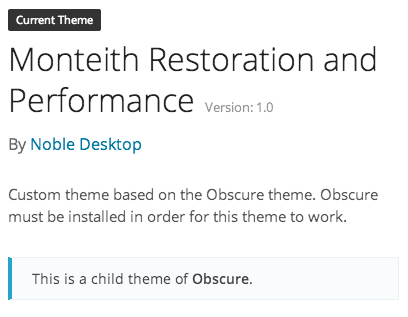
    The WordPress themes interface should now display your Monteith Restoration and Performance theme alongside other available themes. This confirms that WordPress has successfully recognized your child theme and parsed its header information.

  4. Locate your child theme, hover over it to reveal the action buttons, and click Activate. Upon successful activation, you'll see Active: displayed before the theme name, indicating it's now the site's active theme.

  5. Click the Monteith Restoration & Performance link at the top of the admin bar to view your site's front end. At this stage, the appearance should be identical to the parent Obscure theme, which is exactly what you want. This confirms that your child theme is properly inheriting all parent styles and functionality.

Congratulations! You've successfully created and activated a professional WordPress child theme. In the next exercise, you'll begin implementing custom styles that will transform this foundation into MRP's unique brand experience, while maintaining all the benefits of the child theme architecture you've established.

Theme Activation Verification

0/4
Foundation Complete

Your child theme now inherits all parent theme functionality while providing a safe environment for customizations. The identical appearance confirms proper parent style inheritance.

Key Takeaways

1Child themes prevent customization loss during parent theme updates by creating a separate inheritance layer
2Proper file structure requires creating a dedicated folder in wp-content/themes with descriptive naming conventions
3Theme header information in style.css provides WordPress with essential metadata for admin display and functionality
4The wp_enqueue_style() function is the modern standard for loading stylesheets, replacing outdated @import methods
5Functions.php serves as the child theme's hook into WordPress core functionality for stylesheet management
6Parent template reference in the header comment ensures WordPress correctly identifies the inheritance relationship
7Local development environments (MAMP/XAMPP) require specific path navigation to access WordPress file structure
8Successful child theme activation results in identical appearance to parent theme, confirming proper style inheritance

RELATED ARTICLES