Grid: Minmax, Auto-Fit, & Auto-Fill
What This Tutorial Covers
minmax()
Constrain track sizes between two values.
auto-fit vs auto-fill
Subtle difference for empty grid columns.
Truly Responsive Grids
Self-adapting grids without media queries.
Noble Desktop's Full-Stack Web Development Certificate teaches HTML, CSS, JavaScript, React, Node.js, and the modern web stack.
Explore this comprehensive Web Development tutorial that covers various topics like sizing with Minmax, Auto-Fit vs. Auto-Fill, Max-Content & Min-Content, and includes practical exercises to help you understand and implement these concepts effectively.
Topics Covered in This Web Development Tutorial:
Sizing with Minmax, Auto-Fit Vs. Auto-Fill, Max-Content & Min-Content
Exercise Preview
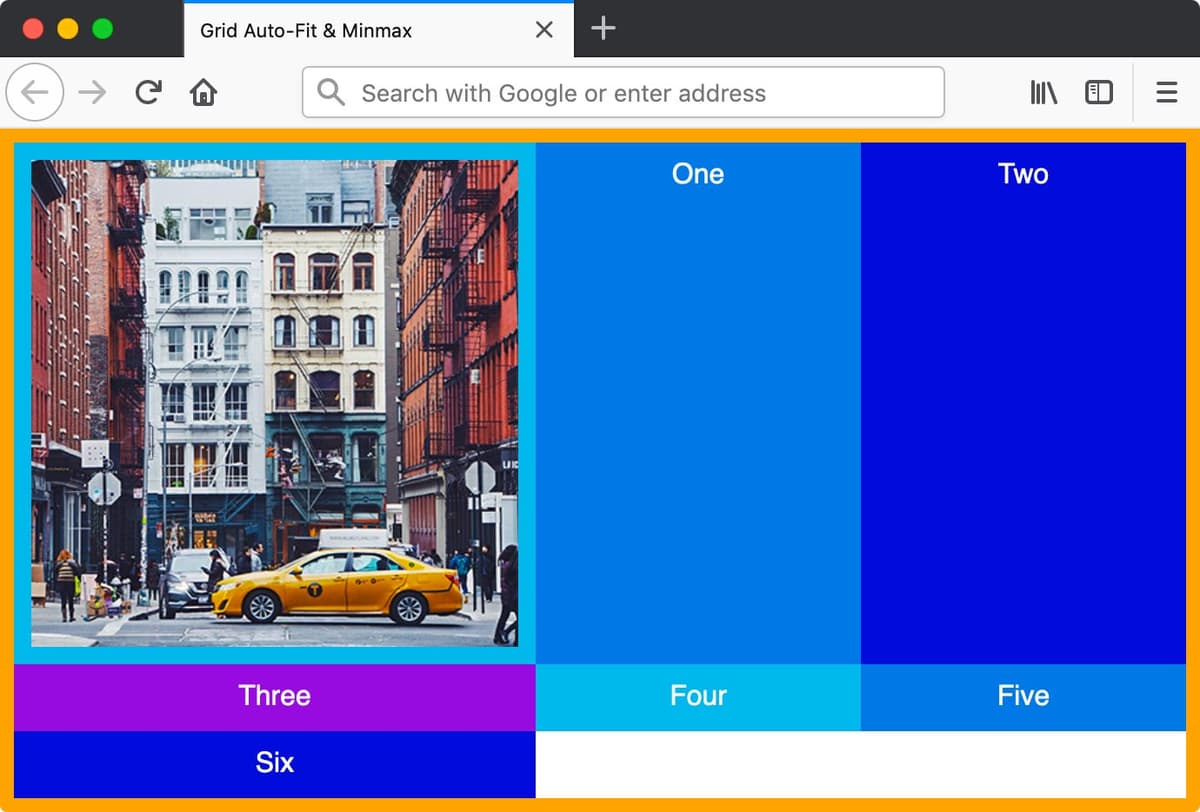
Exercise Overview
In this exercise you’ll learn about sizing grid items with minmax, auto-fit, auto-fill, max-content, and min-content.
Getting Started
- In your code editor, close any files you may have open.
- For this exercise we’ll be working with the Grid Minmax folder located in Desktop > Class Files > yourname-Flexbox Grid Class. You may want to open that folder in your code editor if it allows you to (like Visual Studio Code does).
Open index.html from the Grid Minmax folder.
- As you’ve seen in previous exercises, there’s a .container div that wraps many divs with numbers (and an image in the first div).
- There are some commented out divs so we can quickly add more content later.
Preview index.html in Firefox.
- As you’ve seen in previous exercises, the .container div has an orange border with multi-colored divs inside.
Leave index.html open in Firefox as you work, so you can reload the page to see the code changes you’ll make.
Intro to Minmax
- Switch back to your code editor.
- Open main.css from the css folder (in the Grid Minmax folder).
In the .container rule add the following bold code:
.container {
   display: grid;
   grid-template-columns: repeat(5,1fr);
   border: 8px solid orange;
}
Save the file, and reload the page in Firefox.
- You should have 5 columns with flexible widths that fill the container.
- Resize the window narrower to see how small the columns can get.
- Switch back to your code editor.
In the .container rule, edit the column size as shown below in bold:
.container {
   display: grid;
   grid-template-columns: repeat(5, 100px);
   border: 8px solid orange;
}
Save the file, and reload the page in Firefox.
- The 5 columns now have fixed widths so they no longer fill the container.
- Switch back to your code editor.
In the .container rule, edit the column size as shown below in bold:
.container {
   display: grid;
   grid-template-columns: repeat(5, minmax(100px, 1fr));
   border: 8px solid orange;
}
Save the file, and reload the page in Firefox.
- Resize the window and notice that at wider screen sizes the columns are the flexible 1fr size (their max size), but have a minimum size of 100px that prevents them from getting too small.
- CTRL–click (Mac) or Right–click (Windows) anywhere in the grid and choose Inspect Element.
- In the DevTools, to the right of
<div class="container">click the grid button to show a grid overlay. - In the Grid area of the Firefox DevTools, under Grid Display Settings check on Display line numbers.
- Leave the DevTools open with the grid overlay on.
- Switch back to your code editor.
- Switch to index.html.
- Uncomment
<div>Five</div> Save the file, and reload the page in Firefox.
- Our grid has a repeat of 5, so we have 5 columns. We just added a sixth column (don’t forget to count the image column), which wraps onto a new row.
Auto-Fit Vs. Auto-Fill
- Switch back to your code editor.
- Switch to main.css.
In the .container rule, edit the column size as shown below in bold:
.container {
   display: grid;
   grid-template-columns: repeat(auto-fit, minmax(100px, 1fr));
   border: 8px solid orange;
}
Save the file, and reload the page in Firefox.
- Resize the window from small to wide to see how this works.
- The columns have a minimum size of 100px. Any columns that don’t fit wrap onto rows, and the others scale up as needed to fill the width (their max width is 1fr).
- Once all columns are in a single row, as you keep resizing the window wider, notice the right-most column number keeps increasing but you don’t see any extra columns. Even though additional 100px wide columns would fit, the auto-fit option collapses those columns to allow our actual columns to fill the entire width of the container.
- Switch back to index.html in your code editor.
- Uncomment
<div>Six</div> Save the file, and reload the page in Firefox.
- Resize the window and see how things behave.
- It’s cool how with this technique we don’t need to know how many columns we’ll have (the layout adjusts to fit them).
- Switch back to main.css in your code editor.
In the .container rule, edit the column size as shown below in bold:
.container {
   display: grid;
   grid-template-columns: repeat(auto-fill, minmax(100px, 1fr));
   border: 8px solid orange;
}
Save the file, and reload the page in Firefox.
- Resize the window from small to wide to see how this works.
- On small screens this acts like auto-fit, but on wider screens once all columns are in a single row you’ll see it acts differently. As you keep resizing the window wider this technique adds empty columns.
- auto-fill: Fills the available space with columns (which may be empty) by adding or removing columns as needed.
- auto-fit: Fits the current number of columns to the width of the grid.
More About Minmax
- Switch back to your code editor.
In the .container rule, edit the column size as shown below in bold:
.container {
   display: grid;
   grid-template-columns: minmax(200px, 300px) 1fr;
   border: 8px solid orange;
}
Save the file, and reload the page in Firefox.
- Resize the window and notice the first column will be the max 300px wide, unless it can’t fit (then it will scale down until it hits the minimum 200px width).
- Switch back to your code editor.
In the .container rule, edit the column size as shown below in bold:
.container {
   display: grid;
   grid-template-columns: minmax(200px, max-content) 1fr;
   border: 8px solid orange;
}
Save the file, and reload the page in Firefox.
- Resize the window too see the maximum width for the first column is now based on the widest thing in that column (the photo).
- Switch back to your code editor.
In the .container rule, edit the column size as shown below in bold:
.container {
   display: grid;
   grid-template-columns: minmax(min-content, 300px) 1fr;
   border: 8px solid orange;
}
NOTE: While minmax(min-content, max-content) works, it’s the same as minmax(auto, auto) or even more simply, just auto which is a lot less code!
Save the file, and reload the page in Firefox.
- Resize the window to see the minimum size of the first column is the width of its narrowest content (in a way that doesn’t cause overflow). In this case that’s Three.
Fit-Content Vs. Minmax
Similar to minmax, another sizing option is called fit-content. Below is a comparison and explanation of the slight differences between them. To help you compare them, imagine a scenario where the content does not fill the entire column width.
fit-content(800px)
- If a column’s content is less than 800px wide, the column will be the width of the content (even if there’s enough space to make the column 800px wide).
- If a column’s content is wider than 800px, the column will be limited to 800px wide.
- In other words: fit-content wants to shrink down to fit the content, but has a max width.
minmax(auto, 800px)
- If there is enough space to make the column 800px wide, the column will be 800px (even if the column’s content is less than 800px wide).
- If there’s not enough space to make the column 800px, it will be narrower (down to a minimum width of the content).
- In other words: minmax wants to hit the max (regardless of the content inside) but will be smaller if it can’t be the max width.
Summary: Fit-content if more content centric and therefore wants to shrink down to the content when possible, whereas minmax wants to scale up to fill the space.