Flexbox: Creating a Responsive Pricing Grid
What This Tutorial Covers
Pricing Card Layout
Equal-height cards with featured tier accent.
Flex Wrap
Cards reflow to new rows on smaller screens.
Mobile Adjustments
Stack cards on mobile for vertical scrolling.
Noble Desktop's Full-Stack Web Development Certificate teaches HTML, CSS, JavaScript, React, Node.js, and the modern web stack.
Delve into this comprehensive tutorial on web development where you'll learn about nesting flexbox and applying flexbox concepts to create a pricing grid layout.
Topics Covered in This Web Development Tutorial:
Nesting Flexbox, Application of Flexbox Concepts to a Pricing Grid Layout
Exercise Preview
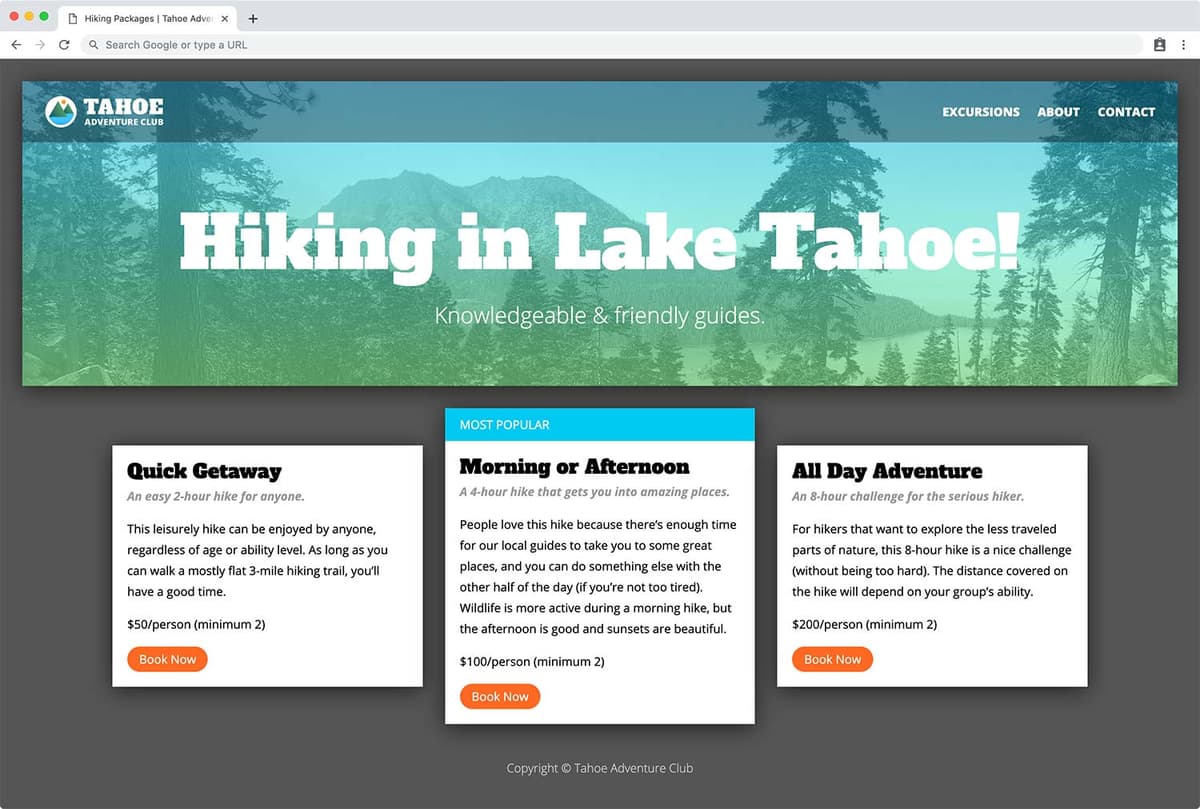
Exercise Overview
In this exercise you’ll use your new flexbox knowledge to lay out a pricing grid. You’ll also learn how nesting flexbox is useful.
Getting Started
- In your code editor, close any files you may have open.
- For this exercise we’ll be working with the Flexbox Pricing Grid folder located in Desktop > Class Files > yourname-Flexbox Grid Class. You may want to open that folder in your code editor if it allows you to (like Visual Studio Code does).
- Open hikes.html from the Flexbox Pricing Grid folder.
Preview hikes.html in Firefox (we’ll be using its DevTools).
- The layout looks good on smaller screens, but on desktops we want the 3 options (Morning or Afternoon, Quick Getaway, and All Day Adventure) to be columns.
Leave hikes.html open in Firefox as you work, so you can reload the page to see the code changes you’ll make.
Using Flexbox to Create Column
- Switch back to your code editor.
- In hikes.html notice that inside the main tag we have 3 section tags which we want to turn into columns.
- Open main.css from the css folder (in the Flexbox Pricing Grid folder).
In min-width: 1000px media query:
main {
   display: flex;
   max-width: 1310px;
   margin: 30px auto;
}
Save the file, and reload the page in Firefox.
- Resize the browser window wide enough so you see the 3 columns.
- Notice the width of 3 columns are not equal. Let’s fix that.
- Also notice the columns on the far left and far right do not line up with the header above. We’ll need to adjust the margins.
- Return to your code editor.
In min-width: 1000px media query, below the main rule add this new rule:
section {
   flex-basis: 33.33%;
   margin: 0;
}
Save the file, and reload the page in Firefox.
- The width of the 3 columns are now equal.
- We’ll need to add margins between the columns, but notice the columns on the far left and far right now line up with the header above.
- Return to your code editor.
In min-width: 1000px media query, below the section rule add this new rule:
section:not(:last-child) {
   margin-right: 30px;
}
NOTE: This selector targets all sections that are not the last child. This will only add right margin to the first and second columns, not the third.
Save the file, and reload the page in Firefox.
- The column spacing now looks good.
- If you’re used to how width works, you may be surprised that the 3 columns still fit on a line now that we’ve added margin. If each column truly was 33.33%, adding margins would have pushed the third column onto the next line. We don’t have flex wrap on, so flexbox fits the elements into a single line. Therefore flex-basis is considered an ideal size, but not guaranteed! It is subject to growing or shrinking. To learn more about flex-basis and width, read tinyurl.com/fb-width
- We want to move the Most Popular column to be the middle column.
Reordering the Columns
- Return to your code editor.
In min-width: 1000px media query, below the section:not(:last-child) rule add this new rule:
section.secondary {
   order: -1;
}
Save the file, and reload the page in Firefox.
- The Most Popular column should now be the middle column.
- Let’s move the price and Book Now buttons to the bottom of the columns, so they are aligned with each other. This is much easier to do now with flexbox.
- CTRL–click (Mac) or Right–click (Windows) on the Quick Getaway heading (in the left column) and choose Inspect Element.
- In the DevTools
<h2>Quick Getaway</h2>should be selected. Above that click on the containing<div class="text-wrapper"> As your cursor hovers over
<div class="text-wrapper">(you may need to move the cursor a bit) in the page you should see the section highlighted.- Notice the height of this text-wrapper does not extend down to the bottom of the column.
- If we’re going to move the price and Book Now button down, this div needs to stretch to fill the container div. Flexbox items can grow, so we can make the text-wrapper’s parent tag (the section tag) a flex container so this will become a flex child that can grow.
- Keep the DevTools open so we can return to them in a moment.
Vertically Aligning Buttons to the Bottom (Nesting Flexbox)
- Return to your code editor.
In min-width: 1000px media query’s section rule, add the following bold code:
section {
   flex-basis: 33.3333%;
   margin: 0;
   display: flex;
}
Save the file, and reload the page in Firefox.
- The Most Popular label has changed to vertical. That’s because this section contains the Most Popular paragraph and a .text-wrapper div (which contains everything else). These 2 items have become flex items in the default direction of row. We’ll need to change the direction to column.
- The outer columns only have one flex item so we don’t see the issue with them.
- Return to your code editor.
In min-width: 1000px media query’s section rule, add the following bold code:
section {
   flex-basis: 33.3333%;
   margin: 0;
   display: flex;
   flex-direction: column;
}
Save the file, and reload the page in Firefox.
- Most Popular should be back on top where it belongs.
- In the DevTools hover over
<div class="text-wrapper">again and notice it’s still not the height of the containing div. We’ll need to tell this flex item to grow.
- Return to your code editor.
In min-width: 1000px media query, below the section.secondary rule add this new rule:
.text-wrapper {
   flex-grow: 1;
}
Save the file, and reload the page in Firefox.
- In the DevTools hover over
<div class="text-wrapper">again to see the height now fills the entire column! - We’re getting closer, but for us to move the price down, those items also need to be flex items. That means the .text-wrapper also needs to become a flex container.
- If you’re having trouble remembering the structure, here’s an overview:
main (flex container)—>section (flex item, and flex container)
—>.text-wrapper (flex item, needs to be a flex container)
—>items in.text-wrapper (need to be flex items)
- In the DevTools hover over
- Return to your code editor.
In min-width: 1000px media query’s .text-wrapper rule, add the following bold code:
.text-wrapper {
   flex-grow: 1;
   display: flex;
}
Save the file, and reload the page in Firefox.
- Wow, the default direction of row has messed up this layout! Not to worry, we can change it to column.
- Return to your code editor.
In min-width: 1000px media query’s .text-wrapper rule, add the following bold code:
.text-wrapper {
   flex-grow: 1;
   display: flex;
   flex-direction: column;
}
Save the file, and reload the page in Firefox.
- That’s better!
- You may notice that the paragraphs have more space between them than they previously did. Normally vertical margins between elements like headings and paragraphs collapse into each other (so you only get the larger of the two amounts). Margins work differently on flex items, because they stack (you get both the bottom margin from one element and the top margin from the next). We’re not going to worry about it for this layout, but that’s important to know.
- Now we can finally move the price and Book Now buttons down!
- Return to your code editor.
In min-width: 1000px media query, below the .text-wrapper rule add this new rule:
.text-wrapper.price {
   margin-top: auto;
}
Save the file, and reload the page in Firefox.
- Nice! The price and Book Now buttons look good aligned with each other.
- Let’s move the top of the left and right columns down to draw more attention to the Most Popular line.
- Return to your code editor.
In min-width: 1000px media query, below the section.secondary rule add this new rule:
section:not(:first-child) {
   margin-top: 44px;
}
NOTE: You may try to use nth-child(odd) because we want to style the first and third columns, but that wouldn’t work. Remember that the primary section is the first item in the code, even though on desktops we’re rearranged the order. CSS refers to the code order, not the visual order.
Save the file, and reload the page in Firefox.
- That looks good, but let’s try another layout.
Vertically Centering the Sections
- Return to your code editor.
In min-width: 1000px media query, delete the following rules because they’re no longer needed (they should all be next to each other):
- section:not(:first-child)
- .text-wrapper
- .text-wrapper.price
In the section rule (inside min-width: 1000px media query) delete the display and flex-direction properties so you end up with the following:
section {
   flex-basis: 33.3333%;
   margin: 0;
}
In min-width: 1000px media query’s main rule, add the following bold code:
main {
   display: flex;
   align-items: center;
   max-width: 1310px;
   margin: 30px auto;
}
Save the file, and reload the page in Firefox.
- The left and right columns should be vertically centered compared to the center column.
- Resize the window to see the layout looks nice on small screens and large.