Mobile First vs. Desktop First
What This Tutorial Covers
Mobile-First
Start with mobile, scale up to larger screens.
Desktop-First
Start with desktop, then adapt for smaller screens.
Modern Best Practice
Mobile-first wins for most projects in 2026.
Noble Desktop's Web Design Certificate teaches Figma, HTML, CSS, and responsive design.
Explore a comprehensive tutorial on Mobile and Responsive Web Design, covering topics such as mobile first thinking, fluid widths, and media queries, and featuring exercises on both desktop first and mobile first approaches to responsive design.
Topics Covered in This Mobile & Responsive Web Design Tutorial:
Mobile First Thinking, Fluid Widths, Min-width Vs. Max-width Media Queries
Exercise Preview
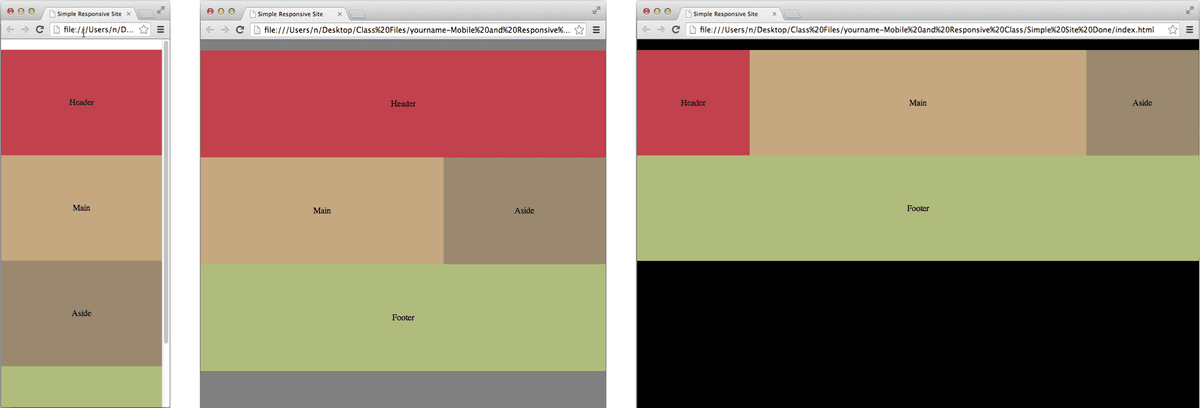
Exercise Overview
How you order media queries is important. It affects whether CSS rules will work as expected and how much CSS you’ll write. Using a mobile first approach, we put mobile device rules at the top, and larger screen rules below. With a desktop first approach, it’s the opposite. We put desktop rules at the top, and smaller screen rules below. In this exercise you’ll explore and weight the pros and cons of both options.
Using the Desktop First Approach
- On the Desktop, go to Class Files > yourname-Mobile and Responsive Class and open the Media Queries—Desktop First folder.
- Open index.html in your code editor.
- Take a moment to look over the code. This is just a simple wireframe with a header, main, aside, and footer.
- Preview index.html in a browser. Resize the browser window to see all the elements on this page are a fixed width and require scrolling on small screens.
- In your code editor, open main.css (in the Media Queries—Desktop First folder). We’ll start by making the width of the content on the page fluid.
Coding Fluid Widths
Let’s start by removing the width property from the body rule.
Edit the body rule by deleting the width property. The code should look like below:
body {
   background:,000;
   margin: 20px auto;
}
Next we’ll change all the widths on the header, main, and aside to percentage widths. Edit the header rule as shown in bold below:
header {
   background: #c1424d;
   float: left;
   width: 20%;
}
Edit the main rule as shown in bold below:
main {
   background: #c5a87f;
   float: left;
   width: 60%;
}
Edit the aside rule as shown in bold below:
aside { background: #9a886f; float: right; width: 20%; }- Save the file.
Preview index.html in a browser. Resize the window to see that our content is now flexible. That’s better, but when the window is very narrow the design is too squashed. This design can still be improved for smaller devices.
Adding Tablet Styles
Now that we have the content resizing, let’s add a media query that will allow us to rearrange the way the elements are laid out on the page.
- Switch back to main.css.
After the footer rule, add the following code:
@media (max-width: 1024px) {

}
NOTE: Any rules we place in here will only apply to devices whose width does not exceed 1024px (which is the width of an iPad in landscape orientation).
It would be nice to know when the page has these styles applied. Let’s set a background color in this rule that will do just that. Inside the media query, add the following bold code:
@media (max-width: 1024px) { body { background: gray; } }- Save the file.
- Preview index.html in a desktop browser. Make the window narrower to see the background change to gray.
- Switch back to main.css.
On a tablet, we don’t want the header to float next to the other content, but instead go across the top of the page. Add the following bold rule to the media query:
@media (max-width: 1024px) { body { background: gray; } header { float: none; width: auto; } }- Save the file.
Preview index.html in a browser.
That’s better. When the window is narrower, the header content is now across the top of the page. Notice that the main content and aside are still floating next to each other, but because they still have the percentage width from the desktop styles, there is a gap between them. Let’s fix that.
Back in main.css, after the header rule within the media query, add the following:
aside { width: 40%; }- Save the file.
Preview index.html in a browser. Fantastic!
Adding Mobile Styles
All that’s left is to add the styles for mobile devices. In main.css, after the max-width: 1024px media query, add the following code:
@media (max-width: 600px) {

}
NOTE: Any rules we place in here will only apply to devices whose width does not exceed 600px.
Let’s make it so the background is white at these sizes. Add the following bold code inside this media query.
@media (max-width: 600px) { body { background: #fff; } }- Save the file.
- Preview index.html in a browser to see that the background now changes to white when you make the window narrow enough.
- We don’t want any of the content floating at this small size. Go back to main.css.
After the body rule in the max-width: 600px media query, add the following bold code:
@media (max-width: 600px) {
   body {
      background: #fff;
   }
   main, aside {
      float: none;
      width: auto;
   }
}
Save the file and preview index.html in a browser. Resize the browser window to see that this simple wireframe is now responsive.
Using the Mobile First Approach
You just took a page styled for a desktop and made it responsive by adding media queries to change the layout on tablet and mobile devices. Now let’s take a different approach. We’ll build up the same page, but we’ll start with the mobile styles instead. This approach is typically called mobile first.
Mobile first thinking can be beneficial for several reasons. It forces you to think about what content is most important on mobile devices, prioritize that content on mobile devices, and then add presentational elements—that aren’t as essential—to larger devices. From a technological viewpoint, it can also be easier to build up a page, rather than tear down. For instance, instead of having floats for the desktop, only to remove them on mobile (requiring two styles), mobile first would start with the default stacking of elements (no style required for that) and simply add one style for larger displays that adds the floats for columns.
- Close any files you have open in your code editor and web browser.
- On the Desktop, go to Class Files > yourname-Mobile and Responsive Class and open the Media Queries—Mobile First folder.
- Open index.html in your code editor. (You’ll recognize this as the same HTML code we used in the desktop first approach.)
- Preview index.html in a browser.
- The elements on the page have not been modified in the CSS, aside from their background colors. Resize the browser window to see that the elements maintain their natively flexible widths and stacking order, which work well on smaller mobile devices.
Min-Width Media Queries
- In your code editor, open main.css (in the Media Queries—Mobile First folder).
- Notice how this CSS file is starting out with less code than the previous layout. That’s because we’re able to use the default appearance of the HTML elements.
The mobile version is done, so now we’ll add on the tablet styles. After the footer rule, add the following code:
@media (min-width: 600px) {

}
NOTE: Any styles we put in here will apply to devices 600px or wider.
Inside the media query, add the following rule so we know when the browser window is 600px or wider.
body {
   background: gray;
}
Inside the media query, after the body rule, add the following rule to get the main content floating left with a width of 60%:
main {
   float: left;
   width: 60%;
}
Inside the media query, after the main rule, add the following code to get the aside floating on the right with a width of 40%:
aside { float: right; width: 40%; }- Save the file.
- Preview index.html in a browser. Resize the window so you see the gray background. The main and aside are floating correctly. While the footer may look OK at first glance, there is a problem. The main and aside are floating, so the top of the footer is underneath them. In some browsers you won’t see any sign of this, but in older versions of Safari, at some browser widths, there may be a one pixel gap between the main and aside and you can see the footer’s green color peeking through. You can also see this if you use a browser’s inspection tools to highlight the footer. To fix this issue we need it to clear the float.
- Switch back to main.css.
Inside the media query, after the aside rule, add the following:
footer { clear: both; }- Save the file.
- Preview index.html. Resize the window to see that the mobile and tablet styles are now both working properly.
Finally we’ll add the desktop styles. Back in main.css, after the min-width: 600px media query, add the following code:
@media (min-width: 1024px) {

}
Inside this media query, add the following rule so we know when the browser window is 1024px or wider:
body {
   background:,000;
}
We want the header floating to the left of the main content. After the body rule you just added, add the following rule:
header {
   float: left;
   width: 20%;
}
Now that we have the header floating with the main and aside, let’s resize the aside so it fits. After the header rule, add the following code to fix the width on the aside:
aside { width: 20%; }- Save the file.
- Preview index.html in a browser. Resize the window to see that the webpage is now responsively styled so it looks good on mobile devices, tablets, and desktops.
Save and close any files you may have open. We’re done with this site.
While either approach works, most developers prefer mobile first. It can end up being slightly less code, and if there are more mobile users on your site (which is true for many sites), then it makes sense to develop for them first.