April 1, 2026Dan Rodney/9 min read

Jive Factory: Creating CSS Gradient Patterns

Master CSS Gradients and Responsive Design Patterns

Core Technologies You'll Master

CSS Gradients

Learn linear and repeating gradients to create sophisticated background patterns without images. Master radial gradients and angle controls.

RGBA Colors

Understand alpha transparency for creating layered visual effects. Build semi-transparent overlays for modern design aesthetics.

Google Fonts

Integrate professional typography from Google's free web font library. Enhance readability and brand consistency across devices.

Topics Covered in This Mobile & Responsive Web Design Tutorial:

Master essential responsive design techniques including visual indicators for media queries, advanced RGBA color manipulation, comprehensive CSS gradient anatomy, linear and repeating gradients, and seamless integration with Google's extensive web font library.

Exercise Preview

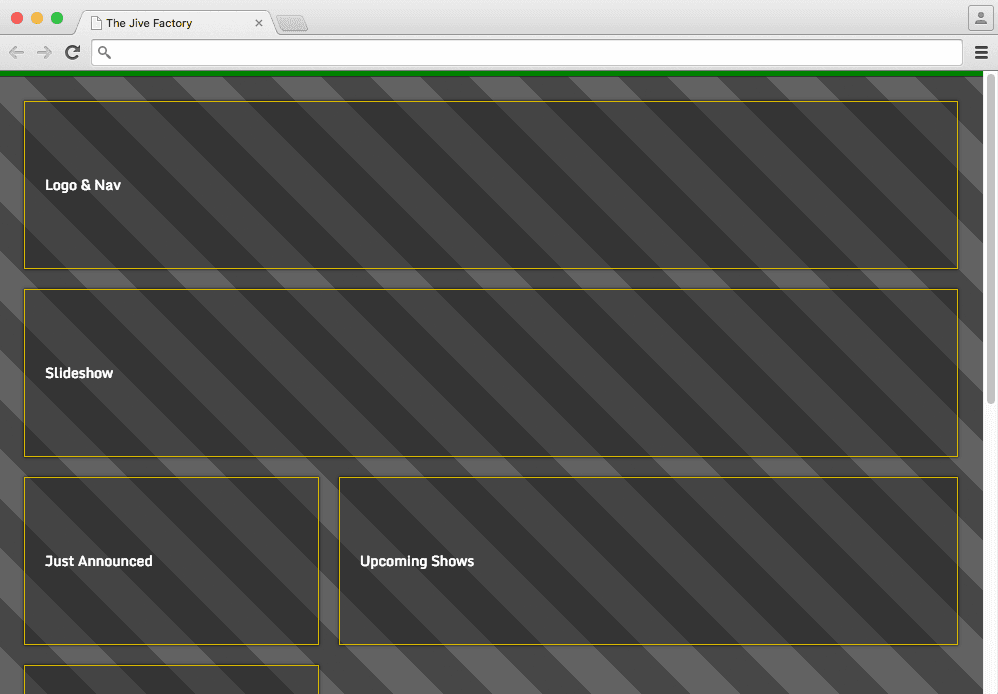
jive gradient pattern preview

Exercise Overview

With our wireframe foundation in place, we're ready to transform it into a visually compelling design. This exercise demonstrates the power of modern CSS by creating sophisticated background patterns using pure CSS gradients—no images required. We'll also integrate Google Fonts to elevate the typography and establish a professional visual hierarchy. These techniques represent current industry best practices for creating performant, scalable web designs that look exceptional across all devices.

Tutorial Learning Path

1

Setup Media Query Indicators

Replace background colors with colored borders to maintain visual breakpoint feedback while preparing for gradient backgrounds.

2

Build CSS Gradient Patterns

Create sophisticated stripe patterns using repeating linear gradients with precise color stops and transparency effects.

3

Integrate Typography

Add Google Fonts to enhance the visual hierarchy and professional appearance of the responsive design.

Getting Started

  1. If you completed the previous exercises, you can skip the following sidebar. We strongly recommend completing the previous exercises (2D–3A) first, as they establish the foundational structure we'll be enhancing. If you haven't finished them, follow the setup instructions below.

    Responsive Breakpoint Color System

    Mobile (base)
    100
    Small Tablet (480px)
    75
    Large Tablet (740px)
    50
    Desktop (1024px)
    25

If You Did Not Do the Previous Exercises (2D–3A)

  1. Close any files you may have open.
  2. On the Desktop, navigate to Class Files > yourname-Mobile and Responsive Class.
  3. Delete the Jive folder if it exists.
  4. Select the Jive Wireframe Done folder.
  5. Duplicate the folder.
  6. Rename the folder to Jive.
  • In your code editor, open main.css if it isn't already open (Jive > css).

    Our primary objective is creating a sophisticated background pattern using CSS gradients. However, we want to maintain clear visual feedback as we test different breakpoints. Instead of relying on background colors that will conflict with our gradient, we'll implement a more elegant solution using colored borders as visual indicators.

  • Locate the body rule in the PROJECT STYLES section (around line 13) and modify it as shown below:

    body {
       margin: 0;
       padding: 25px 15px 5px;
       border-top: 5px solid red;
    }
  • Update the body rule in the min-width: 480px media query (around line 36):

    body {
       border-color: yellow;
    }
  • Update the body rule in the min-width: 740px media query (around line 47):

    body {
       border-color: green;
    }
  • Update the body rule in the min-width: 1024px media query (around line 65):

    body {
       border-color: blue;
    }
  • Save your changes and preview index.html in a browser. Resize the browser window to observe how the top border color changes at each breakpoint, providing immediate visual confirmation of which media query is active.

  • Preparing the Page for a CSS Gradient Background

    Understanding CSS gradients is crucial for modern web development. Unlike traditional color properties, CSS gradients generate dynamic images that represent smooth color transitions. These gradient images are infinitely scalable and automatically adapt to their container's dimensions, making them perfect for responsive designs. This approach eliminates the need for background images, reducing HTTP requests and improving performance—a critical consideration in today's mobile-first web landscape.

    While many developers apply backgrounds to the body element, the html element provides a more reliable foundation. As the document root, it ensures consistent background coverage across all browsers and viewport configurations.

    1. Return to main.css and create a new rule for html at the beginning of the PROJECT STYLES section (around line 13):

      html {
      
      }
      body {
         margin: 0;
         padding: 25px 15px 5px;
         border-top: 5px solid red;
      }
    2. Establish a fallback background color for older browsers or situations where gradient support might fail. Add this essential property to the html rule:

      html {
         background-color: #333;
      }
    3. Save the file.

    4. Preview index.html in a browser. The dark gray background provides a solid foundation. Next, we'll style the content modules to create the proper contrast for our upcoming gradient pattern.
    5. Enhance the .module rule (around line 21) to create depth and visual hierarchy:

      .module {
         background: rgba(15,15,15,.5);
         border: 1px solid #b08101;
         box-shadow: 0 3px 8px rgba(0,0,0,.3);
         padding: 20px;
         margin: 0 10px 20px;
         line-height: 1.5;
      }
    6. Save and preview index.html in a browser. The semi-transparent modules now have proper depth, but we need to improve text readability before implementing our gradient background.

    7. Enhance typography and readability by updating the html rule in the PROJECT STYLES section (around line 13):

      html {
         color: #fff;
         font-size: 14px;
         background-color: #333;
      }
    8. Save and preview index.html in a browser. With improved contrast and readability established, we're ready to implement our sophisticated gradient background pattern.

    CSS Gradient Fundamentals

    CSS gradients create images, not color values. They have no set dimensions and scale to match their container element. The html element provides more reliable background targeting than body.

    Background Target Elements

    Featurebody Elementhtml Element
    Document ScopeChild elementRoot element
    Background ReliabilityVariableConsistent
    Gradient CoverageContent-dependentFull viewport
    Recommended: Use html element for reliable gradient backgrounds

    Creating a CSS Gradient Pattern

    CSS gradients have evolved significantly since their introduction and now offer powerful pattern-creation capabilities. We'll explore various gradient techniques, starting with experimental approaches to understand the syntax before crafting our final design. This hands-on approach will give you the confidence to create custom patterns for future projects.

    1. Return to main.css and experiment with gradient syntax by adding this vibrant example:

      html {
         color: #fff;
         font-size: 14px;
         background-color: #333;
         background-image: radial-gradient(red, orange, yellow, green, blue, violet);
      }

      IMPORTANT: We're using separate background-color and background-image properties to ensure graceful degradation. Browsers that don't support gradients will display the solid fallback color, maintaining usability while treating the gradient as a progressive enhancement.

    2. Save and preview index.html in a browser. This rainbow effect demonstrates radial gradients, but let's explore linear gradients for more practical design applications.

    3. Refine the gradient by switching to linear direction and reducing color complexity:

      background-image: linear-gradient(red, orange, yellow);
    4. Save and preview index.html in a browser. Linear gradients flow vertically by default, creating a smooth top-to-bottom transition. Let's control the gradient direction.

    5. Modify the gradient direction to horizontal flow:

      background-image: linear-gradient(to right,  red, orange, yellow);
    6. Save and preview index.html in a browser. Now let's add sophisticated angular control to create more dynamic effects.

    7. Apply a diagonal angle for visual interest:

      background-image: linear-gradient(45deg, red, orange, yellow);
    8. Save and preview index.html in a browser. Gradient angles accept any degree value, offering unlimited creative possibilities. Now let's create defined stripes by controlling color stop positions.

    9. Create the first color band by defining explicit boundaries. Start with red extending to 40 pixels:

      background-image: linear-gradient(45deg, red, red 40px,  orange, yellow);
    10. Define orange boundaries to create a distinct stripe from 40px to 80px:

      background-image: linear-gradient(45deg, red, red 40px, orange 40px, orange 80px,  yellow);
    11. Complete the stripe pattern by defining yellow boundaries from 80px to 120px:

      background-image: linear-gradient(45deg, red, red 40px, orange 40px, orange 80px, yellow 80px, yellow 120px);
    12. Save and preview index.html in a browser. Scroll to observe the discrete color bands. This creates a single pattern occurrence. To create a seamless repeating pattern, we need the repeating gradient function.

    13. Transform the gradient into a repeating pattern:

      background-image: repeating- linear-gradient(45deg, red, red 40px, orange 40px, orange 80px, yellow 80px, yellow 120px);
    14. Save and preview index.html in a browser. The bold stripe pattern demonstrates the power of repeating gradients. Now let's create a more sophisticated, subtle design suitable for professional applications.

    15. Create transparency effects by replacing solid colors with transparent values:

      background-image: repeating-linear-gradient(45deg, transparent, transparent 40px, orange 40px, orange 80px, yellow 80px, yellow 120px);
    16. Save and preview index.html in a browser. The transparent sections now reveal the underlying background color, creating depth. Let's simplify to a two-color pattern for professional elegance.

    17. Streamline the pattern by removing the yellow elements:

      background-image: repeating-linear-gradient(45deg, transparent, transparent 40px, orange 40px, orange 80px);
    18. Save and preview index.html in a browser. We're getting closer to our refined design aesthetic. Now let's implement sophisticated color control using RGBA values.

    19. Replace the orange with subtle RGBA transparency for professional polish:

      background-image: repeating-linear-gradient(45deg, transparent, transparent 40px, rgba(0,0,0,.3) 40px, rgba(0,0,0,.3) 80px);
    20. Save and preview index.html in a browser. Perfect! This creates elegant depth without overwhelming the content. Feel free to experiment with these alternative patterns for different design needs:

      • Subtle vertical pinstripes for formal layouts:

        background-image: repeating-linear-gradient(to right,  transparent, transparent 5px, rgba(0,0,0,.3) 5px, rgba(0,0,0,.3) 10px);
      • Fine horizontal lines for data-heavy interfaces:

        background-image: repeating-linear-gradient(transparent, transparent 2px, rgba(0,0,0,.3) 2px, rgba(0,0,0,.3) 4px);
    21. Implement our final optimized pattern with balanced proportions:

      background-image: repeating-linear-gradient(45deg,  transparent, transparent 35px, rgba(0,0,0,.3) 35px, rgba(0,0,0,.3) 70px);
    22. Save and preview index.html in a browser.
    23. If your viewport extends beyond the content area, you may notice pattern discontinuity where the background repeats. This common issue occurs because the background height matches the content height rather than the full viewport.
    24. Ensure seamless pattern coverage by fixing the background to the viewport:

      html {
         color: #fff;
         font-size: 14px;
         background-color: #333;
         background-image: repeating-linear-gradient(45deg, transparent, transparent 35px, rgba(0,0,0,.3) 35px, rgba(0,0,0,.3) 70px);
         background-attachment: fixed;
      }
    25. Save the file and reload the browser to see the perfected background pattern that maintains consistency across all scroll positions.

    Gradient Pattern Development Process

    1

    Experiment with Radial Gradients

    Start with colorful radial gradients to understand syntax and behavior before refining the design.

    2

    Switch to Linear Gradients

    Convert to linear gradients with directional control using angles or keywords like 'to right'.

    3

    Create Stripe Effects

    Use color stops at specific pixel values to create hard color transitions instead of smooth gradients.

    4

    Add Repeating Pattern

    Implement repeating-linear-gradient to tile the pattern across the entire background area.

    5

    Apply RGBA Transparency

    Replace solid colors with transparent and semi-transparent RGBA values for subtle overlay effects.

    Alternative Stripe Pattern Options

    Vertical Thin Stripes

    5px stripe width using 'to right' direction for clean vertical lines. Creates subtle texture without overwhelming content.

    Horizontal Thin Stripes

    2px stripe width with no directional keyword for horizontal lines. Minimal visual impact with modern aesthetic appeal.

    Diagonal Medium Stripes

    35px stripe width at 45-degree angle for the final design. Balances visual interest with content readability.

    Background Attachment Fix

    Use background-attachment: fixed to prevent gradient pattern breaks when content doesn't fill the entire viewport height. This ensures consistent visual continuity.

    Adding Google Fonts

    Typography remains one of the most impactful design decisions in web development. Google Fonts continues to lead the industry in 2026, offering an extensive library of high-quality, performance-optimized web fonts. Their global CDN ensures fast loading times worldwide, while their continuous font optimization means better rendering across all devices and browsers.

    1. In a new browser tab, navigate to Google Fonts at: fonts.google.com
    2. Use the search functionality in the top navigation to locate our first font: Monda
    3. Click the Google fonts select this font button next to Monda to add it to your selection.
    4. Notice the 1 Family Selected indicator that appears at the bottom of your screen, tracking your font choices.
    5. Search for our complementary font: Bree Serif
    6. Click the Google fonts select this font button next to Bree Serif to add it to your collection.
    7. Click the 2 Families Selected bar at the bottom to access font customization options.
    8. Navigate to the CUSTOMIZE tab to fine-tune your font selections.
    9. Under the Monda section, select bold 700 to include the bold weight variation for typographic hierarchy.
    10. Return to the EMBED tab to access the implementation code.
    11. Copy the provided link element from the Embed Font section:

      <link href="https://fonts.googleapis.com/css?family=bree+serif|monda:400,700" rel="stylesheet">
    12. Switch back to index.html in your code editor.
    13. Insert the font link in the document head, positioning it before your custom stylesheets (around line 7):

      <title>The Jive Factory</title>
      <link href="https://fonts.googleapis.com/css?family=bree+serif|monda:400,700" rel="stylesheet">
      <link rel="stylesheet" href="css/normalize.min.css">
      <link rel="stylesheet" href="css/main.css">
    14. Save the HTML file.
    15. Return to main.css and apply the Monda font as the default typeface for optimal readability:

      html {
         font-family: 'Monda', sans-serif;
         color: #fff;
    16. Save your changes and preview index.html in a browser to see the professional typography enhancement.
    17. Ready for an advanced challenge? Explore the Animating a CSS Background Gradient bonus exercise (located near the end of this book) to discover cutting-edge animation techniques that bring CSS gradients to life with smooth, performant transitions.

    Google Fonts Integration Process

    1

    Select Font Families

    Choose Monda and Bree Serif fonts from Google Fonts library for complementary typography pairing.

    2

    Customize Font Weights

    Add bold 700 weight to Monda for enhanced typographic hierarchy and design flexibility.

    3

    Generate Embed Code

    Copy the link element from Google Fonts with both families and specified weights included.

    4

    Apply CSS Font Declarations

    Set font-family property on html element to establish global typography with fallback fonts.

    Professional Typography Enhancement

    Google Fonts provides hundreds of free web fonts with reliable hosting and optimized delivery, significantly improving design quality without performance penalties.

    Key Takeaways

    1CSS gradients generate images rather than colors, automatically scaling to fit their container elements for flexible responsive design implementation.
    2The html element provides more reliable background targeting than body element, ensuring consistent gradient coverage across the entire viewport.
    3Repeating linear gradients with precise color stops create sophisticated stripe patterns without requiring external image assets or complex graphics.
    4RGBA color values with alpha transparency enable subtle overlay effects that enhance visual depth while maintaining content readability.
    5Media query visual indicators help developers track responsive breakpoints during development, improving debugging and testing workflows.
    6Background-attachment fixed prevents gradient pattern discontinuity when content height varies, ensuring consistent visual presentation.
    7Google Fonts integration requires both HTML link elements and CSS font-family declarations with appropriate fallback font specifications.
    8Color stop positioning in gradients allows precise control over pattern dimensions, enabling creation of uniform stripe widths and spacing.

    RELATED ARTICLES