April 1, 2026Dan Rodney/6 min read

Plugins: Free Sketch Tutorial

Master Essential Sketch Plugins for Better Design

Featured Sketch Plugins

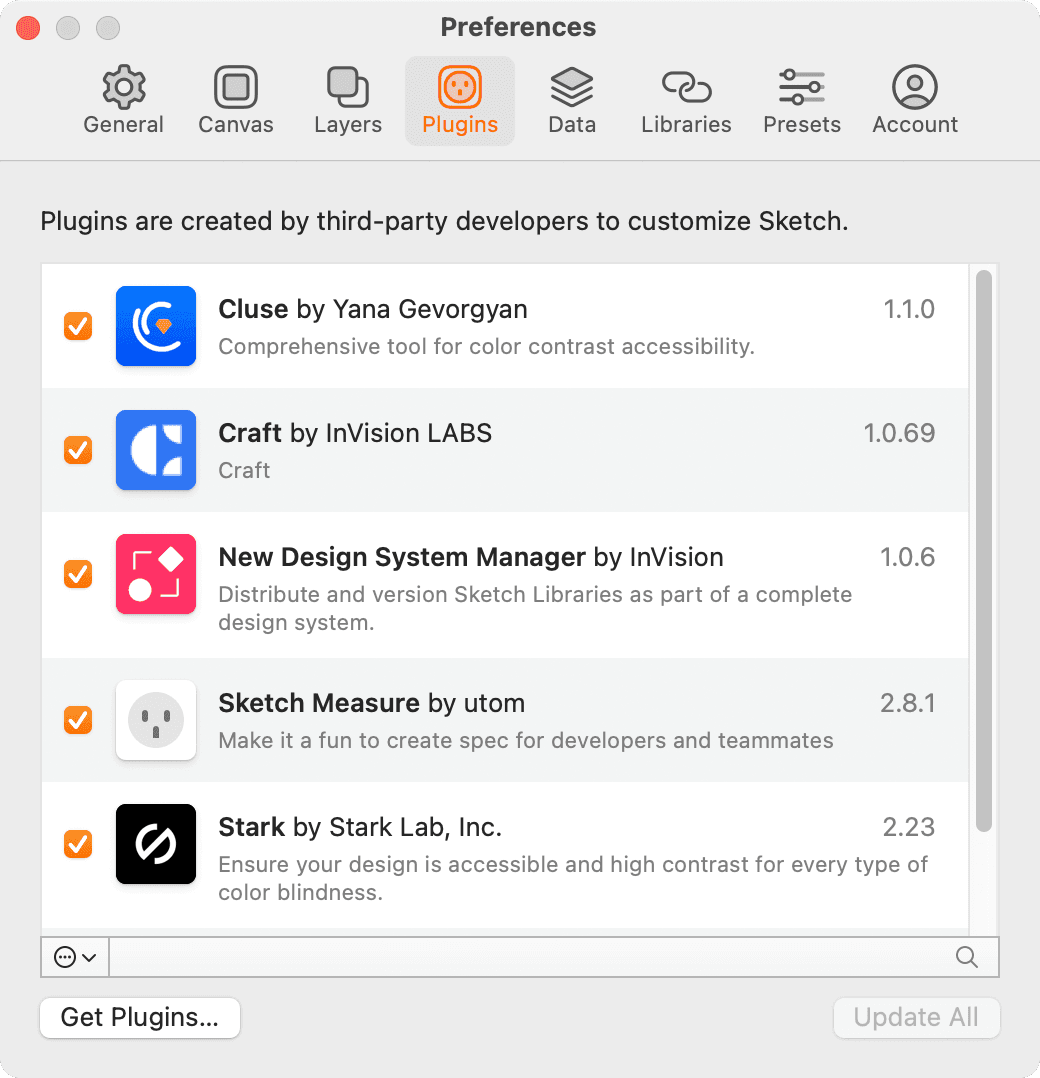
Cluse

Accessibility contrast checker that helps ensure your designs meet WCAG compliance standards. Features interactive color adjustment.

Stark

Colorblind simulation and contrast checking tool. Perfect for testing accessibility across different vision types.

Sketch Measure

Export specifications and measurements for development handoff. Free alternative to Sketch Inspect.

Topics Covered in This Sketch Tutorial:

How to Use Some Recommended Plugins

Exercise Preview

preview plugins

What You'll Learn

0/4

Exercise Overview

Sketch has cultivated one of the most vibrant plugin ecosystems in the design tool landscape. This thriving community of developers continuously extends Sketch's core functionality with powerful additions that streamline workflows, enhance accessibility, and improve design handoff processes. In this comprehensive exercise, you'll master several essential plugins that have become industry standards among professional designers and design teams.

Installing the Plugins for This Exercise

If you're working in a Noble Desktop classroom environment, these plugins are pre-installed and ready to use—skip directly to the next section to begin your hands-on practice.

Plugin installation in Sketch is refreshingly straightforward. After downloading a plugin from its developer, simply double-click the plugin file (identified by its .sketchplugin extension) to install it automatically. Download and install these three essential free plugins that form the foundation of this exercise:

  • Cluse: https://cluse.cc (Real-time accessibility contrast checking)
  • Stark: www.getstark.co (Colorblind simulation and comprehensive accessibility testing)
  • Sketch Measure: utom.design/measure (Detailed specification generation for development handoff)

Now let's dive into practical applications of each plugin, starting with accessibility testing—a critical skill in today's inclusive design landscape.

Plugin Installation Process

1

Download Plugin Files

Visit the plugin websites and download the .sketchplugin files to your computer

2

Install by Double-Clicking

Simply double-click on each .sketchplugin file to automatically install it into Sketch

3

Access via Plugins Menu

Once installed, plugins appear in the Plugins menu within Sketch for easy access

Cluse: Accessibility Contrast Checker

Accessibility compliance isn't just good practice—it's often legally required and always professionally essential. Cluse provides real-time contrast checking against WCAG (Web Content Accessibility Guidelines) standards, ensuring your designs are usable by people with visual impairments. This plugin has become indispensable for teams working on public-facing digital products.

  1. In Sketch, go to File > Open Local Document.
  2. Navigate into Desktop > Class Files > Sketch Class > Pulse and double-click on Prototyping Done.sketch to open it.
  3. Select Sign up for emails and get 10% off! and its brown background.
  4. Go to Plugins > Cluse.
  5. Under WCAG Compliance Status notice this passes both contrast tests—this indicates the text is readable for users with normal and low vision.
  6. Click OK.
  7. Select the footer text (About Us, Contact, etc.) and its light colored background.
  8. Go to Plugins > Cluse.
  9. Under WCAG Compliance Status notice this does not pass the stricter AAA test, which is required for enhanced accessibility compliance.
  10. Drag the Foreground Color slider slightly darker until it passes the AAA test. (Alternatively you could make the background lighter—Cluse's real-time feedback makes either approach effortless.)
  11. Click OK.

    Accessibility First

    Cluse helps ensure your text meets WCAG compliance standards by checking contrast ratios between foreground and background colors. It provides interactive sliders to adjust colors until they pass accessibility tests.

    WCAG Compliance Levels

    FeatureAA StandardAAA Standard
    Normal Text Contrast4.5:17:1
    Large Text Contrast3:14.5:1
    Usage RecommendationMinimum requirementEnhanced accessibility
    Recommended: Aim for AAA compliance when possible for better accessibility

Learn More About Accessibility & Color Contrast

  • Difference between AA and AAA compliance: tinyurl.com/aa-vs.-aaa

  • Short guide to the accessibility standards: usecontrast.com/guide

  • Official Web Content Accessibility Guidelines: tinyurl.com/w3-contrast

With contrast fundamentals mastered, let's explore how your designs appear to users with different types of color vision.

Accessibility Resources

AA vs AAA Compliance

Learn the differences between accessibility compliance levels and when to use each standard.

Accessibility Standards Guide

Short, practical guide to understanding and implementing web accessibility standards in your designs.

Official WCAG Guidelines

Complete Web Content Accessibility Guidelines from W3C for comprehensive accessibility compliance.

Stark: Colorblind Simulation & Contrast Checker

Approximately 8% of men and 0.5% of women have some form of color vision deficiency. Stark addresses this reality by simulating various types of colorblindness, allowing you to identify potential usability issues before launch. While Stark also offers contrast checking similar to Cluse, its colorblind simulation capabilities make it uniquely valuable for inclusive design validation.

  1. Select Sign up for emails and get 10% off! and its brown background.
  2. Go to Plugins > Stark > Check Contrast.

    Notice this passes all the contrast tests. While this functionality overlaps with Cluse, having multiple validation tools provides confidence in your accessibility decisions. However, Cluse's interactive color adjustment feature typically provides a more efficient workflow.

  3. Click Done.
  4. Go to Plugins > Stark > Colorblind Simulation. (This is where Stark truly shines—Cluse lacks this critical feature.)
  5. From the Artboard menu choose Autumn Collection.
  6. Set Zoom to 100%.
  7. Scroll down to the first row of product photos.
  8. At the bottom of the photo on the right, notice the red heart icon indicating a "favorite" state.
  9. From the Colorblind Type menu choose Protanopia (red-green colorblindness affecting approximately 1% of men).
  10. Notice the red heart no longer stands out distinctly from the background.

    This reveals a critical usability issue: users with protanopia cannot easily distinguish the selected state. Consider adding visual indicators beyond color alone—such as a white outline, different icon weight, or subtle shadow—to ensure all users can identify interactive states.

  11. Click Done.

Having ensured your designs are accessible and inclusive, let's explore how to effectively communicate design specifications to development teams.

Stark vs Cluse Comparison

Pros
Includes colorblind simulation feature
Comprehensive contrast checking
Multiple vision type testing
Good for accessibility audits
Cons
Less interactive color adjustment
No real-time color modification
Cluse offers better color tweaking workflow
Design for All Users

When testing with Protanopia simulation, elements that rely solely on red-green color differences may become indistinguishable. Consider adding outlines, patterns, or other visual indicators beyond color alone.

Sketch Measure

In an era of increasing data privacy regulations and security consciousness, many organizations cannot use cloud-based handoff tools like Sketch Cloud due to compliance restrictions. Sketch Measure provides a robust, offline alternative that generates comprehensive specification documents without requiring data to leave your secure environment. Additionally, teams working with legacy Sketch licenses (pre-subscription model) will find this plugin invaluable as an alternative to Sketch Inspect.

  1. Go to Plugins > Sketch Measure > Spec Export.
  2. The default settings provide a solid foundation for most projects, so click Save.
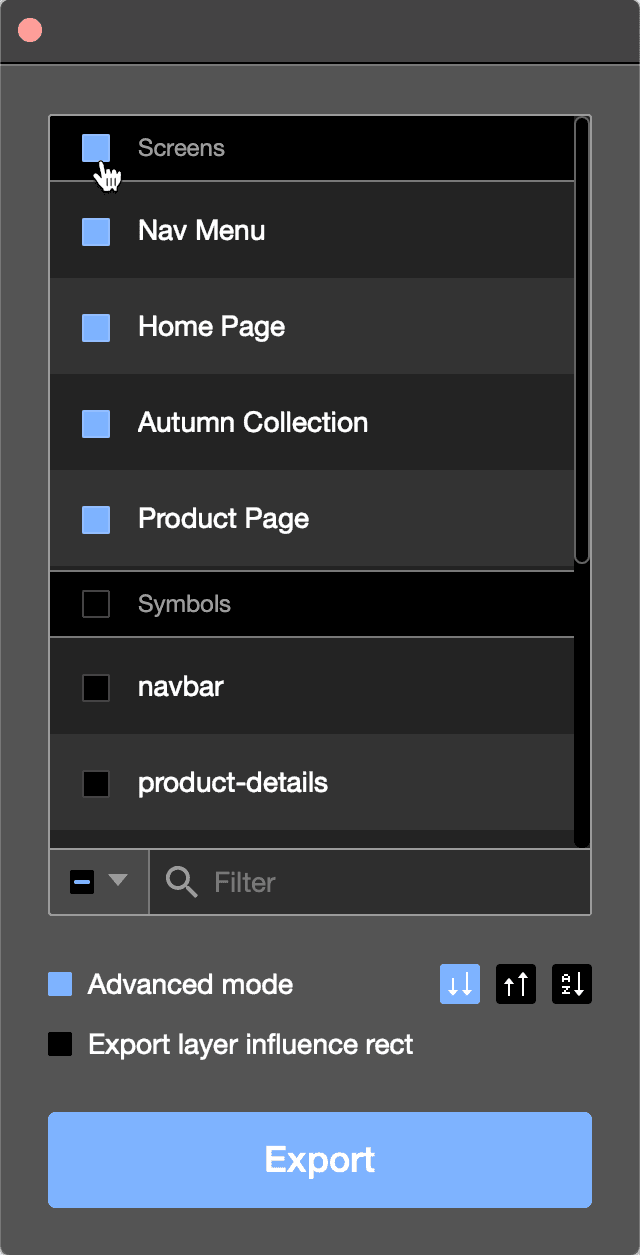
  3. You'll notice the interface uses an extremely dark theme that's challenging to read—ironically, the developers could have benefited from using Cluse to ensure better contrast!

    As shown below, check the box to the left of Screens to select all artboards for export.

    sketch measure

  4. Ensure Advanced mode is checked. This creates a single, navigable webpage containing all artboards—far more efficient than individual pages for each artboard, though the individual approach can be useful for focused reviews of specific screens.
  5. Click Export.
  6. In the export dialog:

    • Export To: Name it Pulse Specs
    • Navigate to the Desktop > Class Files > Sketch Class > Pulse.
    • When configured, click Export.
  7. Upon completion, the new Pulse Specs folder will open automatically. Double-click index.html to launch it in your default browser.
  8. In the left navigation panel, click on the Home Page artboard to begin exploring the generated specifications.
  9. Click various design elements to reveal detailed information and CSS code snippets displayed in the right panel—invaluable for developer handoff.
  10. With an element selected, hover over other elements to see precise distance measurements between them.

    Important note: This generates a local webpage viewable by anyone with the files, but it hasn't been uploaded to a web server. To share these specifications with remote team members or clients, you'll need to distribute the entire folder via file-sharing services (Dropbox, Google Drive), compress it into a ZIP archive for email, or upload it to your own web server.

  11. Close the browser window when you've finished exploring the generated specifications.
  12. Return to Sketch and close the file. No need to save changes for this exercise.

These three plugins represent just the beginning of what's possible with Sketch's extensible architecture. Let's explore additional resources for expanding your plugin toolkit.

When to Use Sketch Measure

Privacy-Focused Companies

Perfect for organizations that cannot legally upload designs to cloud services due to privacy requirements.

Expired Sketch License

Continue creating design specs even without an active Sketch subscription, unlike Sketch Cloud.

Offline Workflows

Generate local HTML specs that can be shared as files without requiring internet connectivity.

Export Process

1

Configure Export Settings

Use Plugins > Sketch Measure > Spec Export and ensure Advanced mode is checked for single-page output

2

Select All Artboards

Check the box next to Screens to include all artboards in your specification export

3

Export and Share

Export creates an HTML file with measurements and code snippets, shareable as a complete folder

More Recommended Plugins

The Sketch plugin ecosystem continues to evolve rapidly, with new tools emerging regularly to address evolving design challenges. For a curated, up-to-date collection of professional-grade plugins covering areas like design systems, prototyping, content generation, and workflow automation, visit Noble Desktop.com/sketch-links. This resource is regularly updated to reflect the most current and professionally valuable additions to the Sketch ecosystem.

Expand Your Toolkit

Visit Noble Desktop's curated list of Sketch plugins to discover additional tools that can streamline your design workflow and boost productivity.

Key Takeaways

1Sketch plugins significantly extend the application's functionality, with a vibrant community of developers creating useful tools for designers.
2Cluse provides interactive accessibility testing with real-time color adjustment capabilities to ensure WCAG AA and AAA compliance standards are met.
3Stark offers unique colorblind simulation features, allowing designers to test how their work appears to users with different types of color vision.
4WCAG AA compliance requires 4.5:1 contrast for normal text, while AAA standard demands 7:1 for enhanced accessibility coverage.
5Sketch Measure serves as a free alternative to Sketch Inspect, particularly valuable for privacy-conscious organizations and users without active subscriptions.
6Colorblind testing reveals potential usability issues, such as red elements becoming invisible to users with Protanopia, requiring additional visual indicators.
7Plugin installation is straightforward - simply double-click .sketchplugin files to add new functionality to your Sketch workflow.
8Design specifications can be exported as local HTML files, enabling offline sharing and development handoffs without cloud dependency.

RELATED ARTICLES