Web Scraping Part 2: XPath
XPath for Web Scraping
What XPath Is
XML Path Language — query language for navigating HTML/XML document trees.
Install XPath Helper
Chrome extension that helps you build and test XPath expressions live on a page.
Location Paths
html/head/title navigates from root to title element — like folder paths on a computer.
Use with lxml or Scrapy
Python's lxml.html.fromstring(html).xpath('//div[@class="X"]') extracts data quickly.
Noble Desktop's Python Programming Immersive covers AI APIs, data analysis, and modern Python development.
In Part I of the web scraping series, we covered the basics of HTML nodes, syntax, and Beautiful Soup to scrape a website called DataTau to collect data science article titles. In this article, we will cover another useful web scraping tool called XPath Helper. However, to learn about this tool, we first have to learn what an XPath is.
XPath Expressions
In Part I, we discussed HTML nodes and how different elements are nested within each one. I’ll use the same graph to demonstrate how we can navigate to different nodes:
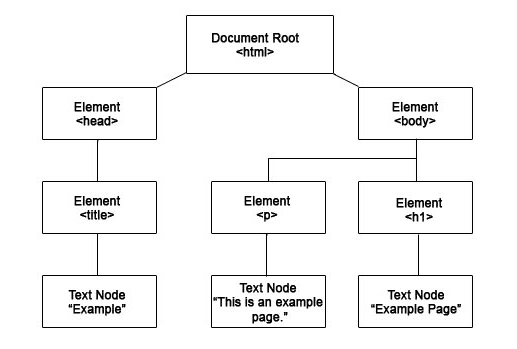
In this document tree above, we can select the title element like this: html/head/title. Can you try to target the p and h1 element by yourself? I’ll post the answer at the end of the article so you can check your answer.
This is known as a location path. It enables us to navigate from the context node (in our example, it was the html node) to our target element. This is similar to the way we look up folders in our computer. It is important to note that the context node changes each step. In our example above, our context node is ‘head’ when we are evaluating the ‘title’ node.
Fortunately, we don’t always have to start from our root HTML node. In real life, we don’t really care about calling the explicit path, we just want to target certain nodes that interest us. If we want to grab just the title nodes again, we can simply type this in our XPath: //title.
Let’s break this query down. ‘//’ means start the search from the root of the document and ‘title’ means select nodes that have the word ‘title’ in their element.
Let’s check your understanding! Can you translate this XPath into English? //h3/a
If you thought, “Grab all the a nodes under h3” you’re correct! Way to go!
XPath Multiple Selection
I think the best way to learn something is by doing it and gaining direct experience. Let’s try using XPath on your Chrome browser and scrape Craigslist apartment posting titles. Here’s the link for New York’s apartment listings. Our objective is getting all of the posting titles.
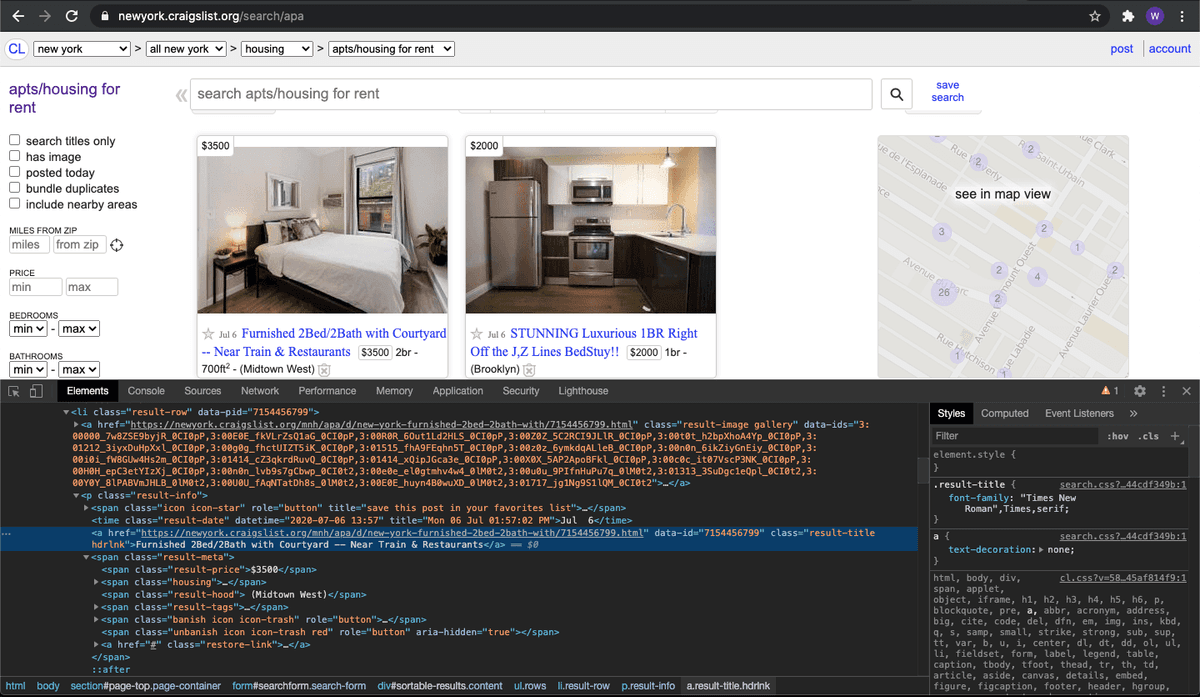 First thing you have to do is right click anywhere on the website and choose “inspector”. This will bring a window below that has this page’s HTML document. Next, you want to click on an icon that looks like a mouse pointer hovering over a square on the top left corner of your inspector window. Once you’ve clicked on it, click on the title of an apartment post. This will highlight the section of the HTML we will want to scrape.
When you’ve highlighted our target node, let’s click on the Chrome extension icon that looks like a puzzle piece on the top right corner. Click on the XPath Helper icon to activate it. You should see a text box that asks you to input a query. This is the place where you’ll type your XPath and the Results box to the right will be your output. Let’s type our query to extract the title from the HTML doc. You can see my query in the screenshot below.
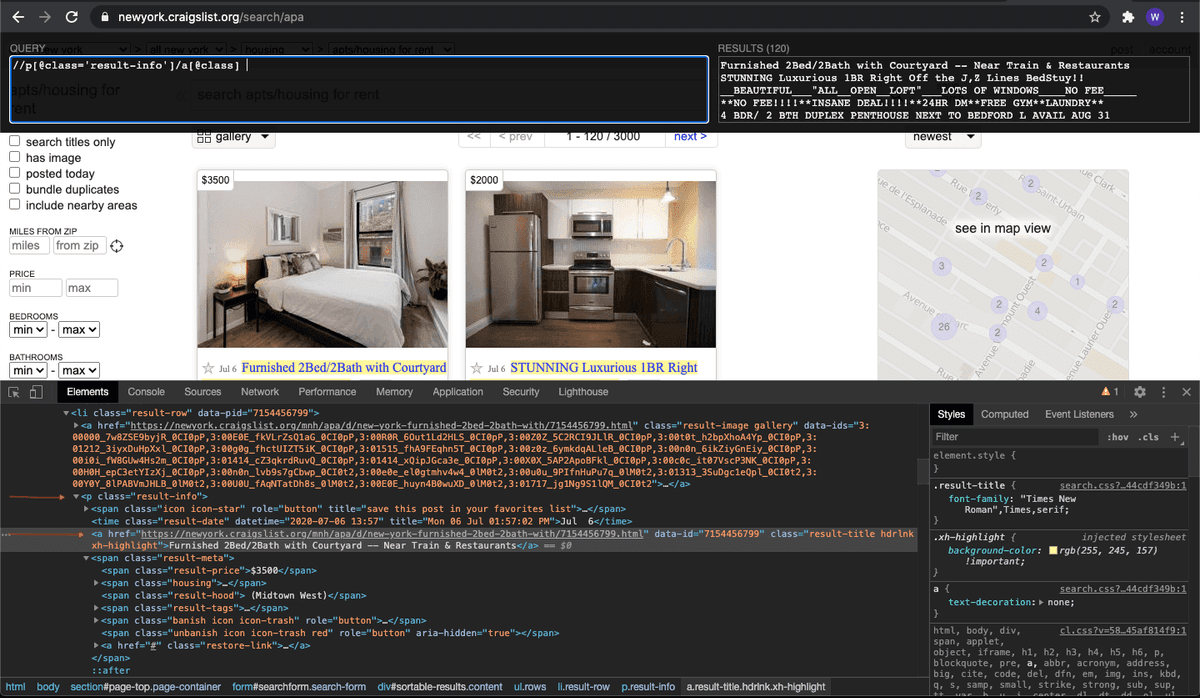 Let’s break down the query. ‘//’ means we’re going to search the whole document for a p element that offers a class called “result-info”. Once it’s been found, we’re going to navigate to its child element by typing a forward slash. Next, we notice the child element is an a element that offers a class. We can simply reference that class by typing a[@class]. This will grab all the titles in this page. Pretty simple and powerful right? You can copy and paste the results into an Excel.
Here’s a challenge for you… can you grab the price of each posting? I’ll post the answer below. Scroll down when you’re ready but please make an effort to find the answer for yourself!
If you got //span[@class='result-price'] congrats! If not, don’t worry about it! It’s just a matter of practice. // tells it to scan the document from the top for a span element. Once they’re all found, target the class name ‘result-price’ to grab the value associated with it.
You can try challenging yourself with different targets and you’ll get it soon enough. If you copy and paste the price in the Excel doc next to the name, you just scraped 120 posts’ name and price in under 15 minutes!
Answer: p: html/body/p | h1: html/body/h1