March 23, 2026Tziporah Zions/6 min read

Premiere Pro VHS Effect

Master vintage VHS effects in Premiere Pro

What You'll Learn

Transform modern footage into authentic-looking VHS tape recordings using Premiere Pro's built-in effects and adjustment layers.

Getting the Project Files

  1. Download the project files.
  2. After the download completes, extract the ZIP file if your system hasn't done so automatically. You should see a Premiere Pro VHS Effect folder containing all necessary assets and a pre-configured project file.

Project Overview

In this comprehensive tutorial, we'll transform modern digital footage into authentic-looking VHS tape material—a technique that's experiencing a remarkable resurgence in 2026 as creators embrace retro aesthetics for everything from music videos to brand campaigns. The project file includes pre-configured black bars to establish the classic 4:3 VHS aspect ratio, saving you setup time.

Our workflow follows three strategic phases: First, we'll create an Adjustment Layer enhanced with Wave Warp and Noise effects to replicate the characteristic grain and distortion of analog magnetic tape. Next, we'll implement chromatic aberration using Color Balance effects across multiple footage layers—this technique simulates the RGB channel separation that plagued consumer-grade VHS equipment. Finally, we'll composite a period-appropriate VHS overlay to add those unmistakable timestamp and playback interface elements that sell the complete illusion.

VHS Effect Workflow Overview

1

Setup Foundation

Create black bars for proper VHS aspect ratio and prepare adjustment layers

2

Add Distortion

Apply Wave Warp and Noise effects for grainy, distorted visual characteristics

3

Create Chromatic Aberration

Use Color Balance on three footage layers to simulate RGB channel distortion

4

Apply VHS Overlay

Add timestamp and tape details using Screen blend mode for authenticity

Creating the Foundation Effects

We'll begin by establishing the core visual characteristics that define VHS footage—the subtle warp and grain that immediately signals analog origins to viewers.

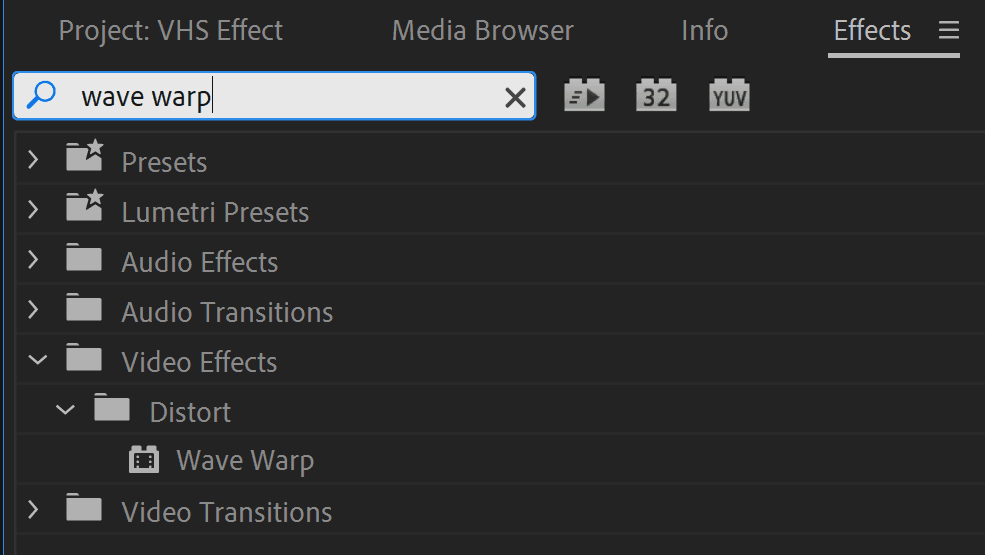
1. In the Effects panel, type Wave Warp to quickly locate this distortion effect.

Image3

2. Drag the Wave Warp effect onto the Adjustment Layer that's already positioned above your footage in the timeline. Using an adjustment layer ensures these effects apply uniformly across all underlying video content.

3. Search for Noise in the Effects panel—this will add the essential grain texture.

4. Apply the Noise effect to the same Adjustment Layer, stacking it with Wave Warp for compound processing.

5. Navigate to the Effect Controls panel (typically docked in the top-left workspace) and locate the Wave Warp parameters.

Image1

6. Set the Wave Type to Square—this creates the rigid, mechanical distortion characteristic of tape tracking issues.

7. Adjust the Wave Width to 600, establishing a subtle but noticeable horizontal distortion.

8. Configure the Direction to 180° for proper horizontal wave orientation.

9. Set Wave Speed to 0.1, creating a gentle, almost imperceptible movement that mimics tape speed variations.

10. Scroll down to the Noise effect parameters within the same Effect Controls panel.

11. Increase the Amount of Noise to 45—this level provides visible grain without overwhelming the underlying image detail.

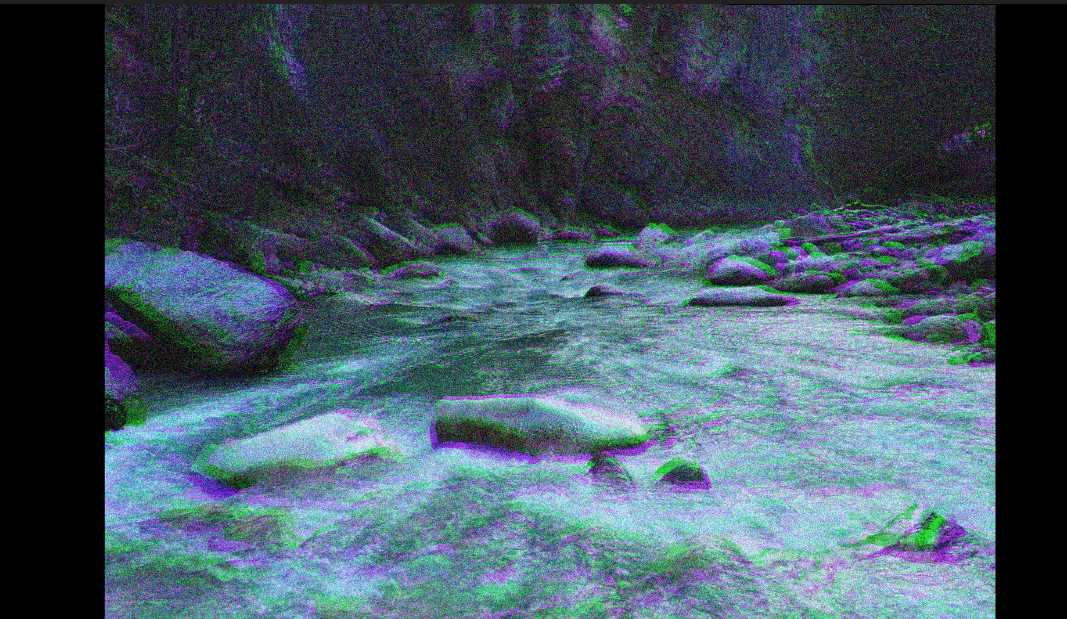
12. Press Spacebar to preview your work. You should see the characteristic grainy, slightly unstable look that defined consumer camcorders of the 1990s. This foundation establishes the analog feel that modern audiences associate with authentic period footage.

Chromatic Aberration

Now we'll create one of VHS's most distinctive visual artifacts: chromatic aberration. This effect occurs when the RGB color channels separate slightly, creating colored fringing that was endemic to consumer-grade analog equipment.

1. Shift-click to select all three Winter layers in your timeline—these identical footage layers will become separate color channels.

2. Type Color Balance in the Effects panel to locate this essential color manipulation tool.

3. Drag the Color Balance effect onto any selected Winter layer—since all three are selected, Premiere Pro will apply the effect to each layer simultaneously.

4. Deselect the layers by clicking elsewhere in the timeline, then select only the top Winter layer.

5. In the Effect Controls panel, locate the Color Balance parameters.

6. Set Green to 0 and Blue to 0, leaving only the red channel active.

7. In the same panel, find the Opacity settings and change the Blend Mode to Screen—this additive blend mode will combine the color channels naturally.

8. Select the middle Winter footage layer and access its Color Balance effect.

9. Set both Red and Blue to 0, isolating the green channel.

10. Change this layer's Blend Mode to Screen as well.

11. Locate the Scale parameter for this middle layer and adjust it to 105—this slight size increase creates the spatial offset between color channels that produces visible chromatic aberration.

12. Select the bottom Winter footage layer for the final color channel configuration.

13. In its Color Balance effect, set Red to 0 and Green to 0, leaving only the blue channel.

14. This creates chromatic aberration—a visual artifact where RGB channels display slight spatial separation, producing the characteristic color fringing that plagued analog video systems. This effect was particularly pronounced in VHS tapes due to the format's bandwidth limitations and mechanical instability.

Image2

Color Channel Configuration

FeatureTop LayerMiddle LayerBottom Layer
Red Channel10000
Green Channel01000
Blue Channel00100
Scale Setting100%105%100%
Blend ModeScreenScreenNormal
Recommended: The middle layer's 105% scale creates the slight displacement needed for authentic chromatic aberration.
Understanding Chromatic Aberration

This effect simulates how VHS tapes would separate RGB color channels, creating colored fringes around objects - a common artifact in analog video.

VHS Overlay

The final step adds period-specific interface elements that complete the authentic VHS experience. These overlays provide crucial visual context that immediately communicates the analog source to viewers.

1. Locate the Blank VHS Tape layer in your timeline—this contains the timestamp and playback interface graphics.

2. Enable layer visibility by clicking the eye icon. Image4

3. In the Effect Controls panel, set the layer's Blend Mode to Screen. This blend mode allows the timestamp and interface elements to appear naturally over your footage while maintaining appropriate transparency. You now have a convincing timestamp overlay that sells the complete VHS effect illusion.

Final Overlay Steps

0/3

Conclusion

Congratulations—you've successfully mastered a professional-grade VHS effect that would fool even discerning viewers. This technique represents more than nostalgic styling; it's a valuable skill set for modern content creators working in music videos, commercials, and branded content where retro aesthetics command premium rates.

The beauty of this approach lies in its technical authenticity. Rather than relying on simple filters, you've recreated the actual optical and electronic phenomena that created VHS's distinctive look: analog noise, mechanical instability, chromatic aberration, and period-appropriate interface elements. This attention to detail separates professional-grade effects from amateur attempts.

Consider experimenting with variations: adjust the noise levels for different tape conditions, modify the wave warp parameters to simulate specific playback issues, or create multiple overlay versions representing different VHS camera manufacturers. The technique scales beautifully for both subtle period touches and dramatic retro transformations, making it an essential tool for contemporary video professionals.

VHS tape with play overlay used from anfx, modified with a Screen overlay. License viewable here.

VHS Effect Technique Analysis

Pros
Uses only built-in Premiere Pro effects
Creates authentic vintage appearance
Non-destructive workflow with adjustment layers
Easily adjustable intensity and parameters
Cons
Requires multiple footage layers for chromatic aberration
May increase render times with multiple effects
Overlay assets needed for complete authenticity
Creative Applications

This technique works excellent for music videos, retro commercials, nostalgic documentaries, and any project requiring authentic 90s aesthetic.

Go Beyond Premiere Pro

We offer industry-leading motion graphics courses designed for working professionals in New York City. Our expert instructors bring decades of real-world experience from major studios and agencies, providing the practical skills and industry connections essential for advancing your career. With deliberately small class sizes, you'll receive personalized attention and detailed feedback on your work.

Key Takeaways

1VHS effects can be created entirely using Premiere Pro's built-in effects without third-party plugins
2Wave Warp with Square wave type at 600 width creates realistic tape distortion when combined with subtle noise
3Chromatic aberration requires three identical footage layers with isolated RGB channels and Screen blend modes
4The middle chromatic aberration layer should be scaled to 105% to create proper color channel displacement
5Adjustment layers allow non-destructive editing and easy parameter adjustments throughout the project
6Screen blend mode is essential for both chromatic aberration layers and VHS overlay integration
7Proper aspect ratio setup with black bars enhances the authentic VHS tape appearance
8Wave Speed of 0.1 provides subtle, realistic movement without overdoing the distortion effect

RELATED ARTICLES