April 1, 2026Jerron Smith/3 min read

The Interview: Exporting the Final Video (H.264) in Premiere Pro

Master Professional Video Export in Premiere Pro

What You'll Learn

This tutorial focuses on the final step of video production: exporting your edited interview as a professional H.264 file ready for sharing, uploading, or broadcasting.

Topics Covered in This Premiere Pro Tutorial:

Exporting H.264 with a Preset

Key Learning Objectives

H.264 Export Process

Learn the standard workflow for exporting professional video files using Premiere Pro's Quick Export feature.

Preset Configuration

Understand how to select appropriate export presets for different distribution methods and quality requirements.

File Management

Master proper file naming conventions and organization for exported video projects.

Exercise Preview

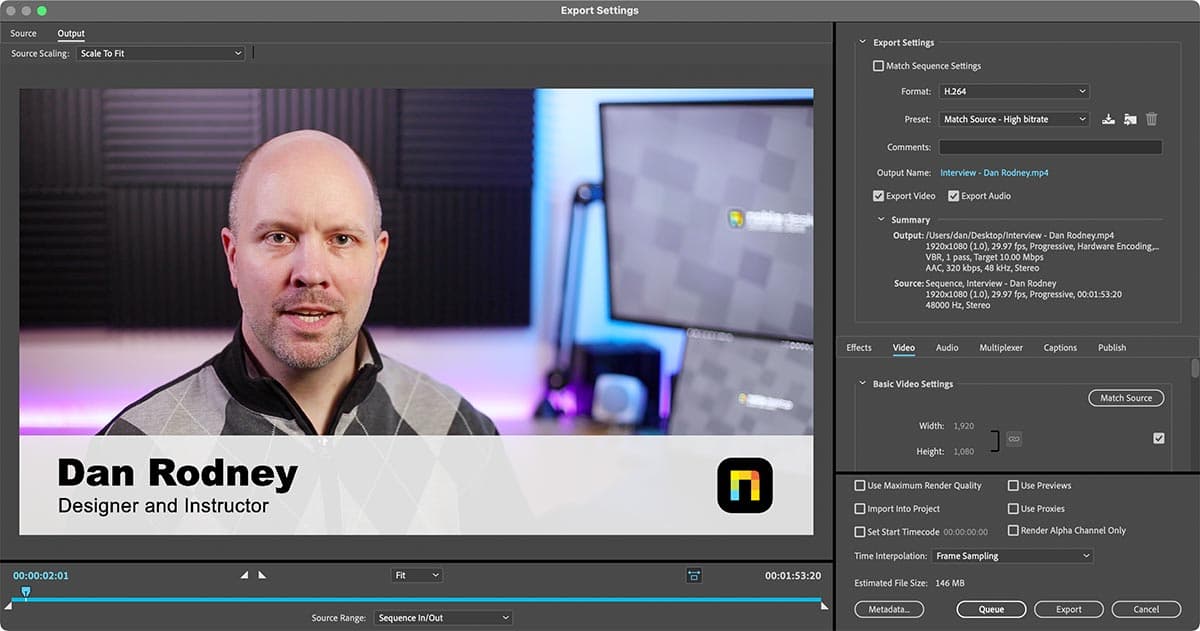
preview export interview

Exercise Overview

In the previous exercises, you've meticulously edited and refined your interview video, shaping raw footage into a polished narrative. Now comes the crucial final step: exporting your work. Often referred to as "rendering," the export process transforms your Premiere Pro project into a self-contained video file that lives independently of the software—ready for client delivery, social media distribution, streaming platforms, or broadcast transmission. This transition from project to deliverable represents the moment your creative vision becomes accessible to your intended audience.

Understanding Video Export

Exporting, also known as rendering, creates a standalone video file from your Premiere Pro project. This process is essential for sharing your work beyond the editing environment.

H.264 Format Benefits

Universal Compatibility

H.264 files work across computers, mobile devices, and web platforms, making them ideal for distribution.

Efficient Compression

MPEG-4 H.264 provides excellent quality-to-file-size ratio, perfect for sharing and streaming applications.

Getting Started

  1. You should still have Your Name—The Interview version 2 open in Premiere Pro. If you closed it, re-open it now by going to File > Open Project then Desktop > Class Files > Premiere Pro Class > The Interview. We strongly recommend completing the previous exercises (2A–2C) before proceeding, as they establish the foundational edits this export will capture. If you haven't finished them, follow the sidebar instructions below.

    Pre-Export Checklist

    0/3

If You Did Not Do the Previous Exercises (2A–2C)

  1. If a project is open in Premiere Pro, go to File > Save, then File > Close Project.
  2. Go to File > Open Project and navigate to Desktop > Class Files > Premiere Pro Class > The Interview.
  3. Double–click on The Interview—Done.prproj.

  4. Go to File > Save As. Name the file Your Name—The Interview version 2.prproj and save it to Desktop > Class Files > Premiere Pro Class > The Interview.

Alternative Setup Process

1

Close Current Project

Save any open work, then use File > Close Project to clear the workspace

2

Open Completed Project

Navigate to the provided completed project file 'The Interview—Done.prproj' in the class files directory

3

Save As New Version

Create your own copy by saving as 'Your Name—The Interview version 2.prproj' in the designated folder

Using Quick Export

Premiere Pro's Quick Export command streamlines the creation of H.264 video files—the backbone of modern video distribution. As part of the MPEG-4 family, H.264 remains the industry standard in 2026, delivering exceptional compression efficiency while maintaining broadcast-quality visuals. This codec powers everything from Netflix streams to YouTube uploads, Instagram Reels to corporate presentations. The Quick Export feature eliminates the complexity of manual codec configuration, delivering professional results that play seamlessly across desktops, mobile devices, smart TVs, and web browsers worldwide.

  1. Click on the Timeline to make it the active panel, ensuring Premiere Pro recognizes which sequence you want to export.

  2. At the top right of the interface, locate and click the Quick Export button quickExport button. This launches the streamlined export workflow.

  3. In the Quick Export panel that appears, click on the link below File Name & Location to specify where your exported video will be saved:

    • Navigate to Class Files > Premiere Pro Class > The Interview > Exports to keep your deliverables organized.
    • Maintain the default file name—Premiere Pro intelligently uses your sequence name, ensuring clear identification of your exported content.
    • Click Save to confirm the destination (note: this selects the location but doesn't begin the export process).
  4. Back in the Quick Export panel, configure your export settings for optimal quality and compatibility:

    • Select Match Source—Adaptive High Bitrate from the Preset dropdown menu. This intelligent preset analyzes your source material and applies appropriate encoding parameters for professional distribution.
    • Click Export to initiate the rendering process. Depending on your sequence length and system specifications, this may take several minutes to complete.
  5. Once the export finishes processing, save your project file by choosing File > Save or pressing Cmd–S (Mac) or Ctrl–S (Windows). This preserves your export settings and maintains your project's integrity for future revisions.

  6. To preview your newly exported video file and verify the output quality:

    • Minimize Premiere Pro to access your desktop
    • Navigate to Class Files > Premiere Pro Class > The Interview > Exports using your file browser
    • Double–click the exported video file to launch it in your default media player and review the final result
Quick Export Overview

Premiere Pro's Quick Export feature streamlines the H.264 export process, automatically configuring settings for optimal compatibility across devices and platforms.

Export Workflow Steps

1

Activate Timeline

Click on the Timeline panel to ensure it's the active workspace area before beginning export

2

Access Quick Export

Locate and click the Quick Export button positioned at the top right of the Premiere Pro interface

3

Configure File Location

Set the export destination to the Exports folder within your project directory structure

4

Select Export Preset

Choose 'Match Source—Adaptive High Bitrate' from the preset menu for optimal quality output

5

Execute Export

Click Export to begin the rendering process, which may take several minutes depending on video length

File Naming Convention

Premiere Pro automatically uses your sequence name as the exported file name, maintaining consistency between your project and output files.

Post-Export Tasks

0/3

Key Takeaways

1H.264 is the most widely compatible video format for cross-platform distribution and sharing
2Quick Export in Premiere Pro streamlines the export process with optimized presets for common use cases
3The 'Match Source—Adaptive High Bitrate' preset provides excellent quality while maintaining reasonable file sizes
4Proper file organization with dedicated Exports folders helps maintain project structure and workflow efficiency
5Always save your Premiere Pro project file after completing the export process to preserve your work
6Export times vary significantly based on video length, complexity, and computer processing power
7Rendered video files are completely standalone and can be shared without requiring Premiere Pro for playback
8Testing exported files on multiple devices ensures compatibility across your intended distribution channels

RELATED ARTICLES