April 1, 2026Kalika Kharkar Sharma/5 min read

Setting Preferences: Free Premiere Pro Tutorial

Master Premiere Pro Setup for Professional Video Editing

Critical Setup Required

Complete this setup exercise first or later tutorials will not work correctly. These preferences must be configured before starting any other exercises in the book.

Before diving into the hands-on exercises in this workbook, you'll need to configure Premiere Pro's preferences for optimal performance and compatibility. This initial setup is critical—skipping these steps will cause issues with later exercises and may impact your overall editing workflow.

Exercise Preview

preview preferences

Exercise Overview

Professional video editing requires a properly configured workspace from the start. This comprehensive setup process will establish the foundation for efficient editing workflows throughout this book. These preferences are industry-tested settings that enhance performance, prevent common pitfalls, and ensure consistency across all your projects. Taking the time to configure these settings now will save you hours of troubleshooting later.

Prerequisites for Success

Audio Equipment Ready

Ensure speakers are on or headphones are properly connected. Audio setup is crucial for the exercises ahead.

Class Files Downloaded

Download and install the provided class files following the workbook instructions. These files are essential for hands-on practice.

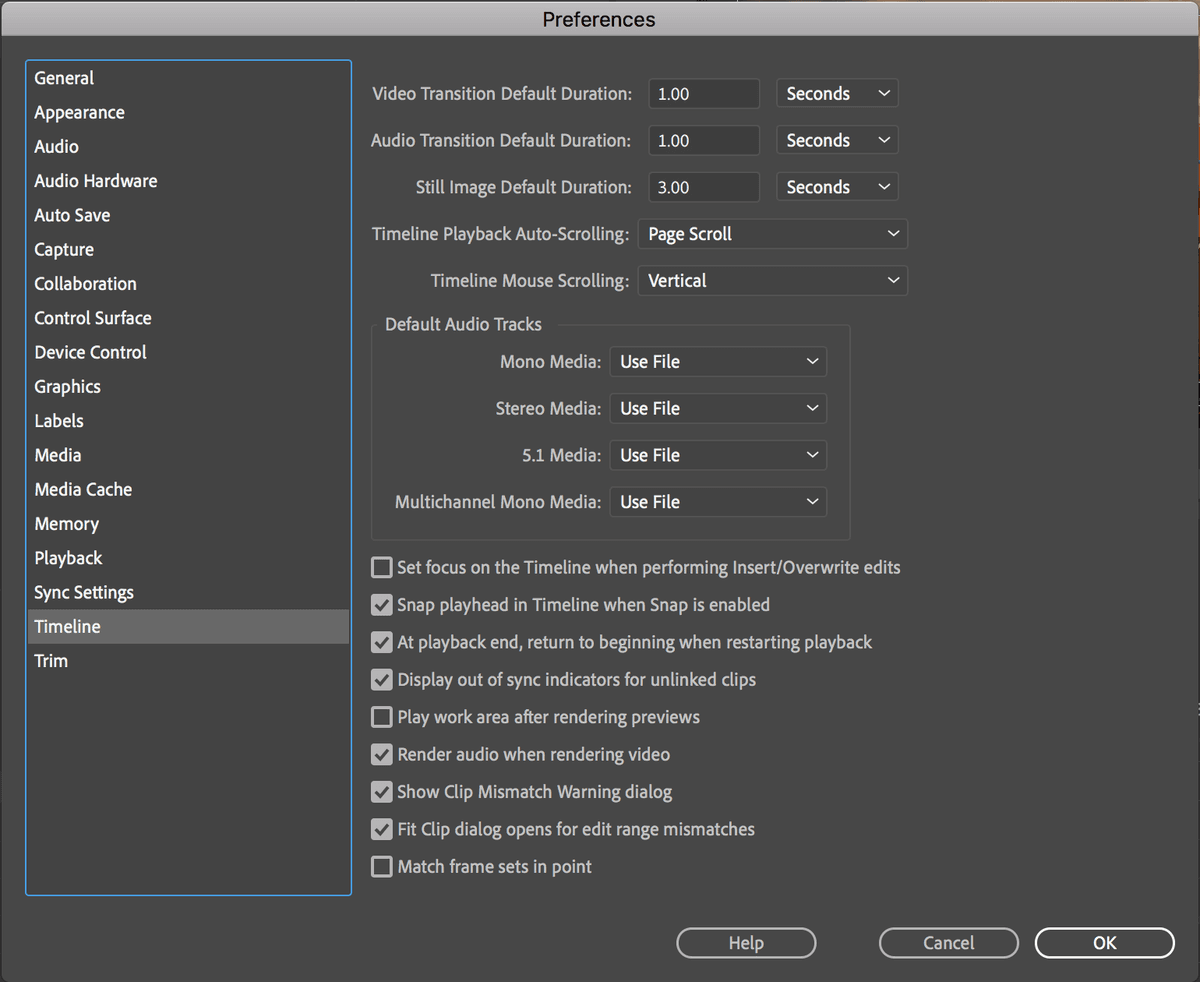
Premiere Pro 2020 Compatible

Tutorial tested with Premiere Pro 2020. Most features work similarly across versions but some differences may exist.

Setting Preferences

Since audio is integral to professional video production, ensure your monitoring setup is properly connected before proceeding. Whether you're using studio monitors, headphones, or built-in speakers, verify they're functioning correctly. If switching between audio devices, always quit and restart Premiere Pro to ensure proper audio driver initialization—this prevents the frustrating audio dropouts that can derail editing sessions.

  1. Download the class files. Refer to the Downloading the Class Files page at the beginning of the workbook for detailed instructions on downloading and installing the exercise media.

  2. Launch Premiere Pro.

    NOTE: While this book was developed using Premiere Pro 2020, these configurations remain relevant for current versions through 2026. Adobe's preference structure has remained largely consistent, though you may notice minor interface updates in newer releases.

  3. Here's a crucial workflow tip: Adobe applications inherit preferences set when no projects are open, making those settings the default for all future projects. This prevents having to reconfigure preferences for every new project. Access Premiere Pro (Mac) or Edit (Windows) menu and choose Preferences > Audio.

  4. Enable Render audio when rendering video. This setting ensures audio processing keeps pace with video rendering, preventing sync issues in your final exports.

  5. Navigate to the Audio Hardware section in the left sidebar.

  6. Audio monitoring is critical for professional editing—you can't edit what you can't hear properly. Next to Default Output, select your primary speakers or headphones. This setting determines where Premiere Pro routes audio during playback and scrubbing.

  7. Mac Users Only: macOS audio drivers sometimes struggle with real-time playback demands. Configure these settings to minimize audio dropouts and ensure smooth playback:

    • I/O Buffer Size to 2048 (larger buffers provide more stable playback)
    • Sample Rate to 44,100 Hz (industry standard for most video projects)
  8. Move to the Auto Save section. Data protection is non-negotiable in professional environments—crashes, power outages, and system failures are inevitable.

  9. Enable Automatically save projects and set the interval to every 5 minutes with 20 maximum project versions. This creates a comprehensive backup history without overwhelming your storage.

  10. Critical setting: Enable Auto Save also saves the current project(s). This ensures your main project file stays current alongside the automated backups, preventing version confusion during collaborative work.

  11. Navigate to the Media section to configure how Premiere Pro handles clip metadata.

  12. Verify that Write clips markers to XMP is unchecked. While XMP metadata can be useful for asset management, embedded markers can cause issues when sharing projects or conforming media between systems. Keeping markers separate maintains maximum flexibility.

  13. Access the Media Cache section to manage Premiere Pro's performance optimization files.

  14. Under Media Cache Management, select Automatically delete oldest cache files when cache exceeds and set the limit to 50 GB. Media cache files accelerate playback and effects processing, but they accumulate rapidly. This automated cleanup prevents cache files from consuming excessive storage.

    If prompted with a Media Cache Cleaning warning, click OK to proceed.

    NOTE: For optimal performance on systems with multiple drives, store your Media Cache on your fastest drive (typically an SSD). If your system has separate drives for applications and media storage, directing cache files to the SSD significantly improves scrubbing and preview generation.

    • Learn about file management best practices: tinyurl.com/media-file-management
    • Learn about optimizing storage: tinyurl.com/premiere-storage
  15. Select the Timeline section for the most critical settings in this entire configuration process.

    NOTE: The following four preferences directly affect exercise compatibility throughout this book. These standardized durations ensure consistent behavior across all lessons and prevent timing discrepancies that could confuse instruction steps.

  16. Set Video Transition Default Duration to 1.00 Seconds. This provides a natural transition length that works well for most cuts without being overly dramatic.

  17. Set Audio Transition Default Duration to 1.00 Seconds. Matching your audio and video transition defaults creates consistency and speeds up editing workflows.

  18. Set Still Image Default Duration to 3.00 Seconds. This duration works well for graphics, titles, and photos, providing enough time for viewers to absorb information without feeling rushed.

  19. Enable Snap playhead in Timeline when Snap is enabled. This setting provides precise control when positioning the playhead, essential for accurate editing.

  20. Enable Display out of sync indicators for unlinked clips. Visual sync indicators are crucial for maintaining audio-video alignment, especially when working with unlinked clips during complex edits.

  21. Disable Play after rendering previews. This prevents unexpected playback after render completion, giving you control over when to review rendered sections.

  22. Your workspace is now optimized for professional editing workflows. Click OK to save all preferences.

  23. Quit Premiere Pro to ensure all preference changes take effect. When you relaunch for the next exercise, these optimized settings will be your new defaults.

Global Preferences Strategy

Setting preferences while no project files are open ensures these settings will apply to all future projects, saving time and maintaining consistency.

Audio Configuration Process

1

Access Audio Preferences

Navigate to Premiere Pro menu (Mac) or Edit menu (Windows) and select Preferences > Audio to begin audio setup.

2

Enable Audio Rendering

Check on 'Render audio when rendering video' to ensure proper audio processing during export.

3

Configure Audio Hardware

Select your desired speakers or headphones as Default Output in the Audio Hardware section.

4

Optimize for Mac Users

Set I/O Buffer Size to 2048 and Sample Rate to 4000 Hz to help avoid audio dropouts during playback.

Recommended Settings Values

Auto Save Interval (minutes)
5
Maximum Project Versions
20
Media Cache Limit (GB)
50
Video Transition Duration (seconds)
1
Audio Transition Duration (seconds)
1
Still Image Duration (seconds)
3

Auto Save Configuration Checklist

0/4
Media Cache Management

Setting automatic deletion when cache exceeds 50 GB prevents storage bloat. For systems with separate SSD drives, save Media Caches to the SSD for better performance.

XMP Clip Markers Setting

Pros
Markers remain within Premiere Pro project only
No metadata pollution of original media files
Cleaner file management workflow
Prevents unintended marker inheritance
Cons
Markers not preserved if media used elsewhere
Less portable between different editing systems
Timeline Settings Are Crucial

The next four timeline preferences are essential for book exercises to work properly. Set Video and Audio Transition durations to 1.00 seconds, Still Image duration to 3.00 seconds, and enable snap playhead functionality.

Final Timeline Configuration

0/3

Key Takeaways

1Complete preference setup before starting any exercises to ensure proper functionality throughout the tutorial series
2Audio configuration including hardware selection and Mac-specific buffer settings prevents dropouts during editing
3Auto-save settings with 5-minute intervals and 20 version maximum provide protection while managing storage efficiently
4Media cache management with 50 GB automatic deletion prevents storage bloat and maintains system performance
5Disabling XMP clip markers keeps project markers separate from original media file metadata for cleaner workflows
6Timeline preferences for transition durations and snap functionality are critical for exercise compatibility
7Setting global preferences while no projects are open ensures consistency across all future Premiere Pro projects
8Proper audio hardware configuration and restart sequence ensures optimal performance for audio-intensive editing tasks

RELATED ARTICLES